1. Introdución e finalview
The VENTION 8K USB-C to HDMI Adapter allows you to connect a USB-C enabled device to an HDMI display, supporting resolutions up to 8K@60Hz or 4K@144Hz/120Hz. This adapter facilitates mirroring or extending your screen to UHD TVs, monitors, or projectors. It is designed for ease of use with a plug-and-play setup, requiring no additional drivers.
2. Características do produto
- High-Definition Output: Supports resolutions up to 8K@60Hz or 4K@144Hz/120Hz. To achieve 8K@60Hz/4K@144Hz, ensure your host device's USB-C port, HDMI cable, and external monitor all support these resolutions.
- Funcionalidade Plug and Play: Instantly converts your USB-C device (compatible with Thunderbolt 3/4 /USB C port with DP Alt mode) to an HDMI output for a larger screen, such as a UHD TV, monitor, or projector, without the need for additional drivers or software.
- Construción duradeira: Features a high-quality braided cable that resists wear and tear. Metal connectors and a zinc alloy casing provide a premium feel and enhance heat dissipation for stable performance.
- Ampla compatibilidade: Designed to work with virtually any USB-C device that supports DP Alt mode, including USB C ports and Thunderbolt 3/4 ports. The maximum resolution and refresh rate output depend on the specifications of the USB-C host device, HDMI cable, and the display used.

Image: Diagram illustrating the unidirectional connection from USB-C to HDMI, highlighting the adapter's input and output ports.
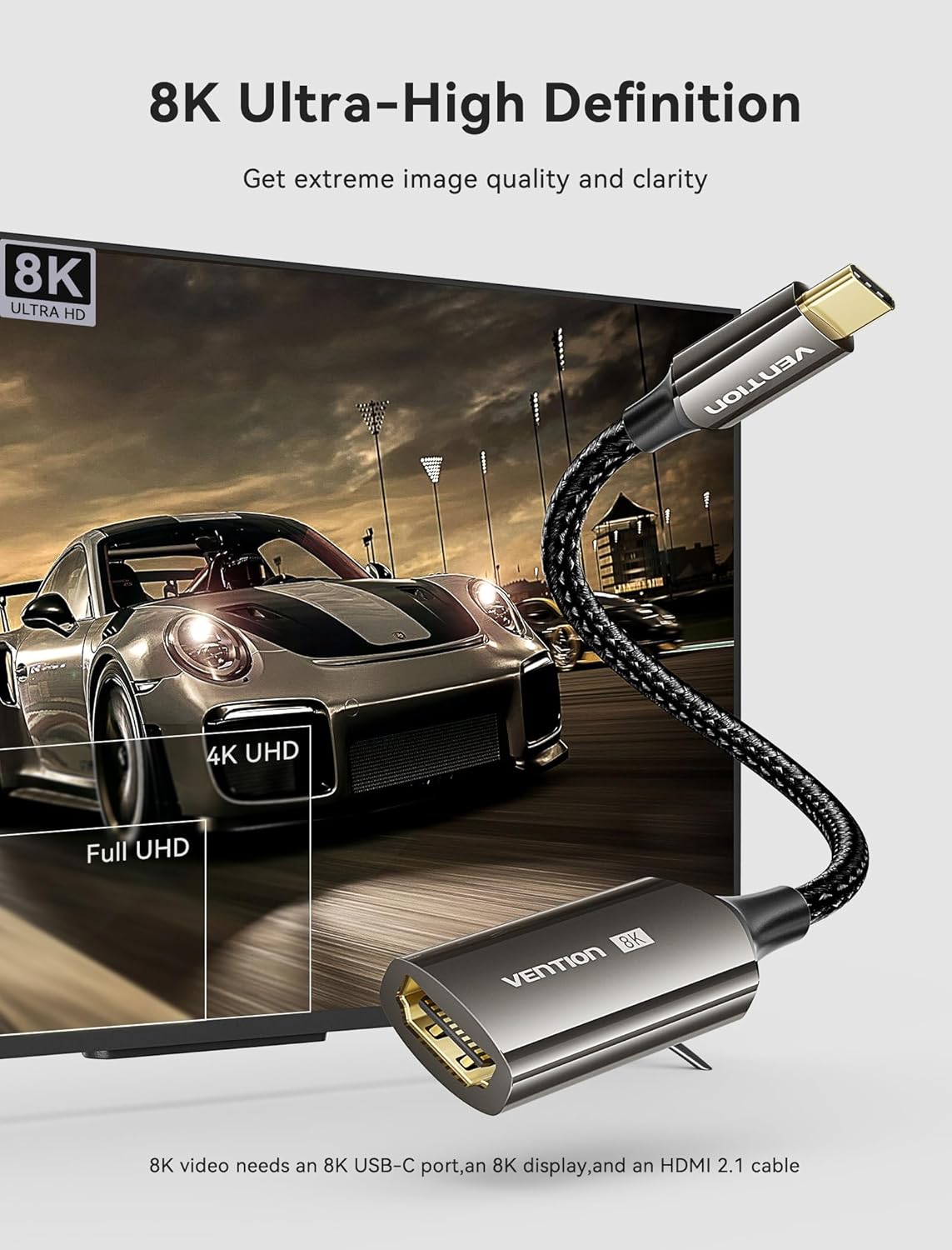
Image: The VENTION USB-C to HDMI adapter connected to a laptop, displaying an 8K ultra-high definition image on an external monitor, emphasizing image quality and clarity.
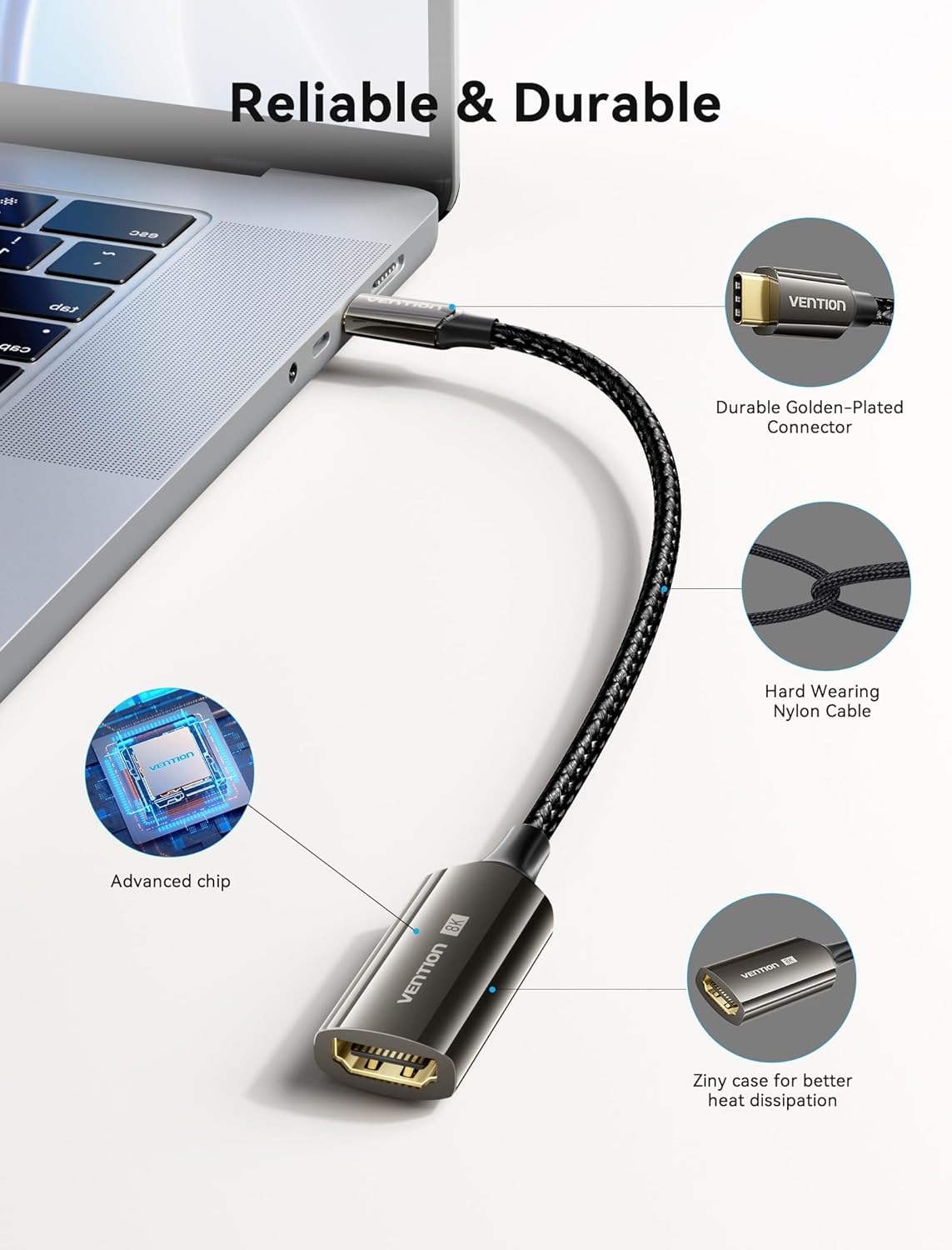
Imaxe: Primeiro plano view of the adapter highlighting its durable golden-plated connector, hard-wearing nylon cable, advanced chip, and zinc alloy casing for better heat dissipation.
3. Contido do paquete
- 1 x VENTION 8K USB-C to HDMI Adapter
4. Instrucións de configuración
- Connect the Adapter to Your Source Device: Insert the USB-C end of the VENTION 8K USB-C to HDMI Adapter into a compatible USB-C port on your laptop, tablet, or smartphone. Ensure the USB-C port supports DisplayPort Alternate Mode (DP Alt Mode) or is a Thunderbolt 3/4 port.
- Connect to Your Display: Connect a standard HDMI cable (not included) from the HDMI female port of the adapter to the HDMI input port on your external display (TV, monitor, or projector).
- Seleccione a fonte de entrada: Turn on your external display and select the correct HDMI input source using the display's remote control or on-screen menu.
- Detección automática: Your device should automatically detect the external display. No additional drivers are typically required for basic functionality.

Image: A smartphone connected to an external monitor via the VENTION USB-C to HDMI adapter, demonstrating the ability to display content at 4K@60Hz and 8K@60Hz resolutions. The phone must support DP Alt Mode.
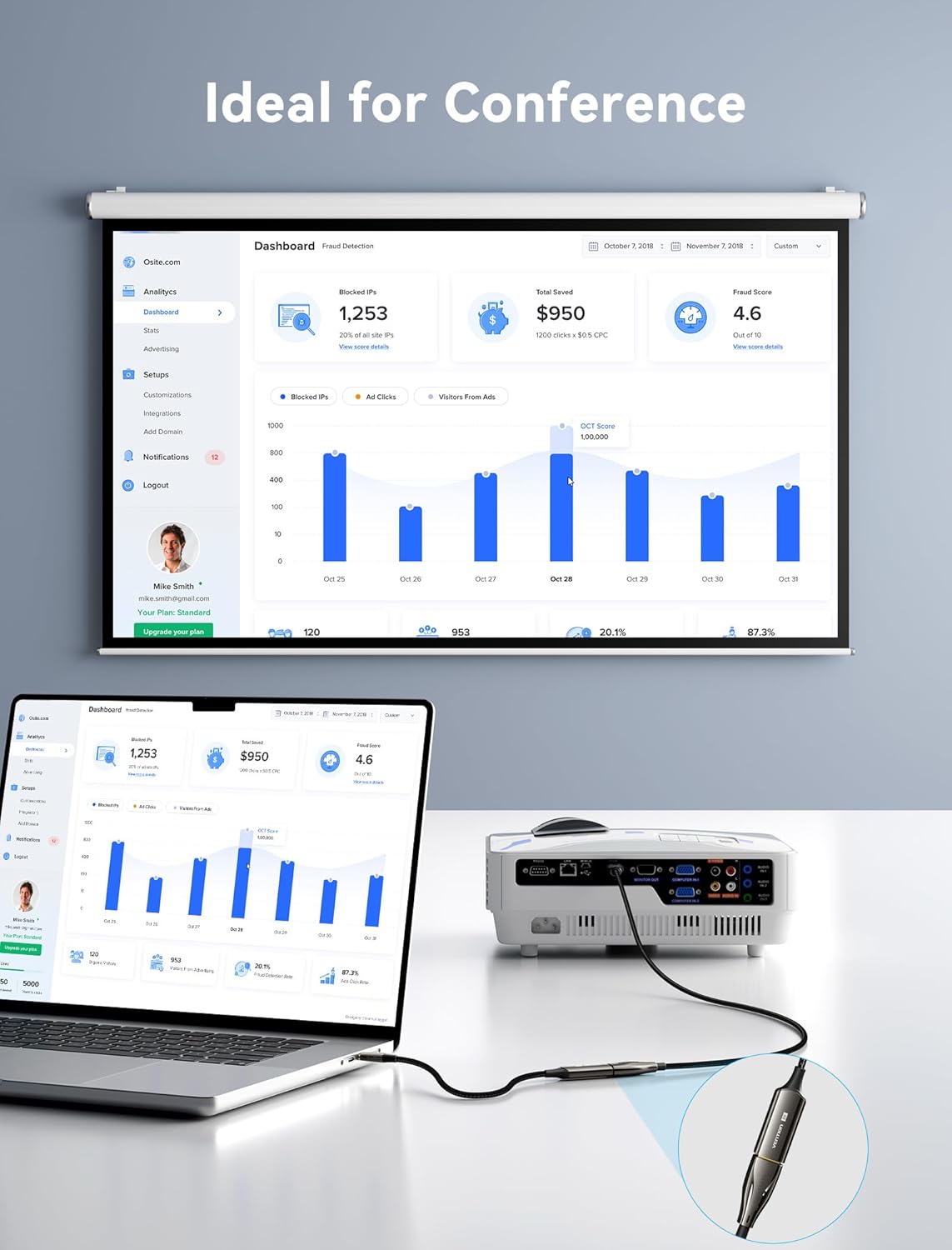
Image: A laptop connected to a projector using the VENTION USB-C to HDMI adapter, illustrating its use in a conference or presentation setting to display content on a larger screen.
5. Instrucións de funcionamento
- Modos de visualización: Once connected, your source device's operating system will typically allow you to choose between different display modes:
- Pantalla espellada: Duplica a pantalla do dispositivo de orixe na pantalla externa.
- Ampliar a pantalla: Amplía o escritorio por ambas pantallas, proporcionando máis espazo de traballo.
- Resolución e taxa de actualización: The adapter will automatically attempt to use the highest supported resolution and refresh rate by all connected components. If you wish to adjust these, do so through your source device's display settings. Remember that 8K@60Hz or 4K@144Hz/120Hz requires compatible source, cable, and display.
- Transmisión de audio: The adapter supports audio pass-through to the HDMI display. If no sound is heard, check your source device's audio output settings and ensure the external display's volume is adjusted correctly.

Image: A laptop connected to two external monitors, demonstrating an extended display setup for increased productivity or immersive viewing experiencias.

Image: A visual comparison demonstrating the difference in detail and contrast between 1080P, 4K, and 8K resolutions, highlighting the superior clarity of 8K.
6. Compatibilidade
This adapter is designed for wide compatibility with devices supporting DisplayPort Alternate Mode (DP Alt Mode) over USB-C or Thunderbolt 3/4 ports.
Dispositivos compatibles:
- iPhone 15 Pro series
- MacBook Pro/Air (with USB-C port)
- iPad Pro/Air (all USB-C models)
- Dell XPS 15
- Surface Pro (7 or later)
- Surface Go Series
- Galaxy S8 or later
- Galaxy Note 8 ou posterior
- Galaxy Tab S4 or later (except S6/S6 Lite)
- Other USB-C devices supporting DP Alt Mode or Thunderbolt 3/4.
Dispositivos incompatibles:
- Samsung A Series
- Poco / Xiaomi (certain models)
- Nintendo Switch
- Tableta Fire
- GoPro
- iPhone 14 series and older
- Portable Monitors (certain models)
- Cameras (certain models)
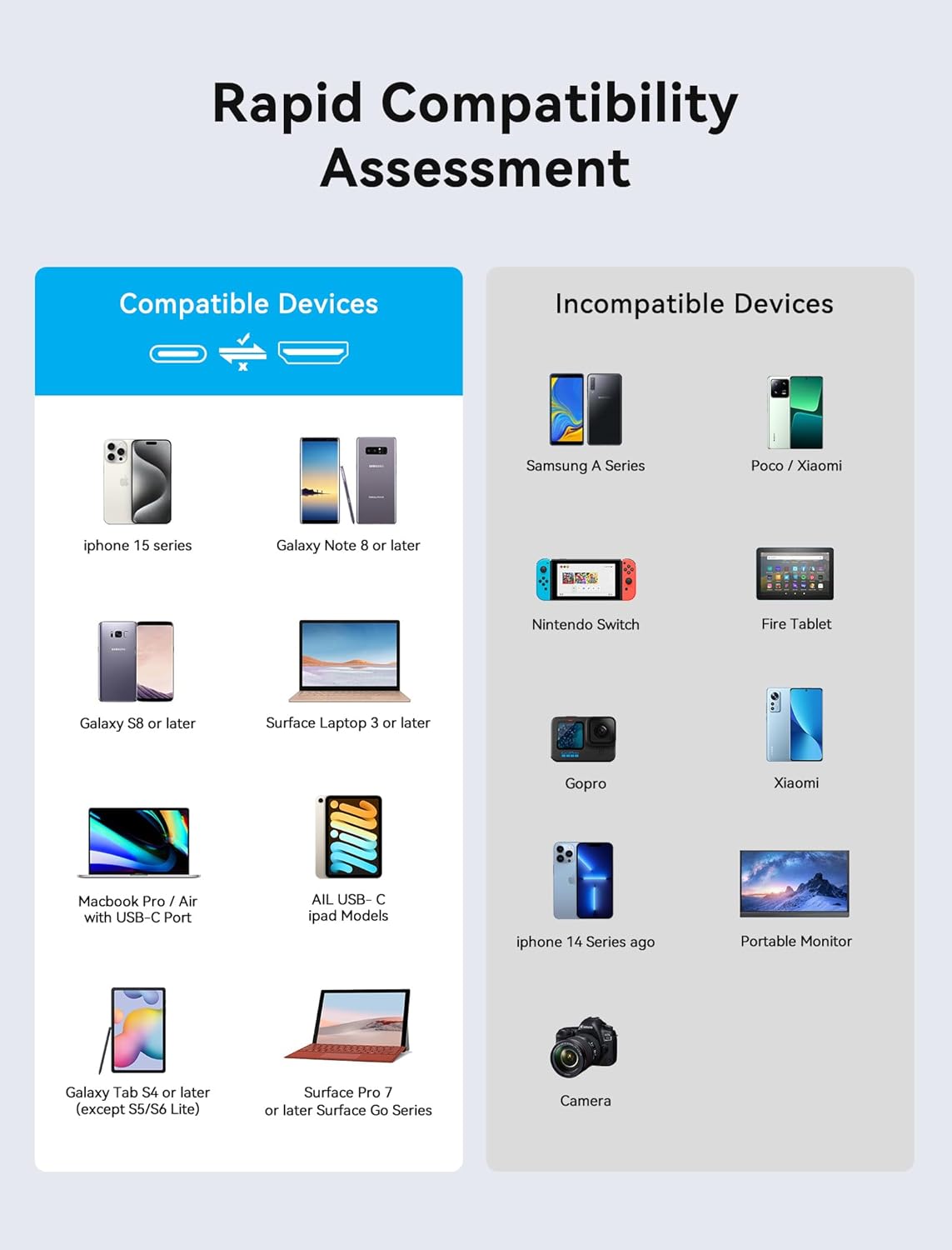
Image: A chart categorizing various devices as compatible or incompatible with the VENTION USB-C to HDMI adapter, including specific models like iPhone 15 series, MacBook Pro/Air, and Samsung A Series.
7 Solución de problemas
- No Display or Intermittent Signal:
- Ensure all cables (USB-C to adapter, HDMI from adapter to display) are securely connected.
- Verify that your external display is powered on and set to the correct HDMI input source.
- Confirm that your source device's USB-C port supports DisplayPort Alternate Mode (DP Alt Mode) or is a Thunderbolt 3/4 port.
- Try using a different HDMI cable, as cable quality can affect signal transmission, especially at higher resolutions.
- Restart your source device and display.
- Low Resolution or Refresh Rate:
- Check the display settings on your source device to ensure the desired resolution and refresh rate are selected.
- Verify that your source device, HDMI cable, and external display all support the desired resolution (e.g., 8K@60Hz or 4K@144Hz/120Hz). If any component does not support it, the output will default to the highest common resolution.
- Sen audio:
- Ensure the audio output settings on your source device are configured to send audio via HDMI.
- Check the volume settings on your external display and ensure it is not muted.
- Pantalla parpadeante ou inestable:
- Asegúrate de que todas as conexións estean firmes.
- Try a shorter or higher-quality HDMI cable.
- Reduce the display resolution or refresh rate in your device's settings to see if stability improves.
8. Especificacións
| Característica | Especificación |
|---|---|
| Marca | VENCIÓN |
| Número de modelo | HDMI 8K |
| Tipo de conector | USB Type C (Male) to HDMI (Female) |
| Resolucións admitidas | Ata 8K@60Hz, 4K@144Hz/120Hz |
| Cor | Negro |
| Peso do elemento | 2.46 onzas (aprox. 70 gramos) |
| Dimensións do paquete | 7.64 x 3.19 x 0.63 polgadas (aprox. 19.4 x 8.1 x 1.6 cm) |
9. Vídeo oficial do produto
Vídeo: Un vídeo oficial do produto de Vention showcasing the features and usage of the USB-C to HDMI 8K adapter, including its durable design, advanced chip, and connectivity with various devices like laptops, tablets, and phones for large screen viewing.
10. Garantía e soporte
VENTION provides customer service and warranty support for this product. For specific warranty details, return policies, and technical assistance, please refer to the product packaging or visit VENTION's official websitio. A información de contacto para a atención ao cliente adoita atoparse na páxina web do fabricante websitio web ou dentro da documentación do produto.


