1. Introdución
This manual provides detailed instructions for the setup, operation, and maintenance of your Logitech POP Mouse. The POP Mouse is a compact, wireless mouse designed for multi-device use with customizable features.

Image: The Logitech POP Mouse in Graphite, showcasinpolo seu deseño compacto e ergonómico.
2. Contido do paquete
- Rato sen fíos Logitech POP
- 1x AA Battery (pre-installed)
- Documentación de usuario

Image: The Logitech POP Mouse and a single AA battery, representing the items included in the product package.
3. Instrucións de configuración
3.1. Instalación da batería
- Gently remove the top cover of the mouse. The cover is magnetically attached.
- Insira a pila AA incluída, asegurándose de manter a polaridade correcta (+/-).
- Volva colocar a tapa superior, asegurándose de que encaixe firmemente no seu lugar.
3.2. Conectando a través de Bluetooth
- Acende o rato usando o interruptor de acendido situado na parte inferior.
- Press and hold one of the Easy-Switch buttons (1, 2, or 3) on the bottom of the mouse until the LED indicator starts blinking rapidly. This indicates pairing mode.
- On your device (computer, tablet, or phone), open Bluetooth settings.
- Selecciona "Logitech POP Mouse" na lista de dispositivos dispoñibles para completar o proceso de emparellamento.
- The LED indicator will glow solid for a few seconds, then turn off, confirming a successful connection.

Image: The underside of the POP Mouse, highlighting the Easy-Switch buttons for multi-device pairing.
4. Instrucións de funcionamento
4.1. Funcións básicas
- Clic esquerdo: Selección e interacción primarias.
- Clic dereito: Accede aos menús contextuais.
- Roda de desprazamento: Navigates vertically through documents and web páxinas.
4.2. Tecnoloxía SilentTouch
The POP Mouse features SilentTouch Technology, which significantly reduces click noise, providing a quieter user experience without compromising tactile feedback.

Image: A hand operating the POP Mouse, illustrating the quiet operation provided by SilentTouch Technology.
4.3. Desprazamento con SmartWheel
The SmartWheel automatically switches between two modes:
- Modo de precisión: For detailed, line-by-line navigation.
- Speed Scroll Mode: For rapid scrolling through long documents or web páxinas.

Image: A user's hand demonstrating the use of the SmartWheel for efficient navigation.
5. Personalización
5.1. Customizable Top Button (Emoji Button)
The top button, located below the scroll wheel, is customizable. By default, it can be configured to open an emoji menu or assign other shortcuts.
- Download and install the Logitech Options+ Software from the official Logitech websitio (logitech.com/optionsplus).
- Open the Logitech Options+ Software.
- Select your POP Mouse from the detected devices.
- Navigate to the button customization settings.
- Assign your desired function to the top button, such as an emoji shortcut, Snip Screen, Mic Mute, or Voice-to-Text.
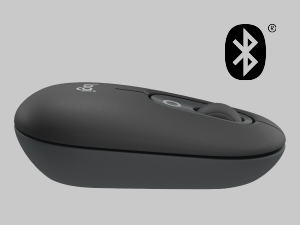
Image: A visual representation of the customizable top button on the POP Mouse, showing its function to access an emoji menu on a connected computer.
6. Conectividade multidispositivo
The Logitech POP Mouse can connect to up to three different devices simultaneously using Bluetooth. You can easily switch between these devices.
6.1. Dispositivos de conmutación
To switch between paired devices, press the Easy-Switch button (1, 2, or 3) on the bottom of the mouse corresponding to the desired device. The LED indicator will briefly light up to confirm the selected channel.
6.2. Logitech FLOW (Advanced Feature)
For seamless control across multiple computers, install Logitech Options+ Software on all devices. With Logitech FLOW enabled, you can move your mouse cursor across screens as if they were a single desktop, even copying and pasting text, images, and files entre eles.
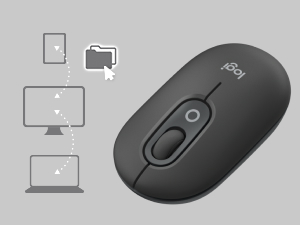
Image: A diagram showing how the POP Mouse can control multiple devices, illustrating the FLOW feature for cross-device interaction.
7. Mantemento
7.1. Substitución da batería
The POP Mouse operates on a single AA battery with an estimated life of up to 24 months. When the battery is low, the LED indicator on the bottom of the mouse may flash. Replace the battery by following the steps in Section 3.1.
7.2. Limpeza
Para limpar o rato, use un pano suave e sen fiapos. Para a sucidade persistente, dóreo lixeiramenteampEnxágüe o pano con auga. Evite o uso de produtos químicos agresivos ou materiais abrasivos.
8 Solución de problemas
| Problema | Solución |
|---|---|
| O rato non se acende. | Ensure the power switch on the bottom of the mouse is in the 'ON' position. Check and replace the AA battery if necessary. |
| O rato non se conecta por Bluetooth. |
|
| O movemento do cursor é errático ou non responde. |
|
| Custom button not working. | Ensure Logitech Options+ Software is installed and running on your computer, and the button is correctly configured. |
9. Especificacións
| Característica | Detalle |
|---|---|
| Número de modelo | 910-007165 |
| Conectividade | Bluetooth 5.1 |
| distancia wireless | Ata 10 metros (32.81 pés) |
| Tecnoloxía de sensores | Logitech High Precision Optical Tracking |
| Número de botóns | 4 (Left/Right click, Scroll wheel click, Top customizable button) |
| Tipo de batería | 1 x batería AA |
| Duración da batería | Ata 24 meses (pode variar segundo o uso) |
| Dimensións (LxWxH) | 14.12 x 2.34 x 1.38 polgadas (35.86 x 5.94 x 3.51 cm) |
| Peso | 2.89 onzas (82 g coa batería) |
| Compatibilidade do sistema operativo | Windows 10 ou posterior, macOS 10.15 ou posterior, iPadOS, Chrome OS, Android |

Image: Technical drawing displaying the length, width, and height measurements of the Logitech POP Mouse.
10. Garantía e soporte
Para obter información sobre a garantía e asistencia técnica, visite o sitio web de asistencia oficial de Logitech. website or refer to the user documentation included in your product package.
- Soporte en liña: support.logi.com
- Rexistro do produto: Registering your product can help you receive faster support and updates.


