1. Introdución
This manual provides detailed instructions for the setup, operation, and maintenance of your CHESONA Rugged Keyboard Case for iPad 10.2-inch. Please read this manual thoroughly before using the product to ensure proper functionality and longevity.

Image 1.1: The CHESONA Rugged Keyboard Case with an iPad in landscape orientation, featuring the integrated keyboard and trackpad.
2. Compatibilidade
The CHESONA Rugged Keyboard Case is designed for specific iPad 10.2-inch models. Verify your iPad's model number on the back of the device to ensure compatibility.
- iPad 9th Generation (2021): Model Numbers A2602, A2603, A2604, A2605
- iPad 8th Generation (2020): Model Numbers A2430, A2270, A2428, A2429
- iPad 7th Generation (2019): Model Numbers A2197, A2198, A2200
This product does not include the iPad tablet or Apple Pencil.
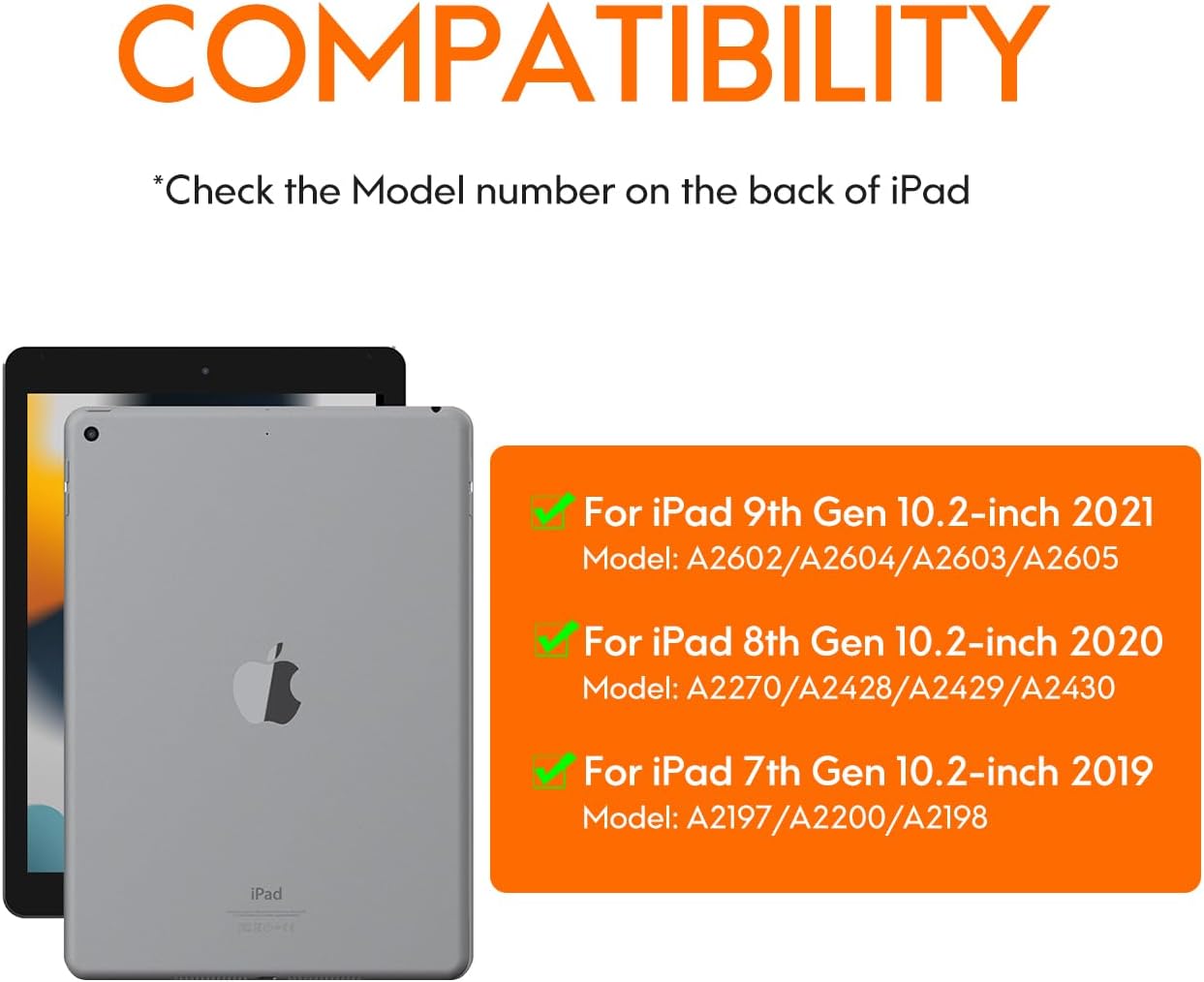
Image 2.1: Visual guide for identifying compatible iPad models and their corresponding model numbers.
3. Contido do paquete
Comprobe se o paquete contén os seguintes elementos:
- CHESONA Rugged Keyboard Case
- Cable de carga USB-C
- Manual de usuario (este documento)
4. Produto rematadoview
The CHESONA Rugged Keyboard Case features a magnetic detachable design, integrated trackpad, and backlit keyboard to enhance your iPad experience.

Image 4.1: The keyboard case with an iPad magnetically attached, illustrating the detachable design.

Image 4.2: An exploded diagram showing the multi-layered construction of the rugged keyboard case, emphasizing its protective features.
5. Configuración
5.1 Attaching the iPad
- Align your iPad with the protective back case.
- Gently press the iPad into the case until it is securely seated. Ensure all edges are properly covered.
- The keyboard component attaches magnetically to the back case. Position the keyboard so it aligns with the magnetic points.
The case features a dedicated slot for the Apple Pencil. For optimal stability in landscape or portrait mode, ensure the Apple Pencil slot is positioned at the top or right side.
5.2 Connecting the Keyboard (Bluetooth Pairing)
- Ensure the keyboard is charged (refer to section 5.3).
- Turn on the keyboard by sliding the power switch. The indicator light will flash.
- No teu iPad, vai a Configuración > Bluetooth.
- Activa o Bluetooth. O teu iPad buscará os dispositivos dispoñibles.
- Select "CHESONA Keyboard" (or similar name) from the list of devices.
- Se se lle solicita, introduza o código de emparellamento que se mostra no iPad usando o teclado e prema Entra.
- Once paired, the indicator light on the keyboard will turn off, and your iPad will show the keyboard as "Connected."
5.3 Carga do teclado
Connect the included USB-C charging cable to the charging port on the keyboard and the other end to a USB power adapter (not included). The charging indicator light will illuminate during charging and turn off when fully charged. A full charge typically takes 3-4 hours.
The keyboard is powered by a Lithium Polymer battery (included).
6. Instrucións de funcionamento
6.1 Funcións do teclado
The keyboard provides a full suite of iOS shortcuts for enhanced productivity.

Image 6.1: Illustration of the keyboard layout highlighting dedicated iOS shortcut keys for quick access to functions like home, search, media control, and volume.
Axuste da luz de fondo
The keyboard features adjustable backlighting with 7 colors and 3 brightness levels.
- Para axustar o brillo: Prema Fn + Cambio (up arrow key).
- To switch backlight colors (7 available): Press Fn + Volver (right arrow key).

Image 6.2: Instructions for adjusting keyboard backlight brightness and changing colors using function key combinations.
6.2 Trackpad Functions
The integrated multi-gesture trackpad allows for precise navigation and interaction with your iPad. Ensure the trackpad is enabled in your iPad's settings if it is not responsive.

Image 6.3: Detail of the trackpad, indicating support for iOS shortcuts, multi-touch gestures, and manual on/off control.
6.3 Soporte axustable
The case features a fully adjustable stand, allowing you to set your iPad at angles from 15° to 180° for comfortable viewescribindo.
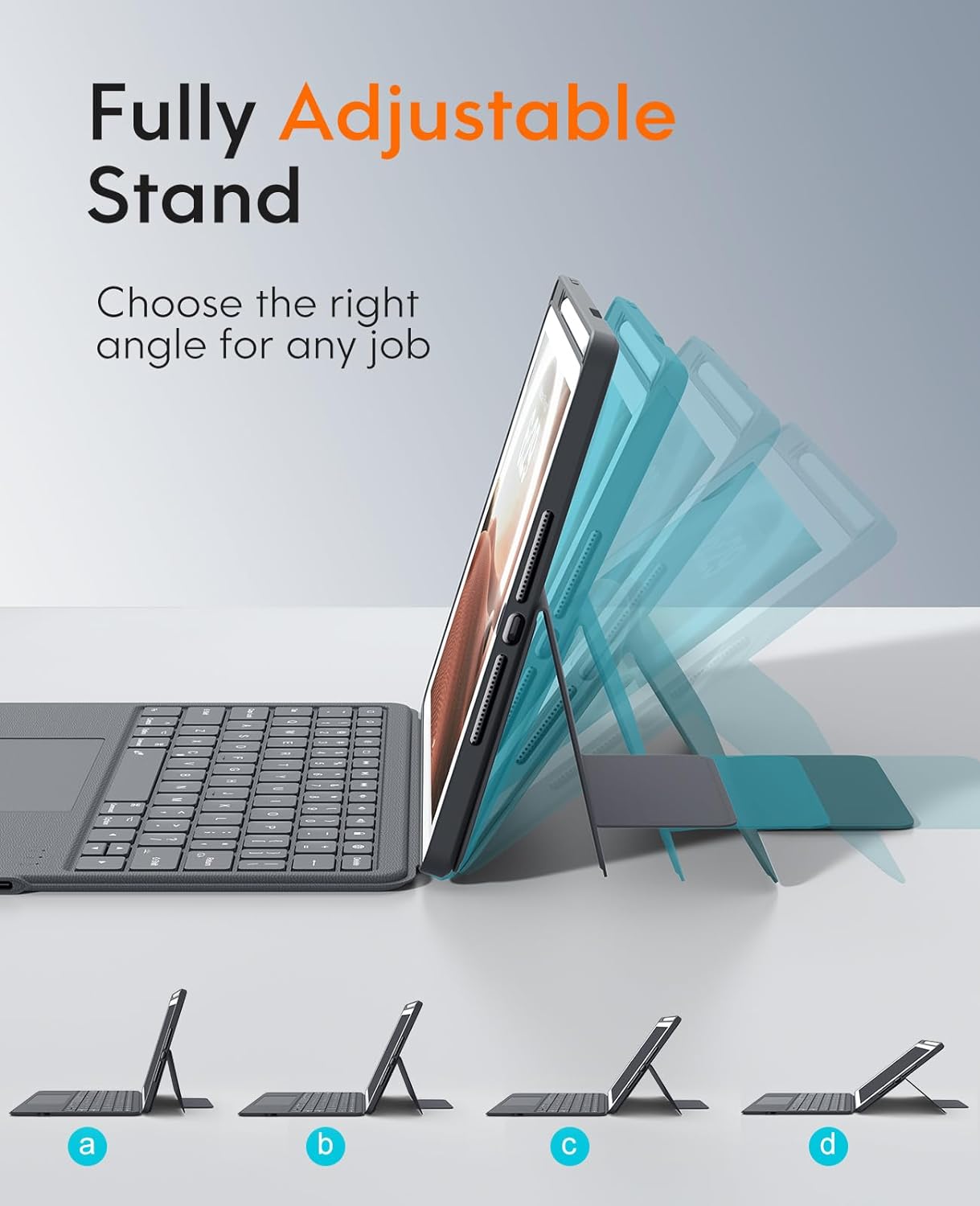
Image 6.4: Visual representation of the adjustable stand, demonstrating its flexibility to achieve different viewángulos de inflexión.
6.4 Multi-Scene Modes
The versatile design supports multiple usage modes:
- Modo paisaxe: Ideal for typing, watching videos, or general use.
- Modo retrato: Suitable for reading documents or browsing vertically.
- Carry-on Mode: Detach the keyboard for a lighter, tablet-only experience.
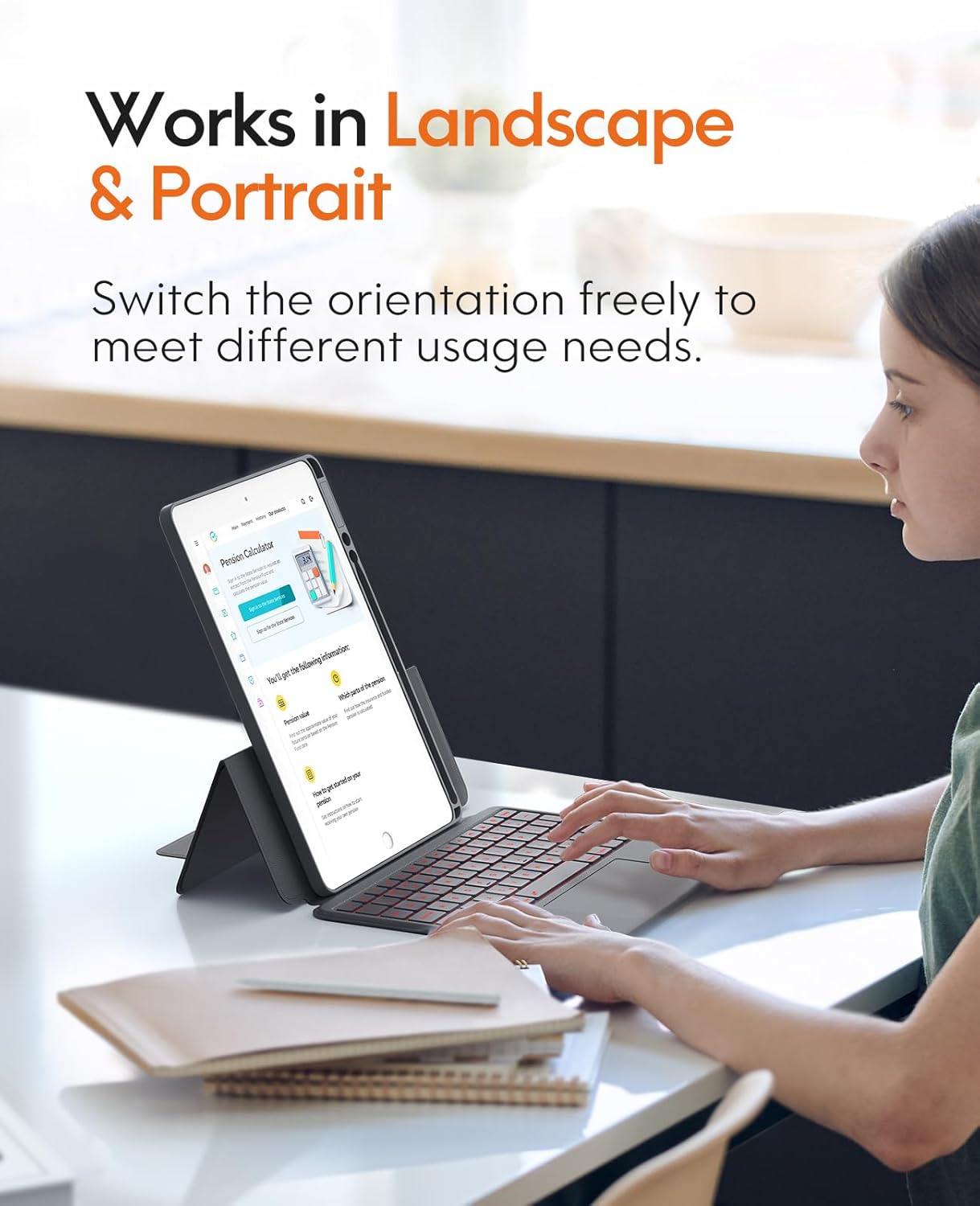
Image 6.5: The keyboard case supporting both landscape and portrait orientations for varied user needs.
7. Mantemento
To ensure the longevity and optimal performance of your keyboard case, follow these maintenance guidelines:
- Limpeza: Use un suave, damp cloth to wipe the exterior of the case and keyboard. Avoid harsh chemicals or abrasive cleaners. For keyboard keys, a soft brush or compressed air can remove debris.
- Almacenamento: When not in use for extended periods, store the case in a cool, dry place.
- Coidado da batería: Avoid fully discharging the battery frequently. Charge the keyboard regularly to maintain battery health.

Imaxe 7.1: Detallada view of the keyboard keys, illustrating areas that may require cleaning to remove dust or debris.
8 Solución de problemas
| Problema | Causa posible | Solución |
|---|---|---|
| O teclado non se conecta por Bluetooth. | Keyboard battery is low or off. Bluetooth on iPad is off. Keyboard not in pairing mode. | Charge the keyboard. Ensure keyboard is powered on. Turn on iPad Bluetooth. Put keyboard in pairing mode and re-attempt pairing (refer to section 5.2). |
| As teclas non responden. | Low battery. Connection issue. Software glitch. | Charge the keyboard. Reconnect Bluetooth. Restart your iPad. |
| Trackpad not working. | Trackpad disabled. Connection issue. | Ensure trackpad is enabled in iPad settings. Reconnect Bluetooth. |
| Backlight not working or changing. | Low battery. Incorrect key combination. | Charge the keyboard. Refer to section 6.1 for correct key combinations. |
9. Especificacións
| Característica | Detalle |
|---|---|
| Modelo | CHESONA Rugged Keyboard Case for iPad 10.2-inch |
| Compatibilidade | iPad 9th/8th/7th Generation (10.2-inch) |
| Conectividade | Sen fíos (Bluetooth) |
| Tipo de teclado | Backlit with Trackpad |
| Cores de contraluz | 7 colors, 3 brightness levels |
| Axuste do soporte | 15° - 180° |
| Material | Coiro PU |
| Fonte de enerxía | Batería recargable de polímero de litio |
| Porto de carga | USB-C |
| Compoñentes incluídos | Cable USB |
| Peso do elemento | 1.83 libras (aprox. 0.83 kg) |
| Dimensións (paquete) | 11.18 x 7.91 x 1.06 polgadas (aprox. 28.4 x 20.1 x 2.7 cm) |
10. Garantía e soporte
CHESONA products are designed for reliability and performance. For warranty information, technical support, or customer service inquiries, please refer to the contact information provided with your purchase or visit the official CHESONA websitio.
Tamén podes visitar o CHESONA Store on Amazon para obter máis información sobre o produto e recursos de asistencia.


