Introdución
The One For All Urc7966 Smart Control Pro 6 is a universal remote control designed to simplify your home entertainment experience. It allows you to control up to 6 audio/video devices from various brands with ease. This manual provides detailed instructions on setting up, operating, and troubleshooting your remote.

Image: The Urc7966 remote in use, demonstrating control over multiple devices in a home entertainment setup.
Configuración
The Urc7966 Smart Control Pro 6 offers multiple methods for setup, including a dedicated smartphone app, SimpleSet, and traditional code entry. The recommended method for the easiest and most comprehensive setup is via the My Nevo App.
1. App Setup (Recommended)
The My Nevo App, available on the Apple App Store and Google Play Store, allows for seamless setup and ensures 100% compatibility with your devices. The app communicates with your remote via Bluetooth Smart.
- Descarga a aplicación: Install the 'My Nevo App' on your smartphone or tablet.
- Grant Bluetooth Permission: Open the app and grant permission to use Bluetooth for communication between your phone and the remote.
- Select Your Remote: When the app starts, choose 'Smart Control Pro' as your remote.
- Emparejamento: The app will instruct you to hold down the 'OK' key on the remote for 3 seconds. The blue LED under the TV key will start blinking. Then, click 'Busca remote' in the app to begin the pairing process.
- Engadir dispositivos: Once successfully connected, the app will guide you through adding your devices (TV, STB, Blu-ray, Audio, Game, Media, Soundbar). You can search by brand/model or test functions.
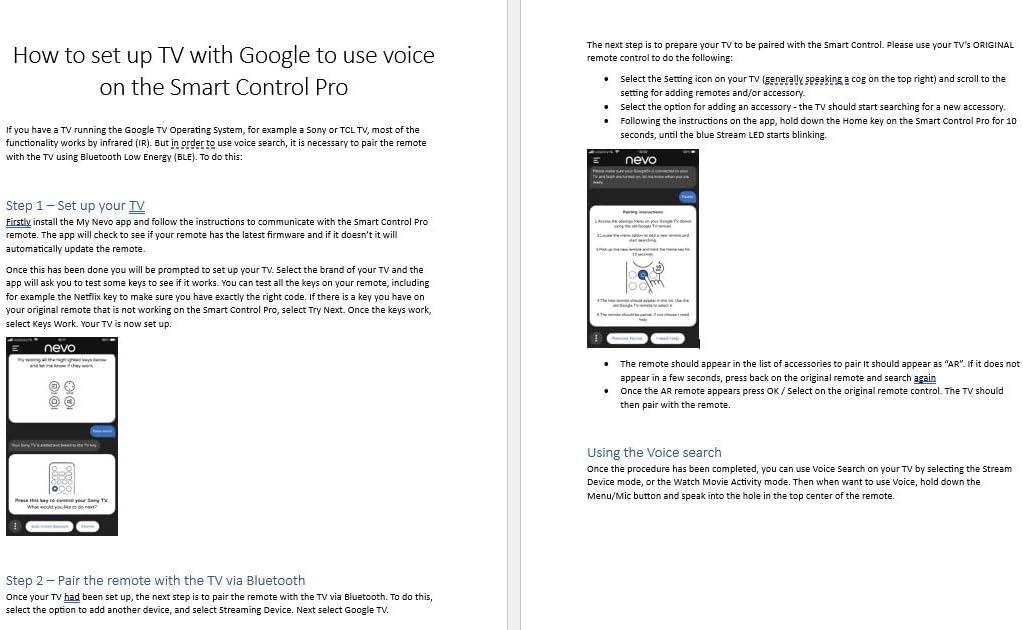
Image: The Urc7966 remote control shown with its instruction manual, illustrating the setup process.
2. SimpleSet
SimpleSet allows for quick setup of popular brands using a single digit. This method can set up your remote in under 30 seconds for most common devices.
3. Code Setup
For devices not covered by SimpleSet or the app's direct search, you can use the standard code setup method. This involves entering a specific code from the provided code list (or online database) for your device's brand and type.
Guía de configuración de vídeo
Video: Official 'One For All Smart Control Pro - Getting Started' guide, demonstrating initial setup steps.
Operación do mando a distancia
The Urc7966 Smart Control Pro 6 offers intuitive control over your devices through various modes and features.
1. Modo de dispositivo
In Device Mode, the remote behaves exactly as your original remote. All keys will control the device you have selected. To control a device, just press the key that corresponds to the device type you set up (e.g., TV, STB, BLU, AUD, S.BAR, STREAM).
2. Actividades
Activities are combinations of devices. Up to 3 devices can be combined into one activity. These typically include your TV, an audio device (like a soundbar), and a source device (like a streaming box or Blu-ray player). The Smart Control Pro features 3 activities: Watch TV, Watch Movie, and Listen to Music.
When you press an activity key, the remote ensures the devices you want to control are powered on and the correct input on your TV is selected. For example, if you set up a streaming box and select 'Watch Movie', the remote will power on your TV, streaming box, and soundbar, and ensure the TV is on the correct HDMI input.
3. Macros
A macro is a series of functions or commands programmed into a single key. This allows you to execute multiple actions with just one press of a button. For example, you could program a macro to switch inputs on your TV and AV receiver, and then press play on your Blu-ray player.
4. App Shortcut Keys
The remote features four dedicated app shortcut keys (Netflix, Prime Video, Disney+, YouTube) that can be programmed to directly launch your favorite streaming services. These keys are designed to resemble the icons of the respective apps.

Image: The remote's dedicated app shortcut buttons for popular streaming services.
Características
1. Full Backlight
The Urc7966 remote features a full backlight, making it easy to use in dimly lit environments. The keys illuminate to improve visibility and user experience.

Image: The backlit keys of the Urc7966 remote, enhancing visibility in low light.
2. Remote Finder
If you misplace your remote, the My Nevo App includes a 'Remote Finder' function. Simply tap a button in the app, and your remote will emit a beeping sound, helping you locate it.
Especificacións
- Dimensións do produto: 10 x 5.8 x 1.3 polgadas
- Peso do artigo: 6.2 onzas
- Número de modelo do artigo: URC7966
- Marca: Un Para Todos
- Característica especial: Retroiluminado
- Cor: Negro
- Número máximo de dispositivos compatibles: 6
- Dispositivos compatibles: Television, Streaming Device, Soundbar, Set Top Box, SKY Q, Blu-ray, Gaming Console, Media Device
Resolución de problemas
If you encounter issues with your Urc7966 Smart Control Pro 6 remote, please refer to the following common problems and solutions:
- Problemas de conectividade da aplicación: Some users report difficulty connecting the remote to the My Nevo App, especially with certain phone models. Ensure your phone's Bluetooth is enabled and try restarting both the app and the remote. If issues persist, try using a different compatible device for initial setup.
- Compatibilidade do dispositivo: While the remote is designed to be universal, some specific devices (e.g., certain soundbars, older set-top boxes) may not be fully supported or may require manual code entry/learning. If a device is not responding correctly, try alternative codes or use the learning function.
- Learning Function Failures: If learned commands are forgotten or do not work precisely, ensure the original remote is functioning correctly and that the remote is placed correctly during the learning process. Try repeating the learning process.
- Descarga de batería: If the remote consumes batteries quickly, ensure you are using fresh, high-quality batteries. The remote is designed for efficient power usage, but frequent use of backlit keys or complex macros may impact battery life.
- Requisito de wifi: Note that the app-based setup and some smart features may require a stable Wi-Fi connection.
Garantía e Soporte
For warranty information, technical support, or to access the latest code lists and FAQs, please visit the official One For All websitio web ou póñase en contacto co servizo de atención ao cliente. Garde o comprobante de compra para reclamacións de garantía.


