Introdución
Thank you for choosing the JUQITECH Trackpad Keyboard Case. This manual provides essential information for setting up, operating, and maintaining your new keyboard case. Designed for seamless integration with your Samsung Galaxy Tab S6 Lite, this accessory enhances productivity and versatility.
Compatibilidade
This keyboard case is specifically designed for the Samsung Galaxy Tab S6 Lite 10.4" models:
- 2024 models: SM-P620, SM-P625
- 2022 models: SM-P613 (Wi-Fi), SM-P619 (LTE)
- 2020 models: SM-P610 (Wi-Fi), SM-P615 (LTE)
Please verify your tablet model number before use. Samsung Tablet or S Pen are NOT INCLUDED.
O que hai na caixa
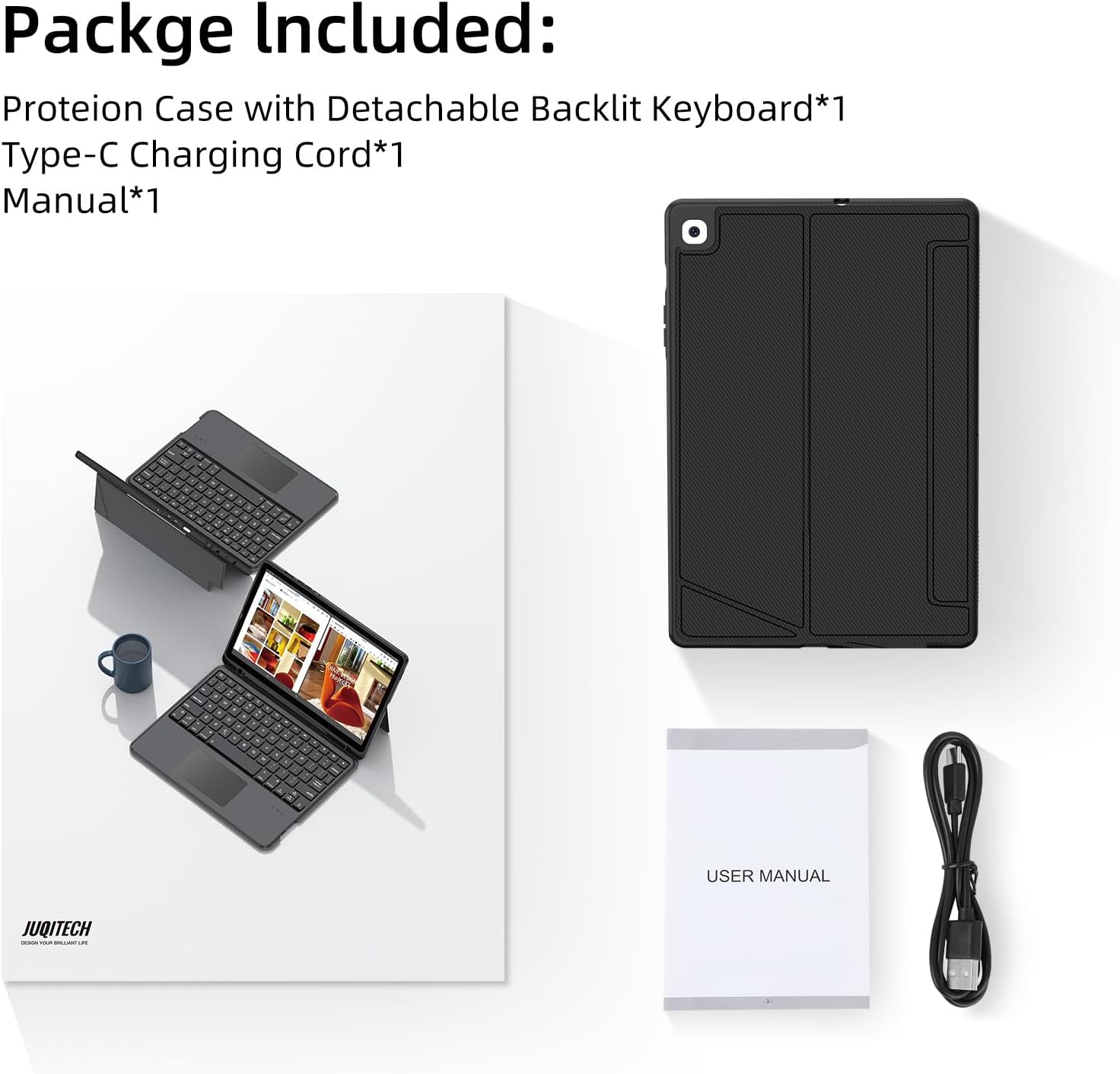
Image: Contents of the JUQITECH keyboard case package.
- 1 x Case for Galaxy Tab S6 Lite 10.4"
- 1 x teclado sen fíos
- 1 cable de carga tipo C
- 1 x Manual
Características clave

Image: The JUQITECH keyboard case with a tablet, showcasing the backlit keyboard and trackpad.
- Magnetic Detachable Design: The keyboard can be easily attached or removed from the case, allowing for flexible use as a laptop-like setup or a standalone tablet.
- Soporte axustable: The case features an adjustable kickstand that reclines from 30° to 160°, providing multiple viewing angles for typing, drawing, watching, or gaming.
- Touchpad Design & 7 Colors Backlit Keyboard: Control your tablet with precision using the multi-touch trackpad. The keyboard offers 7 colors with 3 levels of brightness, making typing comfortable in various lighting conditions, including a breathing backlit mode.
- 360° Full Protection Case: Constructed with soft PU and flexible TPU inner shell, the case provides comprehensive protection against drops and scratches. Precise cutouts ensure full access to all ports and buttons.
- Soporte para bolígrafo S: An integrated holder keeps your S Pen securely in place, preventing loss and ensuring it's always ready for use.
- Activación/repouso automático: The case automatically wakes or puts your tablet to sleep when opened or closed, conserving battery life.
Configuración e instalación
1. Installing the Tablet
Gently align your Samsung Galaxy Tab S6 Lite with the TPU inner shell of the case. Press firmly around the edges to ensure the tablet is securely seated within the case. The precise cutouts will allow access to all ports and buttons.
Video: Demonstration of installing the tablet into the case and using the keyboard.
2. Connecting the Keyboard (Bluetooth Pairing)
- Ensure the keyboard is charged (see section 3).
- Turn on the keyboard using the power switch located on its side.
- On your Samsung Galaxy Tab S6 Lite, go to Configuración > Dispositivos conectados > Bluetooth.
- Activa o Bluetooth e busca os dispositivos dispoñibles.
- Select the keyboard (usually named something like "Bluetooth Keyboard" or "JUQITECH Keyboard") from the list to pair.
- Once paired, the keyboard's indicator light will turn off, and it will be ready for use.
3. Cargar o teclado
Connect the provided Type-C charging cord to the keyboard's charging port and plug the other end into a USB power adapter (not included). The charging indicator light will illuminate during charging and turn off when fully charged.
Instrucións de funcionamento
Usando o teclado e o panel táctil

Image: Close-up of the keyboard highlighting shortcuts and trackpad area.
- Escritura: Use the keyboard for efficient text input, similar to a laptop.
- Touchpad: The integrated multi-touch trackpad allows for precise cursor control and gestures.
- Fn + espazo: Turn On/Off Trackpad.
- Fn + C: Turn On/Off Bluetooth (for pairing).
Adjusting Backlight

Image: Visual representation of the 7-color backlit keyboard with adjustable brightness.
- Fn + Light Bulb Icon: Turn On/Adjust Backlight brightness (3 levels).
- Fn + RGB Icon: Change Backlight Colors (7 colors available).
- Some models may support a breathing backlight mode with adjustable frequency.
Cambio de modos de visualización

Image: The keyboard case supporting both landscape and portrait orientations for the tablet.
The adjustable kickstand allows you to easily switch between landscape and portrait modes to suit your viewing and working needs.
Mantemento
- Limpeza do caso: Limpa a carcasa cun pano suaveamp pano. Evite produtos químicos agresivos ou produtos de limpeza abrasivos.
- Limpeza do teclado: Usa un pano suave e seco para limpar o teclado. Para a sucidade persistente, usa un pano lixeiramente seco.amp cloth can be used, ensuring no liquid enters the keys.
- Almacenamento: When not in use for extended periods, ensure the keyboard is turned off and the case is closed to protect the tablet and conserve battery.
Resolución de problemas
- O teclado non se conecta: Ensure the keyboard is charged and turned on. Verify Bluetooth is enabled on your tablet and attempt to re-pair the device.
- A retroiluminación non funciona: Check if the keyboard is powered on and try pressing Fn + Light Bulb Icon to adjust brightness.
- Touchpad unresponsive: Ensure the touchpad is not disabled (Fn + Space). Restart the keyboard and tablet if the issue persists.
- As teclas non responden: Ensure the keyboard is fully charged and properly connected via Bluetooth.
Especificacións
| Dimensións do produto | 9.72 x 6.53 x 0.86 polgadas |
| Peso do elemento | 1.28 libras |
| Fabricante | JUQITECH |
| Número de modelo do artigo | MGS6L |
| Baterías | 1 batería P76 (incluída) |
| Tecnoloxía de conectividade | Bluetooth |
| Descrición do teclado | Bluetooth Backlit Trackpad Detachable Keyboard |
| Número de chaves | 78 |
| Soporte de cores de retroiluminación do teclado | RGB (7 cores) |
Garantía e Soporte
For warranty information or technical support, please refer to the contact details provided with your purchase or visit the official JUQITECH websitio. Garde o recibo de compra para calquera reclamación de garantía.

