1. Introdución
This manual provides detailed instructions for the installation, operation, and maintenance of your Kolink Unity Solar ARGB Mesh Midi Tower Case. Please read this manual thoroughly before beginning installation to ensure proper setup and safe usage. This case is designed to house standard PC components, offering efficient cooling and customizable ARGB lighting.
2. Información de seguridade
- Desconecte sempre a fonte de alimentación da toma de corrente antes de instalar ou retirar calquera compoñente.
- Handle all components with care to prevent damage from electrostatic discharge (ESD). Consider using an anti-static wrist strap.
- Avoid placing the case in direct sunlight, near heat sources, or in environments with excessive dust or humidity.
- Do not attempt to modify the case or its components. Unauthorized modifications may void your warranty and pose safety risks.
- Keep small parts, such as screws, away from children.
3. Contido do paquete
Verifica que todos os elementos estean presentes no paquete:
- Kolink Unity Solar ARGB Mesh Midi Tower Case
- Accessory Box (containing screws, cable ties, and standoffs)
- Manual de usuario (este documento)
4. Produto rematadoview
The Kolink Unity Solar ARGB Mesh Midi Tower Case features a mesh front panel for optimal airflow, pre-installed ARGB fans, and a tempered glass side panel to showcase your build.
4.1 Externo Views

Figura 4.1.1: Parte dianteira view of the Kolink Unity Solar ARGB Mesh Midi Tower Case, highlighting the mesh front panel and three illuminated ARGB fans.
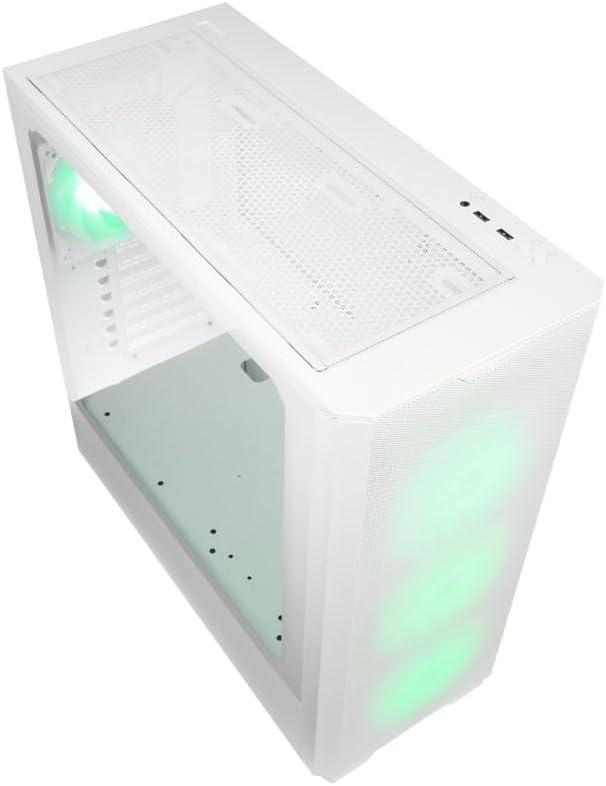
Figura 4.1.2: Arriba view of the case, showing the top mesh panel and front I/O ports.
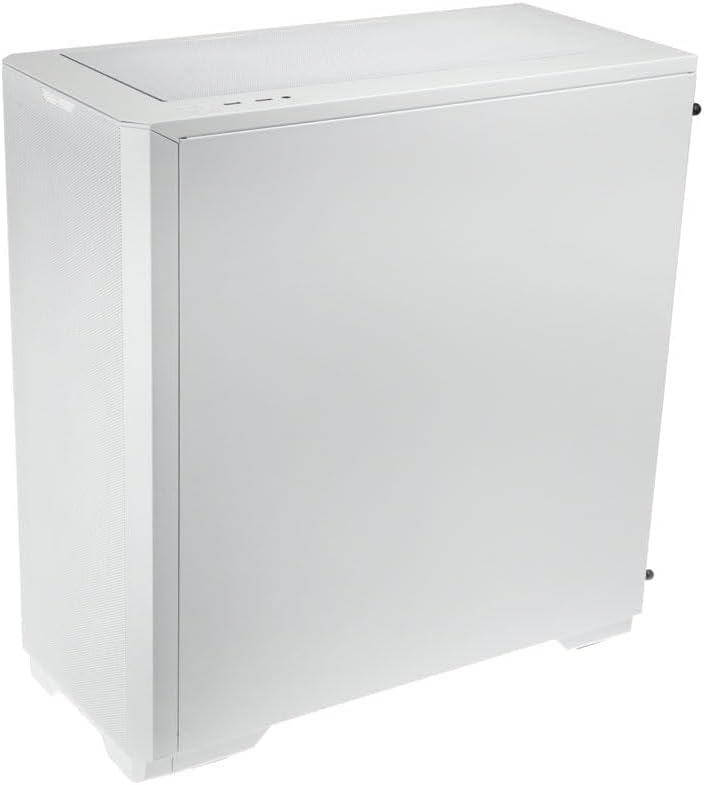
Figura 4.1.3: Parte traseira view of the case, illustrating the solid right side panel.

Figura 4.1.4: Composite image showing the front, rear, and tempered glass side panel of the case.
4.2 Front I/O Ports

Figura 4.2.1: Close-up of the top-mounted front I/O panel, featuring audio jacks, USB ports, and control buttons.
The front I/O panel typically includes:
- Botón de encendido
- Botón de reinicio
- Portos USB 3.0 (x1)
- Portos USB 2.0 (x2)
- HD Audio Jacks (Headphone/Microphone)
- ARGB Control Button (for pre-installed fans)
4.3 Internal Layout

Figura 4.3.1: Interior view of the case, showing the motherboard tray, front fan mounts, and PSU shroud.

Figura 4.3.2: Outro interior view, highlighting the rear fan mount and the spacious main chamber.

Figura 4.3.3: Close-up of the pre-installed ARGB fans at the front of the case.

Figura 4.3.4: View behind the motherboard tray, showing space for cable management and drive mounts.
5. Guía de configuración e instalación
Follow these steps to install your PC components into the Kolink Unity Solar case.
5.1 Preparación do caso
- Coloque a caixa sobre unha superficie plana e estable.
- Remove the tempered glass side panel by unscrewing the thumbscrews at the rear and carefully pulling it away. Set it aside on a soft, non-abrasive surface.
- Remove the solid right side panel by unscrewing its thumbscrews and sliding it off.
5.2 Instalación da placa base
- Instale a protección de E/S (se corresponde) na abertura traseira da caixa.
- Ensure the correct standoffs are installed for your motherboard form factor (ATX, Micro-ATX, Mini-ITX). Adjust or add standoffs as needed using the provided tools.
- Carefully align your motherboard with the standoffs and I/O shield.
- Fixa a placa base cos parafusos fornecidos. Non os apertes demasiado.
5.3 Instalación da Unidade de Alimentación (PSU).
- Localiza a área de montaxe da fonte de alimentación na parte inferior traseira da caixa.
- Slide your PSU into the designated bay from the rear of the case.
- Align the PSU with the screw holes and secure it with the provided screws.
5.4 Storage Drive Installation (HDDs/SSDs)
The case supports multiple storage drives. Refer to the accessory box for specific mounting hardware.
- SSD de 2.5 polgadas: Mount directly onto the SSD trays located behind the motherboard tray or on the PSU shroud. Secure with screws.
- Discos duros de 3.5 polgadas: Install into the drive cage located under the PSU shroud. Slide the drive into the tray and secure it.
5.5 Instalación da tarxeta gráfica (GPU) e da tarxeta de expansión
- Retire as tapas das ranuras PCIe necesarias da parte traseira da caixa.
- Insert your graphics card or other expansion cards into the appropriate PCIe slots on your motherboard.
- Secure the cards with the provided screws or retention clips.
5.6 Cable Management and Connections
- Connect all necessary power cables from the PSU to your motherboard, CPU, GPU, and storage drives.
- Connect the front I/O cables (USB, Audio, Power/Reset switches, ARGB control) to their respective headers on the motherboard. Refer to your motherboard manual for header locations.
- Route cables through the cutouts and tie-down points behind the motherboard tray to maintain a clean interior and optimize airflow. Use the included cable ties.
- Ensure the pre-installed ARGB fans are connected to the integrated ARGB controller or directly to an ARGB header on your motherboard (if supported).
6. Operating the ARGB Lighting
The Kolink Unity Solar case comes with pre-installed ARGB fans. You can control their lighting effects in two ways:
- Case ARGB Button: Use the dedicated ARGB control button on the front I/O panel to cycle through various lighting modes and colors.
- Software da placa base: If your motherboard has a 3-pin 5V ARGB header and compatible software (e.g., ASUS Aura Sync, MSI Mystic Light, Gigabyte RGB Fusion), you can connect the case's ARGB controller to the motherboard and synchronize lighting effects with other components. Refer to your motherboard manual for instructions on ARGB header connection and software usage.
7. Mantemento
Un mantemento regular axuda a garantir un rendemento óptimo e unha maior duración dos compoñentes do teu PC.
- Filtros de po: The case features removable dust filters on the front, top, and bottom. Periodically remove and clean these filters with compressed air or by rinsing them with water (ensure they are completely dry before reinstallation).
- Limpeza de interiores: Use compressed air to remove dust from inside the case, especially from fan blades, heatsinks, and other components. Perform this cleaning in a well-ventilated area.
- Limpeza exterior: Limpe as superficies exteriores cun suave, damp pano. Evite produtos químicos agresivos ou produtos de limpeza abrasivos.
8 Solución de problemas
Se tes problemas, consulta os seguintes pasos comúns para a resolución de problemas:
- PC not powering on: Double-check all power connections from the PSU to the motherboard, CPU, and GPU. Ensure the front panel power switch cable is correctly connected to the motherboard header. Verify the PSU switch is in the 'ON' position.
- Fans not spinning/ARGB not lighting up: Check fan power connections and ARGB connections. Ensure ARGB cables are connected to the correct 3-pin 5V ARGB headers (not 4-pin 12V RGB headers). If using the case controller, ensure it is powered.
- Sen saída de visualización: Ensure your graphics card is properly seated in its PCIe slot and all necessary power cables are connected. Verify your monitor cable is connected to the graphics card, not the motherboard's integrated graphics port (unless you are using integrated graphics).
9. Especificacións
Key specifications for the Kolink Unity Solar ARGB Mesh Midi Tower Case:
| Característica | Especificación |
|---|---|
| Marca | KOLINK |
| Nome do modelo | Unity Solar |
| Número de modelo do artigo | UNITYSOLARWHT |
| Tipo de caso | Torre media |
| Cor | Branco |
| Compatibilidade da placa base | ATX, Micro ATX, Mini ITX |
| Método de arrefriamento | Aire |
| Tipo de montaxe da fonte de alimentación | Montaxe inferior |
| Número de portos USB 2.0 | 2 |
| Total de portos USB | 2 (Note: Product description indicates 1x USB 3.0, 2x USB 2.0. Please verify with product packaging.) |
| Total Internal Bays | 4 (Mixed 2.5"/3.5" support) |
| Peso do elemento | 2.2 libras |
10. Garantía e soporte
For warranty information and technical support, please refer to the official KOLINK websitio web ou póñase en contacto co seu vendedor. Garde o comprobante de compra para reclamacións de garantía.


