1. Introdución
Grazas pola compraasing the WiMiUS S27 Pro Mini Projector. This manual provides detailed instructions for setting up, operating, and maintaining your projector to ensure optimal performance and longevity. The S27 Pro features 4K support, 1080P native resolution, 18000LM brightness, 270° rotation, automatic keystone correction, Wi-Fi 6, and Bluetooth 5.3 connectivity, offering a versatile and immersive viewexperiencia ing.
2. Información de seguridade
- Non mire directamente á lente do proxector cando estea aceso.amp is on, as it may cause eye damage.
- Asegúrese de que haxa unha ventilación axeitada arredor do proxector para evitar o sobrequecemento. Non bloquee as aberturas de ventilación.
- Empregue só o adaptador de corrente que se inclúe co proxector.
- Manteña o proxector lonxe da auga, da humidade e das temperaturas extremas.
- Non intente desmontar nin reparar o proxector vostede mesmo. Póñase en contacto co persoal de servizo cualificado para obter axuda.
- Manteña o proxector fóra do alcance dos nenos.
3. Produto rematadoview
3.1. Compoñentes e portos
The WiMiUS S27 Pro Mini Projector is designed for portability and ease of use. It features a compact design with various ports for connectivity.

Imaxe: Traseira view of the WiMiUS S27 Pro Projector, highlighting the HDMI, USB, and Audio ports for connecting various devices.
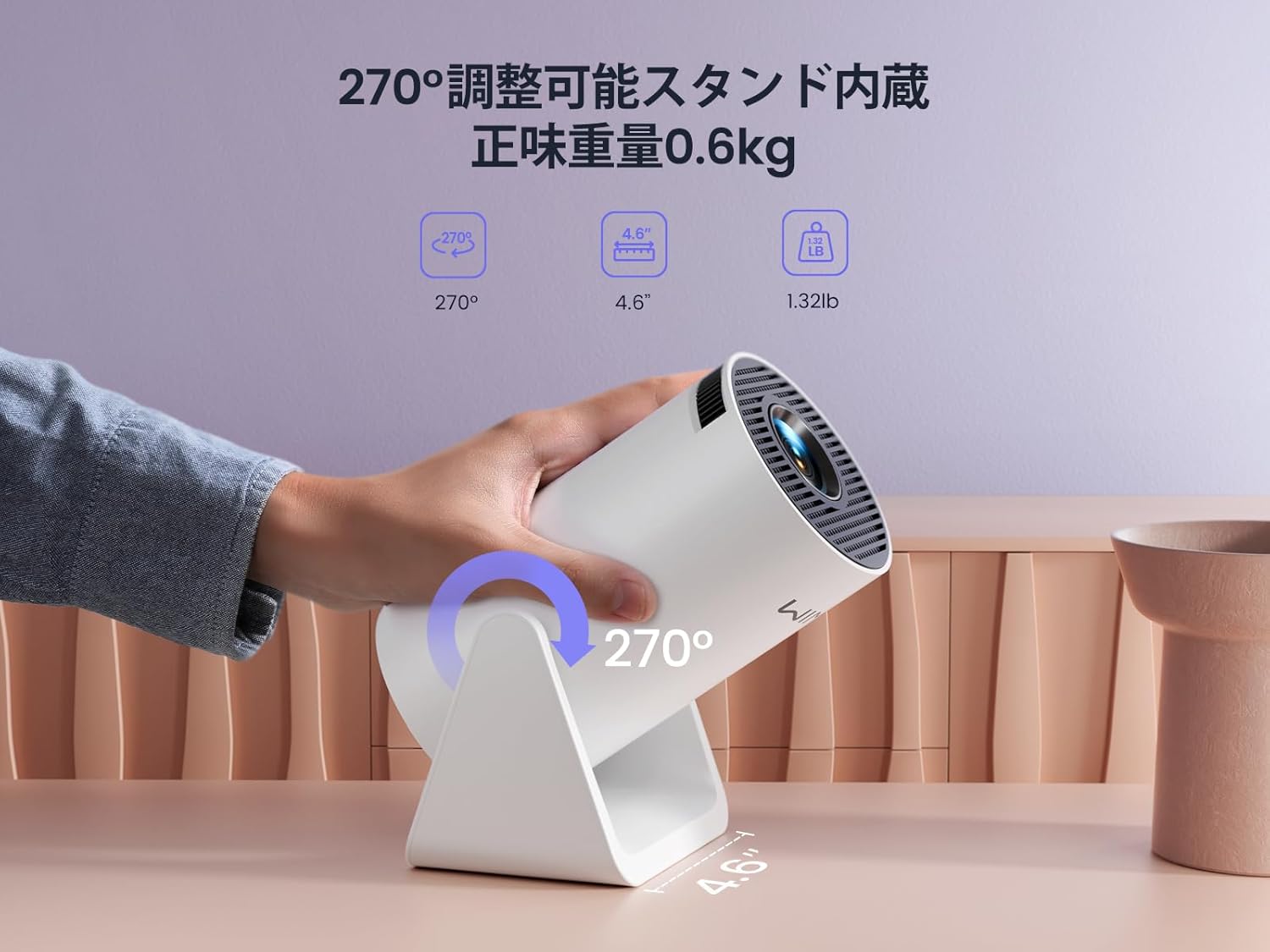
Image: The WiMiUS S27 Pro Projector on its integrated 270° adjustable stand, demonstrating its flexible projection angles and compact size (0.6kg).
4. Configuración
4.1 Colocación
The S27 Pro's 270° rotatable stand allows for flexible placement, including ceiling projection. Position the projector between 0.8 meters and 5 meters from the projection surface to achieve a screen size of 40 to 200 inches.

Image: The projector displaying an image on a wall, demonstrating its automatic vertical keystone correction feature for a perfectly rectangular picture.
4.2. Conexión de alimentación
Connect the provided power adapter to the projector's DC input port and then plug it into a power outlet.
4.3. Acendido inicial
Press the power button on the projector or the remote control to turn on the device. The projector will display the main menu.
4.4. Enfoque e corrección Keystone
- Corrección trapezoidal vertical automática: O proxector corrixe automaticamente a distorsión vertical da imaxe.
- Enfoque manual: Axusta o anel de enfoque da lente do proxector ata que a imaxe sexa nítida.
- Zoom dixital: Use the remote control to adjust the image size from 85% to 100% to fit your screen.

Image: A projected image demonstrating the 85% to 100% zoom function, allowing adjustment for various room sizes.
5. Instrucións de funcionamento
5.1. Navegación
Use the remote control to navigate through the projector's menu and select desired functions.
5.2. Conexión Wi-Fi
The S27 Pro supports ultra-fast Wi-Fi 6 (5G and 2.4G dual-band) for stable and quick streaming.
- From the homepage, select "Set" (Settings).
- Enter the "WiFi" menu and turn on the WiFi function.
- Wait for the projector to detect available WiFi networks.
- Select your home WiFi network and enter the password to connect.

Image: The projector's interface displaying options for Wi-Fi 6 and Bluetooth 5.3, indicating advanced wireless connectivity.
5.3. Conexión Bluetooth
The built-in Bluetooth 5.3 chip allows connection to headphones, speakers, and AirPods for enhanced audio.
- From the homepage, select "Set" (Settings).
- Enter the "BT Model" (Bluetooth) menu and turn on Bluetooth.
- Busca available Bluetooth devices and select your device to pair.

Image: The WiMiUS S27 Pro Projector connected wirelessly to headphones and a smart speaker via Bluetooth 5.2, illustrating its audio connectivity options.
5.4. Espello da pantalla
Mirror your smartphone, tablet, or PC screen wirelessly to the projector.
- From the homepage, select "Mirroring".
- Choose "Wireless screen" for wireless mirroring.
- Para dispositivos iOS: Connect your iPhone to the same Wi-Fi network as the projector. Open Control Center, tap "Screen Mirroring", and select the projector from the list (e.g., "VB6_3AF9_itv").
- Para dispositivos Android: Connect your Android device to the same Wi-Fi network as the projector. Open the screen mirroring function (often called "Smart View", "Cast", "Wireless Display", etc.) and select the projector.

Image: A smartphone wirelessly mirroring its screen content to the WiMiUS S27 Pro Projector, demonstrating the seamless screen mirroring function.
Video: iPhone Screen Mirroring Method
Video: This video demonstrates the steps to connect your iPhone to the WiMiUS S27 Pro Projector using the screen mirroring function.
5.5. Conectando Dispositivos Externos
O proxector admite varias conexións por cable:
- HDMI: Connect devices like TV Sticks, PS5, Switch, iPad, or PCs.
- USB: Connect USB drives or smartphones for media playback.
- Saída de audio de 3.5 mm: Connect external speakers, headphones, or earphones.
Video: Connecting with TV Stick
Video: This video illustrates how to connect a TV Stick to the WiMiUS S27 Pro Projector via the HDMI port for streaming content.
6. Mantemento
- Limpeza de lentes: Use a soft, lint-free cloth and lens cleaning solution to gently wipe the lens. Avoid abrasive materials.
- Ventilación: Regularly check and clean the ventilation openings to prevent dust buildup, which can affect performance and lead to overheating. The projector features a dustproof design to minimize internal dust accumulation.
- Actualizacións de software (OTA): The projector supports Online Over-The-Air (OTA) updates. Check for new firmware versions in the settings menu to ensure your device has the latest features and improvements.
7 Solución de problemas
- A imaxe é borrosa: Adjust the manual focus ring on the lens. Ensure the projector is within the recommended projection distance (0.8m-5m).
- Sen sinal: Check if the correct input source (HDMI, USB) is selected. Verify all cables are securely connected.
- Problemas coa conexión Wi-Fi/Bluetooth: Ensure the projector and your device are connected to the same Wi-Fi network. Restart both devices and try reconnecting.
- Cannot play copyrighted content (Netflix, Prime Video, Hulu): Due to copyright restrictions, these apps cannot be mirrored directly from a smartphone. Use an external streaming device like a TV Stick or Roku connected via HDMI.
- Sobrequecemento: Ensure the projector has adequate ventilation and that the vents are not blocked. Allow the projector to cool down if it becomes excessively hot.
- Image distortion: The projector features automatic vertical keystone correction. If horizontal distortion occurs, adjust the projector's physical position.
8. Especificacións
| Marca | WiMiUS |
| Modelo | S27 Pro |
| Tamaño do produto | 9 x 11 x 17 cm |
| Peso | 600 g |
| Resolución nativa | 1920 x 1080 (Full HD) |
| Resolución admitida | Up to 3840 x 2160 (4K) |
| Brillo | 18000LM (400 ANSI) |
| Conectividade | Wi-Fi 6 (5G/2.4G), Bluetooth 5.3, HDMI, USB, 3.5mm Audio Out |
| Relación de proxección | 1.26:1 (tiro curto) |
| Tamaño de proxección | 40-200 polgadas |
| Corrección Keystone | Automatic Vertical |
| Función de zoom | 50% Digital Zoom (85%-100%) |
| Consumo de enerxía | 59.99 W |
9. Garantía e soporte
The WiMiUS S27 Pro Mini Projector comes with a 3 ano de garantía. If you encounter any issues or have questions regarding your product, please contact our customer support team. For technical assistance or warranty claims, refer to the contact information provided in your purchase documentation or visit the official WiMiUS websitio.