Introdución
Grazas pola compraasing the ZEBRONICS Transformer PRO Gaming Wireless Keyboard & Mouse Combo. This manual provides essential information for setting up, operating, and maintaining your new device. Please read it thoroughly before use to ensure optimal performance and longevity.
Produto rematadoview
The ZEBRONICS Transformer PRO is a high-performance wireless keyboard and mouse combo designed for gaming and productivity. It features a durable aluminum body, multi-color LED lighting, and a reliable 2.4GHz wireless connection.

Figure 1: ZEBRONICS Transformer PRO Gaming Wireless Keyboard and Mouse Combo.

Figure 2: The ZEB-Transformer Pro keyboard features a durable aluminum body and 104 keys.

Figure 3: The ZEB-Transformer Pro mouse with an ergonomic design and high precision optical sensor.
Características principais:
- Conectividade sen fíos de 2.4 GHz: Ensures a stable and reliable connection for both keyboard and mouse.
- Aluminum Body Keyboard: Provides durability and a premium feel.
- Disposición de 104 teclas: Full-sized keyboard with a dedicated Rupee key for efficient typing.
- Multi-Color LED Modes: Customizable lighting with 3 brightness levels.
- Batería recargable incorporada: For both keyboard and mouse, with power-saver mode.
- Ergonomic Mouse Design: Comfortable for extended usage with a matte finish.
- Sensor óptico de alta precisión: Mouse supports adjustable DPI settings (1600 / 2400 / 4000 DPI).
- Plug and Play: Easy setup without the need for additional drivers.
Guía de configuración
- Desempaquetar o combo: Carefully remove the keyboard, mouse, and USB Nano Receiver from the packaging.
- Localiza o nanorreceptor USB: The receiver is typically stored in a compartment on the mouse or keyboard for safe transport.
- Conecta o receptor: Insert the USB Nano Receiver into an available USB port on your computer (Laptop or Personal Computer).
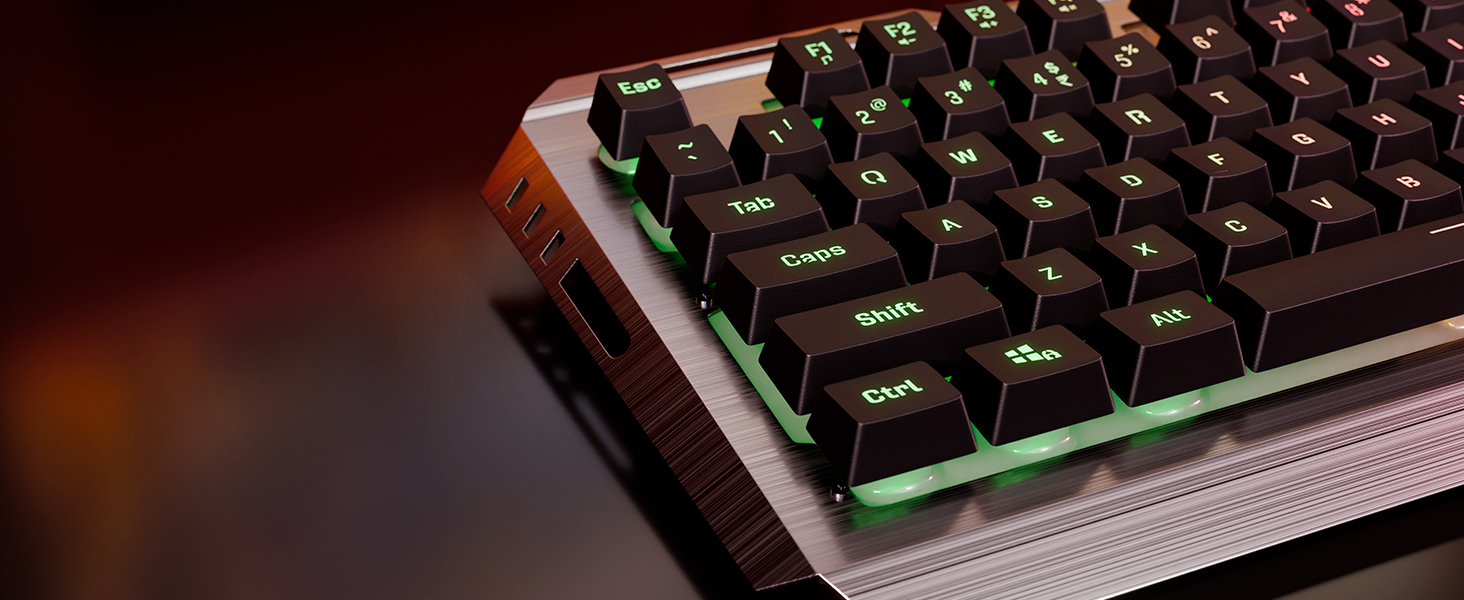
Figure 4: The compact USB Nano Receiver for wireless connectivity.
- Dispositivos de encendido:
- For the keyboard, ensure the power switch (if present) is in the 'ON' position.
- For the mouse, locate the power switch on the underside and slide it to the 'ON' position.
- Conexión automática: The keyboard and mouse should automatically connect to your computer. No additional drivers are typically required for Windows operating systems.
- Carga inicial: It is recommended to fully charge both the keyboard and mouse before first use. Use the provided Type-C cable to connect them to a USB power source.

Figure 5: Both the keyboard and mouse feature built-in rechargeable batteries for convenience.
Instrucións de funcionamento
Funcións do teclado:
- Control de iluminación LED:
- Preme o Fn + Bloqueo de desprazamento keys to cycle through different multi-color LED modes.
- Preme Fn + Page Up/Page Down to adjust LED brightness levels (3 levels available).
- Preme Fn + Inicio to turn LED lighting On/Off.

Figure 6: The keyboard offers multi-color LED modes and adjustable brightness levels.
- Bloqueo de teclas de Windows: Preme Fn + tecla Windows to enable or disable the Windows key, preventing accidental presses during gaming.

Figure 7: Use Fn + Windows key to lock/unlock the Windows key.
- Teclas multimedia: Utilize the Fn key in combination with F1-F12 for various multimedia functions (e.g., volume control, media playback).
- 2-Step Stand: Adjust the keyboard's angle for comfortable typing using the integrated 2-step stand.
Funcións do rato:
- Axuste de DPI: Preme o Botón DPI located on the top of the mouse to cycle through DPI settings: 1600, 2400, and 4000 DPI. This allows you to adjust cursor sensitivity.

Figure 8: The mouse features a dedicated DPI button for on-the-fly sensitivity adjustments.
- Botóns de avance/retroceso: Usa os botóns laterais para unha navegación rápida en web navegadores ou file exploradores.
- Power-Saver Mode: The mouse automatically enters a power-saver mode after a period of inactivity to conserve battery. Move the mouse or click a button to wake it up.
Mantemento
- Limpeza:
- Use a soft, dry cloth to wipe down the keyboard and mouse.
- Para a sucidade persistente, d lixeiramenteampEnxágüe o pano con auga ou unha solución de limpeza suave. Evite a humidade excesiva.
- Use aire comprimido para eliminar o po e os residuos que se atopen entre as teclas do teclado.
- Coidado da batería:
- Cargue os dispositivos regularmente para manter a batería en bo estado.
- Evita descargar completamente a batería con frecuencia.
- If storing for a long period, charge the devices to about 50% before storage.
- Almacenamento: Garda a combinación nun lugar fresco e seco, lonxe da luz solar directa e de temperaturas extremas.
Resolución de problemas
| Problema | Causa posible | Solución |
|---|---|---|
| O teclado/rato non responde | Low battery; USB receiver disconnected; Device not powered on; Interference. | Charge devices; Reinsert USB receiver; Ensure power switch is ON; Move closer to receiver; Try a different USB port. |
| Conexión intermitente ou con atraso | Distance from receiver; Interference from other wireless devices. | Reduce distance between devices and receiver; Move away from other 2.4GHz devices (e.g., Wi-Fi routers). |
| As luces LED non funcionan | LEDs turned off; Low battery. | Press Fn + Home to toggle LEDs; Charge keyboard. |
| O cursor do rato é errático ou non se move con suavidade | Sensor óptico sucio; Superficie inadecuada; Batería baixa. | Clean optical sensor; Use on a clean, non-reflective mouse pad; Charge mouse. |
Especificacións
| Característica | Detalle |
|---|---|
| Marca | ZEBRÓNICA |
| Número de modelo | Zeb-Transformer Pro |
| Conectividade | 2.4 GHz sen fíos |
| Teclas do teclado | 104 chaves |
| Keyboard Body Material | Aluminio |
| Rato DPI | 1600 / 2400 / 4000 DPI (axustable) |
| Batería | Built-in Rechargeable Battery (for both keyboard and mouse) |
| Porto de carga | Tipo-C |
| Sistemas operativos compatibles | All Windows versions |
| Dispositivos compatibles | Ordenador portátil, ordenador persoal |
| Dimensións do produto (teclado) | Aprox. 13.3 x 7.2 x 4.2 cm (L x W x H) |
| Peso do elemento | 1 kg (total combo) |
Garantía e Soporte
The ZEBRONICS Transformer PRO Gaming Wireless Keyboard & Mouse Combo comes with a 1 ano de garantía desde a data de compra. Conserve o comprobante de compra para reclamacións de garantía.
For technical support, service, or warranty inquiries, please visit the official ZEBRONICS website or contact their customer service department. Refer to the product packaging or the ZEBRONICS websitio para obter a información de contacto máis actualizada.
Nota: A garantía non cobre os danos causados por mal uso, accidentes, modificacións non autorizadas ou desgaste normal.


