Introdución
This manual provides detailed instructions for the setup, operation, and maintenance of your DOOGEE T10E Portable Tablet Keyboard. Please read this manual carefully before using the product to ensure proper functionality and longevity.
The DOOGEE T10E is a versatile Bluetooth keyboard designed to enhance your tablet experience, offering a comfortable typing solution and a protective case. It features a multi-touch trackpad and supports various shortcut modes for increased productivity.
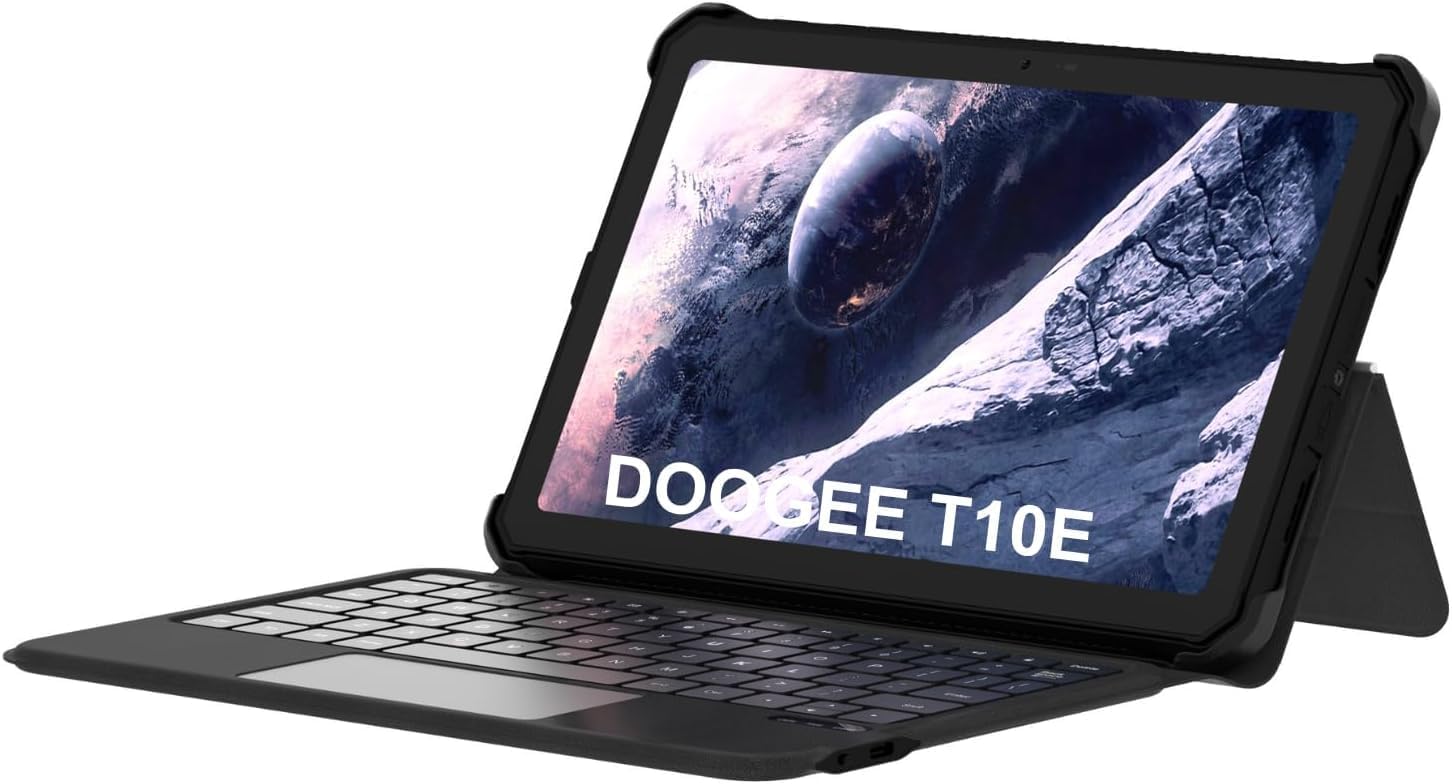
Image: The DOOGEE T10E Portable Tablet Keyboard with a tablet inserted, showcasing its laptop-like form factor.
Contido do paquete
Asegúrate de que todos os elementos estean presentes no paquete:
- DOOGEE T10E Portable Tablet Keyboard
- Cable USB (para cargar)
- Manual de usuario (este documento)
Instrucións de configuración
1. Cargar o teclado
Before initial use, fully charge the keyboard. Connect the provided USB cable to the keyboard's charging port and the other end to a USB power adapter (not included) or a computer's USB port.
The charging indicator light will typically show red while charging and turn off or change color when fully charged. A full charge ensures extended usage time.
2. Attaching Your Tablet to the Case
The keyboard comes integrated with a protective case. Carefully align your tablet with the case's frame and gently press it into place, ensuring all edges are securely fitted. The case is designed to protect your tablet from scratches and bumps.

Image: The DOOGEE T10E keyboard case, showing the tablet slot and the detachable keyboard.
3. Emparellamento Bluetooth
To connect the keyboard to your tablet via Bluetooth:
- Ensure the keyboard is powered on and fully charged. Look for a power switch, usually on the side or back of the keyboard.
- Activate Bluetooth on your tablet. Navigate to your tablet's Configuración > Bluetooth.
- No teclado, prema Conectar or Emparejamento button (often indicated by a Bluetooth icon or a specific function key combination, e.g., Fn + C). The Bluetooth indicator light on the keyboard will start blinking, indicating it's in pairing mode.
- On your tablet, search for available Bluetooth devices. You should see "DOOGEE T10E Keyboard" or a similar name appear in the list.
- Select the keyboard from the list to initiate pairing. Your tablet may display a pairing code; type this code on the keyboard and press Entra.
- Once paired, the Bluetooth indicator light on the keyboard will stop blinking and remain solid, or turn off. Your tablet will confirm the connection.

Image: The DOOGEE T10E keyboard case highlighting Bluetooth LE Pairing, Multi-touch Trackpad, and Multi Shortcut Modes.
Instrucións de funcionamento
1. Funcións básicas do teclado
The DOOGEE T10E features a standard QWERTY layout with 64 keys, providing a comfortable typing experience. All standard alphanumeric keys, symbols, and function keys (F1-F12) are available.
- Teclas de función (Fn): Many keys have secondary functions accessible by holding down the Fn key and pressing the desired function key (e.g., volume control, media playback, screen brightness). Refer to the keycap legends for specific functions.
- Bloqueo de maiúsculas: Preme o Bloqueo de maiúsculas key to toggle uppercase letters. An indicator light may illuminate when Caps Lock is active.
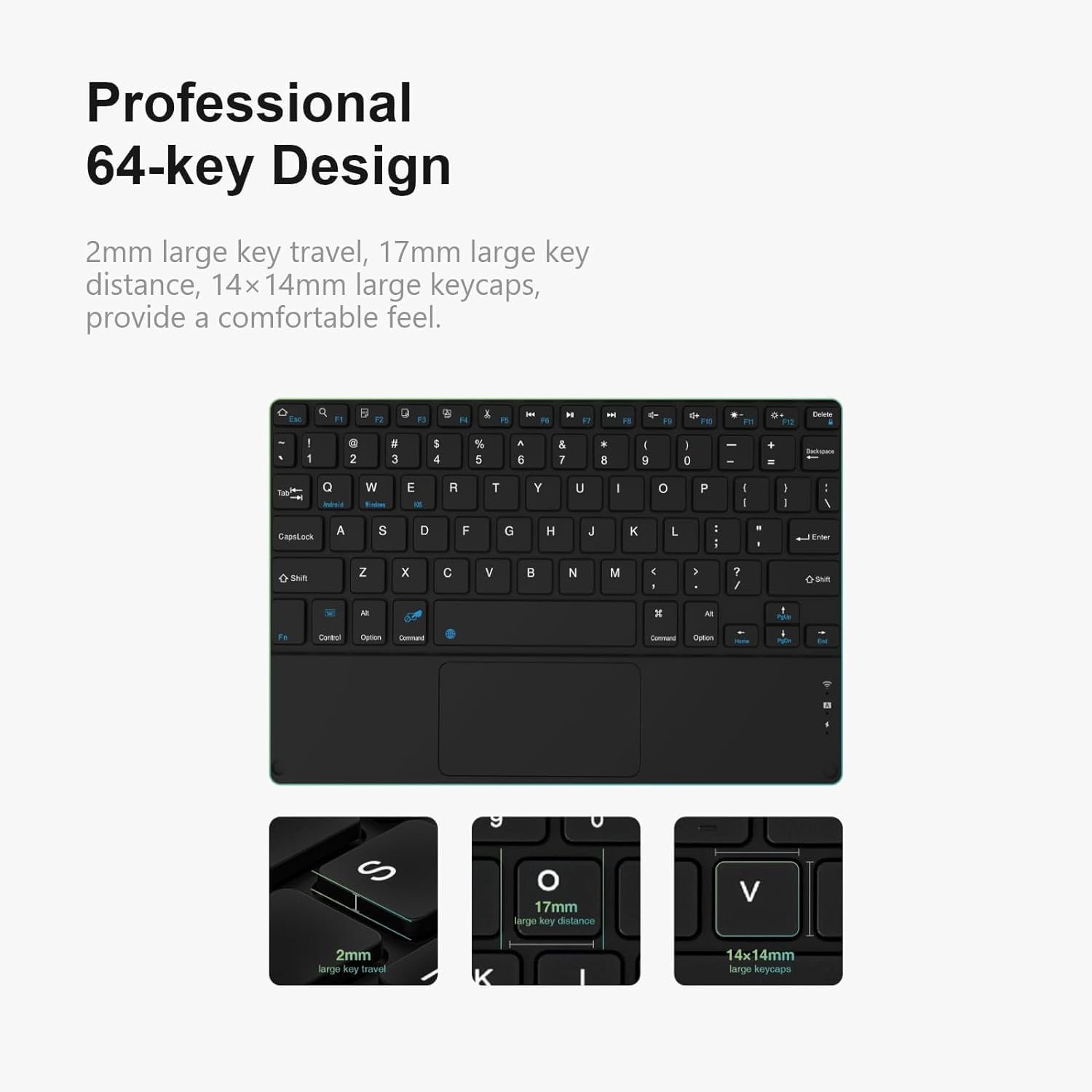
Imaxe: Detallada view of the DOOGEE T10E keyboard's 64-key layout, showing key travel, key distance, and keycap size.
2. Uso do panel táctil
The integrated multi-touch trackpad (approximately 3772mm²) allows for intuitive navigation and control of your tablet. It supports various gestures:
- Toque cun só dedo: Funciona como un clic esquerdo.
- Toque con dous dedos: Functions as a right-click (context menu).
- Arrastre cun só dedo: Move o cursor.
- Desprazamento con dous dedos: Scrolls up or down on web páxinas ou documentos.
- Pinzar para ampliar: Use two fingers to pinch in or out to zoom.
- Xestos de deslizamento: Depending on your tablet's operating system, additional multi-finger swipe gestures may be supported for app switching or other functions.

Image: The DOOGEE T10E keyboard's large touchpad, illustrating various touch gestures for full screen control.
3. Multi Shortcut Modes
The keyboard supports various shortcut modes to enhance productivity. These shortcuts often involve combinations of the Fn key with other keys, or specific key combinations for common operating system functions. Consult your tablet's operating system documentation for a full list of supported keyboard shortcuts.
Mantemento
Proper maintenance ensures the longevity and performance of your DOOGEE T10E keyboard.
- Limpeza: Use un pano suave e sen pelusa lixeiramente dampened with water or a mild cleaning solution to wipe the keyboard and case surfaces. Avoid harsh chemicals, abrasive cleaners, or excessive moisture.
- Eliminación de po: Usa aire comprimido para eliminar o po e os residuos que hai entre as teclas.
- Almacenamento: When not in use, store the keyboard in a cool, dry place away from direct sunlight and extreme temperatures. Ensure the tablet is securely in the case to protect both devices.
- Cargando: Recharge the keyboard regularly, even if not used frequently, to maintain battery health.
Resolución de problemas
If you encounter issues with your DOOGEE T10E keyboard, refer to the following common problems and solutions:
- O teclado non se conecta por Bluetooth:
- Asegúrate de que o teclado estea acendido e completamente cargado.
- Asegúrate de que o Bluetooth estea activado na túa tableta.
- Coloca o teclado e a tableta moi preto (a menos de 10 metros).
- Try unpairing the keyboard from your tablet's Bluetooth settings and then re-pairing it.
- Reinicia tanto a tableta como o teclado.
- As teclas non responden:
- Check if the keyboard is connected via Bluetooth.
- Asegúrate de que o teclado estea suficientemente cargado.
- Reinicia o teclado e a tableta.
- Touchpad is not working:
- Verify the keyboard is connected.
- Ensure the touchpad is not accidentally disabled (some keyboards have a function key to toggle the touchpad).
- Clean the touchpad surface to remove any obstructions.
- Autonomía curta da batería:
- Asegúrate de que o teclado estea completamente cargado antes de usalo.
- Reduce backlight usage if applicable (this model does not specify backlight, but it's a general tip).
- Apague o teclado cando non estea en uso.
Especificacións
| Característica | Detalle |
|---|---|
| Marca | DOOGEE |
| Modelo | T10E |
| Dispositivos compatibles | Laptop, Smart TV, Smartphone, Tablet |
| Descrición do teclado | Autónomo |
| Estilo | Moderno |
| Material | Estirreno Acrilonitrilo Butadieno |
| Compoñentes incluídos | Cable USB |
| Fonte de enerxía | Proporcionado por USB |
| Tipo de cambio | Membrana |
| Disposición do teclado | QWERTY |
| Peso do elemento | 1.37 libras (0.62 kg) |
| Dimensións do paquete | 11.3 x 7.44 x 1.18 polgadas (28.7 x 18.9 x 3 cm) |
Garantía e Soporte
For warranty information and technical support, please refer to the warranty card included with your product or contact DOOGEE customer service directly. You can typically find contact details on the official DOOGEE websitio web ou a través do seu vendedor.
Garda o teu recibo de compra como xustificante de compra para reclamacións de garantía.


