1. Introdución e finalview
This manual provides comprehensive instructions for the setup, operation, and maintenance of your Maxview Alphatronics SL Line+ Smart TV. Designed for mobile use, this versatile television operates on both 12v and 240v power, making it ideal for motorhomes, caravans, trucks, and boats. It features a Full HD LED display, integrated DVD player, Wi-Fi, Bluetooth, and access to popular streaming services via WebOS.

Imaxe: Fronte view of the Maxview Alphatronics SL Line+ Smart TV, highlighting its smart features and integrated DVD player.
As características principais inclúen:
- Full HD LED Smart TV with Freeview.
- WebOS for access to Netflix, Amazon Prime, Disney+, iPlayer, ITVX, Sky Store, YouTube, and more.
- Dual power compatibility (12v or 240v).
- Built-in DVD Player, Bluetooth, Wi-Fi, and Ethernet.
- Multiple connectivity options: 2 HDMI ports, USB Port, and AV connections.
2. Que hai na caixa
Comprobe o contido do seu paquete coa lista seguinte:
- Alphatronics TV (TVSL/22)
- Control remoto
- 240v Mains Lead
- Adaptador de alimentación de 12 V
- Manual de usuario (este documento)

Image: The included remote control for the Maxview Alphatronics Smart TV.
3. Configuración
3.1. Colocación e montaxe
Choose a stable and flat surface for your TV. Ensure adequate ventilation around the unit. If mounting, refer to your specific wall mount instructions and ensure the mount is compatible with VESA standards for your TV size.

Imaxe: Example of the TV installed within a caravan interior.
3.2. Conexión de alimentación
The TV can be powered by either 12v DC or 240v AC.
- For 240v AC: Connect the supplied 240v Mains Lead to the TV's AC input and then to a standard wall socket.
- For 12v DC: Connect the supplied 12v Power Adapter to the TV's DC input and then to a 12v power source (e.g., vehicle's 12v socket).
Ensure the correct power source is used to prevent damage.
3.3. Conectando Dispositivos Externos
O televisor dispón de varios portos para conectar dispositivos externos:
- Portos HDMI (x2): For high-definition audio and video devices like satellite receivers, game consoles, or laptops.
- Porto USB: Para conectar dispositivos de almacenamento USB para reproducir contido multimedia files.
- AV Connections: Para dispositivos máis antigos que usan vídeo composto e audio estéreo.
- Antenna/Satellite Input: Connect your terrestrial antenna or satellite dish cable for Freeview or satellite TV reception.

Image: Rear panel of the TV displaying available connection ports.
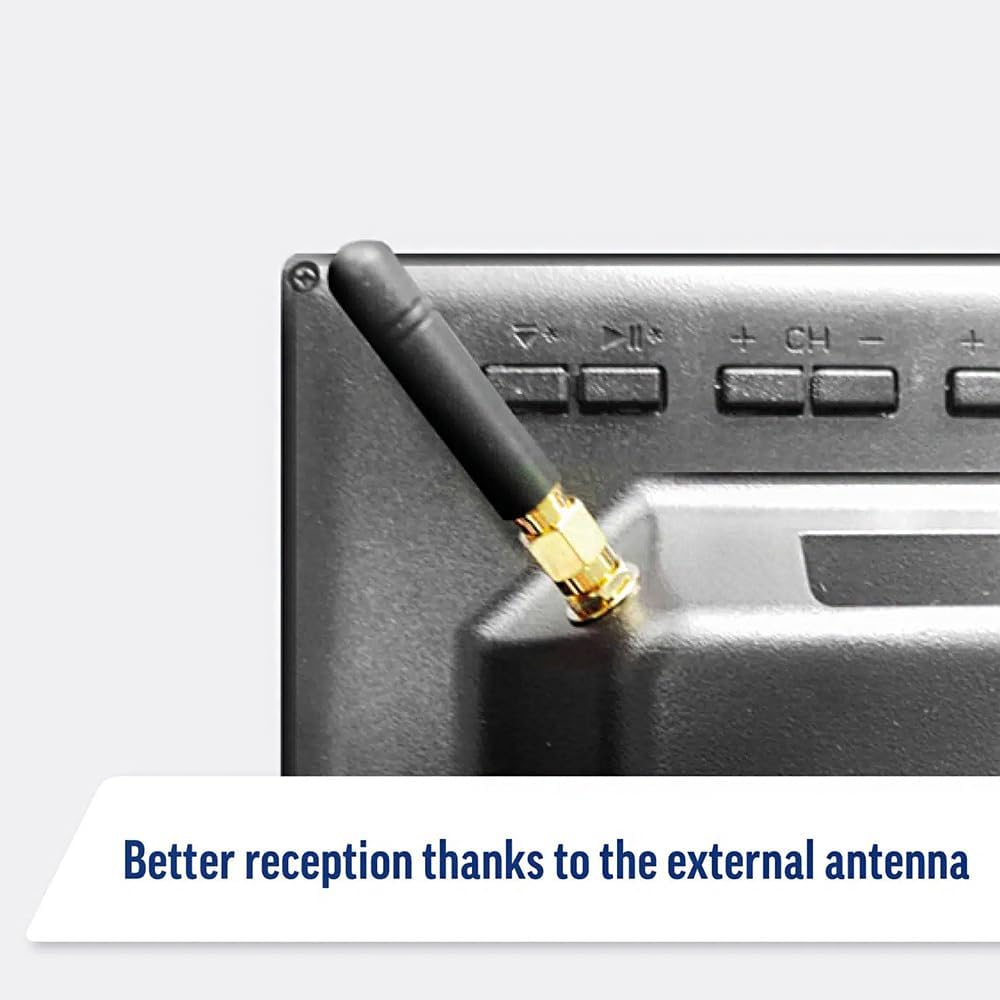
Image: Detail of the external antenna connection for improved signal reception.
3.4. Asistente de configuración inicial
Ao acender o televisor por primeira vez, este guiarache a través dun asistente de configuración inicial. Isto inclúe:
- Selección do idioma: Escolle o teu idioma preferido.
- Conexión de rede: Connect to your Wi-Fi network or via Ethernet for internet access. This is crucial for Smart TV features.
- Escaneo de canles: Scan for available Freeview or satellite channels.
- Time and Date Settings: Configura a zona horaria e a data correctas.
4. Funcionamento do televisor
4.1. Controis básicos
Use the supplied remote control to navigate the TV. Common functions include:
- Botón de encendido: Acende/apaga o televisor ou o pon en modo de espera.
- Subir/Baixar o volume: Axusta o nivel do son.
- Canle arriba/abajo: Cambia as canles de televisión.
- Orixe/Entrada: Selects the input source (HDMI, AV, TV, DVD).
- Navigation Buttons (Arrow Keys, OK): Navegar polos menús e seleccionar opcións.
- Botón de inicio: Accede ao WebPantalla de inicio de Smart TV do sistema operativo.
- Botóns de acceso rápido: Dedicated buttons for Netflix and Amazon Prime Video for direct access.
4.2. Funcións da Smart TV (WebOS)
Your Maxview Alphatronics TV runs on WebOS, providing a user-friendly interface for accessing a wide range of applications and content.
- Panel de control de inicio: Preme o Casa button to access the main dashboard, where you can find installed apps, input sources, and settings.
- App Store: Descarga e instala aplicacións adicionais desde a tenda de aplicacións integrada.
- Servizos de streaming: Easily access popular services like Netflix, Amazon Prime Video, Disney+, BBC iPlayer, ITVX, and YouTube.
- Compartir pantalla: Share content from your smartphone or tablet to the TV screen.
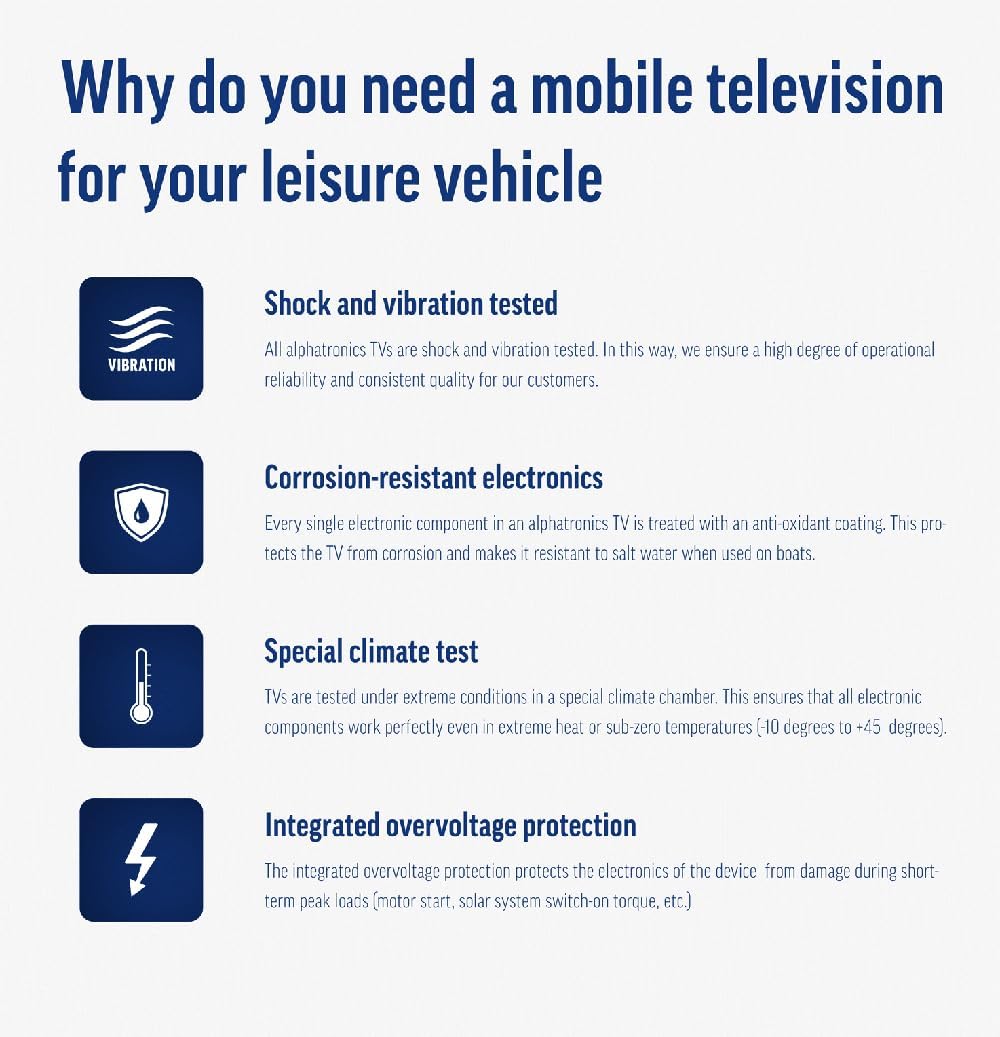
Image: Using a smartphone as a remote control for the TV.
4.3. DVD Player Operation
The integrated DVD player allows you to enjoy your movie collection on the go.
- Insert a DVD disc into the slot on the side of the TV.
- O televisor debería cambiar automaticamente á entrada de DVD. Se non, prema o botón Fonte/Entrada button on your remote and select "DVD".
- Use the remote control's playback buttons (Play, Pause, Stop, Fast Forward, Rewind) to control the DVD.
- To eject the disc, press the Eject button on the remote or the TV.
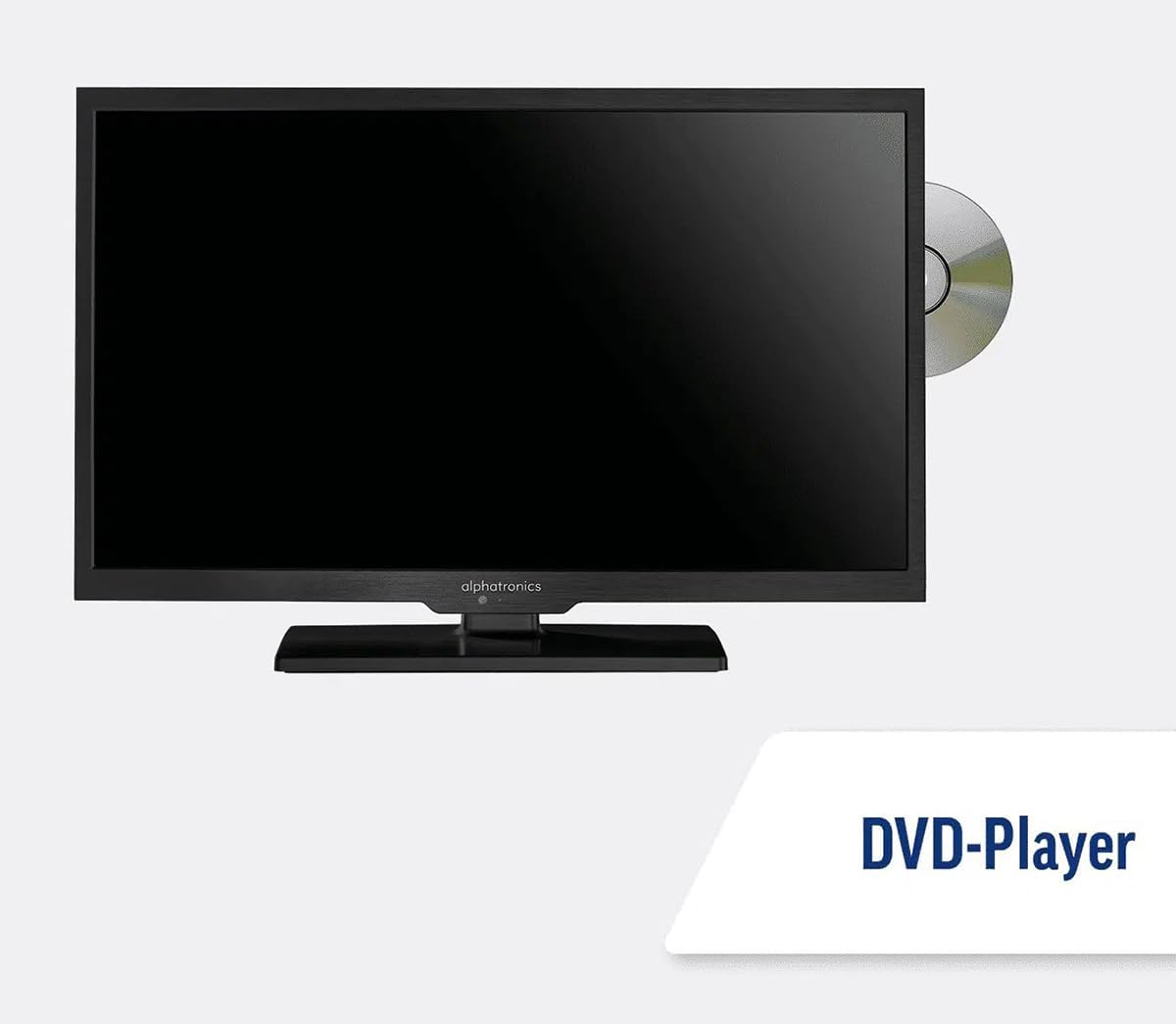
Image: The TV with a DVD disc being inserted into its built-in player.
5. Mantemento
5.1. Limpeza
Para limpar a pantalla do televisor, limpe con coidado cun pano suave e sen pelusa. Para manchas difíciles,ampen the cloth slightly with water or a screen-cleaning solution. Do not spray liquid directly onto the screen. Clean the TV casing with a dry, soft cloth.
Atención: Desconecte sempre o televisor da fonte de alimentación antes de limpalo.
5.2. Actualizacións de software
Your Maxview Alphatronics Smart TV supports automatic software updates via the internet. Ensure your TV is connected to a stable Wi-Fi or Ethernet network to receive the latest firmware and feature enhancements.
- To check for updates manually, navigate to the Configuración menu on your TV, then look for Actualización de software or Información do sistema.
- Follow the on-screen prompts to download and install any available updates. Do not power off the TV during an update process.

Image: The TV screen indicating a software update in progress.
6 Solución de problemas
If you encounter issues with your TV, please refer to the following common problems and solutions before contacting support.
| Problema | Causa posible | Solución |
|---|---|---|
| Sen Poder | Power cable disconnected; no power from outlet/source. | Check power connections. Ensure outlet/source is active. Try a different outlet. |
| Sen sinal | Incorrect input selected; antenna/cable disconnected or faulty. | Preme Fonte/Entrada to select correct input. Check antenna/cable connections. Perform a channel scan. |
| Sen conexión a Internet | Wi-Fi password incorrect; router issue; TV too far from router. | Re-enter Wi-Fi password. Restart your router. Move TV closer to router or use Ethernet. |
| DVD non se reproduce | Disc dirty or scratched; incorrect input selected; region code mismatch. | Clean the disc. Ensure "DVD" input is selected. Check disc region compatibility. |
| O control remoto non funciona | Batteries low/dead; obstruction between remote and TV; remote not paired (if Bluetooth). | Replace batteries. Remove obstructions. Re-pair remote if necessary (refer to TV settings). |
If the problem persists after trying these solutions, please contact Maxview atención ao cliente.
7. Especificacións
| Característica | Detalle |
|---|---|
| Número de modelo | TVSL/22 |
| Tamaño da pantalla | 22 polgadas (56 cm de diagonal visible) |
| Tecnoloxía de visualización | LED |
| Resolución | 1080p (Full HD) |
| Dimensións do produto (P x A x A) | 12 D x 58 W x 38 H centímetros |
| Entrada de enerxía | 12v DC / 240v AC |
| Conectividade | Wi-Fi, Bluetooth, Ethernet |
| Portos | 2x HDMI, 1x USB, AV connections, Antenna/Satellite input |
| Características especiais | Smart TV (WebOS), Built-in DVD Player |
| Relación de aspecto | 16:9 |
| Fabricante | Alfatronica |
8. Garantía e soporte
Your Maxview Alphatronics SL Line+ Smart TV comes with a 3 ano de garantía, providing peace of mind regarding your purchase. This warranty covers manufacturing defects and ensures reliable operation.
For warranty claims, technical support, or further assistance, please contact Maxview customer service. You can typically find contact information on the official Maxview webno sitio web ou nos materiais de embalaxe.
Please have your model number (TVSL/22) and proof of purchase ready when contacting support.
Note: No official product videos from the seller were found in the provided data to embed in this manual.


