1. Introdución
This manual provides detailed instructions for the installation, operation, and maintenance of your ZEBRONICS ROBUST Premium Gaming Chassis. Please read this manual thoroughly before beginning assembly to ensure proper setup and optimal performance. Keep this manual for future reference.

Imaxe 1.1: Fronte view of the ZEBRONICS ROBUST Gaming Chassis, showcasing its tempered glass panels and illuminated interior fans.
2. Características do produto
The ZEBRONICS ROBUST chassis is designed to provide a robust and aesthetically pleasing enclosure for your gaming PC components. Key features include:
- Glass-Finish Outlook: Front and side panels are constructed from tempered glass, offering a clear view of internal components and enhancing the chassis's visual appeal.
- Compatibilidade da placa base: Supports mATX (Micro-ATX) and Mini ITX motherboard form factors.
- Ventilación eficiente: Equipped with three pre-installed 120mm multicolor LED ring fans (two at the top, one at the rear) to ensure effective cooling and airflow.
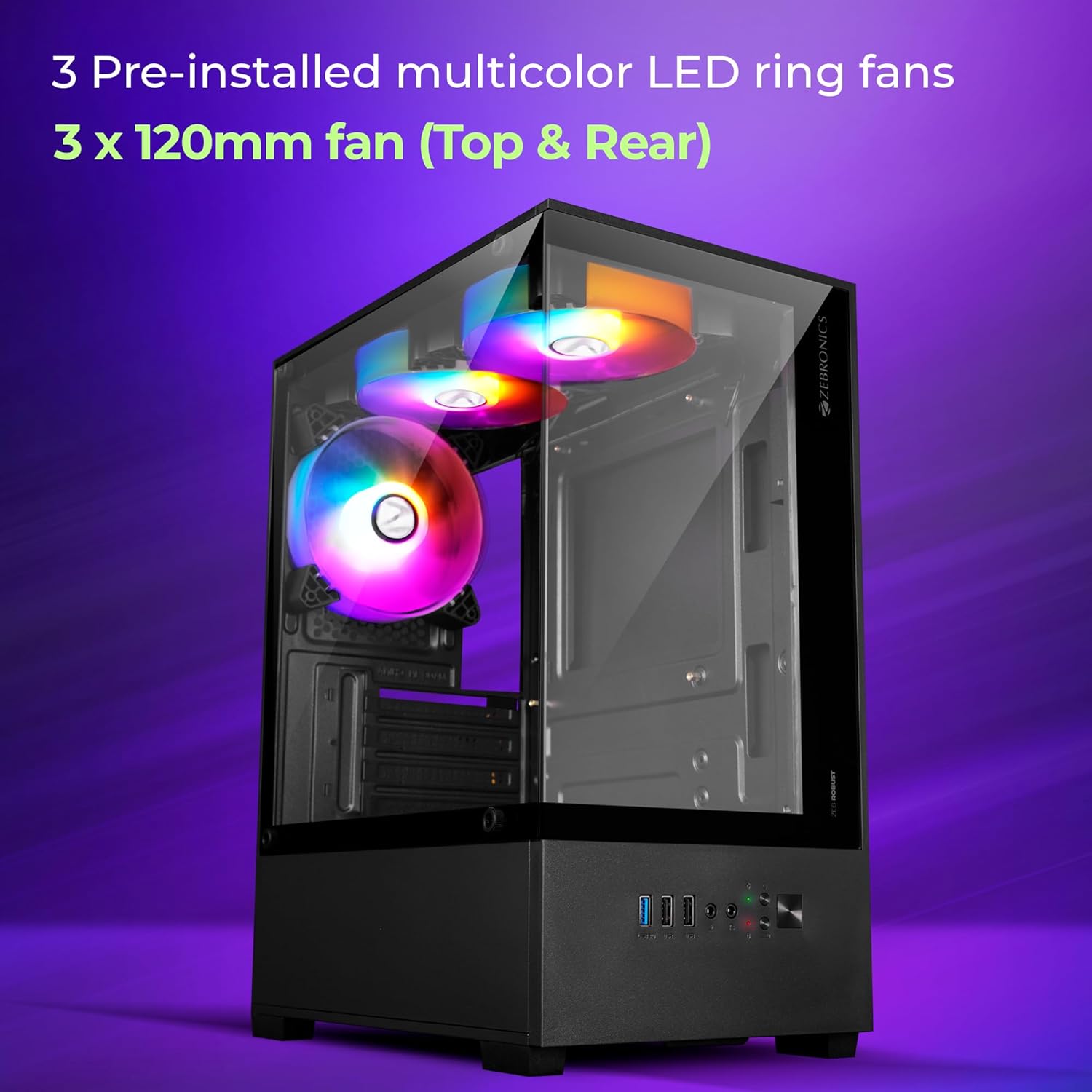
Image 2.1: Illustration highlighting the three pre-installed 120mm multicolor LED ring fans for cooling.
- Multiconectividade: Front panel includes one USB 3.0 port, two USB 2.0 ports, and separate microphone and headphone jacks for convenient peripheral access.
- Slots de expansión: Features four expansion slots at the rear for installing add-on cards such as graphics cards or sound cards.
- Component Accommodation: Supports VGA cards up to 255mm in length and CPU coolers up to 165mm in height. The power supply unit (PSU) is designed for bottom installation.
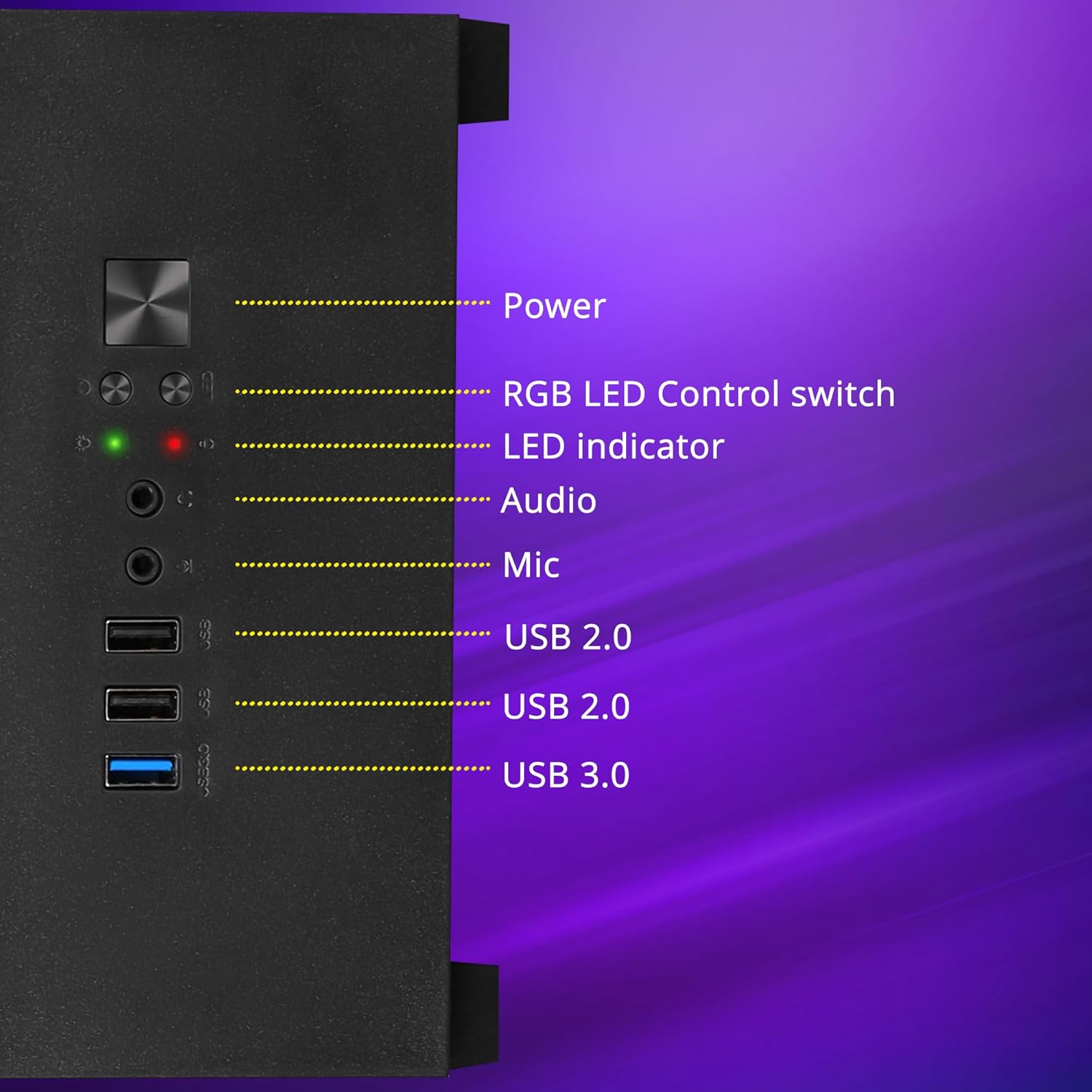
Imaxe 2.2: Detallada view of the front panel I/O, showing the power button, RGB LED control switch, LED indicators, audio ports, and USB ports.

Image 2.3: Internal layout indicating the bottom-mounted power supply unit area and the four expansion slots for add-on cards.
- Optimized Cooling Design: Engineered for superior airflow to maintain optimal temperatures during extended use.

Image 2.4: Visual representation of the chassis's internal airflow path, designed for efficient heat dissipation.
- Dust Filtration: Includes a magnetic dust filter at the top and a detachable dust filter at the bottom to prevent dust accumulation.
- Xestión de cables Designed with features to facilitate effective cable organization, reducing clutter and improving airflow.

Image 2.5: Close-up of the top magnetic dust filter, demonstrating its easy removal for cleaning.
3. Especificacións
| Característica | Detalle |
|---|---|
| Marca | ZEBRÓNICA |
| Modelo | Zeb-Robust |
| Tipo de caso | Torre media |
| Compatibilidade da placa base | mATX, Mini ITX |
| Ventiladores preinstalados | 3 x 120mm Multicolor LED Ring Fans (2 Top, 1 Rear) |
| Portos de E / S dianteiros | 1 x USB 3.0, 2 x USB 2.0, 1 x Mic, 1 x Headphone, Power, RGB LED Control Switch |
| Ranuras de expansión | 4 |
| Lonxitude máxima da tarxeta VGA | 255 mm |
| Altura máxima do refrigerador da CPU | 165 mm |
| Montaxe da fonte de alimentación | Abaixo |
| Filtros de po | Top Magnetic, Bottom Detachable |
4. Guía de configuración
Follow these steps to assemble your computer components within the ZEBRONICS ROBUST chassis.
4.1. Unpacking and Panel Removal
- Carefully remove the chassis from its packaging.
- Coloque o chasis sobre unha superficie estable e plana.
- Locate the thumbscrews on the rear of the chassis securing the tempered glass side panel. Unscrew them and carefully remove the side panel. Set it aside in a safe place to prevent damage.
- Repeat for the other side panel if necessary for easier access.
4.2. Instalación da placa base

Image 4.1: Chassis interior indicating support for mATX and Mini ITX motherboard sizes.
- Install the I/O shield that came with your motherboard into the corresponding opening at the rear of the chassis.
- Align your mATX or Mini ITX motherboard with the pre-installed standoffs inside the chassis.
- Secure the motherboard using the appropriate screws. Do not overtighten.
4.3. Instalación da fonte de alimentación (PSU)
- Position your PSU in the designated bottom compartment of the chassis.
- Ensure the PSU fan is facing downwards (if the chassis has a bottom vent) or upwards, depending on your cooling preference and chassis design.
- Secure the PSU to the chassis using the screws provided with your PSU.
4.4. Instalación da unidade de almacenamento
The chassis typically includes bays for 2.5-inch SSDs and 3.5-inch HDDs. Refer to your chassis's internal layout for specific mounting points.
- Locate the drive bays or mounting brackets.
- Install your SSDs or HDDs into the appropriate bays/brackets and secure them with screws.
4.5. Graphics Card (VGA) and Expansion Card Installation
- Retire as tapas das ranuras de expansión necesarias da parte traseira do chasis.
- Insert your graphics card or other expansion cards into the corresponding PCIe slots on your motherboard.
- Secure the cards with screws to the chassis.
4.6. Conexión dos cables do panel frontal
Connect the front panel cables (USB, audio, power switch, reset switch, LED indicators) from the chassis to the corresponding headers on your motherboard. Refer to your motherboard manual for exact header locations.
4.7. Xestión de cables
Utiliza os recortes para o paso de cables e os puntos de suxeición que hai detrás da bandexa da placa base para organizar e fixar os cables. Isto mellora a circulación do aire e a estética.
4.8. Reattaching Panels
Once all components are installed and cables are managed, carefully reattach the side panels and secure them with the thumbscrews.
5. Instrucións de funcionamento
5.1. Acendido/apagado
- Asegúrate de que todos os periféricos externos (monitor, teclado, rato) estean conectados.
- Conecta o cable de alimentación á fonte de alimentación e a unha toma de corrente.
- Press the power button on the front panel of the chassis to turn on your computer.
- To turn off, use the operating system's shutdown function or press and hold the power button for several seconds.
5.2. LED Fan Control
The chassis features an RGB LED Control switch on the front panel. Press this button to cycle through various lighting modes and colors for the pre-installed LED fans.
6. Mantemento
Regular maintenance helps ensure the longevity and optimal performance of your chassis and its components.
6.1. Limpeza dos filtros de po
- Periodically remove the top magnetic dust filter and the bottom detachable dust filter.
- Limpe os filtros con aire comprimido, un cepillo suave ou enxágüelos con auga (asegúrese de que estean completamente secos antes de volvelos instalar).
- Reattach the dust filters.
6.2. Limpeza xeral
- Use a soft, dry cloth to wipe down the exterior surfaces of the chassis, including the tempered glass panels.
- For stubborn smudges on glass, a mild glass cleaner applied to a cloth (not directly to the glass) can be used.
- Evita o uso de produtos de limpeza ou solventes abrasivos, xa que poden danar o acabado.
7 Solución de problemas
Esta sección aborda problemas comúns cos que podes atoparte.
7.1. Sen poder
- Ensure the power cable is securely connected to both the PSU and the wall outlet.
- Check that the power switch on the PSU itself is in the 'ON' position.
- Verifique que o cable do interruptor de alimentación do panel frontal estea conectado correctamente á cabeceira da placa base.
7.2. Fans Not Spinning / LEDs Not Working
- Check that the fan power cables are securely connected to the motherboard or a fan controller.
- Ensure the RGB LED control cable (if separate from fan power) is properly connected.
- Press the RGB LED Control switch on the front panel to cycle through modes or turn on the LEDs.
7.3. Os portos USB/de audio do panel frontal non funcionan
- Verifique que os cables USB e de son do panel frontal estean conectados correctamente aos seus respectivos conectores da placa base.
- Check your operating system's device manager and audio settings to ensure drivers are installed and devices are enabled.
8. Garantía e soporte
For warranty information and technical support, please refer to the documentation provided with your purchase or visit the official ZEBRONICS websitio. Garda o comprobante de compra para reclamacións de garantía.
For further assistance, you may contact ZEBRONICS customer support through their official channels.


