Introdución
This manual provides detailed instructions for the setup, operation, maintenance, and troubleshooting of your JUQITECH Trackpad Backlit Keyboard Case and 2 Pack Screen Protector. This product is designed for use with Samsung Galaxy Tab S8 11-inch (2022 models SM-X700 / SM-X706) and Samsung Galaxy Tab S7 11-inch (2020 models SM-T870 / SM-T875 / SM-T876). Please ensure your tablet model is compatible before proceeding.
Produto rematadoview
Compoñentes incluídos
- JUQITECH Trackpad Backlit Keyboard Case
- Teclado sen fíos desmontable
- 2 Pack Screen Protectors
- USB Cable (for charging the keyboard)
Características clave
- Integrated Trackpad: Multi-touch trackpad for cursor control.
- Backlit Keyboard: 7 colors with 3 brightness levels, including breathing backlit mode.
- Adjustable Kickstand: Allows for viewángulos de inclinación de 30° a 160°.
- Detachable Design: Keyboard can be separated from the case.
- S Pen Holder: Built-in slot for S Pen storage.
- Screen Protector: 0.3mm ultra-thin, high transparency, S Pen compatible, anti-oil, dust-free, fingerprint-free.
- Durable Materials: Soft TPU case with PU leather exterior.
- Protection: Oil resistance, dustproof, impact resistance, anti-fingerprints, scratch proof, camera protection.
Visuais do produto

Figura 1: Acabadoview of the JUQITECH keyboard case with backlit keys and the included screen protectors. The case is shown with a tablet inserted, demonstrating its design and the separate screen protectors.

Figura 2: Detallado view highlighting various features of the case, including oil resistance, dustproof properties, impact resistance, anti-fingerprint coating, scratch proofing, camera protection, built-in S Pen slot, and honeycomb heat dissipation design. Product weights for the keyboard case, keyboard, and case are also indicated.

Figura 3: Illustration of the detachable wireless backlit keyboard, showing full shortcuts, the large click-anywhere trackpad with dimensions, and indicators for turning on/off the touchpad and Bluetooth. The image also depicts the backlit keys, Broadcom 5.2 Bluetooth chip, and the trackpad mechanism.

Figura 4: Image showing the packaging and two screen protectors included with the product, emphasizing their 9H hardness and explosion-proof properties.
Instrucións de configuración
1. Installing the Tablet into the Case
- Gently align your Samsung Galaxy Tab S8 or S7 11-inch tablet with the soft TPU case.
- Press the tablet firmly into the case, ensuring all corners are securely seated. The case is designed to protect the tablet and provide a stable base for the keyboard.
- Ensure the camera cutout and S Pen slot are correctly aligned with your tablet's features.
2. Connecting the Wireless Keyboard via Bluetooth
- Cargar o teclado: Before first use, connect the keyboard to a power source using the provided USB cable. The charging indicator light will show charging status.
- Activar o teclado: Localiza o interruptor de acendido no teclado e deslízao á posición "ON".
- Activate Bluetooth Pairing Mode: Preme o Fn + C keys simultaneously on the keyboard. The Bluetooth indicator light will begin to flash, indicating it is in pairing mode.
- Activar Bluetooth na tableta: On your Samsung Galaxy Tab, go to Configuración > Dispositivos conectados > Bluetooth e active o Bluetooth.
- Parear dispositivo: In the list of available Bluetooth devices on your tablet, select "Bluetooth Keyboard" or a similar name.
- Confirmar conexión: Once connected, the Bluetooth indicator light on the keyboard will stop flashing and remain solid or turn off, depending on the model. Your tablet will also confirm the connection.
3. Aplicación do protector de pantalla
For optimal results, apply the screen protector in a clean, dust-free environment.
- Limpar a pantalla: Use the provided cleaning wipes (if included) or a microfiber cloth to thoroughly clean your tablet's screen. Ensure there are no dust particles, smudges, or fingerprints.
- Remove Protective Film (Side 1): Carefully peel off the protective film labeled "1" or "Back" from the screen protector. Avoid touching the adhesive side.
- Aliñar e aplicar: Align the screen protector with the edges of your tablet screen, paying attention to cutouts for the camera and sensors. Once aligned, gently lower the protector onto the screen.
- Suavizar burbullas: Use a squeegee card (if included) or a soft cloth to gently push out any air bubbles from the center towards the edges.
- Remove Protective Film (Side 2): Once the protector is fully adhered and bubbles are removed, peel off the top protective film labeled "2" or "Front".
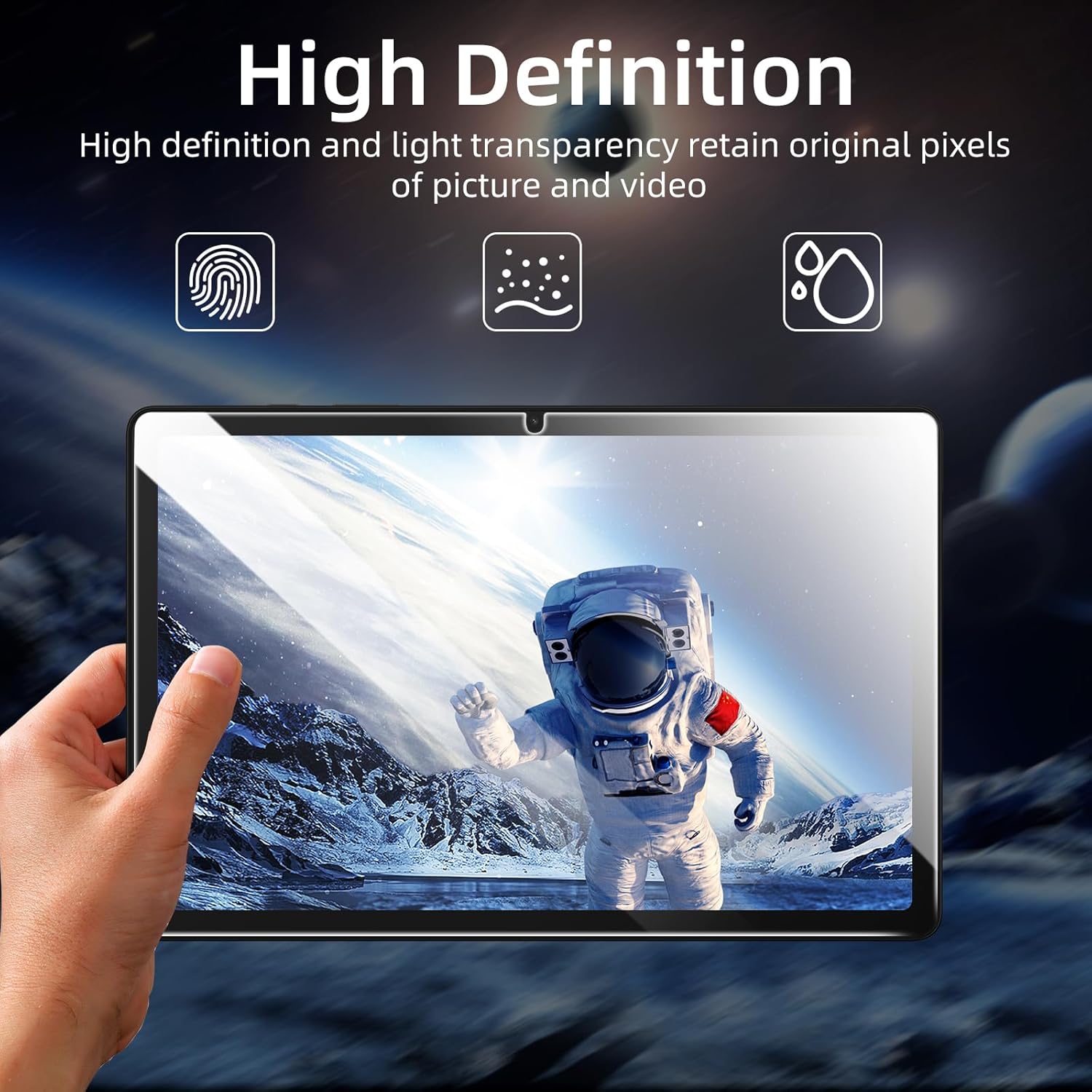
Figura 5: Demonstrates the high definition clarity and light transparency of the screen protector, designed to retain original pixel quality for pictures and videos.
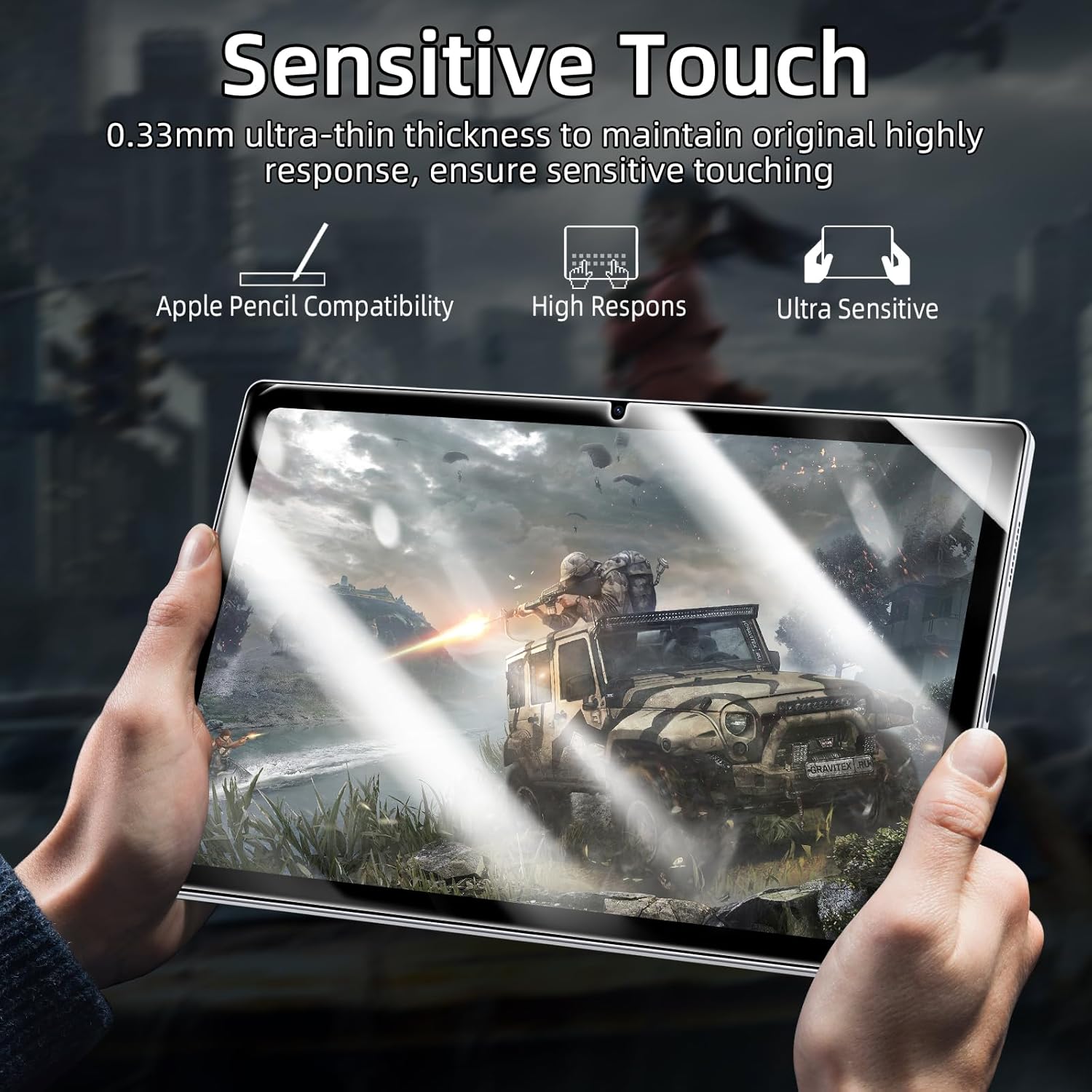
Figura 6: Illustrates the sensitive touch capability of the 0.33mm ultra-thin screen protector, ensuring original highly responsive touch, Apple Pencil compatibility, and high responsiveness.
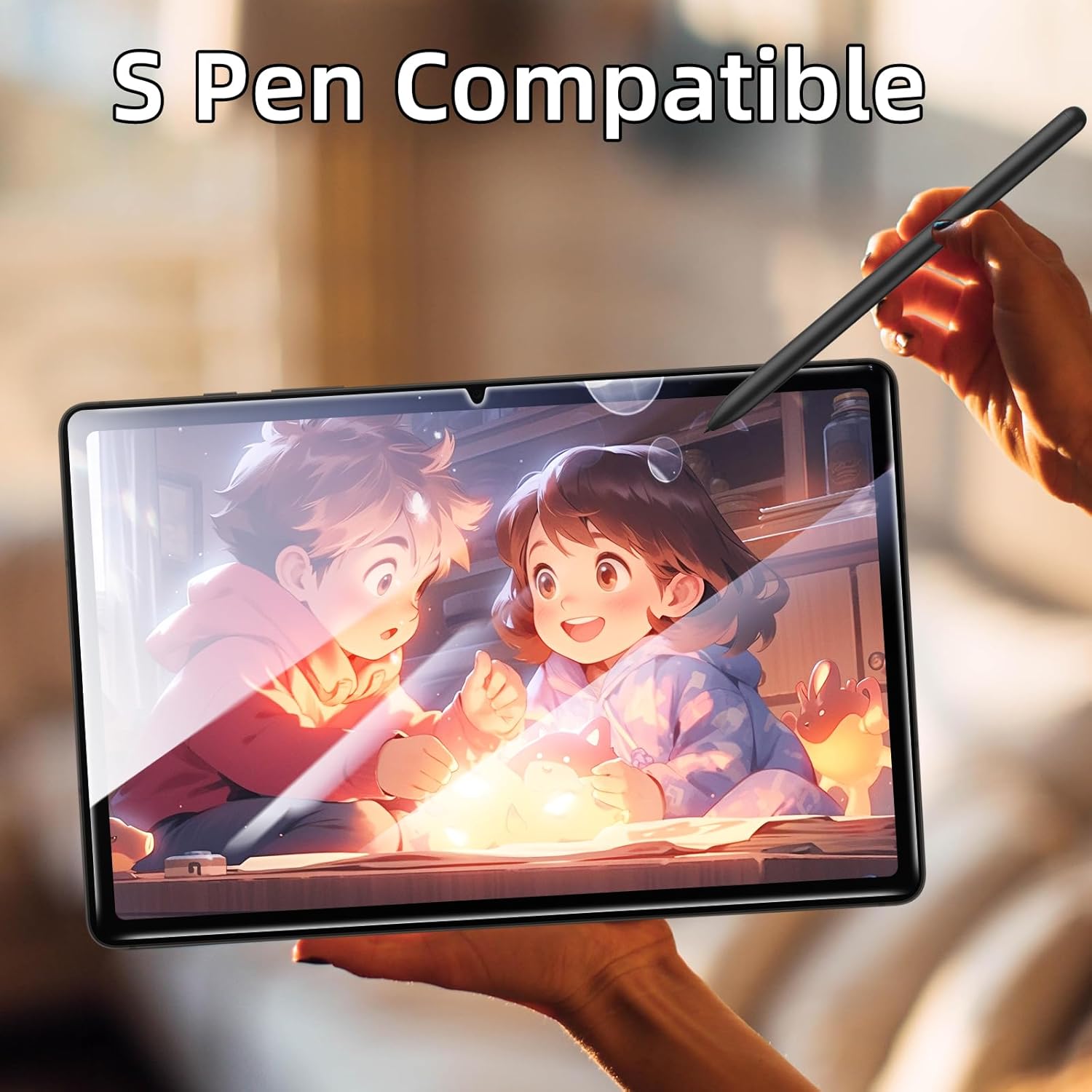
Figura 7: Shows the screen protector's compatibility with the S Pen, allowing for smooth and accurate input.
Instrucións de funcionamento
Usando o teclado
- Escritura: Use the keyboard as a standard QWERTY keyboard for typing.
- Control de retroiluminación: Preme o Light bulb icon key (often near the spacebar or function row) to cycle through 7 different backlight colors. Press the Fn + Light bulb icon key to adjust the brightness levels (3 levels) or activate the breathing backlit mode.
- Teclas de función: The top row of keys includes various function shortcuts (e.g., volume control, media playback, screen lock). These are typically accessed by pressing the Fn simultaneamente coa tecla de función desexada.
Usando o Trackpad
- Control do cursor: Move your finger across the trackpad surface to control the cursor on your tablet screen.
- Premendo: Press down on the trackpad for a left-click action.
- Clic co botón dereito: Use two fingers to tap the trackpad for a right-click action.
- Desprazamento: Use two fingers to swipe up or down on the trackpad to scroll through content.
- Zoom: Pinch in or out with two fingers to zoom in or out on content.
- Disable/Enable Trackpad: Preme Fn + barra de espazo (or a dedicated trackpad icon key) to toggle the trackpad on or off.
Adjusting the Kickstand and Case Usage
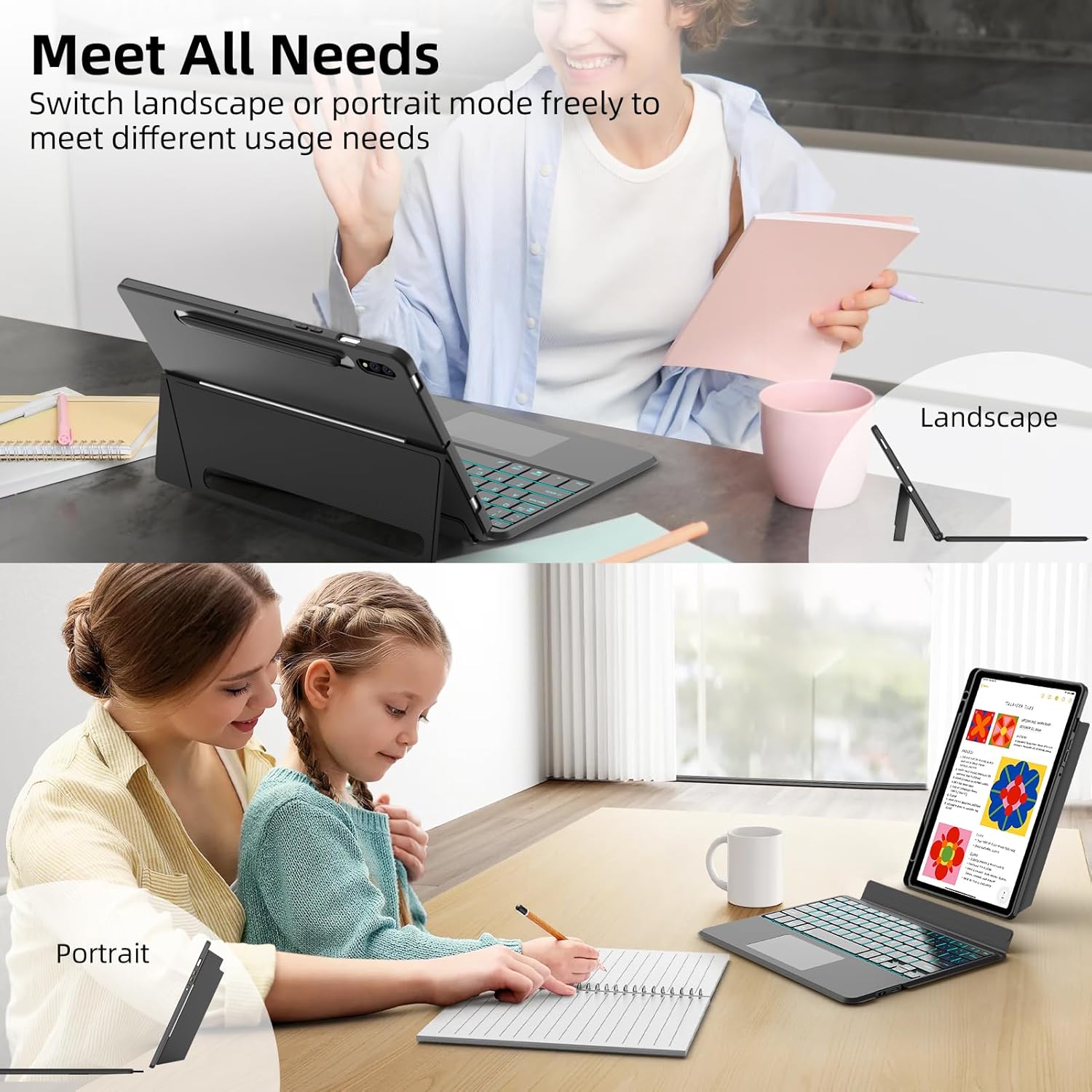
Figura 8: Demonstrates the adjustable kickstand, allowing the tablet to be positioned in both landscape and portrait modes to meet various usage needs.
- Ángulo de axuste: The integrated kickstand allows you to recline the tablet smoothly from 30° to 160°. Adjust the kickstand to your desired viewing or typing angle.
- Teclado extraíble: The keyboard is magnetically attached to the case. You can easily detach it to use the tablet independently or for different viewmodos de ing.
- Case Modes: The soft case can be used in various configurations:
- Modo de teclado: Tablet in case, keyboard attached, kickstand deployed.
- ViewModo ing: Keyboard detached, tablet in case with kickstand deployed for media consumption.
- Modo tableta: Keyboard detached, case folded back or removed for handheld use.
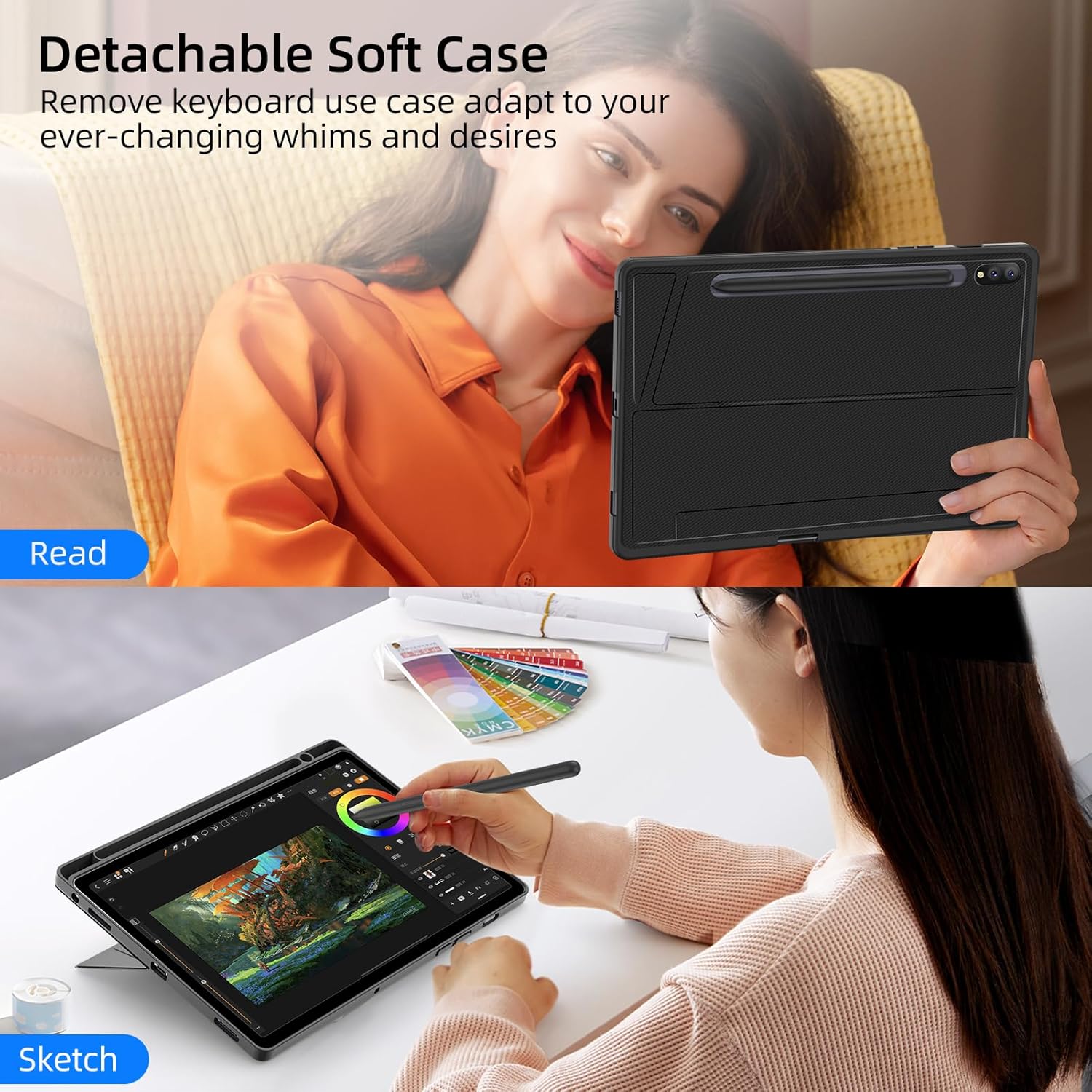
Figura 9: Shows the versatility of the detachable soft case, allowing users to remove the keyboard and adapt the case for activities like reading or sketching.
Mantemento
- Limpeza do caso: Limpe o exterior da carcasa cun pano suave eamp pano. Evite produtos químicos agresivos ou produtos de limpeza abrasivos.
- Limpeza do teclado: Use a soft, dry cloth to wipe the keyboard keys and trackpad. For dust between keys, use compressed air.
- Limpeza do protector de pantalla: Use a microfiber cloth specifically designed for electronics screens. For stubborn smudges, a small amount of screen cleaner can be applied to the cloth (not directly to the screen).
- Almacenamento: When not in use for extended periods, ensure the keyboard is turned off to conserve battery. Store the product in a cool, dry place.
Resolución de problemas
O teclado non se conecta por Bluetooth
- Comprobar a potencia: Asegúrate de que o teclado estea acendido e completamente cargado.
- Volver emparellar: Delete the "Bluetooth Keyboard" from your tablet's Bluetooth device list and attempt to re-pair by pressing Fn + C no teclado.
- Tablet Bluetooth: Verify that Bluetooth is enabled on your Samsung Galaxy Tab.
- Distancia: Ensure the keyboard is within the effective Bluetooth range (typically 10 meters or 33 feet) of your tablet.
- Interferencia: Move away from other devices that might cause wireless interference.
O trackpad non responde
- Check Enable/Disable: Ensure the trackpad is not disabled. Press Fn + barra de espazo (or the dedicated trackpad icon key) to toggle its status.
- Reiniciar: Apaga o teclado e logo acendelo de novo.
- Limpar o trackpad: Asegúrate de que a superficie do trackpad estea limpa e libre de residuos.
Keyboard Backlight Not Working
- Comprobar a batería: Low battery can affect backlight functionality. Charge the keyboard.
- Cycle Backlight: Preme o Light bulb icon key to ensure it's not simply turned off or set to a very dim level.
Especificacións
| Marca | JUQITECH |
| Dispositivos compatibles | Samsung Galaxy Tab S8 11" (SM-X700/SM-X706), Samsung Galaxy Tab S7 11" (SM-T870/SM-T875/SM-T876) |
| Tecnoloxía de conectividade | Bluetooth (Broadcom 5.2) |
| Descrición do teclado | Ergonomic, Backlit, Trackpad |
| Características especiais | Backlit, Trackpad, Adjustable Kickstand, Detachable Keyboard, S Pen Holder |
| Material | Acrylonitrile Butadiene Styrene (ABS), Soft TPU, PU Leather |
| Fonte de enerxía | USB Power (Rechargeable Battery) |
| Tipo de cambio | Interruptor de tesoira |
| Grosor do protector de pantalla | 0.3 mm |
| Keyboard Case Weight | 1.11 libras (aprox.) |
| Peso do teclado | 0.52 libras (aprox.) |
| Peso da caixa | 0.59 libras (aprox.) |
Garantía e Soporte
For warranty information or technical support, please contact JUQITECH customer service through the retailer where the product was purchased or visit the official JUQITECH websitio. Garde o recibo da compra como xustificante da mesma.
Return Policy: This product typically includes a 30-day refund/replacement return policy from the date of purchase. Please refer to the specific return policy of your retailer for details.


