Introdución
This manual provides detailed instructions for the TECPHILE iPad Keyboard Case, Model T5509D. It covers setup, operation, maintenance, and troubleshooting to ensure optimal use of your device. Please read this manual thoroughly before using the product.
Compatibilidade
The TECPHILE iPad Keyboard Case (Model T5509D) is specifically designed for the following iPad Pro 12.9-inch models:
- iPad Pro 12.9-inch (6th Generation, 2022): Models A2436, A2764, A2437, A2766
- iPad Pro 12.9-inch (5th Generation, 2021): Models A2378, A2379, A2461, A2462
- iPad Pro 12.9-inch (4th Generation, 2020): Models A2233, A2229, A2069, A2232
- iPad Pro 12.9-inch (3rd Generation, 2018): Models A1876, A2014, A1895, A1983
This case is not compatible with any other iPad models.

Image: Compatibility chart for TECPHILE iPad Keyboard Case. Please verify your iPad model number on the back of your device to ensure compatibility.
Contido do paquete
Ao abrir o paquete, asegúrese de que estean presentes todos os elementos:
- TECPHILE iPad Keyboard Case (with integrated kickstand and pencil holder)
- Detachable Wireless Backlit Keyboard
- Cable de carga USB-C
- Manual de usuario (este documento)
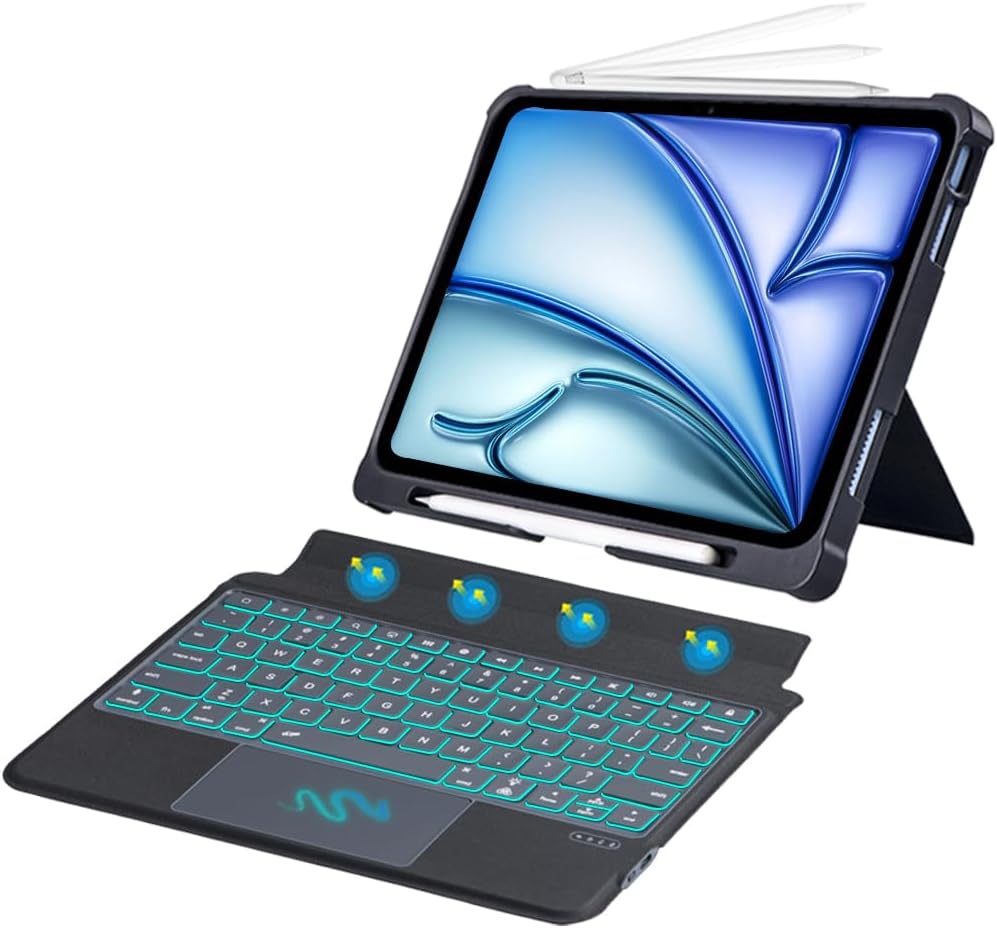
Imaxe: Máis deview of the TECPHILE iPad Keyboard Case components, including the case with an iPad and the detached wireless keyboard.
Guía de configuración
1. Attaching Your iPad to the Case
- Gently align your iPad Pro 12.9-inch with the case.
- Insert the iPad into the protective shell, ensuring all corners are securely fitted. The case provides full protection and features honeycomb heat release design.
- The case includes a dedicated pencil holder and supports wireless charging for your Apple Pencil.
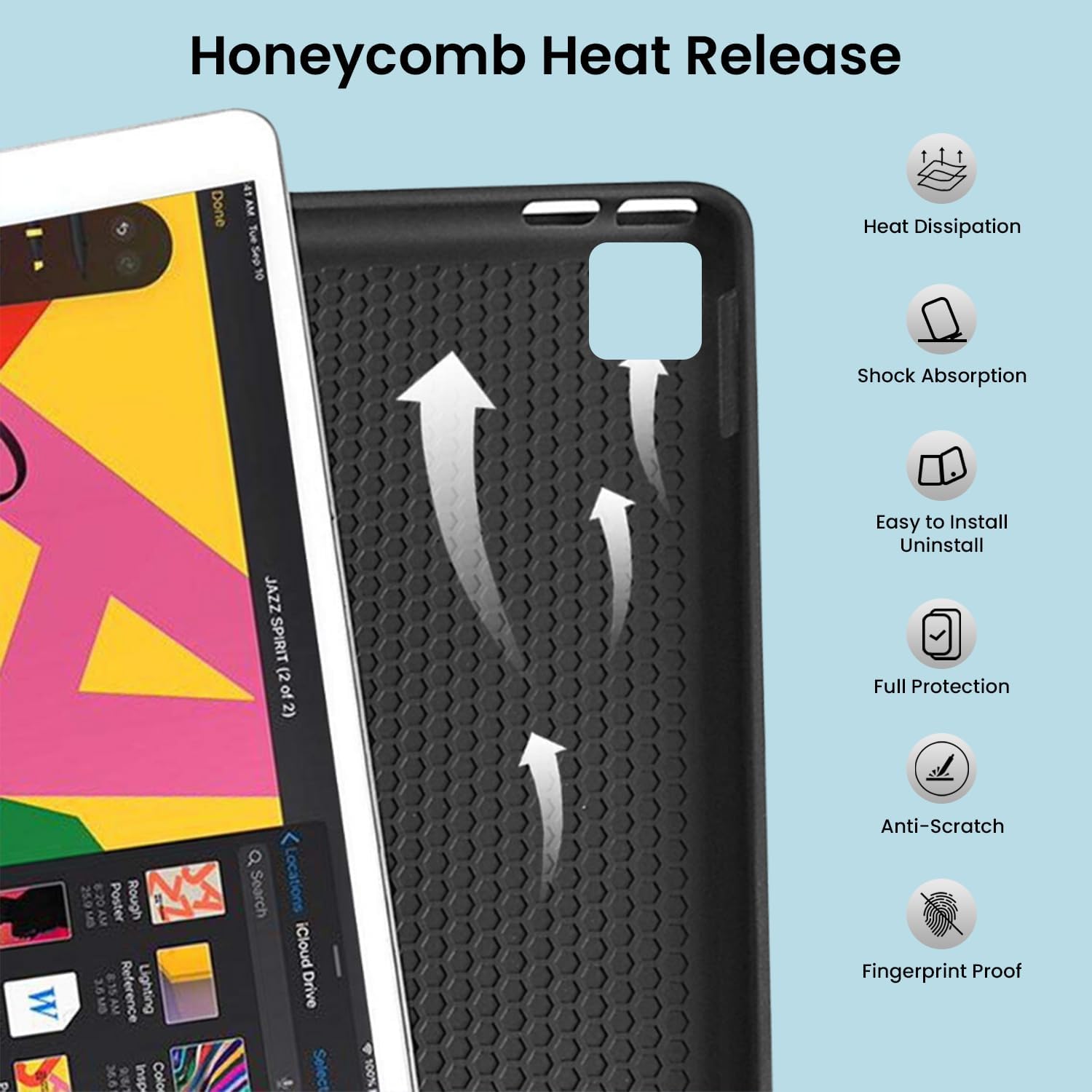
Image: Detail of the case's honeycomb structure for heat dissipation and protective features.

Image: Illustrates the wireless charging capability for the Apple Pencil and the integrated pencil holder.
2. Cargar o teclado
Before initial use, fully charge the keyboard. The keyboard has a 500mAh battery capacity.
- Localiza o porto de carga USB-C no lateral do teclado.
- Connect the provided USB-C cable to the keyboard and a power source (e.g., USB wall adapter, computer USB port).
- The charging indicator light will illuminate. Once fully charged, the light may change or turn off.
A full charge provides approximately 80 hours of use without backlight or 5 hours with backlight enabled.

Image: Keyboard charging port and battery performance details.
3. Connecting the Keyboard via Bluetooth
The keyboard connects wirelessly to your iPad via Bluetooth.
- Asegúrate de que o teclado estea cargado e acendido.
- No teclado, prema Fn + Z keys simultaneously. The Bluetooth indicator light will start blinking, indicating it's in pairing mode.
- No teu iPad, vai a Configuración > Bluetooth.
- Activa o Bluetooth. O teu iPad buscará os dispositivos dispoñibles.
- Locate and tap "Bluetooth Keyboard" (or similar name) in the list of devices to connect.
- Once connected, the Bluetooth indicator light on the keyboard will stop blinking.

Image: Visual guide for Bluetooth pairing process.
Instrucións de funcionamento
Funcións do teclado
The detachable keyboard features a QWERTY layout with additional function keys for iPad control.
- Control de retroiluminación: Preme Fn + 💡 (light bulb icon) to turn on/off the backlight and cycle through 7 different colors. Press Fn + ☀️ (sun icon) to adjust the 3 levels of brightness.
- Full Shortcut Row: Access common iPad functions directly from the top row of keys.
- Intelligent Voice Input Function: Utilize the dedicated key for voice input.

Imaxe: Detallada view of the keyboard's backlit keys and function controls.
Smart Multi-Gesture Trackpad
The integrated large trackpad supports multi-touch gestures for enhanced navigation.
- Navegación básica: Move the cursor by sliding your finger across the trackpad.
- Click Functions: Supports right and left click functions.
- Multi-Finger Gestures: Utilize native iPad multi-finger gestures for scrolling, swiping, and other actions. Refer to your iPad's settings for a full list of supported gestures.
- Turn On/Off Trackpad: Preme Fn + 🖱️ (trackpad icon) to enable or disable the trackpad.
Adjustable Kickstand and Usage Modes
The case features an adjustable kickstand that allows for multiple viewing angles and usage modes.
- Modo de escritura: Position the iPad upright with the keyboard attached for a laptop-like experience.
- View Modo: Adjust the kickstand to a comfortable angle for watching videos or presentations without the keyboard.
- Modo de lectura: Fold the keyboard behind the iPad for a tablet-like reading experience.
- Modo de bosquexo: Lower the angle for drawing or writing with the Apple Pencil.
The kickstand offers a seamless range of angles, smoothly reclining from 30° to 160° while maintaining stability.

Image: Various usage modes enabled by the adjustable kickstand and detachable keyboard.
Auto Wake/Sleep Function
The keyboard case includes an auto wake/sleep function to conserve battery life. Closing the case will put your iPad to sleep, and opening it will wake it up.
Mantemento
- Limpeza: Use un suave, damp cloth to wipe the exterior of the case and keyboard. Avoid harsh chemicals or abrasive materials.
- Almacenamento: When not in use for extended periods, store the keyboard case in a cool, dry place. Ensure the keyboard is turned off to preserve battery life.
- Coidado da batería: To prolong battery life, avoid fully discharging the keyboard frequently. Charge it regularly.
Resolución de problemas
O teclado non se conecta
- Comprobar a potencia: Ensure the keyboard is turned on and has sufficient battery charge.
- Volver emparellar Bluetooth:
- No teu iPad, vai a Configuración > Bluetooth.
- Forget or unpair the "Bluetooth Keyboard" if it appears in "My Devices".
- Reinicia o iPad.
- Put the keyboard into pairing mode (press Fn + Z).
- Busca and connect to the keyboard again on your iPad.
- Interferencia: Afastese doutros dispositivos sen fíos que poidan causar interferencias.
As chaves non responden
- Nivel de batería: Charge the keyboard fully.
- Conexión Bluetooth: Asegúrate de que o teclado estea conectado correctamente mediante Bluetooth.
- Reiniciar: Apaga e volve acender o teclado.
O trackpad non funciona
- Enable Trackpad: Ensure the trackpad is enabled by pressing Fn + 🖱️ (trackpad icon).
- iPad Settings: Check iPad accessibility settings for pointer control.
- Limpar o trackpad: Asegúrate de que a superficie do trackpad estea limpa e libre de residuos.
Especificacións
| Nome do modelo | T5509D |
| Compatibilidade | iPad Pro 12.9" (6th, 5th, 4th, 3rd Gen) |
| Conectividade | Bluetooth |
| Disposición do teclado | QWERTY |
| Retroiluminación | 7 cores, 3 niveis de brillo |
| Trackpad | Large Multi-Gesture Trackpad |
| Capacidade da batería | 500 mAh (ión de litio) |
| Battery Life (Non-backlight) | Ata 80 horas |
| Duración da batería (retroiluminación) | Ata 5 horas |
| Porto de carga | USB-C |
| Dimensións do produto | 29 x 24 x 2 cm |
| Peso do elemento | 735 g |
| Material | Leatherite and ABS Plastic |
| Características especiais | Adjustable Kickstand (30°-160°), Detachable Keyboard, Pencil Holder, Wireless Pencil Charging Support, Auto Wake/Sleep, Honeycomb Heat Release |
Garantía e Soporte
For warranty information or technical support, please refer to the documentation included with your purchase or contact TECPHILE customer service through the retailer where the product was purchased. Please have your model number (T5509D) and purchase details ready when contacting support.
