1. Introdución
The HUMZOR NP716 is an advanced bidirectional automotive diagnostic scan tool designed for comprehensive vehicle system analysis and maintenance. This device features ECU coding capabilities, all-system diagnostics, and over 17 special reset functions. Equipped with an Android 11.0 operating system and a 5.5-inch screen, it provides a user-friendly interface for efficient vehicle servicing. This manual provides detailed instructions for setting up, operating, maintaining, and troubleshooting your NP716 device.
2. Produto rematadoview
2.1 Características principais
- Control bidireccional: Perform active tests to control vehicle components and systems.
- Codificación da ECU: Customize vehicle settings and perform module replacement functions.
- Todos os diagnósticos do sistema: Ler e borrar códigos de erro, view live data, and retrieve ECU information for all available vehicle systems.
- Máis de 17 funcións especiais de reinicio: Includes ABS Bleeding, Oil Reset, SAS Reset, TPMS Reset, EPB Reset, DPF Reset, Battery Reset, Injector Code, Throttle Learning, Gear Learning, CVT Learning, Windows, Suspension, Light, and Seat Reset.
- Sistema operativo: Android 11.0 for a smooth and intuitive user experience.
- Visualización: Pantalla táctil de 5.5 polgadas.
- Conectividade: Built-in Wi-Fi module.
- Actualizacións de software: Inclúe 3 anos de actualizacións de software gratuítas.
2.2 Contido do paquete
The NP716 package typically includes the following components:
- HUMZOR NP716 Diagnostic Tablet
- VCI (Vehicle Communication Interface) Connector
- Cable de carga USB
- Adaptador de alimentación
- Funda protectora de transporte
- Quick Start Guide (refer to this manual for full instructions)

Image 2.2.1: The HUMZOR NP716 diagnostic tablet, VCI module, and protective carrying case.

Image 2.2.2: A visual representation of the items included in the NP716 product package.
2.3 Dimensións do dispositivo
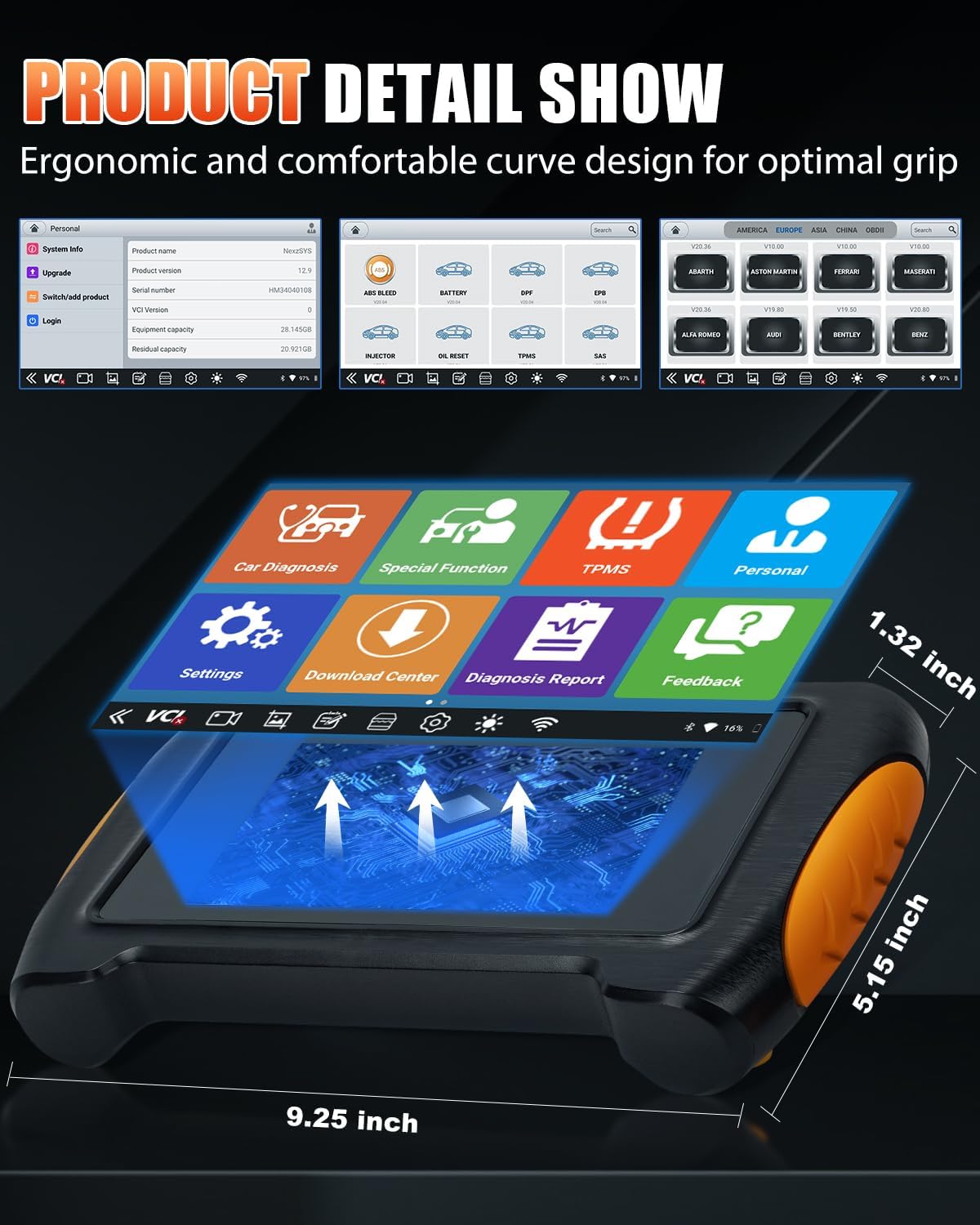
Image 2.3.1: The NP716 tablet showing approximate dimensions: 9.25 inches length, 5.15 inches width, and 1.32 inches thickness.
3. Configuración
3.1 Carga inicial
Before first use, ensure the NP716 tablet is fully charged. Connect the provided USB charging cable to the tablet and the power adapter, then plug the adapter into a standard electrical outlet. The charging indicator will illuminate.
3.2 Acendido/Apagado
- Encendido: Manteña premido o botón de acendido situado no lateral da tableta ata que a pantalla se ilumine.
- Apagado: Mantén premido o botón de acendido e, a seguir, selecciona "Apagar" entre as opcións que aparecen na pantalla.
3.3 Conexión VCI
The VCI (Vehicle Communication Interface) module connects the NP716 tablet to your vehicle's OBD-II port.
- Localiza o porto OBD-II do vehículo, normalmente debaixo do taboleiro no lado do condutor.
- Plug the VCI module firmly into the OBD-II port. The VCI indicator lights should illuminate.
- The NP716 tablet will automatically attempt to establish a wireless connection with the VCI module. Ensure Bluetooth and Wi-Fi are enabled on the tablet.
3.4 Wi-Fi and Software Updates
Connect the NP716 to a stable Wi-Fi network to download vehicle software and system updates.
- No menú principal, toca en "Configuración".
- Selecciona "Wi-Fi" e escolle a rede que desexas. Introduce o contrasinal se se che solicita.
- Once connected, navigate to the 'Download Center' or 'Upgrade' section on the main menu to download and install available software updates. Regular updates ensure compatibility with newer vehicles and improved functionality.
4. Instrucións de funcionamento
4.1 Navegación da interface principal
The NP716 operates on Android 11.0, providing a familiar tablet-like interface. The main screen features icons for various functions:
- Car Diagnosis: For standard OBD-II and full system diagnostics.
- Función especial: Access to various reset and service functions.
- TPMS: Funcións dedicadas para sistemas de monitorización da presión dos pneumáticos.
- Persoal: Usuario profile e axustes.
- Configuración: Configuración do dispositivo.
- Centro de descargas: Manage software downloads and updates.
- Diagnosis Report: View and manage saved diagnostic reports.
- Comentarios: Provide feedback to the manufacturer.
4.2 Car Diagnosis (OE-Level Full System Diagnostic)
This function allows for comprehensive scanning of all available electronic control units (ECUs) in the vehicle.

Image 4.2.1: The diagnostic interface displaying various vehicle systems such as ENG (Engine), SRS (Airbag), ABS (Anti-lock Braking System), AFS (Adaptive Front-lighting System), and Battery.
- Tap 'Car Diagnosis' on the main menu.
- Select the vehicle make, model, and year. The tool can often identify the VIN automatically.
- Choose 'Auto Scan' for a full system scan or select specific systems (e.g., Engine, ABS, SRS, Transmission).
- The tool will display diagnostic trouble codes (DTCs), live data streams, and freeze frame data.
- Ler códigos: Retrieve current, pending, and permanent DTCs.
- Códigos claros: Borrar os códigos de avaría despois de realizar as reparacións. Nota: Clearing codes does not fix the underlying problem.
- View Datos en directo: Monitor real-time sensor data and operating parameters.
4.3 Control bidireccional (probas activas)
Bidirectional control allows the diagnostic tool to send commands to vehicle ECUs to perform specific tests and functions, verifying component integrity.
- Within the 'Car Diagnosis' section, after selecting the vehicle, navigate to 'Active Test' or 'Bidirectional Control'.
- Select the component or system you wish to test (e.g., fuel pump, ABS motor, window motor).
- Follow the on-screen prompts to activate or deactivate the component and observe its response.
4.4 Funcións especiais (máis de 17 servizos de reinicio)
The NP716 offers a wide range of service and reset functions for common maintenance tasks.

Image 4.4.1: A visual representation of the various special functions, including ABS Bleeding, Battery Reset, DPF Reset, EPB Reset, Injector Code, Oil Reset, TPMS Reset, SAS Reset, Throttle Learning, Gear Learning, CVT Learning, Windows, Suspension, Light, and Seat Reset.
Para acceder a estas funcións:
- Tap 'Special Function' on the main menu.
- Select the desired reset or service function from the list.
- Follow the on-screen instructions carefully, as specific procedures may vary by vehicle make and model.
Common special functions include:
- Sangrado do ABS: Bleeds air from the ABS system after brake component replacement.
- Reinicio do aceite: Resets the oil service light and calculates optimal oil life change interval.
- Reinicio de SAS: Calibrates the Steering Angle Sensor after replacement or alignment.
- Restablecer TPMS: Restablece os sensores do sistema de monitorización da presión dos pneumáticos.
- Reinicio do EPB: Resets the Electronic Parking Brake after brake pad replacement.
- Reinicio do DPF: Performs Diesel Particulate Filter regeneration and reset.
- Reinicio da batería: Registers new battery replacement with the vehicle's ECU.
- Injector Code: Programa novos códigos de inxectores na ECU.
- Aprendizaxe do acelerador: Adapta o corpo do acelerador á súa nova posición despois da limpeza ou substitución.
4.5 Codificación da ECU
ECU Coding allows for advanced customization and adaptation of vehicle modules. This function should only be performed by experienced technicians.
- Access 'ECU Coding' through the 'Car Diagnosis' menu after vehicle identification.
- Select the specific control module for coding.
- Follow the on-screen instructions to perform coding, adaptations, or module replacement procedures.
- Aviso: Incorrect ECU coding can lead to vehicle malfunctions. Always ensure you have the correct procedures and data before proceeding.
5. Mantemento
5.1 Coidado do dispositivo
- Manteña o dispositivo limpo cun pano suave e seco. Evite produtos de limpeza ou solventes abrasivos.
- Garde o dispositivo na súa funda protectora cando non o use para evitar danos.
- Evite expoñer o dispositivo a temperaturas extremas, luz solar directa ou humidade elevada.
5.2 Xestión da batería
The NP716 is equipped with a Lithium Ion battery. To prolong battery life:
- Cargue o dispositivo regularmente, evitando que se descargue por completo.
- If storing the device for an extended period, ensure it is charged to approximately 50-70%.
5.3 Actualizacións de software
Regularly check for and install software updates via the 'Download Center' to ensure optimal performance, expanded vehicle coverage, and new features.
6 Solución de problemas
6.1 O dispositivo non se acende
- Asegúrate de que a batería estea cargada. Conecta o dispositivo ao adaptador de corrente e inténtao de novo.
- If the device is unresponsive, perform a hard reset by holding the power button for approximately 10-15 seconds.
6.2 Problemas de conexión VCI
- Verify the VCI module is securely plugged into the vehicle's OBD-II port.
- Check if the VCI indicator lights are on.
- Ensure Bluetooth and Wi-Fi are enabled on the NP716 tablet.
- Restart both the NP716 tablet and the vehicle's ignition.
6.3 Unable to Communicate with Vehicle
- Confirm the vehicle's ignition is in the 'ON' position (engine off).
- Ensure the VCI is properly connected and communicating with the tablet.
- Verify that the correct vehicle make, model, and year have been selected in the diagnostic software.
- Check for any blown fuses in the vehicle's OBD-II circuit.
6.4 Fallos de actualización de software
- Asegúrate dunha conexión Wi-Fi estable e forte.
- Comprobe se hai espazo de almacenamento suficiente no dispositivo.
- Try restarting the device and attempting the update again.
7. Especificacións
| Característica | Especificación |
|---|---|
| Marca | HUMZOR |
| Modelo | NexzPad (NP716) |
| Sistema Operativo | Android 11.0 |
| Tamaño da pantalla | 5.5 polgadas |
| Fonte de enerxía | Alimentado por batería (1 batería de iones de litio incluída) |
| Peso do elemento | 907 g |
| Dimensións do paquete | 38.1 x 30.48 x 10.16 cm |
| Número de peza do fabricante | NP716-HZ02 |
8. Garantía e soporte
For warranty information and technical support, please refer to the documentation provided with your purchase or contact HUMZOR customer service directly. Keep your purchase receipt as proof of purchase for warranty claims.
For the latest software updates and additional resources, visit the official HUMZOR websitio.


