1. Introdución
This manual provides detailed instructions for the setup, operation, maintenance, and troubleshooting of your Keychron K8 Max Wireless Mechanical Gaming Keyboard. Please read this manual thoroughly to ensure proper use and to maximize your keyboard's potential.
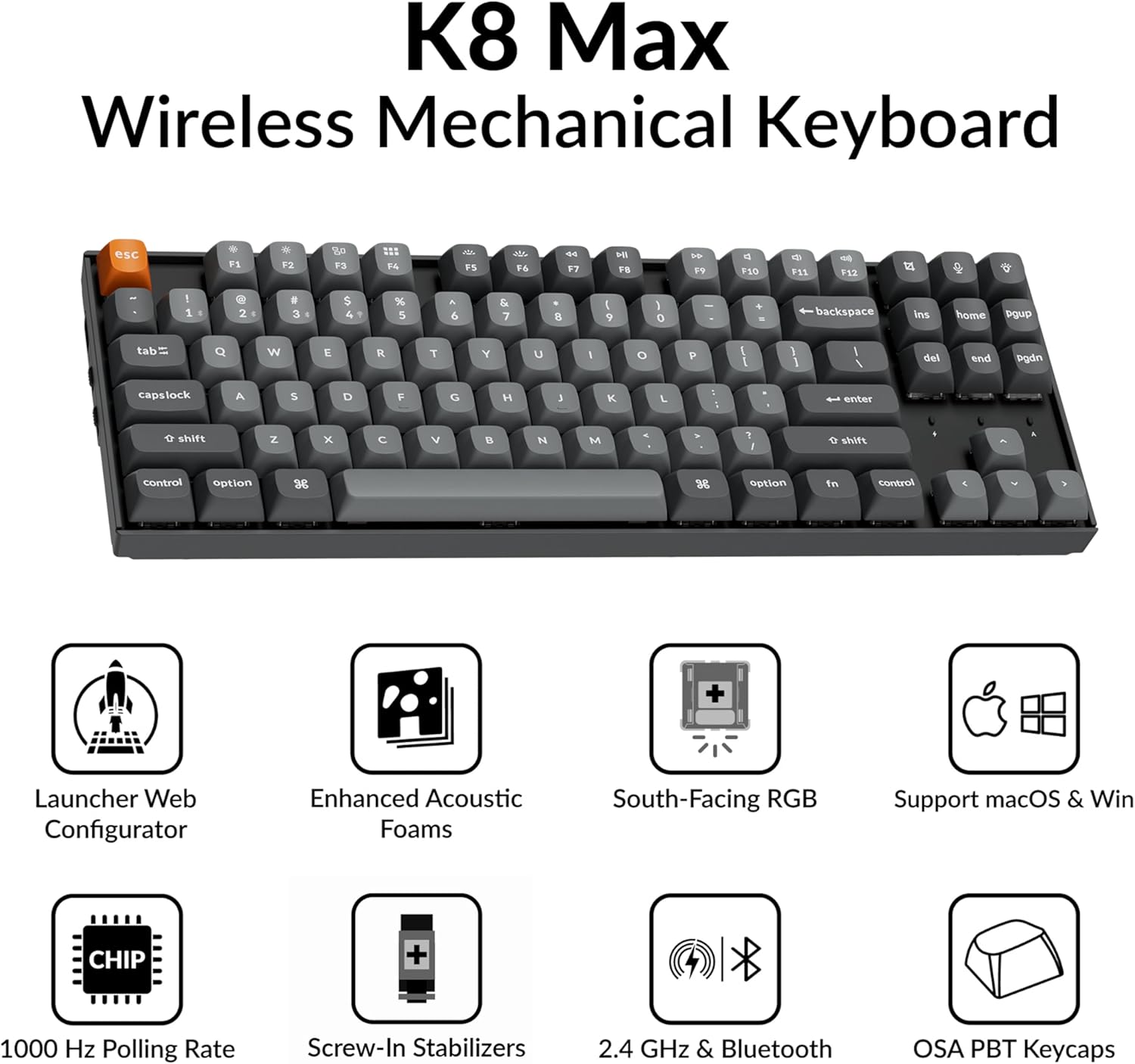
Image 1.1: Keychron K8 Max Wireless Mechanical Keyboard highlighting key features such as Launcher Web Configurator, Enhanced Acoustic Foams, South-Facing RGB, macOS & Windows support, 1000 Hz Polling Rate, Screw-In Stabilizers, 2.4 GHz & Bluetooth connectivity, and OSA PBT Keycaps.
2. Contido do paquete
Verify that all items are present in your Keychron K8 Max package:
- 1x Fully Assembled Keychron K8 Max Keyboard
- 1 cable de tipo A a tipo C
- 1 receptor tipo A de 2.4 GHz
- 1x Adaptador de extensión para receptor
- 1x extractor de teclas e interruptor
- 1 x Destornillador

Image 2.1: Visual representation of the Keychron K8 Max keyboard and its included accessories: USB-C cable, 2.4GHz receiver, extension adapter, keycap/switch puller, and screwdriver.
3. Configuración
3.1 Modos de conectividade
The K8 Max supports three connection modes: 2.4 GHz wireless, Bluetooth 5.1, and wired USB-C.
- Sen fíos de 2.4 GHz: For optimal gaming performance with a 1000 Hz polling rate. Insert the 2.4 GHz receiver into your device's USB-A port. Use the extension adapter if needed for better signal.
- Bluetooth 5.1: For seamless multitasking with up to three devices. Switch the keyboard to Bluetooth mode and pair with your computer, phone, or tablet.
- USB-C con cable: Connect the keyboard directly to your device using the provided Type-A to Type-C cable. This mode also charges the keyboard.

Image 3.1: The Keychron K8 Max keyboard illustrating its 2.4 GHz wireless, Bluetooth 5.1, and USB-C wired connection capabilities, along with multi-OS compatibility for Mac, Linux, and Windows.
3.2 Cambio de sistema operativo
Locate the OS switch on the side of the keyboard. Toggle it to the appropriate position for macOS or Windows/Linux to ensure correct key mapping and functionality.
3.3 Carga
Connect the keyboard to a USB power source using the provided USB-C cable. The battery indicator will show charging status. A full charge is indicated when the light changes or turns off (refer to LED indicator section in operating instructions).
4. Instrucións de funcionamento
4.1 Funcións básicas das teclas
The K8 Max features a TKL (80%) layout. Standard alphanumeric keys function as labeled. Function keys (F1-F12) often have secondary multimedia or system control functions accessible via the Fn combinación de teclas.
Control de retroiluminación 4.2
The keyboard features RGB backlighting with over 22 modes. Use the dedicated backlight key (often marked with a lightbulb icon) or Fn key combinations to cycle through modes, adjust brightness, and change colors. The south-facing LEDs are designed for optimal illumination from the typist's angle.
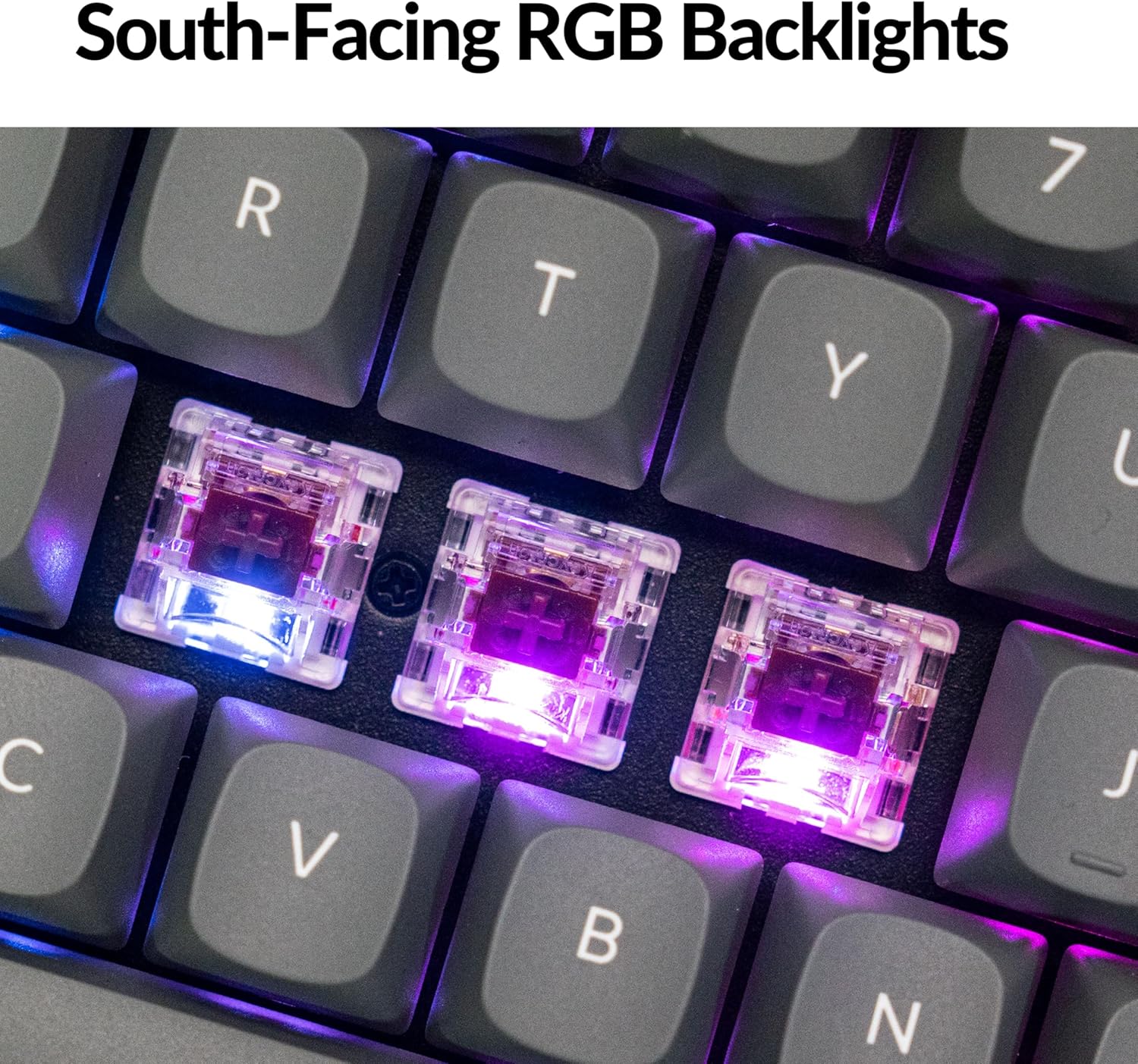
Imaxe 4.1: Primeiro plano view of the keyboard's south-facing RGB mechanical switches, illustrating the illumination from beneath the keycaps.
4.3 QMK Firmware & Keychron Launcher Web Configurador
The K8 Max runs on open-source QMK firmware, allowing for extensive customization. Use the Keychron Launcher web app to remap keys, create macros, and configure lighting effects without needing to install software. This web-based tool is compatible with macOS, Windows, and Linux systems.
- Accede ao iniciador de Keychron a través do teu web navegador.
- Connect your keyboard in wired mode to ensure proper communication.
- Follow the on-screen instructions to customize key assignments, macros, and lighting profiles.

Image 4.2: Screenshot of the Keychron Launcher web application, demonstrating the graphical interface for remapping keys and configuring keyboard settings.
5. Mantemento
5.1 Limpeza
To clean your keyboard, first disconnect it from all power sources. Use a soft, lint-free cloth slightly dampened with water or a mild cleaning solution. For dust and debris between keycaps, use compressed air or a small brush. Avoid harsh chemicals or abrasive materials.
5.2 Substitución da tapa das teclas e do interruptor
The K8 Max features hot-swappable switches, allowing for easy replacement without soldering. Use the provided keycap and switch puller tools:
- Eliminación da tapa das teclas: Gently attach the keycap puller to the sides of the keycap and pull straight up.
- Eliminación do interruptor: After removing the keycap, use the switch puller to grasp the top and bottom clips of the switch and pull it straight out.
- Instalación: Align the new switch pins with the holes on the PCB and press firmly until it clicks into place. Reattach the keycap.

Imaxe 5.1: Primeiro plano view of the durable double-shot PBT keycaps, highlighting their construction and oil-resistant properties.
6 Solución de problemas
- O teclado non responde:
Ensure the keyboard is charged. Check the connection mode (2.4 GHz, Bluetooth, or wired) and ensure it matches your device's connection. For wired mode, try a different USB port or cable. For wireless, ensure the receiver is properly inserted or Bluetooth is paired. - Chaves que non se rexistran:
If specific keys are not working, try removing and re-inserting the switch for that key. Ensure the switch pins are not bent. If the issue persists, consider replacing the switch. - Problemas de conexión Bluetooth:
Ensure the keyboard is in Bluetooth mode and discoverable. Remove the keyboard from your device's Bluetooth list and re-pair. Try connecting to a different device to isolate the issue. - A retroiluminación non funciona ou é incorrecta:
Check backlight brightness settings. Ensure the keyboard is not in a low-power mode. If using the Keychron Launcher, verify your lighting profile axustes. - QMK/Keychron Launcher not detecting keyboard:
Ensure the keyboard is connected via USB-C cable and the OS switch is set correctly. Try a different USB port or cable. Restart your browser.
7. Especificacións
| Modelo | Keychron K8 Max |
| Maquetación | TKL (80%) |
| Conectividade | 2.4 GHz Wireless, Bluetooth 5.1, USB Type-C Wired |
| Polling Rate (2.4 GHz) | 1000 Hz |
| Interruptores | Keychron Super Brown (Hot-swappable) |
| Chaves | Double-Shot PBT, OSA Profile |
| Retroiluminación | RGB, South-Facing LEDs (22+ modes) |
| Firmware | QMK (Customizable via Keychron Launcher) |
| OS compatible | macOS, Windows, Linux |
| Batería | 1 batería de polímero de litio (incluída) |
| Peso do elemento | 2 libras |
| Dimensións do paquete | 17 x 6 x 2 polgadas |
8. Garantía e soporte
8.1 Información da garantía
Keychron products typically come with a limited manufacturer's warranty covering defects in materials and workmanship. Please refer to the warranty card included with your product or visit the official Keychron website for specific warranty terms and conditions applicable to your region and purchase date.
8.2 Atención ao cliente
For technical assistance, troubleshooting, or warranty claims, please contact Keychron customer support through their official website. You may need to provide your product model, serial number, and proof of purchase.
Keychron oficial Websitio: www.keychron.com


