1. Introdución
This manual provides detailed instructions for the Keychron K10 Max Wireless Custom Mechanical Keyboard. The K10 Max is a full-sized (108-key) mechanical keyboard designed for versatility, offering 2.4 GHz, Bluetooth, and wired connectivity options. It features QMK open-source firmware for extensive customization and is compatible with Mac, Windows, and Linux operating systems.

Image 1.1: Keychron K10 Max Wireless Mechanical Keyboard with a close-up of a Keychron Super Brown switch.
2. Contido do paquete
Verify that all items are present in your Keychron K10 Max package:
- Teclado mecánico personalizado Keychron K10 Max
- Type-A to Type-C Cable (x1)
- Type-A 2.4GHz Receiver (x1)
- Extension Adapter for Receiver (x1)
- Keycap-Switch Puller (x1)
- Hex Key & Screwdriver (x1)
- Additional Keycaps for Windows OS

Image 2.1: Included accessories with the Keychron K10 Max keyboard.
3. Configuración
3.1. Carga inicial
Before first use, connect the keyboard to a USB power source using the provided Type-A to Type-C cable to ensure it is fully charged.
3.2. Operating System Switch
Locate the OS switch on the side of the keyboard. Toggle it to either 'Mac' or 'Windows' depending on your operating system. This ensures correct key mapping for multimedia and function keys.

Image 3.1: Operating system switch on the Keychron K10 Max.
3.3. Modos de conectividade
The K10 Max supports three connectivity modes: 2.4 GHz wireless, Bluetooth 5.1, and wired USB-C.
- Sen fíos de 2.4 GHz: For high-performance gaming and low-latency connection. Insert the Type-A 2.4GHz receiver into an available USB port on your device. The keyboard will automatically connect.
- Bluetooth 5.1: Allows connection to up to three devices simultaneously. To pair, switch the keyboard to Bluetooth mode, then press and hold fn+1 (or 2, 3) until the key flashes, indicating pairing mode. Select 'Keychron K10 Max' on your device's Bluetooth settings.
- USB-C con cable: Conecta o teclado directamente ao teu dispositivo usando o cable USB-C fornecido. Este modo tamén carga o teclado.
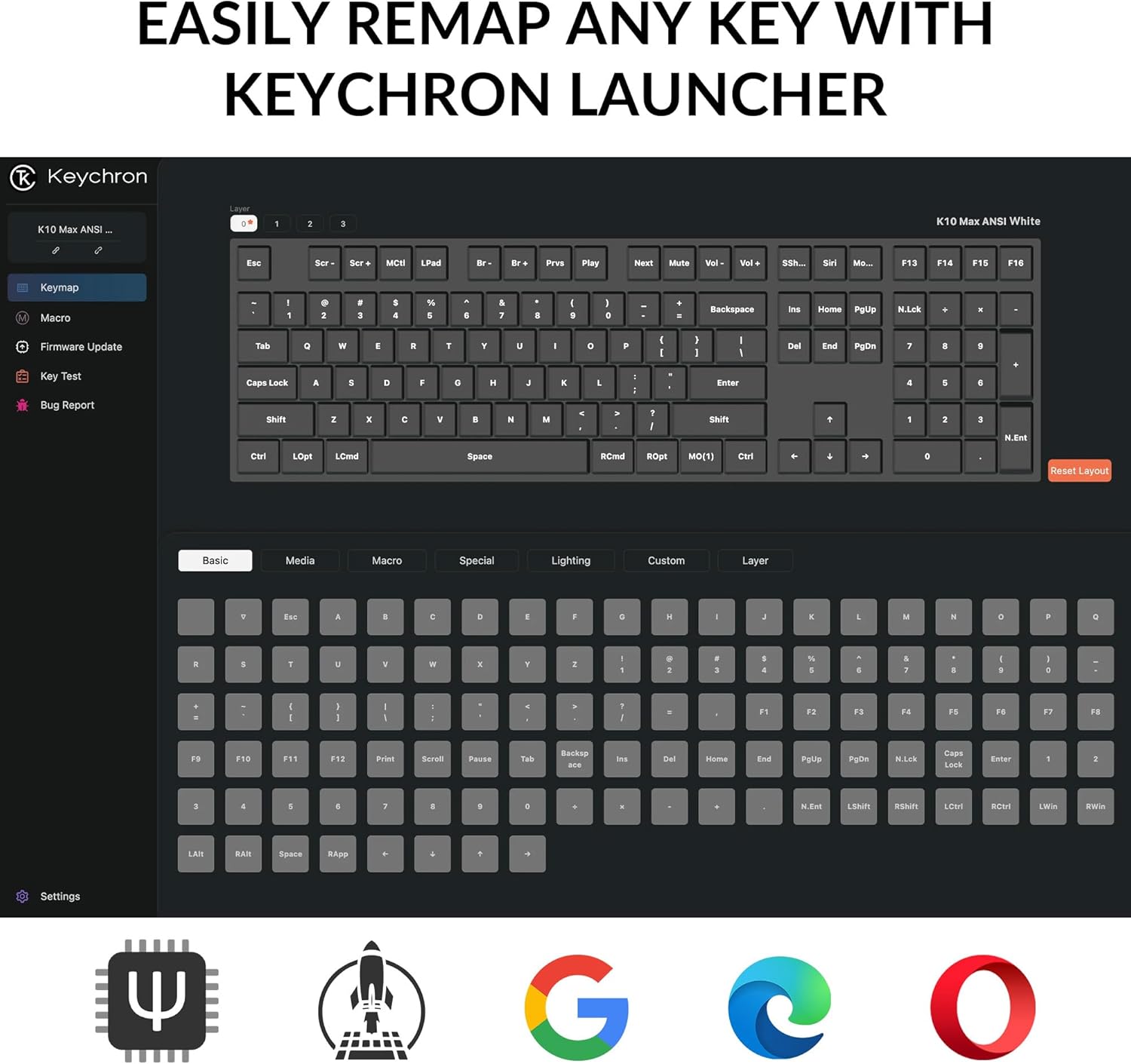
Image 3.2: Connectivity options for the Keychron K10 Max.
4. Instrucións de funcionamento
4.1. Key Remapping and Customization (QMK Firmware)
The Keychron K10 Max runs on QMK open-source firmware, allowing for extensive key remapping and macro creation. Use the Keychron Launcher web application to customize key functions, lighting effects, and create custom layers.
- Access the Keychron Launcher via a web navegador.
- Connect your keyboard in wired mode to ensure proper communication with the Launcher.
- Follow the on-screen instructions within the Launcher to remap keys, set macros, and update firmware.

Image 4.1: Keychron Launcher interface for key remapping.
4.2. Control de contraluz
The keyboard features a white backlight with south-facing LEDs for enhanced visibility and compatibility with most keycaps. Use the dedicated backlight keys (usually Fn + light bulb icon or similar) to cycle through various lighting effects and adjust brightness.

Image 4.2: South-facing white backlight illumination.
5. Mantemento
5.1. Limpeza
To clean the keyboard, disconnect it from all power sources. Use a soft, lint-free cloth slightly dampened with water or a mild cleaning solution. Avoid spraying liquids directly onto the keyboard. For cleaning between keycaps, use compressed air or a small brush.
5.2. Interruptores intercambiables en quente
The K10 Max features hot-swappable sockets, allowing you to change mechanical switches without soldering. Use the included keycap-switch puller tool for this process.
- Retire con coidado a tapa das teclas usando o extractor de tapas.
- Insert the switch puller around the switch, ensuring it grips the top and bottom clips.
- Pull the switch straight up to remove it.
- Aliña os pines do novo interruptor cos orificios da placa de circuíto impreso e preme firmemente ata que encaixen no seu lugar. Asegúrate de que os pines non estean dobrados.
- Substitúa a tapa das teclas.

Image 5.1: Hot-swappable Keychron Super switches.
6 Solución de problemas
- O teclado non responde: Ensure the keyboard is charged. Check the connectivity mode switch (2.4 GHz, Bluetooth, or wired) and ensure it matches your connection method. For wired mode, try a different USB-C cable or port.
- Problemas de conexión Bluetooth: Ensure the keyboard is in Bluetooth pairing mode (Fn + 1/2/3 flashing). Remove the keyboard from your device's Bluetooth list and attempt to re-pair. Ensure no other devices are interfering.
- 2.4 GHz wireless issues: Ensure the 2.4 GHz receiver is securely plugged into a working USB port. Try moving the receiver closer to the keyboard or using the included extension adapter.
- Keys not working or incorrect output: Verify the OS switch is set correctly (Mac/Windows). If you have remapped keys using Keychron Launcher, ensure the correct layer is active or reset to default settings within the software. Check for bent switch pins if you recently swapped switches.
- A retroiluminación non funciona: Ensure the keyboard is charged. Cycle through backlight modes and brightness levels using the designated function keys.
If issues persist, refer to the official Keychron support resources or contact customer service.
7. Especificacións
| Modelo | Keychron K10 Max |
| Dimensións | 17.61 x 5.5 polgadas (447.37 mm x 139.82 mm) |
| Peso do elemento | 4.64 pounds (1530 g ± 10 g) |
| Material do marco | Plástico ABS |
| Chaves | OSA Double-shot PBT Keycaps |
| Interruptores | Keychron Super Mechanical Switch (Hot-swappable with 3-pin & 5-pin MX Mechanical Switches) |
| Estabilizador | Estabilizador de PCB de rosca |
| Retroiluminación | South-facing White Backlight |
| MCU | ARM Cortex-M4 32-bit STM32F402 (256KB Flash) |
| Taxa de votación | 1000 Hz (2.4 GHz e con cable) / 90 Hz (modo Bluetooth) |
| N-Key Rollover (NKRO) | Si |
| Conectividade | 2.4 GHz / Bluetooth 5.1 / Type-C Wired |
| Dispositivos compatibles | Portátil, PC, teléfono intelixente, tableta |
| Compatibilidade do sistema operativo | macOS / Windows / Linux |
| Baterías | 1 batería de iones de litio (incluída) |

Imaxe 7.1: Especificacións detalladas do produto.
8. Garantía e soporte
For warranty information, please refer to the documentation included with your purchase or visit the official Keychron website. For technical support, frequently asked questions, or additional assistance, please visit the Keychron Store on Amazon or the official Keychron support page.


