1. Introdución
This manual provides detailed instructions for the MESWAO 15.6 Inch Android 14 Tablet, model MES-B3. It covers essential information regarding product features, setup, operation, maintenance, and troubleshooting to ensure optimal performance and user experience. Please read this manual thoroughly before using your device.
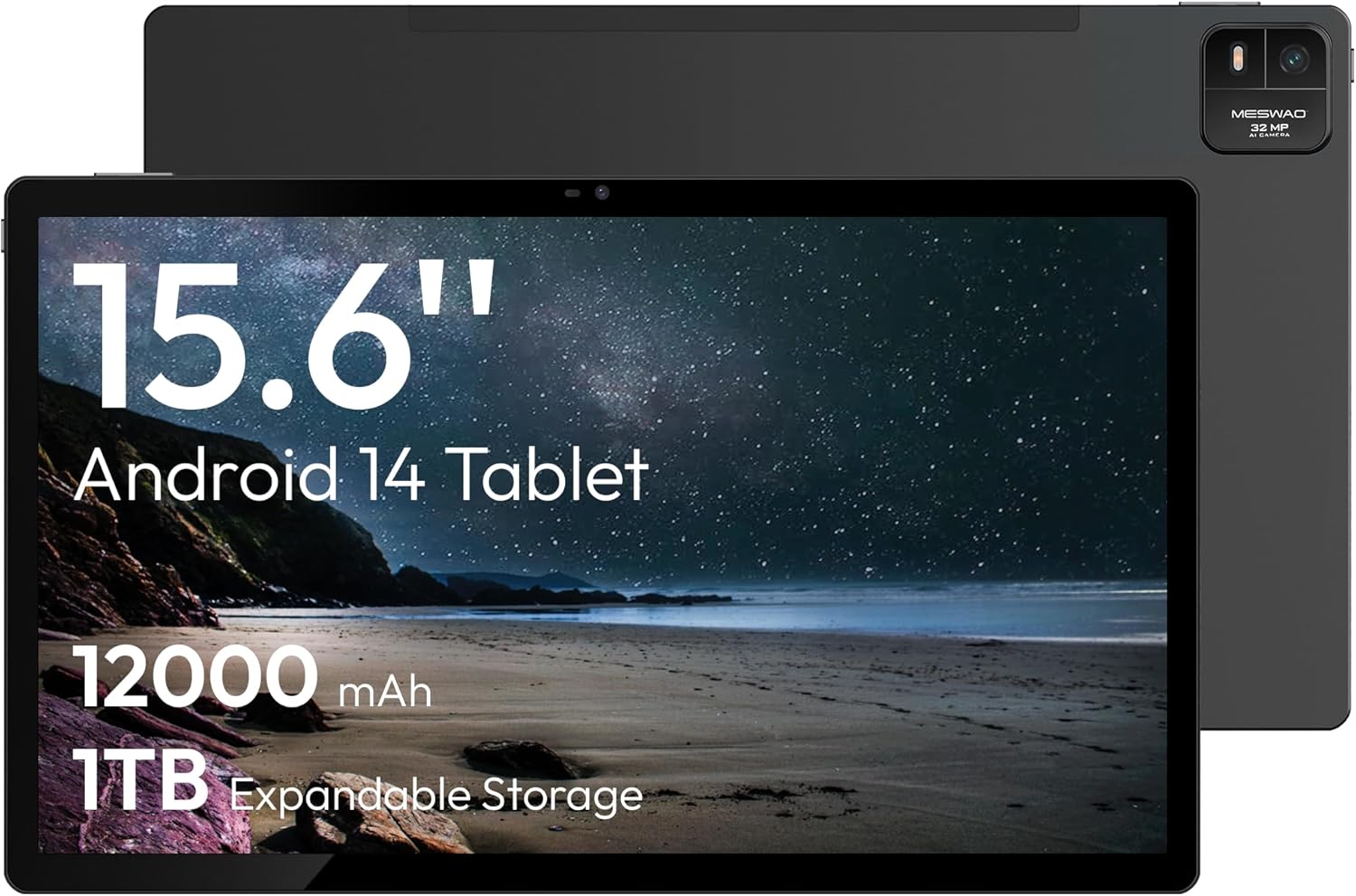
Figure 1.1: MESWAO 15.6 Inch Android 14 Tablet. This image displays the front and back view of the tablet, highlighting its large screen and rear camera module.
2. Información de seguridade
To prevent damage to your device or injury to yourself or others, please observe the following precautions:
- Non expoñas a tableta a temperaturas extremas, luz solar directa nin humidade elevada.
- Evite deixar caer a tableta nin someterla a impactos fortes.
- Empregue só cargadores e accesorios homologados.
- Do not attempt to disassemble or repair the tablet yourself.
- Manteña o comprimido lonxe da auga e outros líquidos.
- Observe all local regulations regarding the use of electronic devices.
3. Contido do paquete
Verifica que todos os elementos estean presentes no paquete:
- 15.6-inch Tablet x1
- 15W Charger x1
- Type-C to 3.5mm Adapter x1
- USB-A to Type-C Adapter x1
- Stuck Pin x1 (for SIM/TF card tray)
4. Dispositivo rematadoview
Familiarize yourself with the physical components of your MESWAO tablet.
4.1. Características físicas
- Cámara frontal: Located at the top center of the screen when held horizontally.
- Cámara traseira con flash: Located on the back, typically in a corner.
- Botón de encendido: Usually on the side, used to power on/off or wake/sleep the device.
- Botóns de volume: Axustar os niveis de son.
- Porto USB-C: Para carga e transferencia de datos.
- Ranura para tarxetas TF: Para almacenamento ampliable.
- Relatores: Quad speakers with 8 sound chambers for audio output.

Figura 4.1: Máisview of MESWAO Tablet's physical features. This image illustrates the location of stereo speakers, power and volume buttons, front camera, rear camera with flashlight, Type-C port, and TF card slot.
5. Configuración
5.1. Carga inicial
Before first use, fully charge the tablet using the provided 15W charger and USB-C cable. Connect the charger to the USB-C port on the tablet and plug it into a power outlet. The battery indicator on the screen will show charging progress.

Figure 5.1: Tablet charging illustration. This image shows the tablet connected to a charger, displaying a charging icon and indicating 100% charge in 3.5 hours.
5.2. Acendido/apagado
- Para acender: Press and hold the Power button until the MESWAO logo appears.
- Para apagar: Mantén premido o botón de acendido/apagado ata que apareza o menú de opcións de acendido/apagado e, a seguir, selecciona "Apagar".
- Para durmir/espertar: Preme brevemente o botón de acendido.
5.3. Configuración inicial
Upon first power-on, follow the on-screen prompts to set up your tablet:
- Seleccione o seu idioma preferido.
- Conéctate a unha rede wifi.
- Inicia sesión coa túa conta de Google ou crea unha nova.
- Review e aceptar os termos e condicións.
- Configura o bloqueo de pantalla (PIN, patrón ou contrasinal).
5.4. Inserting a TF Card
To expand storage, insert a TF (microSD) card:
- Locate the TF card slot on the side of the tablet.
- Use the provided stuck pin to gently eject the card tray.
- Place the TF card into the tray with the gold contacts facing down.
- Volva inserir a bandexa na tableta con coidado.

Figure 5.2: Tablet storage capabilities. This image highlights the 128GB ROM and support for up to 1TB expandable storage via TF card.
6. Instrucións de funcionamento
6.1. Navegación básica
The MESWAO tablet uses Android 14, offering intuitive touch-based navigation:
- Toca: Selecciona un elemento ou abre unha aplicación.
- Pasar o dedo: Desprazarse por pantallas ou listas.
- Pinch-to-Zoom: Ampliar ou reducir o contido da pantalla.
- Prensa longa: Acceder a menús contextuais ou mover iconas.

Figure 6.1: Android 14 operating system interface. This image displays various application icons and highlights features like smooth multitasking, parental control, and enhanced privacy.
6.2. Conectando a wifi
- Ir a Configuración > Rede e internet > Wi-Fi.
- Activar/desactivar Wi-Fi On.
- Seleccione a rede desexada da lista.
- Introduza o contrasinal se lle solicita e logo toque Conectar.
6.3. Xestión de aplicacións
- Instalar aplicacións: Download from the Google Play Store.
- Desinstalar aplicacións: Long-press an app icon, then drag it to "Uninstall" or go to Configuración > Aplicacións.
- Pechar aplicacións: Swipe up from the bottom of the screen and swipe away the app card.
6.4. Uso da cámara
The tablet features a 32MP rear camera with flash and a 5MP front camera.
- Abre o Cámara aplicación.
- Toca o botón do obturador para sacar unha foto.
- Cambia entre as cámaras dianteira e traseira usando a icona de cambio de cámara.
- Access settings for flash, modes, and other options.
6.5. Xestión da batería
A batería de 12000 mAh proporciona un uso prolongado. Para optimizar a duración da batería:
- Axusta o brillo da pantalla.
- Pecha as aplicacións non utilizadas.
- Enable battery saver mode in Configuración > Batería.
6.6. Conectividade
- Bluetooth: Pair with wireless headphones, speakers, or other devices via Configuración > Dispositivos conectados > Bluetooth.
- USB-C: Conectar a un ordenador para file transfer or use with compatible USB-C accessories.
- Transmisión de pantalla sen fíos: Share your tablet's screen to a compatible smart TV or monitor. Access this feature from the Quick Settings panel or Configuración > Dispositivos conectados > Cast.
6.7. Axustes de son
Adjust volume and audio output options:
- Use the physical volume buttons on the side of the tablet.
- Access detailed settings in Configuración > Son e vibración.
- The tablet supports multiple audio options, including USB-C audio and 3.5mm via the provided adapter.
7. Mantemento
7.1. Limpeza da tableta
Para limpar a tableta, use un pano suave e sen pelusa. Para manchas difíciles, dóreo lixeiramenteampEnxágüe o pano con auga ou cun limpador de pantallas deseñado para dispositivos electrónicos. Evite produtos químicos agresivos ou materiais abrasivos.
7.2. Actualizacións de software
Comprobe e instale actualizacións de software regularmente para garantir un rendemento, unha seguridade e un acceso óptimos a novas funcións. Vaia a Configuración > Sistema > Actualización do sistema.
7.3. Xestión do almacenamento
To maintain performance, periodically manage your tablet's storage:
- Eliminar aplicacións innecesarias e files.
- Mover grande files to the TF card or cloud storage.
- Borrar os datos da caché das aplicacións en Configuración > Aplicacións > [Nome da aplicación] > Almacenamento e caché.
8 Solución de problemas
Consulta os seguintes problemas e solucións comúns:
| Problema | Solución |
|---|---|
| A tableta non se acende. | Asegúrate de que a batería estea cargada. Conecta o cargador e agarda uns minutos antes de tentar acender de novo. |
| Non se pode conectar á wifi. | Check if Wi-Fi is enabled. Verify the Wi-Fi password. Restart your router and the tablet. |
| As aplicacións fallan ou conxélanse. | Close background apps. Clear the app's cache. Restart the tablet. Ensure the app is updated. |
| Rendemento lento. | Free up storage space. Close unused apps. Restart the tablet. |
| A batería esgotarase rapidamente. | Reduce screen brightness. Disable unused features like Bluetooth or GPS. Close background apps. Check battery usage in settings. |
9. Especificacións
Key technical specifications for the MESWAO 15.6 Inch Android 14 Tablet (MES-B3):
| Característica | Detalle |
|---|---|
| Marca | MESWAO |
| Nome do modelo | MES-B3 |
| Sistema Operativo | Android 14 |
| Tamaño da pantalla | 15.6 polgadas |
| Resolución de pantalla | 1920 x 1080 píxeles (IPS HD) |
| Procesador | Octa-Core (MediaTek Helio G99, up to 2.2 GHz) |
| Coprocesador gráfico | Mali-G57 |
| RAM (Memory Storage Capacity) | 6GB (DDR3 SDRAM) |
| Internal Storage (Flash Memory Size) | 128 GB |
| Almacenamento ampliable | Ata 1 TB mediante tarxeta TF |
| Resolución da cámara traseira | 32 MP |
| Resolución cámara frontal | 5 MP |
| Capacidade da batería | 12000 mAh |
| Duración media da batería | 12 horas |
| Tipo sen fíos | 802.11a/b/g/n/ac (Wi-Fi 5) |
| Cor | Gris |
| Peso do elemento | 2.35 libras |
| Dimensións do produto (LxWxH) | 14.53 x 8.78 x 0.43 polgadas |
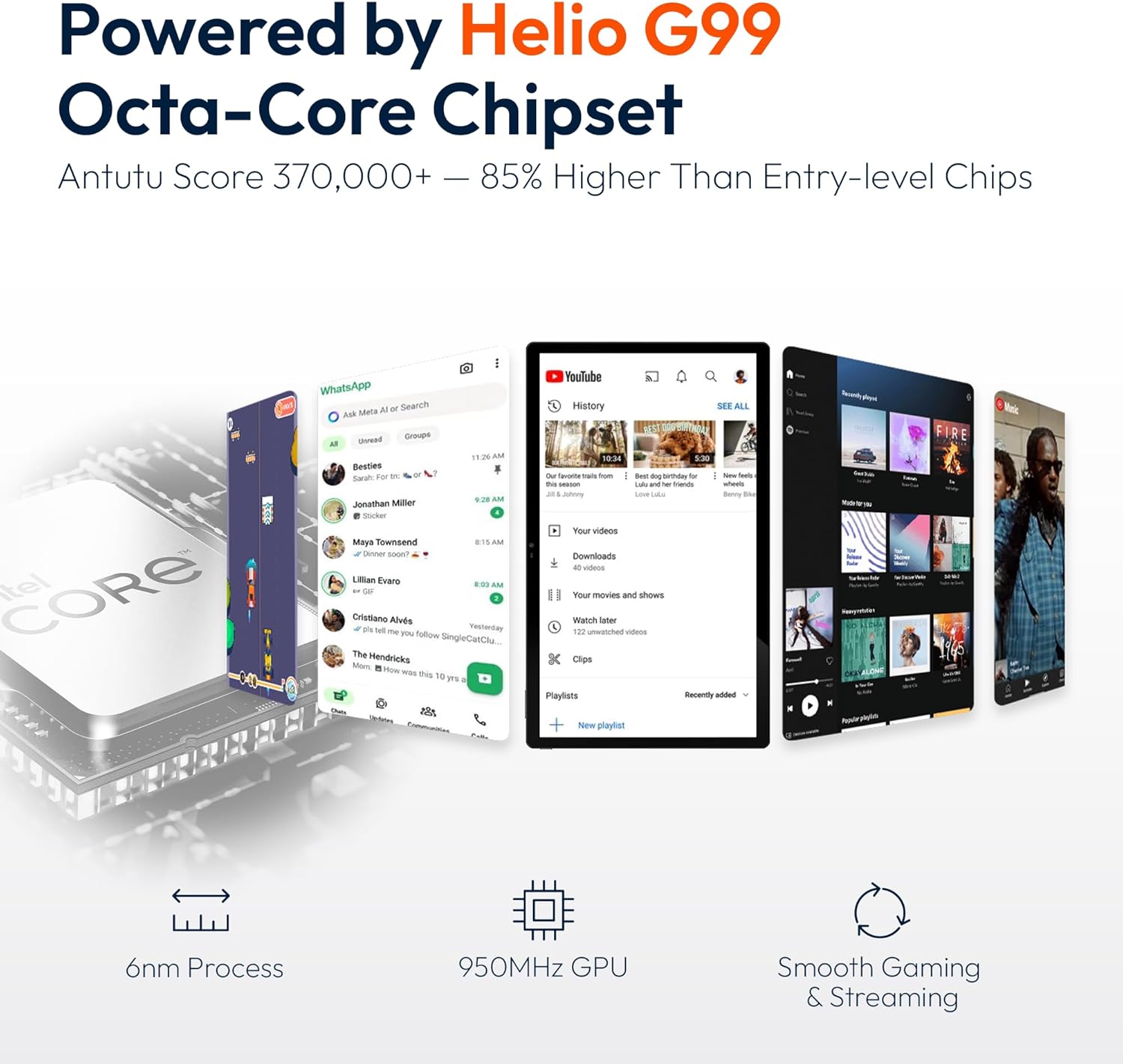
Figure 9.1: Processor and performance details. This image highlights the Helio G99 Octa-Core chipset, 6nm process, 950MHz GPU, and smooth gaming/streaming capabilities.
10. Garantía e soporte
10.1. Información da garantía
The MESWAO 15.6 Inch Android 14 Tablet comes with a 12 meses de garantía que cobre defectos de fabricación. Conserve o comprobante de compra para reclamacións de garantía.
10.2. Atención ao cliente
For technical assistance, troubleshooting, or warranty inquiries, please contact MESWAO customer support. They offer Atención ao cliente 24 horas e ter local service centers in the US, EU, and Japan.
- Método de contacto: Refer to the contact information provided with your product packaging or visit the official MESWAO websitio.
- Resolución do problema: Issues reported are typically responded to within 24 hours, with problems resolved or replaced according to policy.

Figure 10.1: MESWAO customer support and warranty details. This image highlights the 12-month warranty, 24-hour customer support, local after-sales centers, and quick response flow.


