Introdución
This manual provides comprehensive instructions for the TIATUA M9 Instant Print Kids Camera. Please read this manual carefully before using the camera to ensure proper operation and to maximize your experience.
Produto rematadoview
Características clave
- Pantalla IPS de 3.0 polgadas: A larger, soft IPS screen for comfortable viewing e navegación.
- 48 MP Photo Resolution: Capture high-quality images with a 48-megapixel lens.
- Gravación de vídeo HD 1080p: Record clear high-definition videos.
- Impresión instantánea: Print black and white photos directly from the camera without ink or toner.
- Multifuncional: Includes photography, video recording, instant printing, fun frames, music playback, games, and a flashlight.
- Batería de longa duración: Equipped with a 1000 mAh battery, providing up to 4 hours of continuous use.
- 32GB Memory Card Included: Ampalmacenamento para fotos e vídeos.
- Ferramentas creativas: Comes with 5 colorful pens for customizing printed photos.
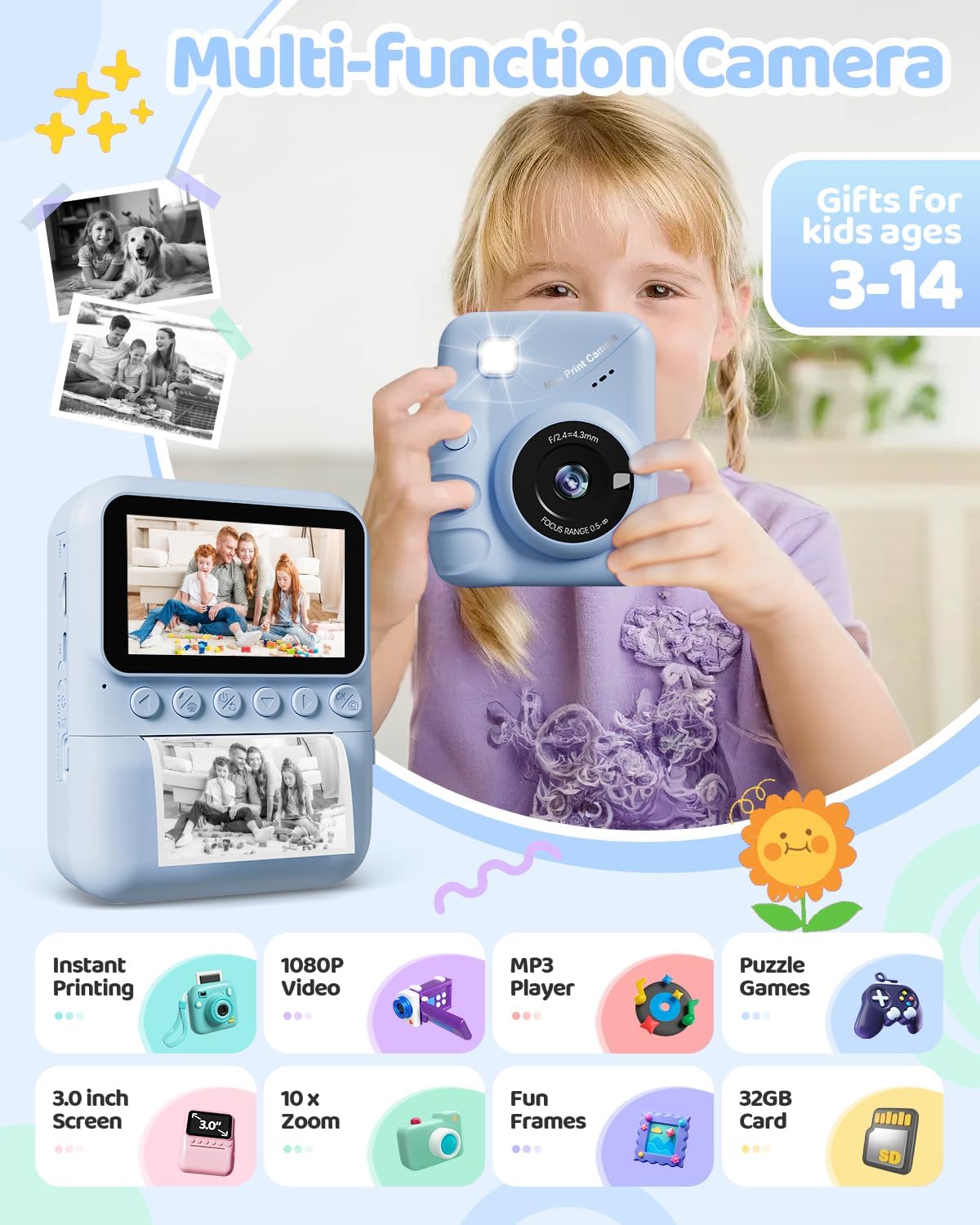
Image: The TIATUA M9 Instant Print Kids Camera highlighting its various functions like instant printing, 1080P video, MP3 player, puzzle games, 3.0-inch screen, 10x zoom, fun frames, and 32GB card.
Comezando
Contido do paquete
Comprobe o paquete para asegurarse de que conteñan todos os elementos:
- TIATUA M9 Instant Print Kids Camera
- Tarxeta Micro SD de 32 GB
- Printing Paper Rolls (typically 3 rolls)
- Cable de carga USB
- Lanyard/Strap
- Colorful Pens (5 pieces)
- Manual de usuario (este documento)

Image: The TIATUA M9 Instant Print Kids Camera in dark blue, displayed with its accessories including a 32GB memory card, colorful pens, three rolls of printing paper, a USB charging cable, and a decorative lanyard.
Cargando a cámara
Before first use, fully charge the camera. Connect the included USB cable to the camera's charging port and to a USB power adapter (not included) or a computer's USB port. The charging indicator light will show the charging status.
Introducindo a tarxeta Micro SD
Locate the Micro SD card slot on the side of the camera. Insert the 32GB Micro SD card (included) into the slot until it clicks into place. Ensure the camera is powered off before inserting or removing the card.
Cargando papel de impresión
Follow these steps to load the thermal printing paper:
- Abre a ranura de papel: Gently push the latch or button to open the paper compartment cover.
- Insert the Paper Roll: Place a new roll of thermal paper into the compartment. Ensure the paper feeds from the bottom of the roll and the end of the paper is facing outwards, ready to be pulled through the printing mechanism.
- Pull Paper Out: Pull approximately 1 inch (2.5 cm) of paper out of the slot, ensuring it is straight.
- Pecha a portada: Close the paper compartment cover firmly until it clicks.

Image: A three-step visual guide demonstrating how to load the thermal printing paper into the TIATUA M9 Instant Print Kids Camera. Step 1 shows opening the paper slot, Step 2 shows inserting the paper roll in the correct direction, and Step 3 shows pulling out approximately 1 inch of paper before closing the compartment.
Instrucións de funcionamento
Controis básicos
The camera features intuitive buttons for easy navigation:
- Botón de encendido: Press and hold to turn the camera ON/OFF. Short press to switch modes or confirm selections.
- Botón do obturador: Prema para sacar unha foto ou iniciar/deter a gravación de vídeo.
- Botóns de navegación (Arriba/Abaixo/Esquerda/Dereita): Úsase para navegar polos menús, achegar/afastar ou seleccionar opcións.
- Botón Aceptar/Confirmar: Confirma as seleccións nos menús.
- Botón de menú: Accede á configuración e ás opcións da cámara.
Facendo Fotos
Para facer unha foto:
- Acende a cámara.
- Select the photo mode from the main menu.
- Frame your shot using the 3.0-inch IPS screen.
- (Optional) Use the navigation buttons to zoom in or out (up to 10x digital zoom).
- Press the Shutter button to capture the image.

Image: The TIATUA M9 Instant Print Kids Camera's 3.0-inch screen displaying a live view, demonstrating 1080P HD video recording capability and 10x digital zoom functionality with examples of zoomed-in images.
Gravación de vídeos
Para gravar un vídeo:
- Acende a cámara.
- Select the video recording mode from the main menu.
- Press the Shutter button once to start recording. A timer will appear on the screen.
- Press the Shutter button again to stop recording. The video will be saved to the Micro SD card.
Impresión instantánea
After taking a photo, you can instantly print it in black and white. The camera offers different printing densities:
- Baixa (1-3): Lighter print.
- Medio (4-5): Standard print.
- Alto (6-7): Darker print.
Select your desired density in the print settings before initiating the print. The camera uses thermal printing technology, requiring no ink cartridges.

Image: An illustration demonstrating the two printing modes (Grayscale Matrix and Grayscale Levels) and three printing densities (Low, Medium, High) available on the TIATUA M9 Instant Print Kids Camera, showing how image clarity changes with density settings.
Photo Frames and Filters
Enhance your photos with various built-in frames and filters. Access these options through the camera's menu while in photo mode. Select a frame or filter before taking a picture to apply it directly to the image and print.
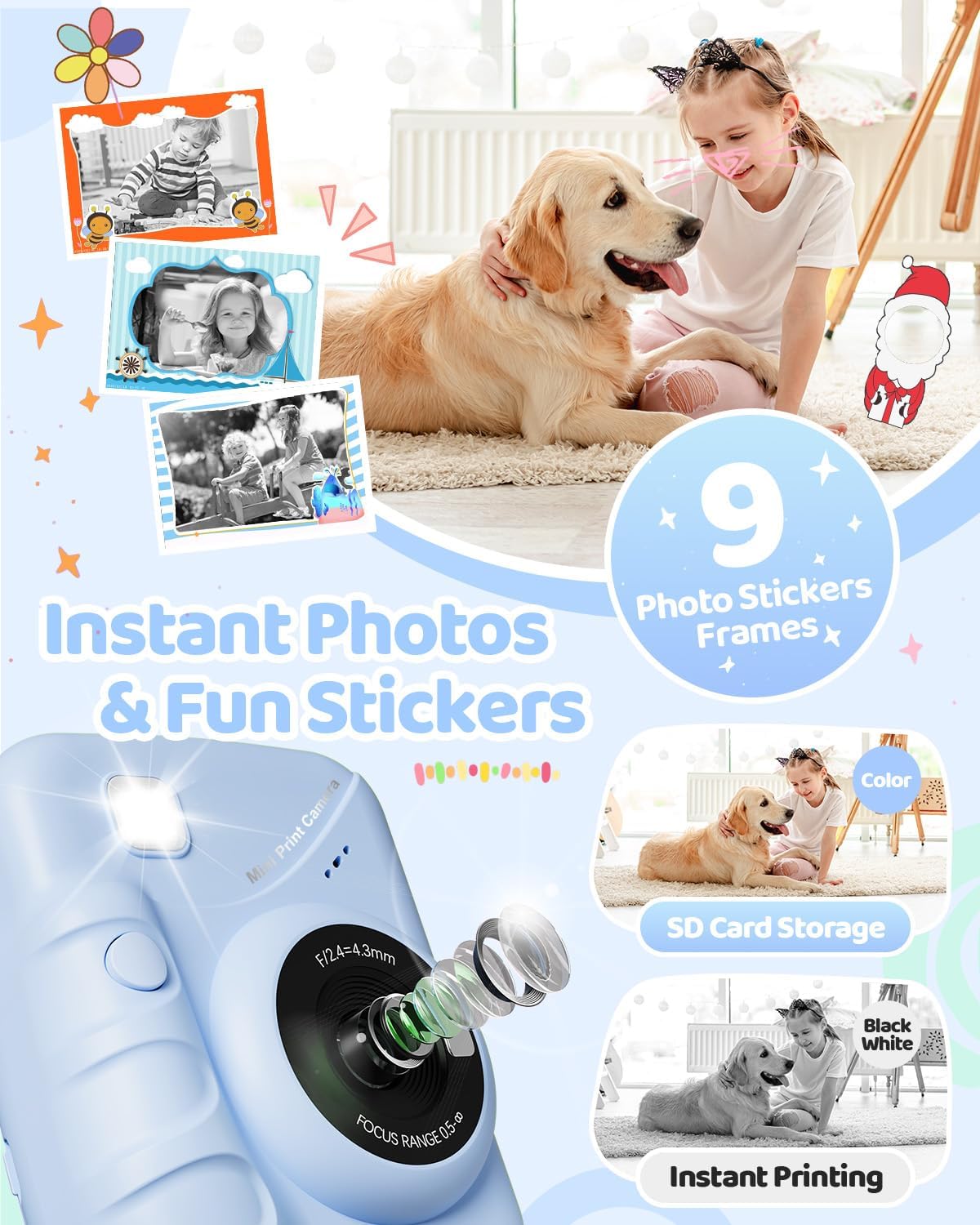
Image: The TIATUA M9 Instant Print Kids Camera displaying various fun photo stickers and frames that can be applied to images, encouraging creative expression.
Xogando a Xogos
The camera includes several pre-installed puzzle games for entertainment. Navigate to the "Games" option in the main menu to select and play. Use the navigation buttons to control the games.

Image: A child interacting with the TIATUA M9 Instant Print Kids Camera, which displays various puzzle games on its screen, alongside icons for a music player and other interesting features.
Playback and Review
Para view your captured photos and videos, enter the "Playback" mode from the main menu. Use the navigation buttons to scroll through your media. Press the OK button to view unha foto ou reproducir un vídeo.
Mantemento
Limpeza da cámara
To clean the camera body, use a soft, dry cloth. For the lens, use a specialized lens cleaning cloth. Do not use liquid cleaners or abrasive materials, as they may damage the camera.
Almacenamento
Store the camera in a cool, dry place away from direct sunlight and extreme temperatures. When not in use for extended periods, ensure the battery is partially charged (around 50%) to prolong its lifespan.
Resolución de problemas
Problemas comúns e solucións
- A cámara non se acende:
- Asegúrate de que a batería estea cargada. Conecta a cámara a unha fonte de alimentación mediante o cable USB.
- Manteña premido o botón de acendido durante uns segundos.
- Non se poden facer fotos/vídeos:
- Check if the Micro SD card is inserted correctly and has sufficient free space.
- Ensure the camera is in the correct mode (photo or video).
- Print quality is poor or no print:
- Verify that the thermal paper is loaded correctly and not upside down.
- Check if there is enough paper in the compartment.
- Adjust the printing density settings in the camera menu.
- Ensure the print head is clean (refer to cleaning instructions).
- Screen is frozen:
- Try restarting the camera by holding the power button. If unresponsive, use a thin object to press the reset button (if available, usually a small pinhole).
Especificacións
| Característica | Detalle |
|---|---|
| Marca | TIATUA |
| Nome do modelo | M9 |
| Cor | Azul escuro |
| Pantalla | LCD de 3.0 polgadas |
| Característica especial | Instant Photo |
| Tecnoloxía de conectividade | USB |
| Composición da batería | Polímero de litio (1000 mAh) |
| Resolución de vídeo | 1080 p |
| Resolución efectiva de fotografías | 48 megapíxeles |
| Velocidade máxima de obturación | 1/2000s |
| Tipo de foco | Enfoque automático |
| Tipo de zoom | Zoom óptico |
| Rango ISO | 100-6400 |
| Nivel de resistencia á auga | Non impermeable |
| Dimensións (L x W x H) | 16.7 x 13.4 x 6.2 cm |
| Peso | 420 gramos |
Garantía e Soporte
For warranty information and customer support, please refer to the contact details provided with your purchase or visit the official TIATUA websitio. Garda o comprobante de compra para calquera reclamación de garantía.


