1. Introdución
This manual provides essential information for the installation, operation, and maintenance of your ZOTAC GAMING GeForce RTX 4070 Ti SUPER SOLID OC 16GB graphics card. Please read this manual thoroughly before installation to ensure proper functionality and to prevent damage.

Image 1.1: ZOTAC GAMING GeForce RTX 4070 Ti SUPER SOLID OC 16GB Graphics Card and its retail packaging.
2. Contido do paquete
Verifica que todos os elementos estean presentes no paquete:
- ZOTAC GAMING GeForce RTX 4070 Ti SUPER SOLID OC 16GB Graphics Card
- Soporte de soporte para GPU
- Guía do usuario (este documento)
- Power Adapter Cable (if applicable, check your specific model)
3. Requisitos do sistema
- Placa base compatible con PCI Express cunha ranura gráfica x16 de ancho dual
- Minimum 750W power supply with three available 8-pin PCIe power connectors (or equivalent 12VHPWR connector)
- Minimum 16GB system memory
- Microsoft Windows 10/11 64-bit or Linux 64-bit operating system
- Internet connection for driver installation
4. Guía de instalación
4.1. Preparación
- Apague o ordenador e desconecte o cable de alimentación.
- Abre a carcasa do teu ordenador.
- Conéctate á terra para descargar calquera electricidade estática.
4.2. Installing the Graphics Card
- Localiza unha ranura PCI Express x16 dispoñible na túa placa base.
- Retire as tapas das ranuras de expansión necesarias da carcasa do seu ordenador.
- Carefully insert the graphics card into the PCIe x16 slot until it is fully seated. Ensure the retention clip locks into place.
- Fixa a tarxeta gráfica á carcasa con parafusos.
- Connect the required power cables from your power supply to the graphics card. This model typically requires three 8-pin PCIe power connectors or a single 12VHPWR connector. Ensure all connections are secure.
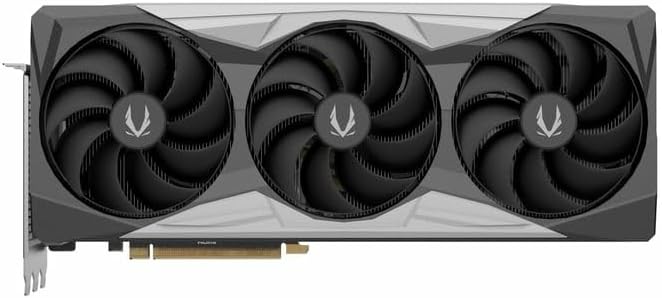
Imaxe 4.1: Fronte view da tarxeta gráfica, mostrando o deseño de tres ventiladores.
4.3. Installing the GPU Support Stand
The included GPU support stand helps prevent sag and provides additional stability for the graphics card. Follow the instructions provided with the stand for proper installation within your PC case.
4.4. Closing the Case and Connecting Peripherals
- Pecha a caixa do ordenador.
- Connect your monitor(s) to the display outputs on the graphics card (DisplayPort or HDMI).
- Reconnect the power cable and other peripherals to your computer.

Imaxe 4.2: Traseira view of the graphics card, showing three DisplayPort outputs and one HDMI output.
5. Instrucións de funcionamento
5.1. Instalación de controladores
- Acende o teu ordenador.
- Once the operating system loads, download the latest graphics drivers from the official NVIDIA websitio (www.nvidia.com/drivers) or the ZOTAC websitio (www.zotac.com/asistencia).
- Follow the on-screen instructions to complete the driver installation. A system restart may be required.
5.2. Utilidades de software
ZOTAC provides utilities such as FireStorm for monitoring and adjusting graphics card settings, including fan speed control (Active Fan Control, FREEZE Fan Stop) and performance profiles. These can be downloaded from the ZOTAC websitio.
6. Mantemento
- Eliminación de po: Periodically clean dust from the graphics card fans and heatsink using compressed air. Ensure the computer is powered off and unplugged before cleaning.
- Actualizacións de controladores: Keep your graphics drivers updated to ensure optimal performance and compatibility.
- Monitorización de temperatura: Use monitoring software to keep track of the graphics card's temperature during operation. Excessive temperatures can indicate poor airflow or dust buildup.

Imaxe 6.1: En ángulo view of the graphics card, highlighting its robust cooling solution.
7 Solución de problemas
- Sen saída de visualización:
- Asegúrate de que o cable do monitor estea conectado correctamente á tarxeta gráfica e ao monitor.
- Comprobe que a tarxeta gráfica estea completamente asentada na ranura PCIe.
- Check that all power cables are properly connected to the graphics card.
- Proba cun monitor ou cable diferente se é posible.
- Inestabilidade ou fallos do sistema:
- Ensure graphics drivers are correctly installed and up to date.
- Check for adequate power supply capacity.
- Vixiar as temperaturas para evitar o sobrequecemento.
- Verify system memory (RAM) stability.
- Fan Noise or Malfunction:
- Limpar o po dos ventiladores e do disipador de calor.
- Asegúrate de que ningún cable obstrua a rotación do ventilador.
- Use ZOTAC FireStorm utility to check fan speed settings.
8. Especificacións
| Característica | Detalle |
|---|---|
| Número de modelo | ZT-D40730R-10P |
| Procesador gráfico | NVIDIA GeForce RTX 4070 Ti SUPER |
| Memoria de vídeo | 16 GB GDDR6X |
| Interface de memoria | 256 bits |
| Reloxo de memoria | 21000 MHz (Effective) |
| Reloj de motor | Aumento: 2640 MHz |
| Mostrar saídas | 3 x DisplayPort 1.4a, 1 x HDMI 2.1a |
| Soporte HDCP | Si |
| Resolución dixital máxima | Up to 4K (7680x4320 @60Hz) |
| PCI Express | PCI Express 4.0 x16 |
| Fonte de alimentación recomendada | 750 W |
| Conectores de alimentación | 1 x 12VHPWR (or 3 x 8-pin PCIe via adapter) |
| Dimensións (LxWxH) | 16.73 x 11.54 x 3.94 polgadas (aprox.) |
| Peso | 2.2 libras (aprox.) |
| Sistema de refrixeración | IceStorm 2.0 Advanced Cooling, Triple 100mm Fans, FREEZE Fan Stop, Active Fan Control |
| Características | NVIDIA DLSS 3.5, Ray Tracing, Metal Backplate, GPU Support Stand |
9. Garantía e soporte
For detailed warranty information, please refer to the warranty card included with your product or visit the official ZOTAC website's support section. ZOTAC provides technical support and resources for their products.
- Soporte de ZOTAC Websitio: www.zotac.com/asistencia
- Rexistro do produto: Register your product on the ZOTAC website to activate your warranty and receive product updates.


