1. Introdución
The Canon PIXMA TS3750i is a compact, affordable, and user-friendly multifunction inkjet printer designed for home and small office use. It offers versatile functionalities including printing, copying, and scanning. This printer supports wireless connectivity, enabling convenient operation from various devices, and features borderless photo printing. It is also compatible with the PIXMA Print Plan for automated ink delivery.
2. Información de seguridade
Please read all safety instructions before using the printer to ensure safe and proper operation. Keep this manual for future reference.
- Non coloque a impresora en lugares inestables.
- Keep the printer away from water or moisture.
- Use só o cable de alimentación subministrado coa impresora.
- Do not attempt to disassemble or modify the printer.
- Desconecte a impresora da toma de corrente antes de limpala ou se non a vai usar durante un período prolongado.
3. Contido do paquete
Verifique que todos os seguintes elementos estean incluídos no seu paquete:
- Canon PIXMA TS3750i Printer
- Inkjet Cartridges (initial set)
- Cable de alimentación
- Setup CD-ROM (for Windows only)
- Manuais e outros documentos
4. Configuración
4.1 Desembalaxe e colocación
- Remove the printer from its packaging and remove all protective tapes and packing materials.
- Coloque a impresora sobre unha superficie estable e plana con espazo suficiente arredor para a súa ventilación e funcionamento.
4.2 Conexión de alimentación
- Connect the supplied power cable to the printer's power input.
- Conecta o outro extremo do cable de alimentación a unha toma de corrente.
- Prema o botón de acendido para acender a impresora.
4.3 Instalación do cartucho de tinta
- Open the printer's top cover to access the cartridge holder.
- Remove the protective tape from the ink cartridges.
- Insert the color and black ink cartridges into their respective slots until they click into place.
- Pecha a tapa superior.
4.4 Carga de papel
- Open the paper support and pull out the paper output tray.
- Load paper (e.g., A4, photo paper) into the rear paper tray, ensuring it is aligned with the paper guides.
- Axuste as guías do papel para que se axusten á anchura do papel.
4.5 Software e configuración sen fíos
For initial setup and to enable wireless printing, follow these steps:
- Para PC: Insert the Setup CD-ROM (Windows only) and follow the on-screen instructions to install drivers and software.
- For PC/Mac/Mobile: Visita o Canon website for your region and download the latest drivers and the Canon PRINT Inkjet/SELPHY app.
- Follow the instructions within the software or app to connect the printer to your Wi-Fi network. The printer supports one-touch wireless connectivity for easier setup.
- For mobile devices, ensure your device is connected to the same Wi-Fi network as the printer.
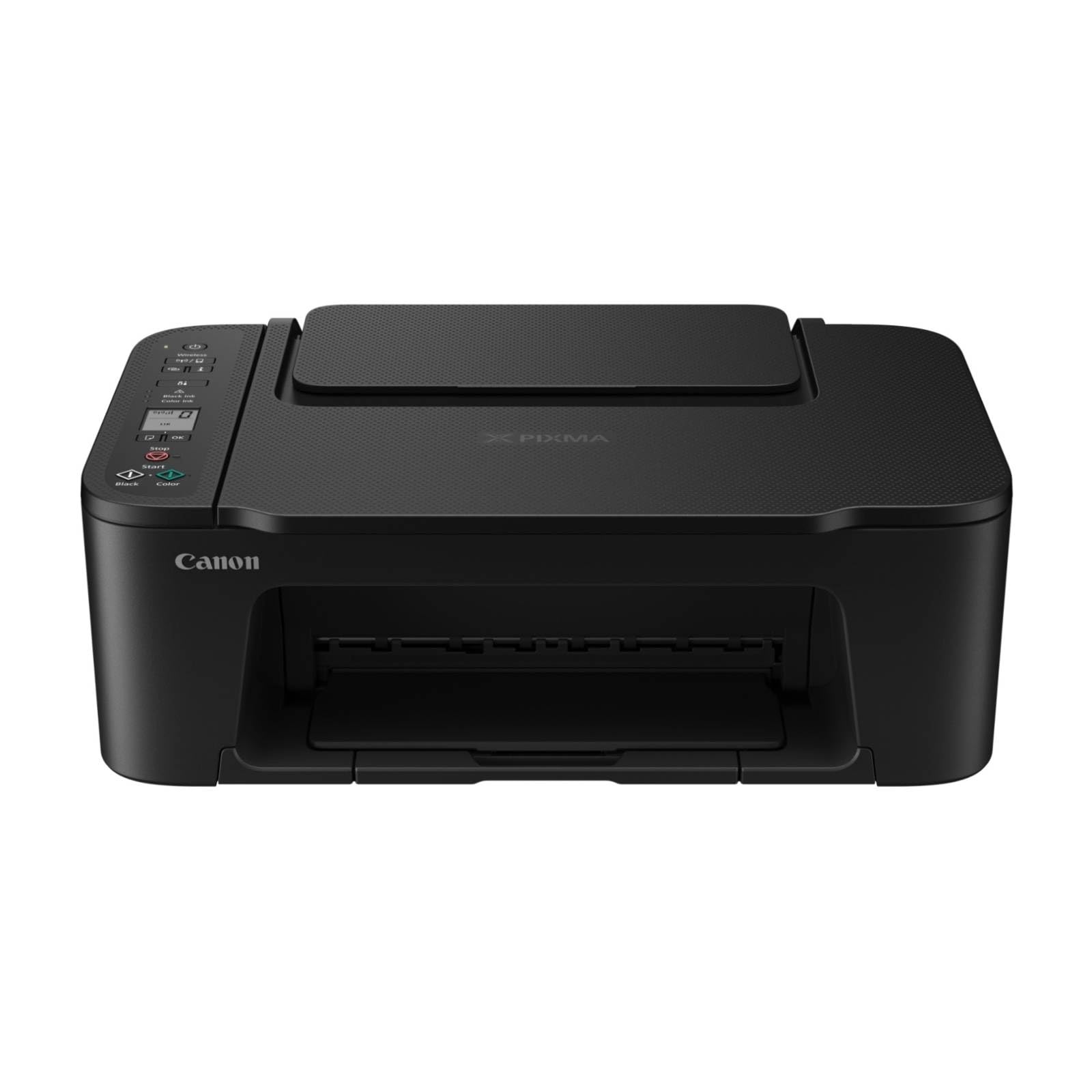
Figura 1: Fronte view of the Canon PIXMA TS3750i printer, showing its compact design and control panel.
5. Instrucións de funcionamento
5.1 Impresión de documentos e fotos
- Asegúrate de que a impresora estea acendida e conectada ao teu dispositivo (mediante Wi-Fi ou USB).
- Load the appropriate paper type and size into the rear paper tray.
- Abre o documento ou a foto que queres imprimir no teu ordenador ou dispositivo móbil.
- Selecciona a opción de impresión na túa aplicación.
- In the print dialog, select the Canon PIXMA TS3750i as your printer. Adjust settings such as paper size, media type, print quality, and borderless printing (for photos up to 12.7 x 18 cm).
- Fai clic en "Imprimir".
5.2 Copia de documentos
- Levante a tapa do escáner.
- Place the document face-down on the scanner glass, aligning it with the alignment mark.
- Peche a tapa do escáner con coidado.
- On the printer's control panel, press the Black button for a monochrome copy or the Color button for a color copy.
- To make multiple copies (up to 20), press the desired copy button repeatedly for the number of copies needed.
5.3 Escanear documentos e fotos
- Ensure the printer is connected to your computer or mobile device.
- Coloque o documento ou a foto cara abaixo no cristal do escáner.
- On your computer, open the scanning software (e.g., Canon IJ Scan Utility) or on your mobile device, open the Canon PRINT Inkjet/SELPHY app.
- Select the scan option and adjust settings such as document type, resolution, and destination folder.
- Inicia a dixitalización. A imaxe dixitalizada gardarase na localización especificada.
5.4 Mobile Printing and Scanning
The Canon PIXMA TS3750i supports printing and scanning directly from smartphones and tablets using the Canon PRINT Inkjet/SELPHY app or Apple AirPrint. Ensure your mobile device and printer are connected to the same Wi-Fi network.
- Canon PRINT Inkjet/SELPHY App: Download and install the app from your device's app store. Use the app to select photos or documents for printing, or to initiate scans directly to your mobile device.
- Apple AirPrint: For iOS devices, you can print directly from AirPrint-enabled applications without installing additional drivers. Select the print option from the app and choose your PIXMA TS3750i printer.
- Wi-Fi PictBridge: Connect directly to compatible cameras for photo printing.
6. Mantemento
6.1 Limpeza da impresora
- Exterior: Limpe o exterior da impresora cun pano suave eamp, pano que non solte fiapos. Non empregue produtos de limpeza abrasivos nin disolventes.
- Cristal do escáner: Gently clean the scanner glass with a soft, lint-free cloth moistened with a small amount of glass cleaner. Ensure no residue is left behind.
- Cabezal de impresión: If print quality declines (e.g., streaks, faded colors), perform a print head cleaning from the printer's utility software on your computer or through the Canon PRINT Inkjet/SELPHY app.
6.2 Substitución dos cartuchos de tinta
- When an ink cartridge is low or empty, a message will appear on the printer's display or in the software.
- Open the printer's top cover. The cartridge holder will move to the replacement position.
- Prema o cartucho baleiro para liberalo e, a seguir, tíreo cara a fóra.
- Unpack the new Canon genuine ink cartridge and remove the protective tape.
- Insert the new cartridge into the correct slot until it clicks firmly into place.
- Peche a tapa superior. A impresora realizará un proceso de inicialización.
6.3 Eliminación de atascos de papel
- If a paper jam occurs, an error message will appear.
- Apague a impresora e desenchufe o cable de alimentación.
- Carefully open the printer covers (top cover, rear cover if applicable) to locate the jammed paper.
- Gently pull the jammed paper out in the direction of the paper path. Avoid tearing the paper.
- Ensure all torn pieces of paper are removed.
- Peche todas as tapas, conecte o cable de alimentación e acenda a impresora.
7 Solución de problemas
Refer to the following common issues and their solutions. For more detailed troubleshooting, consult the Canon support websitio.
- A impresora non se acende: Ensure the power cable is securely connected to both the printer and a working electrical outlet.
- Cannot print:
- Check if the printer is powered on and connected to your device (Wi-Fi or USB).
- Verify that ink cartridges are installed correctly and have sufficient ink.
- Asegúrese de que o papel estea cargado correctamente na bandexa de papel.
- Restart your computer/mobile device and the printer.
- Check printer drivers and software for updates.
- Mala calidade de impresión:
- Realiza unha limpeza do cabezal de impresión e unha comprobación dos inxectores coa utilidade da impresora.
- Asegúrate de usar cartuchos de tinta orixinais de Canon.
- Check print settings for appropriate paper type and print quality.
- Problemas de conexión sen fíos:
- Ensure the printer and your device are on the same Wi-Fi network.
- Restart your wireless router, printer, and device.
- Re-run the wireless setup process.
- Check for any firewall settings blocking communication.
- Atasco de papel: Follow the instructions in Section 6.3 to clear any jammed paper.
8. Especificacións
| Nome do modelo | PIXMA TS3750i |
| Tecnoloxía de impresión | Inxección de tinta |
| Funcións | Imprimir, copiar, escanear |
| Tecnoloxía de conectividade | USB, Wi-Fi |
| Velocidade máxima de impresión (monocromo) | 7.7 ppm |
| Velocidade máxima de impresión (cor) | 4 ppm |
| Saída da impresora | Cor |
| Impresión dúplex | Si |
| Tamaño máximo de medios | A4 |
| Compatibilidade co tamaño da folla | A4, A5, B5, Custom (Width 89 mm - 215.9 mm, Length 127 mm - 676 mm) |
| Capacidade máxima de entrada | 60 follas |
| Tipo de escáner | Cama plana |
| Max Copies per Run | 20 |
| Dispositivos compatibles | Portátiles, PC, teléfonos intelixentes, tabletas |
| Características especiais | Borderless printing, Lightweight, Auto Power On, Display screen |
| Dimensións do produto (P x A x A) | 32.7 x 43.5 x 14.5 cm |
| Peso do produto | 4.19 kg |
| Consumo de enerxía | 9 Watts |
9. Garantía e soporte
This Canon PIXMA TS3750i printer comes with a standard manufacturer's warranty. Please refer to the warranty card included in your package for specific terms and conditions, including warranty period and coverage details.
For technical support, product registration, driver downloads, and additional troubleshooting resources, please visit the official Canon support website for your region. You can also find contact information for customer service there.
- Soporte en liña: www.canon.com/support (Please replace with your regional Canon support link)
- Rexistro do produto: Registering your product helps Canon provide you with better service and support.


