1. Introdución
Thank you for choosing the EvoFox Ronin Wired Mechanical Gaming Keyboard. This manual provides detailed instructions for setting up, operating, and maintaining your keyboard to ensure optimal performance and longevity. The EvoFox Ronin is designed for a superior typing and gaming experience, featuring advanced sound dampening, customizable switches, and dynamic RGB lighting.

Image 1.1: EvoFox Ronin Wired Mechanical Gaming Keyboard (Black)
Características principais:
- 9-Layer Gasket Structure: Advanced design for reduced noise, improved stability, and enhanced tactile feedback.
- Hot-Swappable Outemu Red Silent Switches: Customizable, durable, and smooth typing experience with included switch puller.
- Retroiluminación RGB por tecla: 21 effects and Audio Sync Mode for personalized and immersive lighting.
- Dedicated Volume Knob: Convenient control over audio levels.
- Powerful Windows Software: Program keys, create macros, control backlighting, and manage profiles with onboard memory.
- Compatibilidade entre plataformas: Easily switch between Windows and Mac modes.
- Detachable Braided USB-C Cable: Robust 1.5m cable with EMI ring for reliable connection and portability.
2. Contido do paquete
Verifique que todos os elementos estean presentes no seu paquete:
- 1 x EvoFox Ronin Mechanical Gaming Keyboard
- 1 x Extractor de teclas
- 4 x Outemu Red Switches (Spare)
- 1 x Manual de usuario
3. Produto rematadoview
3.1 Estrutura da xunta
The EvoFox Ronin features an advanced 9-layer gasket structure. This design incorporates silicone gaskets, a mounting plate, and multiple layers of vibration and sound dampening materials to provide a stable, quiet, and comfortable typing experience by minimizing unwanted noise and resonance.
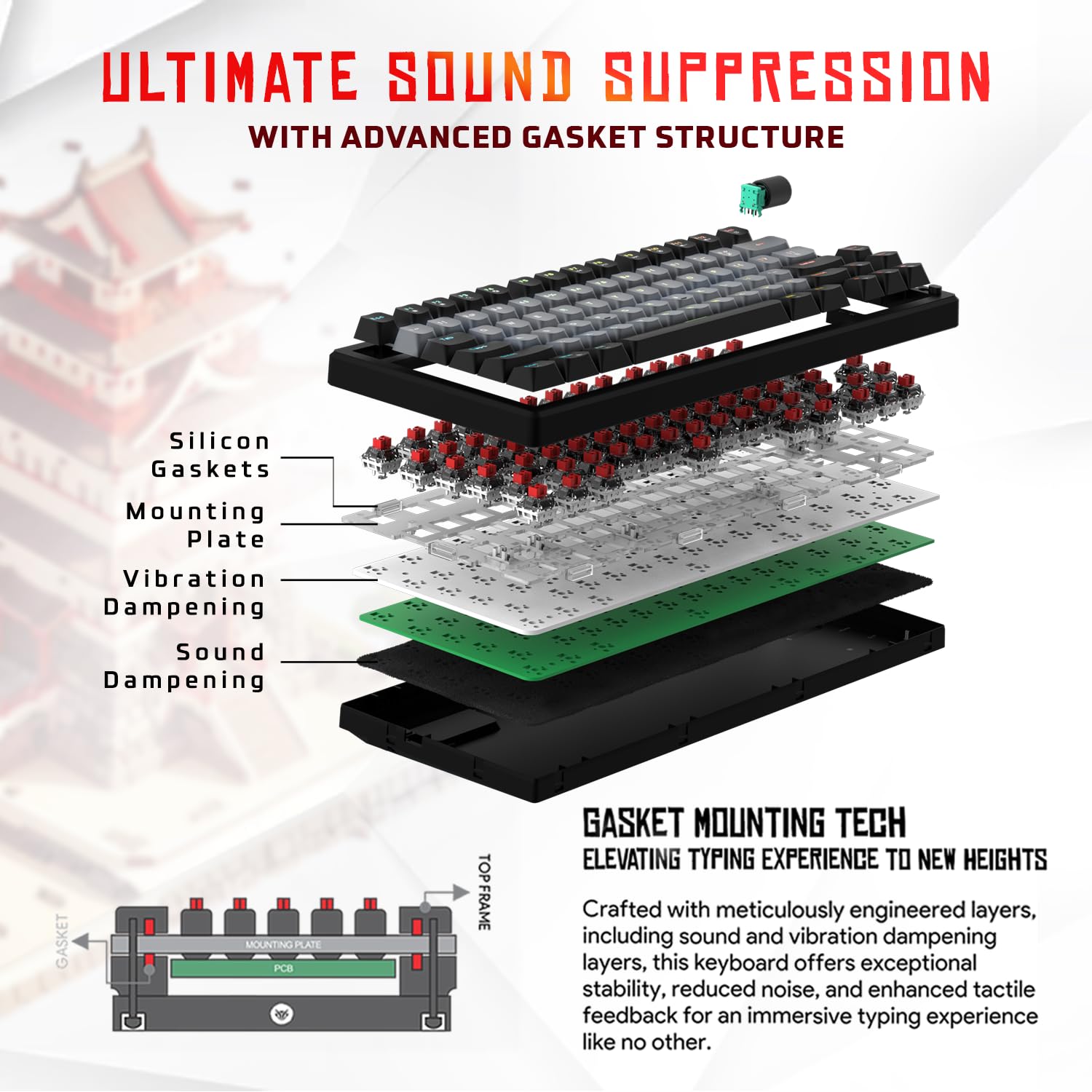
Imaxe 3.1: Explosión view of the 9-layer gasket structure, showing silicone gaskets, mounting plate, and dampcapas de envergadura.
3.2 Outemu Red Silent Switches
The keyboard is equipped with Outemu Red Dust Proof Switches, known for their linear and silent operation. These switches are hot-swappable, allowing users to easily replace them with other compatible 3-pin mechanical switches without soldering, enabling full customization of the typing feel.

Image 3.2: Close-up of Outemu Red switches and the included switch puller, demonstrating hot-swappable functionality.
3.3 Per-Key RGB Backlighting
Each key on the EvoFox Ronin features individual RGB backlighting, offering 16 million colors and 21 pre-set lighting effects. The lighting can be customized directly on the keyboard or through the dedicated software, including an Audio Sync Mode that reacts to sound.

Image 3.3: The EvoFox Ronin keyboard showcasinretroiluminación RGB personalizable por tecla.
3.4 Dedicated Volume Knob
A metal volume knob is integrated into the keyboard for quick and precise audio adjustments. Rotate to change volume, and press to mute/unmute.
3.5 Detachable USB-C Cable
The keyboard connects via a robust 1.5-meter braided USB-C cable, which is detachable for easy portability and storage. The cable includes an EMI ring to minimize signal interference.

Image 3.4: Features of the EvoFox Ronin, including the volume knob, detachable USB-C cable, and double-height adjustable legs.
4. Instrucións de configuración
Follow these steps to set up your EvoFox Ronin keyboard:
- Descomprimir o teclado: Retire con coidado o teclado e todos os accesorios da embalaxe.
- Conecta o cable USB-C: Insira o extremo USB-C do cable fornecido no porto da parte traseira do teclado.
- Conectar ao ordenador: Plug the USB-A end of the cable into an available USB port on your computer (PC or Mac).
- Instalación de controladores: The keyboard is plug-and-play. Your operating system should automatically detect and install the necessary drivers.
- Instalación de software opcional: For advanced customization, download the dedicated Windows software from the official EvoFox websitio.
5. Instrucións de funcionamento
5.1 Funcións básicas das teclas
The EvoFox Ronin functions as a standard TKL (Tenkeyless) keyboard. All keys perform their labeled functions. The keyboard supports N-Key Rollover, ensuring every key press is registered accurately, even during rapid input.
5.2 Teclas multimedia e de función
Access multimedia and additional functions by pressing the Fn key in combination with the designated F-keys or other keys. Refer to the keycap legends for specific functions (e.g., Fn + F1 for media player, Fn + F2 for volume down).
5.3 Control de iluminación RGB
You can control the RGB lighting directly from the keyboard:
- Efectos de cambio: Use Fn + \| to cycle through 21 different lighting effects.
- Axustar o brillo: Use Fn + Frecha cara arriba para aumentar o brillo e Fn + frecha cara abaixo para diminuír o brillo.
- Axustar a velocidade: Use Fn + Frecha esquerda para reducir a velocidade do efecto e Fn + Frecha dereita para aumentar a velocidade do efecto.
- Audio Sync Mode: Activate specific modes that react to audio input.
5.4 Personalización do software
The dedicated Windows software allows for comprehensive customization:
- Programación clave: Reasignar calquera tecla a unha función diferente.
- Creación de macros: Record and assign complex key sequences to a single key.
- Backlighting Effects: Fine-tune RGB colors, effects, brightness, and speed.
- Profile Xestión: Crear e gardar varios profesionaisfiles para diferentes aplicacións ou xogos.
- Taxa de votación: Adjust the polling rate up to 1000Hz.

Image 5.1: Screenshot of the EvoFox Ronin's dedicated software, showing options for light settings, button settings, and macro management.
5.5 Cross-Platform Compatibility
The keyboard supports both Windows and Mac operating systems. Use the designated key combination (typically Fn+Win or similar, refer to keycap legends) to switch between modes, ensuring correct key mapping for your OS.
6. Mantemento
6.1 Limpeza do teclado
Para manter a aparencia e a funcionalidade do teclado:
- Desconecte o teclado do ordenador antes de limpalo.
- Usa unha lata de aire comprimido para eliminar o po e os residuos que hai entre as tapas das teclas.
- Limpe as tapas das teclas e a superficie do teclado cun pano suave e lixeiramente damp pano. Evitar a humidade excesiva.
- Non empregue produtos químicos duros nin limpadores abrasivos.
6.2 Substitución de interruptores
The EvoFox Ronin features hot-swappable switches, allowing for easy replacement without soldering:
- Desconecta o teclado do teu ordenador.
- Usa o extractor de teclas incluído para retirar con coidado a tecla desexada.
- Usa o extractor de interruptores incluído para agarrar con coidado os clips superior e inferior do interruptor e tirar del cara arriba.
- Align the pins of the new switch with the holes on the PCB and gently press it down until it clicks into place. Ensure the pins are not bent.
- Substitúa a tapa das teclas.

Image 6.1: A keycap being removed from the keyboard using a keycap puller.
7 Solución de problemas
If you encounter issues with your EvoFox Ronin keyboard, refer to the following common solutions:
- O teclado non responde:
- Asegúrate de que o cable USB-C estea conectado correctamente tanto ao teclado como ao ordenador.
- Tenta conectar o teclado a un porto USB diferente do teu ordenador.
- Proba o teclado noutro ordenador para descartar un problema específico do ordenador.
- Reinicia o teu ordenador.
- Iluminación RGB non funciona/incorrecta:
- Check the on-board lighting controls (Fn key combinations) to ensure brightness is not set to zero or an effect is not disabled.
- If using the software, ensure it is running and the correct profile está activo.
- Reinstala o software do teclado se os problemas persisten.
- Chaves sen rexistro:
- Asegúrate de que non haxa residuos aloxados debaixo da tapa das teclas ou do interruptor.
- If a specific key is not working, try replacing its switch (refer to Section 6.2).
- Check for bent pins on the switch if you recently replaced one.
- Software Issues (e.g., Antivirus Flagging):
- Ensure you download the software from the official EvoFox website to avoid unofficial versions.
- If your antivirus flags the software, you may need to add an exception for the software's executable file. Proceed with caution and only if you trust the source.
- Contact EvoFox support for the latest software version or assistance.
8. Especificacións
| Característica | Detalle |
|---|---|
| Marca | EvoFox |
| Nome do modelo | EvoFox Ronin TKL Wired |
| Descrición do teclado | Mecánica |
| Tecnoloxía de conectividade | USB-C (con cable) |
| Interruptores | Outemu Red Silent Dust Proof Switches (Hot-Swappable) |
| Retroiluminación | Per-Key RGB (16 Million Colors, 21 Effects, Audio Sync Mode) |
| Taxa de votación | Ata 1000 Hz |
| Rollover de chave | N-Key Rollover (All Anti-Ghosting Keys) |
| Características especiais | Advanced Gasket Structure, Compact TKL Design, Multimedia Keys, Pro Mod Hotswap Module, Powerful Windows Software, Dedicated Volume Controller |
| Dispositivos compatibles | Portátil, PC |
| Plataforma de hardware | PC/Mac/Linux/Unix |
| Lonxitude do cable | 1.5m Detachable Braided Type-C with EMI Ring |
| Material | Plástico |
| Dimensións do produto | 32 x 13.5 x 2.6 cm |
| Peso do elemento | 640 g |
| País de Orixe | China |
9. Garantía e soporte
The EvoFox Ronin Mechanical Gaming Keyboard comes with a standard manufacturer's warranty. Please refer to the warranty card included in your package for specific terms and conditions, including warranty period and coverage details.
For technical support, troubleshooting assistance, or warranty claims, please contact EvoFox customer support. You can find contact information on the official EvoFox website or through the manufacturer, Allied Electronics & Magnetics Private Limited.
Fabricante: Electrónica e magnetismo aliados, empresa privada limitada
Enderezo: C-64/4, Okhla Phase - 2, New Delhi - 110020


