1. Introdución
This manual provides detailed instructions for the safe and efficient use of your Phomemo A30 Thermal Transfer Label Printer. Please read this manual thoroughly before operating the device and retain it for future reference.
Produto rematadoview
The Phomemo A30 is a compact, portable thermal transfer label printer designed for various labeling needs. It connects wirelessly via Bluetooth to smartphones and tablets, offering ink-free printing with customizable designs.

Image 1.1: The Phomemo A30 Label Printer, showcasing its design and various label outputs.
Características clave
- Thermal Transfer Printing: Utilizes thermal transfer technology for durable, ink-free labels.
- Conectividade Bluetooth: Seamless wireless connection to compatible smart devices.
- Deseño portátil: Compact and lightweight for easy transport and use.
- Batería recargable: Built-in 1200mAh battery for cordless operation.
- Etiquetas duradeiras: Labels are resistant to water, oil, and abrasion, suitable for indoor and outdoor use.
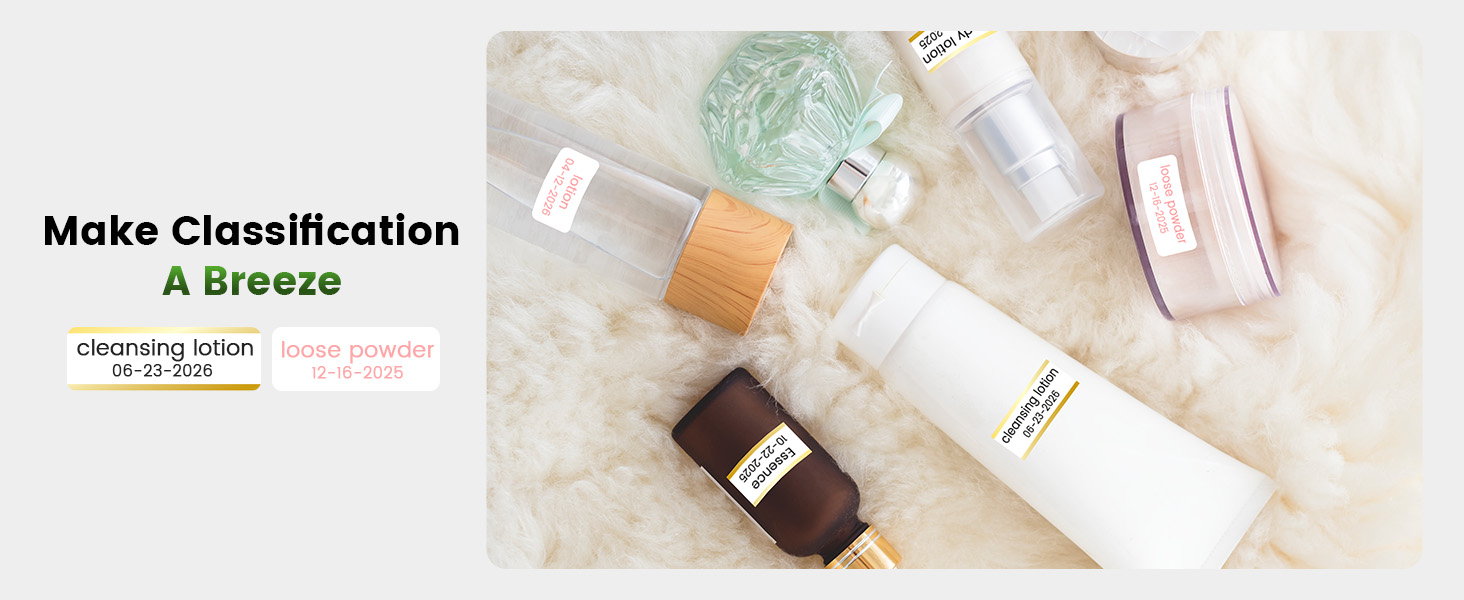
- Versatile Label Types: Supports pre-cut, continuous, patterned, magnetic, fabric iron-on, glitter, and luminous labels.
- Integración de aplicacións intelixentes: Features the 'Print Master' app with extensive customization options, including fonts, symbols, and templates.
2. Configuración
2.1 Desembalaxe e contido da embalaxe
Desembala con coidado todos os artigos da caixa. Asegúrate de que estean presentes os seguintes compoñentes:
- Phomemo A30 Label Printer
- Roll Paper for Printer (pre-installed or separate)
- Manual de usuario (este documento)
- Cable USB (Tipo-C)
2.2 Carga da impresora
Before first use, fully charge the printer. Connect the provided USB Type-C cable to the printer's charging port and a compatible USB power adapter (not included). The indicator light will show charging status.
2.3 Instalación da aplicación
The Phomemo A30 operates via the 'Print Master' application. Download the app from your device's app store (iOS or Android) or scan the QR code provided in the quick start guide (if applicable).
2.4 Emparejamento Bluetooth
- Asegúrese de que a impresora estea acendida.
- Active o Bluetooth no seu teléfono intelixente ou tableta.
- Open the 'Print Master' app.
- Within the app, search for available devices and select 'Phomemo A30' to connect. The app will indicate a successful connection.

Image 2.1: The Phomemo A30 printer demonstrating intelligent connectivity with a smartphone and laptop.
2.5 Loading Label Cartridge
The A30 printer uses label cartridges. Open the printer cover, insert the label cartridge according to the directional indicators, and ensure it clicks into place. Close the cover. The printer automatically recognizes compatible consumables within the supported size of 12mm (0.47 inch) width.
3. Instrucións de funcionamento
3.1 Encendido/apagado
- Encendido: Manteña premido o botón de acendido ata que se acenda o indicador luminoso.
- Apagado: Manteña premido o botón de acendido ata que o indicador luminoso se apague.
3.2 Using the 'Print Master' App
The 'Print Master' app is your primary interface for creating and printing labels. It offers a wide range of customization options:
- Entrada de texto: Enter desired text for your labels.
- Fontes e estilos: Choose from over 200 built-in fonts and adjust size, bold, italic, etc.
- Symbols & Icons: Access over 600 symbols to enhance your labels.
- Modelos: Utilize 200+ border templates and various pre-designed label templates for quick creation.
- Códigos QR e códigos de barras: Generate and print QR codes or barcodes directly from the app.
- Images & Timestamps: Insert images or add timestamps to your labels.

Image 3.1: The 'Print Master' app interface, illustrating the extensive customization options available.
3.3 Proceso de impresión
- Design your label within the 'Print Master' app.
- Ensure the printer is connected via Bluetooth.
- Tap the 'Print' button in the app.
- The printer will feed and print the label.
3.4 Uso do cortador incorporado
After printing, use the integrated paper cutter to cleanly separate the label from the roll. Slide the cutter lever across the label exit slot to achieve a straight edge.
3.5 Supported Label Types and Applications
The A30 supports a wide range of label types, expanding its utility:
- Pre-cut/Continuous Labels: Standard labels for general use.
- Etiquetas con patróns: Labels with decorative designs.
- Etiquetas magnéticas para frigoríficos: Para organizar obxectos en superficies magnéticas.
- Etiquetas termoadhesivas para tecido: Para a identificación de roupa e téxtiles.
- Glitter Labels: Para fins decorativos.
- Etiquetas luminosas: Labels that glow in the dark for visibility in low light.

Image 3.2: The Phomemo A30 printer customizing gift ribbons with personalized content.
Imaxe 3.3: Ex.ample of magnetically sticking labels on a refrigerator for organization.
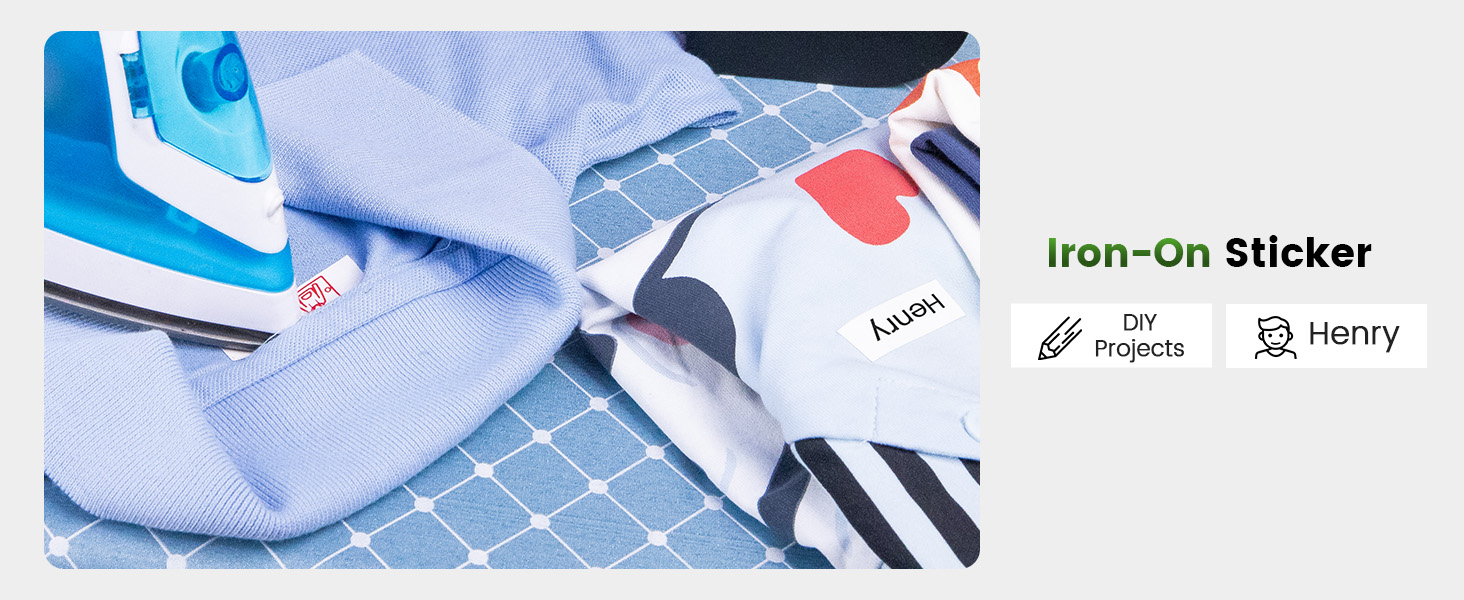
Image 3.4: Luminous labels applied to light switches for easy identification in the dark.

Image 3.5: An iron-on sticker being applied to clothing, demonstrating its use for fabric labeling.
4. Mantemento
4.1 Limpeza do cabezal da impresora
Para garantir unha calidade de impresión óptima, limpe regularmente o cabezal de impresión térmica. Use un pano suave e sen fiapos lixeiramenteampened with isopropyl alcohol. Gently wipe the print head surface. Ensure the printer is off and cool before cleaning.
4.2 Coidado coa batería
- Evite descargar completamente a batería con frecuencia.
- Cargue a impresora regularmente, mesmo se non a está a usar, para manter o estado da batería.
- Do not expose the printer to extreme temperatures, as this can affect battery life.
4.3 Almacenamento
Store the printer in a cool, dry place away from direct sunlight and excessive dust. If storing for an extended period, ensure the battery is partially charged (around 50%) and recharge every few months.
5 Solución de problemas
This section addresses common issues you might encounter with your Phomemo A30 printer.
| Problema | Causa posible | Solución |
|---|---|---|
| A impresora non se acende | Batería baixa; o botón de acendido non se premeu correctamente | Charge the printer; Press and hold the power button firmly. |
| Non se pode conectar a través de Bluetooth | Bluetooth off on device; Printer not in pairing mode; App issue | Ensure Bluetooth is enabled; Restart printer and app; Try pairing again. |
| Poor print quality (faint, blurry) | Dirty print head; Incorrect label type; Low battery | Clean the print head (see Section 4.1); Ensure correct thermal transfer labels are used; Charge the printer. |
| As etiquetas non se alimentan correctamente | Label cartridge improperly installed; Label jam | Reinstall the label cartridge; Open cover and clear any jammed labels. |
| App features require subscription | Some advanced templates/features are premium | Utilize free features or consider purchasing a subscription if desired. |
If the issue persists, please refer to the 'Print Master' app's help section or contact Phomemo customer support.
6. Especificacións
| Característica | Detalle |
|---|---|
| Marca | Phomemo |
| Nome do modelo | A30 (M836) |
| Tecnoloxía de impresión | Transferencia térmica |
| Tecnoloxía de conectividade | Bluetooth |
| Interface de hardware | USB tipo C |
| Saída da impresora | Monocromo |
| Velocidade máxima de impresión monocromática | 5 ppm |
| Resolución máxima de impresión en branco e negro | 203 ppp |
| Dispositivos compatibles | Teléfonos intelixentes, tabletas (Android, iOS) |
| Tamaño máximo de medios | 15 mm |
| Tamaño da folla | 14 milímetros |
| Tipo de tinta da impresora | No Ink (Thermal Transfer) |
| Baterías | Require 1 batería A (incluída) |
| Dimensións do produto | 8.27 x 1.85 x 2.56 polgadas |
| Peso do elemento | 5.6 onzas (160 gramos) |
| Compoñentes incluídos | Label Printer, Roll Paper for Printer, User Manual, USB Cable |
7. Garantía e soporte
7.1 Información da garantía
The Phomemo A30 Thermal Transfer Label Printer comes with a limited warranty. Please refer to the warranty card included in your package or the official Phomemo websitio web para coñecer os termos e condicións específicos relativos á cobertura e duración da garantía.
7.2 Atención ao cliente
For technical assistance, troubleshooting not covered in this manual, or warranty claims, please contact Phomemo customer support through their official websitio web ou a información de contacto proporcionada coa documentación do produto.


