1. Introdución
The AOCHUAN Smart X2 Gimbal Stabilizer is designed to provide stable and smooth footage for smartphone users. Featuring a 3-axis design and an upgraded anti-shake algorithm, it ensures professional-looking videos in various environments. Its compact and lightweight design, along with an integrated extension rod, makes it ideal for on-the-go filmmaking.
Key features include smart AI tracking (face, body, object, and third-party live tracking), 280° panoramic shooting, and wide device compatibility for phones under 7 inches. The gimbal also boasts a high-capacity lithium-ion battery, offering 8-10 hours of uninterrupted shooting and the ability to charge your smartphone while filming.
2. Que hai na caixa
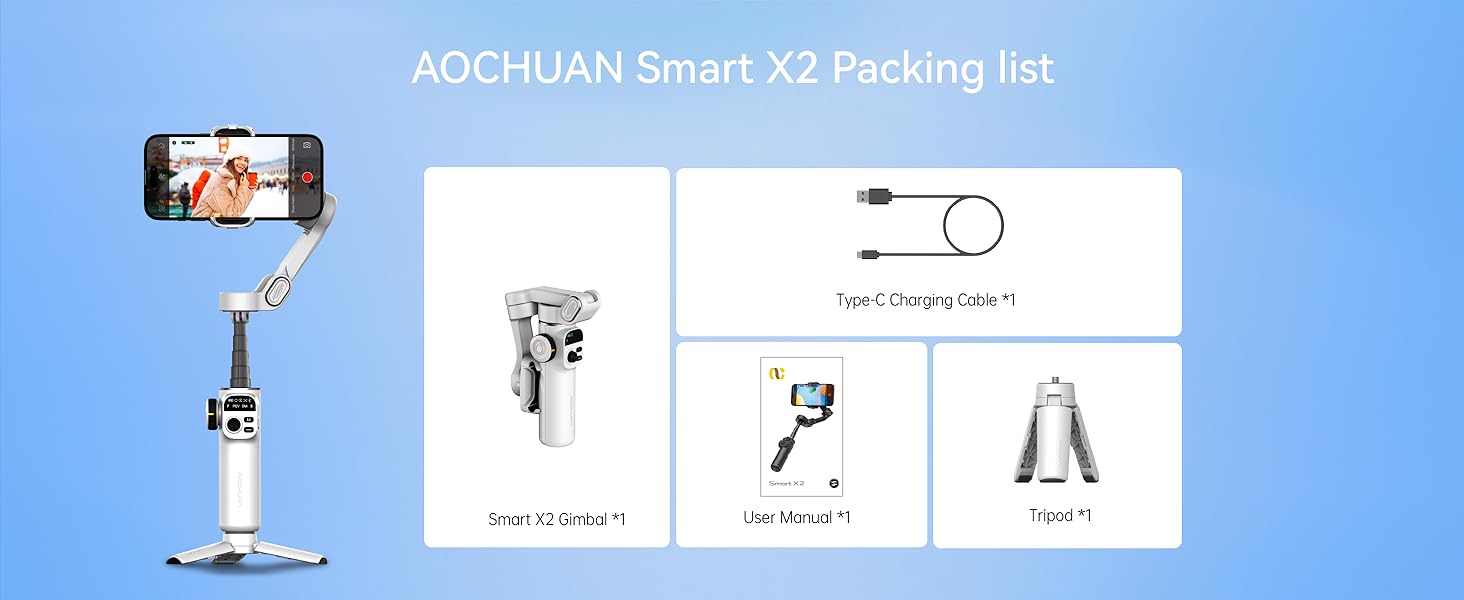
- Smart X2 Gimbal ×1
- Cable de carga tipo C × 1
- Manual de usuario × 1
- Trípode × 1
3. Configuración
3.1 Attaching the Tripod
The included mini tripod can be screwed into the 1/4-inch thread interface at the bottom of the gimbal handle. This allows the gimbal to stand independently for stable shots or hands-free operation.
3.2 Unfolding the Gimbal
Hold the device with both hands and unfold the folding arm upwards until it forms a '7' shape, ensuring the phone holder's clip is facing up.
3.3 Montaxe do teléfono intelixente
Pull open the phone holder and securely place your smartphone in the center. If your phone's camera is large or heavy, adjust the phone slightly left or right within the holder to achieve optimal balance. The phone holder accommodates all iPhone and Android phones under 7 inches, weighing up to 0.62 pounds, and measuring up to 6.3 inches in length, 3.5 inches in width, and 0.4 inches in thickness.

3.4 Acendido
After mounting your phone, press and hold the power button on the right side of the gimbal for three seconds to turn it on. The gimbal will automatically stabilize.
3.5 Barra de extensión
The gimbal features a built-in 7.8-inch aluminum alloy extension rod. Pull it up to extend the reach for high-angle shots or wider perspectives. Bend it to the desired angle for shooting.

3.6 Connecting to the App (AOCHUAN APP)
For full functionality, download the "AOCHUAN" app from your smartphone's app store. Turn on your phone's Bluetooth, open the app, and it will automatically search for the gimbal. Select "SMART_X2" from the list and confirm the connection. The Bluetooth indicator light on the gimbal handle will turn on, signifying a successful connection.
4. Modos de funcionamento
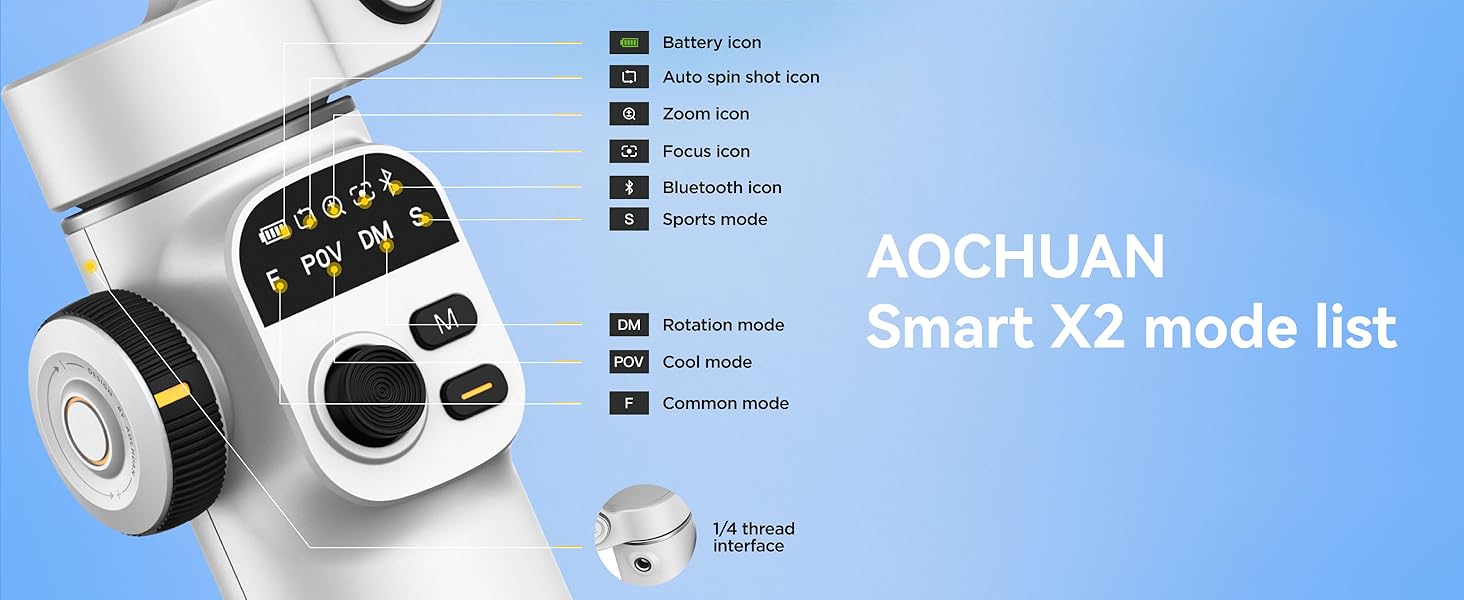
The Smart X2 Gimbal offers four distinct operating modes, indicated by the handle lights, to suit various shooting scenarios:
- F (Common Mode): The phone follows left/right and up/down movements of the handle, suitable for horizontal or vertical panning shots.
- POV (Cool Mode): Allows for 360° follow, enabling tilt shots and shooting from any angle.
- DM (Rotation Mode): The phone automatically rotates 180°, ideal for dynamic, rotating shots.
- S (Sport Mode): Similar to F mode but with stronger motor power for quick left/right and up/down follow, ideal for fast transitions and action shots.
5. Controis e características
5.1 Panel de control
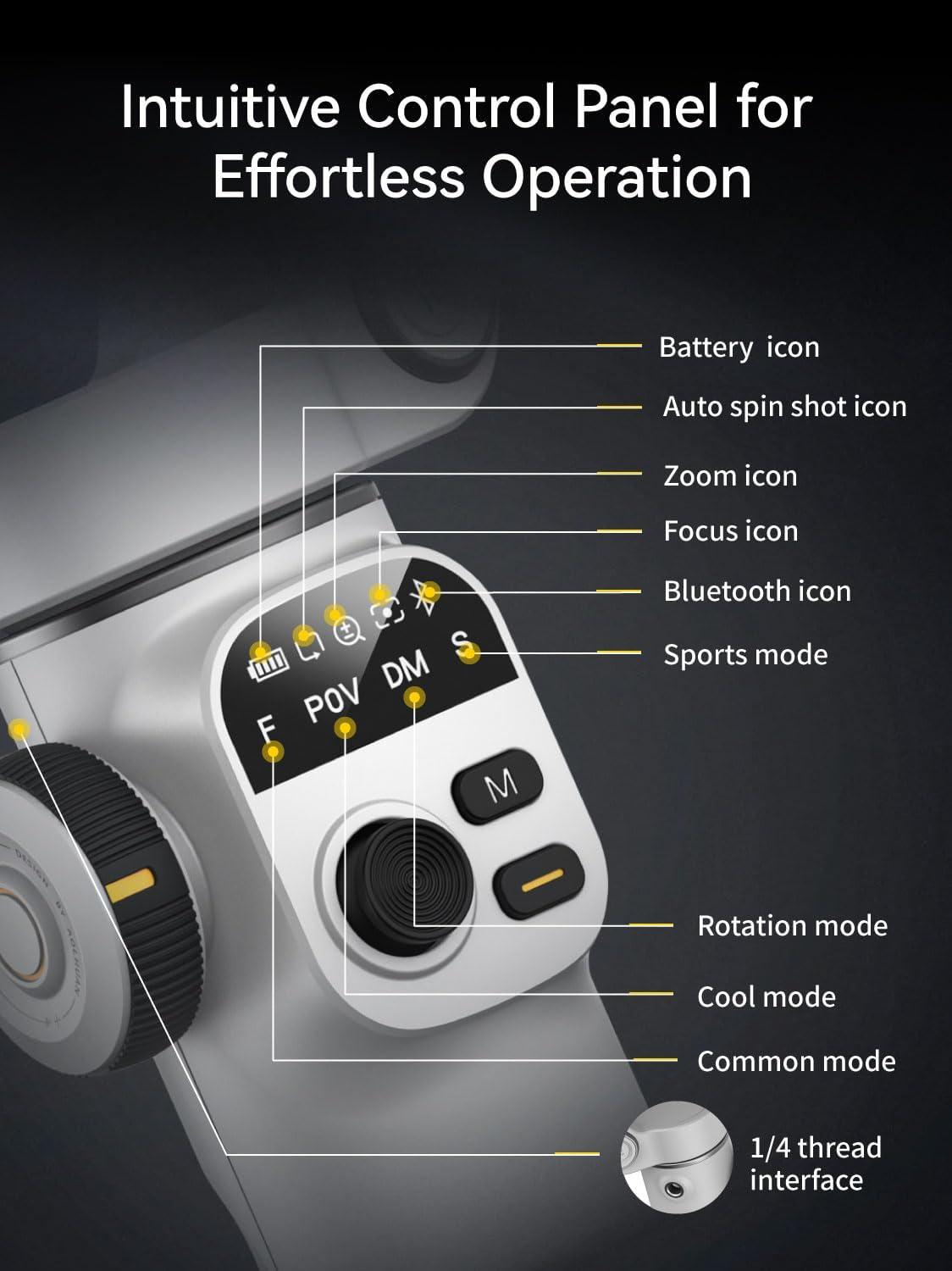
The gimbal features an intuitive control panel with an OLED display for real-time monitoring of device status, including battery icon, auto spin shot icon, zoom icon, focus icon, Bluetooth icon, and sports mode indicator.
5.2 Botón de obturación
- Un só clic: Takes a photo or starts/stops video recording.
- Fai dobre clic: Switches between horizontal and vertical shooting modes.
- Triple-click (with app): Switches between front and rear cameras.
- Long-press (with app): Enables or disables smart tracking.
5.3 botón M
- Un só clic: Switches between F (Common) mode and POV (Cool) mode.
- Fai dobre clic: Recenter the phone's position.
- Fai triple clic: Activates DM (Rotation) mode.
- Manter: Enters S (Sport) mode.
5.4 Joystick
Move the joystick up, down, left, or right to manually adjust the phone's shooting direction.
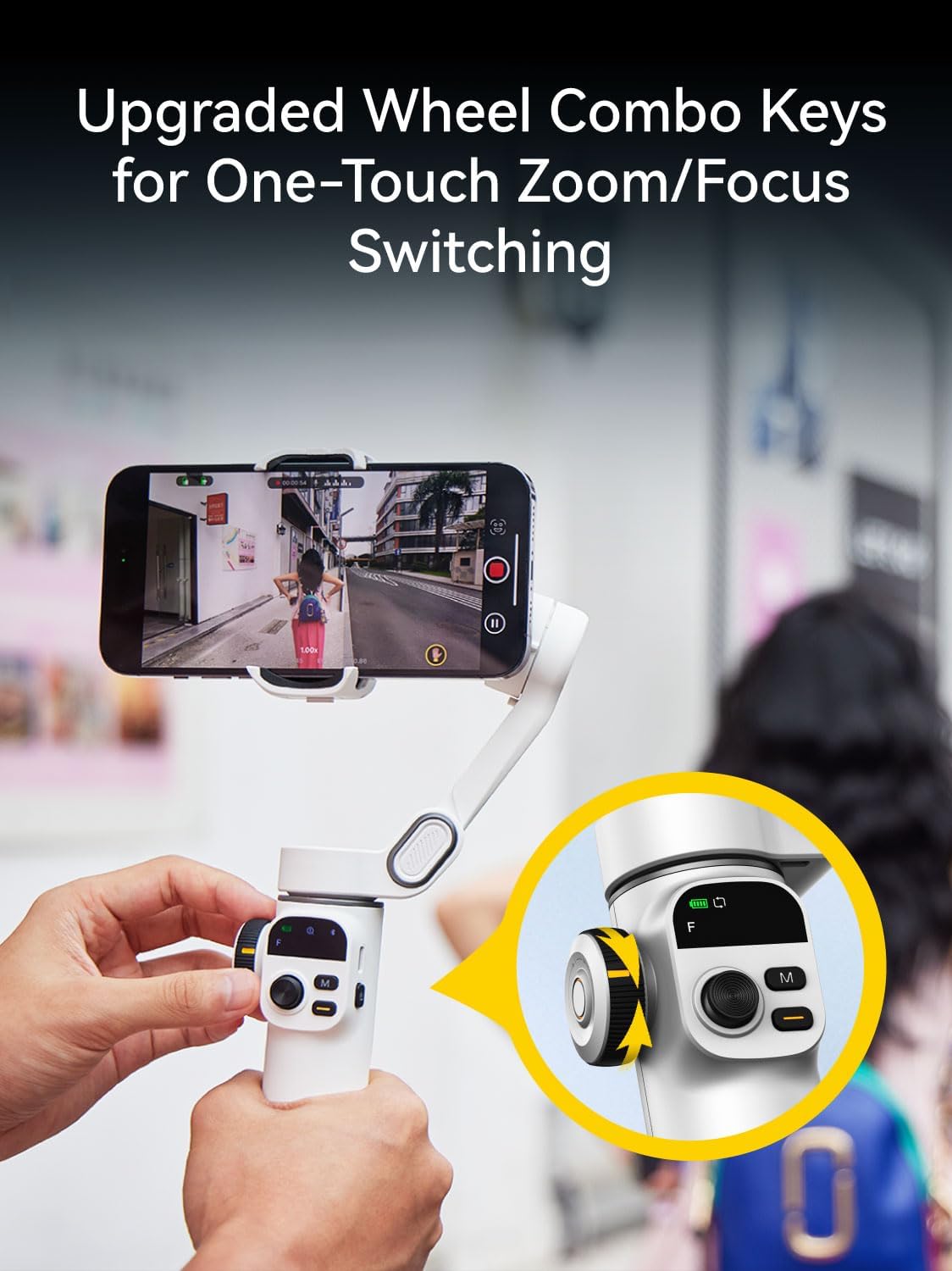
5.5 Wheel Combination Key
- Un só clic: Switches between Zoom and Focus control.
- Zoom (default): Rotate the wheel clockwise to zoom in, counter-clockwise to zoom out (requires app).
- Foco: Rotate the wheel to switch between sharp and blurred focus (requires app).
- Fai dobre clic: Activates 280° Auto Panorama shooting mode.
5.6 Smart AI Tracking
The gimbal features innovative smart tracking technology, accessible via the AOCHUAN APP. It offers four tracking modes:
- Seguimento facial: Automatically tracks a detected face, keeping it in focus.
- Body Tracking: Follows a person's body, suitable for long-distance tracking.
- Seguimento de obxectos: Draw a box around any subject on the screen to initiate tracking.
- Third-Party Live Tracking: Enables tracking within other live streaming or video apps.

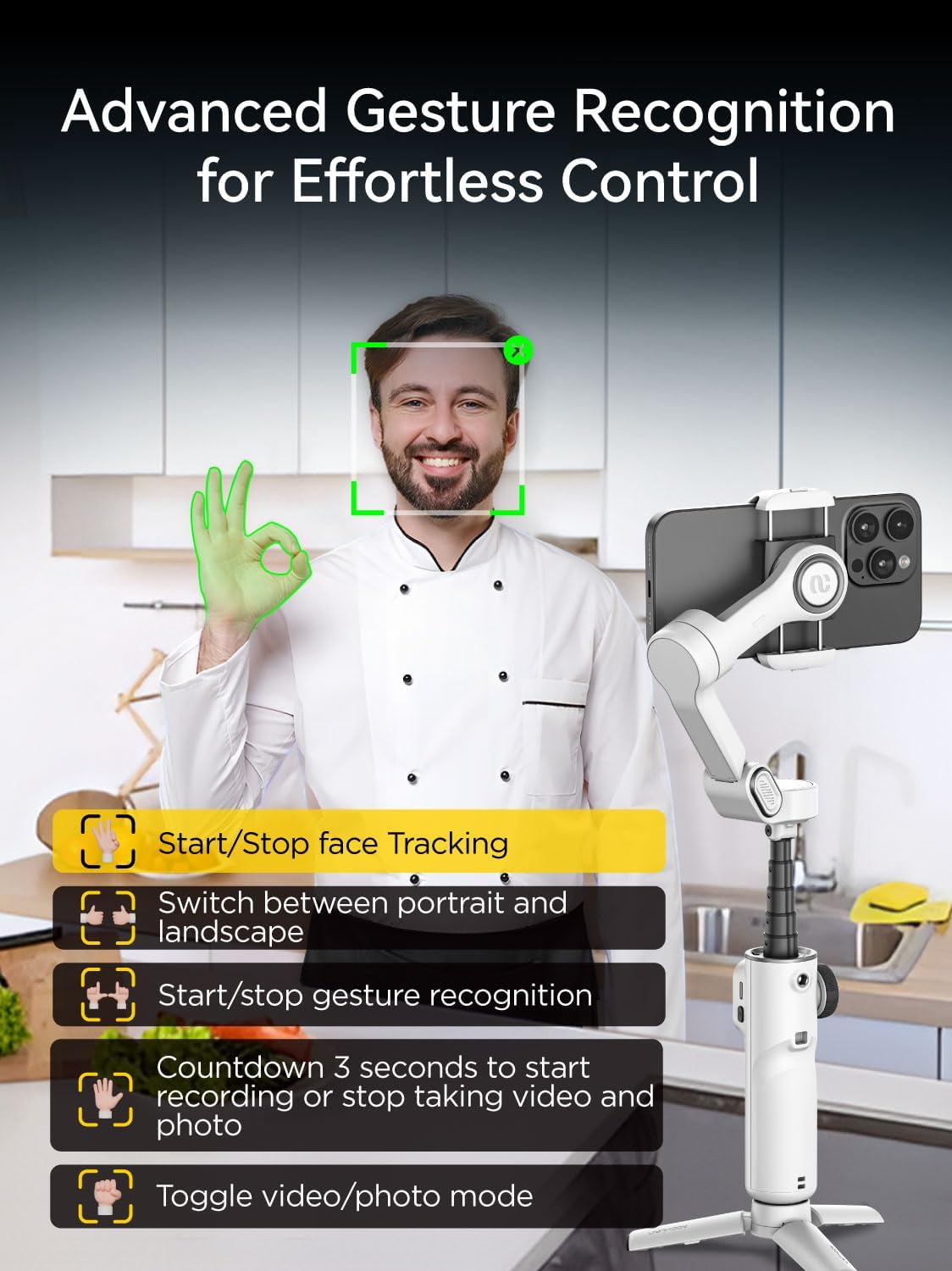
5.7 Control de xestos
The AOCHUAN app supports gesture control for hands-free operation:
- OK Gesture: Enable/Disable face tracking.
- Xesto da palma: Initiates a 3-second countdown for photo or video capture.
- Double Thumbs Up Gesture: Switches between horizontal and vertical modes.
- Xesto do puño: Switches between photo and video modes.
- Double L Gesture: Pauses/restarts gesture recognition.
6. Integración de aplicacións
The AOCHUAN app unlocks a variety of creative shooting modes and features:
- panorama: Capture stunning wide-angle shots with 180°, 330°, 3x3, or 3x5 panoramas.
- Dolly Zoom: Achieve cinematic visual effects.
- Inception: Create rotating, dream-like footage.
- Lapso de tempo: Condense long events into short, dynamic videos.
- Auto 180° Spin Shot: Capture dynamic scenes with smooth, professional-quality rotation.

7. Mantemento
- Manteña o cardán limpo e libre de po e residuos. Use un pano suave e seco para limpalo.
- Avoid exposing the gimbal to extreme temperatures or moisture.
- When not in use, fold the gimbal into its compact form and store it in a protective case to prevent damage.
- Cargue a batería regularmente, mesmo se non a usa con frecuencia, para manter o estado da batería.
8 Solución de problemas
- O cardán non se acende: Asegúrate de que a batería estea cargada. Conecta o cable de carga tipo C e inténtao de novo.
- Phone not balancing: Adjust the phone's position within the holder, especially if it has a large or heavy camera module.
- Problemas de conexión Bluetooth: Ensure Bluetooth is enabled on your phone and the gimbal. Restart both devices and try reconnecting via the AOCHUAN app.
- Controis que non responden: Check the battery level. If issues persist, try restarting the gimbal.
9. Especificacións
| Característica | Detalle |
|---|---|
| Dimensións do produto | 11.3 x 2.76 x 5 inches (Expanded) |
| Peso do elemento | 12.8 onzas (0.8 libras) |
| Número de modelo do artigo | Smart X2 |
| Baterías | 2 pilas de iones de litio necesarias (incluídas) |
| Fabricante | AOCHUAN |
| Dispositivos compatibles | iPhone 16 15 14 13 12 Pro Max, Samsung Galaxy S21/S21 Ultra S23 Ultra, Huawei p30 pro/p30/p20 pro/p10/p10 plus (under 7 inches, max 0.62 lbs, 6.3"L x 3.5"W x 0.4"T) |
| Tamaño dobrado | 6.2 x 4.3 x 2 polgadas (16.5 x 11 x 5.3 cm) |
| Extension Rod Length | 7.8 inches (Built-in) |
| Duración da batería | 8-10 horas |
| Tempo de carga | 2 horas |
| Thread Interface | 1/4 polgadas |
10. Garantía e soporte
For warranty information and customer support, please refer to the official AOCHUAN websitio web ou póñase en contacto directamente co servizo de atención ao cliente. Garde o recibo da compra para calquera reclamación de garantía.


