Introdución
The Nous D1T 16A Smart DIN Rail Switch is an advanced device designed for intelligent control and energy monitoring within your electrical system. Featuring Tasmota firmware, it offers extensive customization and seamless integration with various smart home platforms like Home Assistant, MQTT, and Matter. This manual provides essential information for safe installation, operation, and maintenance of your Nous D1T switch.

Figure 1: Nous D1T Smart DIN Rail Switch and its packaging.
This image displays the Nous D1T smart switch, a compact device designed for DIN rail mounting, alongside its product packaging. The switch features clear labeling for power and load connections, an indicator light, and a button for manual control and pairing. The packaging highlights key features such as "16A DIN Smart Switch D1T" and compatibility with Tasmota and MQTT.
Información de seguridade
Observe sempre as seguintes precaucións de seguridade:
- A instalación só debe ser realizada por un electricista cualificado.
- Ensure power is disconnected at the main circuit breaker before installation or maintenance.
- Do not exceed the maximum load of 16A.
- Funciona dentro do intervalo de temperatura especificado de -25 °C a 70 °C.
- Do not expose the device to moisture or extreme environments.
Configuración e instalación
1. Instalación física
The Nous D1T is designed for mounting on a standard DIN rail within your electrical panel.
- Desconectar a enerxía: Before beginning, ensure the main power supply to your electrical panel is completely turned off. Verify with a voltagprobador.
- Montaxe: Clip the Nous D1T onto the DIN rail. Ensure it is securely fastened.
- Cableado: Connect the live (L) and neutral (N) wires from your power source to the "N Power" and "L Power" terminals on the top of the device. Connect the neutral (N) and live (L) wires of your load (appliance/circuit) to the "N Load" and "L Load" terminals on the bottom. Refer to the wiring diagram below.

Figure 2: Nous D1T wiring diagram.
This image illustrates the Nous D1T smart switch with its electrical connection points clearly labeled. The top terminals are for incoming power (N Power, L Power), and the bottom terminals are for connecting to the load (N Load, L Load). The diagram also shows the maximum wire diameter of 2.5mm and the DIN rail mounting mechanism.
2. Initial Configuration (Tasmota)
The Nous D1T comes pre-flashed with Tasmota firmware, allowing for flexible configuration.
- Encendido: Restore power to your electrical panel. The device will create a Wi-Fi access point (AP) named "tasmota-XXXXXX".
- Connect to AP: Using a computer or smartphone, connect to the "tasmota-XXXXXX" Wi-Fi network.
- Acceso Web Interface: Abrir a web navegador e navegue ata 192.168.4.1. This will open the Tasmota web interface.
- Configurar o Wi-Fi: In the Tasmota interface, go to Configuration > Configure Wi-Fi. Select your home Wi-Fi network (2.4 GHz only) and enter the password. Save the settings. The device will restart and connect to your network.
- Find Device IP: Once connected to your home network, the device will obtain a new IP address. You can find this IP address through your router's connected devices list or by using a network scanner tool.
- Access Device: Abrir a web browser and navigate to the device's new IP address to access its Tasmota interface.

Figura 3: Tasmota Web Interface - Main Status Page.
This image shows the main status page of the Tasmota web interface for the Nous D1T. It displays real-time data such as Voltage, Current, Frequency, and Power. It also includes energy consumption metrics (Energy Today, Energy Yesterday, Energy Total) and a manual pairing code for Matter integration. A toggle button for the relay is visible at the bottom.
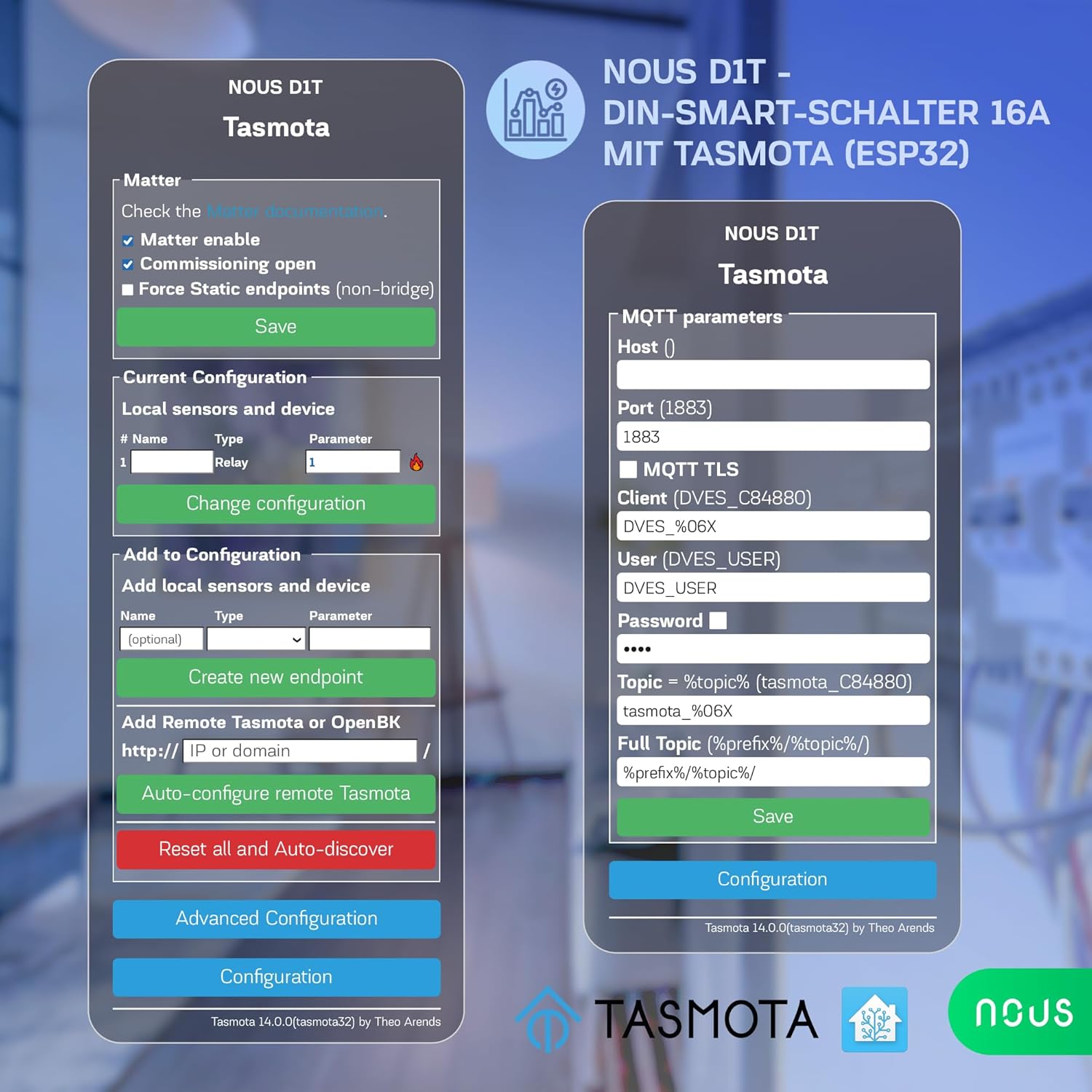
Figura 4: Tasmota Web Interface - Configuration Menu.
This image displays the comprehensive configuration menu within the Tasmota web interface. Options include configuring Wi-Fi, MQTT, Domoticz, Timer, KNX, Matter, Logging, and more. It also provides options to reset, backup, or restore the configuration, offering advanced control over the device's functionality.
Operating the Nous D1T
1. Control básico de acendido/apagado
- Botón manual: Press the physical button on the device to toggle the connected load On or Off.
- Web Interface: Acceder á Tasmota web interface (Figure 3) and use the "Toggle 1" button to control the relay.
2. Monitorización enerxética
The Nous D1T provides real-time and historical energy consumption data.
- Datos en tempo real: View current Voltage, Current, Frequency, and Power directly on the Tasmota main status page (Figure 3).
- Datos históricos: The interface also displays accumulated energy consumption for "Energy Today," "Energy Yesterday," and "Energy Total." This data can be used to analyze energy usage patterns and optimize consumption.
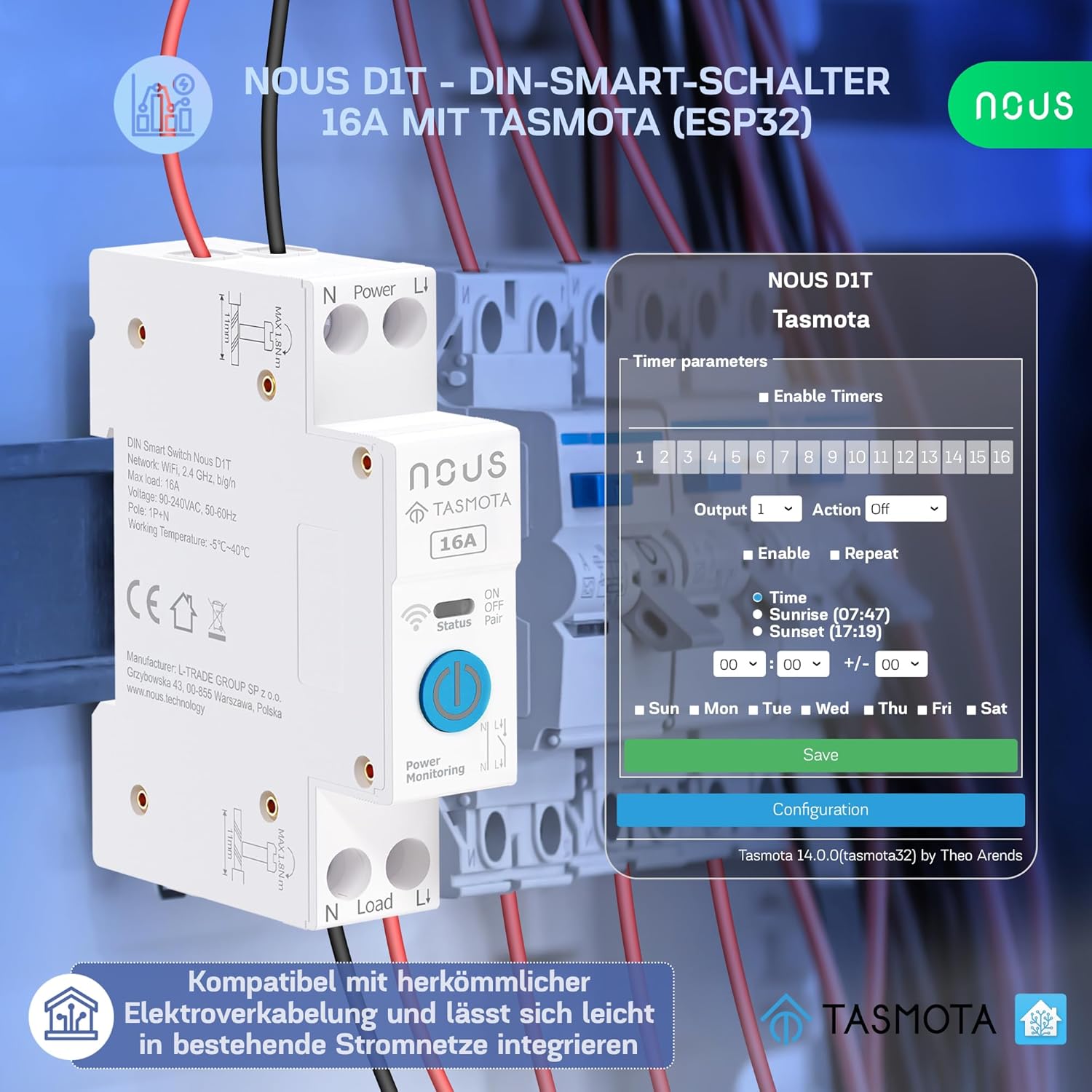
Figura 5: Tasmota Web Interface - Energy Monitoring.
This image highlights the energy monitoring capabilities of the Nous D1T via its Tasmota web interface. It shows various energy metrics including Voltage, Current, Frequency, Active Power, Apparent Power, Reactive Power, Power Factor, and accumulated energy usage for the current day, previous day, and total. This allows users to track and manage their power consumption effectively.
3. Smart Home Integration (MQTT, Matter, Home Assistant, Voice Control)
The Nous D1T is highly compatible with various smart home ecosystems:
- MQTT: Configure MQTT parameters (Host, Port, Client, User, Password, Topic) in the Tasmota interface (Configuration > Configure MQTT) to integrate with MQTT brokers for advanced automation.
- Materia: Enable Matter support via the Tasmota interface (Configuration > Configure Matter) for seamless integration with Google Home, Amazon Alexa, and Apple HomeKit.
- Asistente de fogar: The Tasmota firmware allows for easy discovery and integration with Home Assistant, providing a centralized control platform for your smart devices.
- Control de voz: Once integrated with Matter or Home Assistant, you can control the Nous D1T using voice commands via Amazon Alexa or Google Assistant.

Figura 6: Tasmota Web Interface - Matter and MQTT Configuration.
This image displays the configuration options for Matter and MQTT within the Tasmota web interface. For Matter, it shows checkboxes for enabling Matter, commissioning open, and forcing static endpoints. For MQTT, it provides fields to enter the Host, Port, Client, User, Password, and Topic, enabling robust integration with smart home systems.
Mantemento
- Actualizacións de firmware: Regularly check for and apply Tasmota firmware updates to ensure optimal performance, security, and access to new features. Updates can typically be performed via the Tasmota web interface (Actualización de firmware sección).
- Limpeza: Asegúrate de que o dispositivo estea limpo e libre de po. Desconecta a alimentación antes de limpalo. Usa un pano suave e seco. Non uses produtos de limpeza líquidos.
- Condicións ambientais: Asegúrese de que o ambiente de funcionamento se manteña dentro dos rangos de temperatura e humidade especificados para evitar danos.
Resolución de problemas
Problemas comúns e solucións:
- O dispositivo non responde:
- Comprobe a fonte de alimentación do dispositivo.
- Verify Wi-Fi connectivity. Ensure the device is within range of your 2.4 GHz Wi-Fi network.
- Restart the device by cycling its power.
- Non se pode acceder Web Interface:
- Ensure your device (computer/smartphone) is on the same network as the Nous D1T.
- Verify the IP address of the Nous D1T. It might have changed if your router assigns dynamic IPs.
- Try accessing the device by its hostname (e.g., `tasmota-XXXXXX.local` if mDNS is enabled).
- Incorrect Energy Readings:
- The device may require calibration for accurate energy monitoring. Refer to Tasmota documentation for calibration procedures (e.g., using `PowerSet`, `VoltageSet`, `CurrentSet` commands in the console). This typically involves connecting a known load and adjusting parameters.
- Matter/MQTT Integration Issues:
- Double-check all configuration parameters (host, port, credentials, topics).
- Ensure your MQTT broker or Matter controller is running and accessible.
- Check Tasmota console logs for error messages related to MQTT or Matter connection.
Restablecemento de fábrica:
If issues persist, a factory reset can restore the device to its default Tasmota configuration. This will erase all Wi-Fi and custom settings.
- Método 1 (Botón): Press and hold the physical button for approximately 40 seconds until the indicator light flashes rapidly, then release.
- Método 2 (Web Interface): In the Tasmota web interface, navegue ata Configuration > Reset Configuration and select the appropriate reset option (e.g., "Reset 1" for Wi-Fi and module settings).
Especificacións
| Característica | Especificación |
|---|---|
| Número de modelo | D1T |
| Marca | NOUS |
| Dimensións (L x W x H) | 8.2 x 5 x 1.5 cm (3.23 x 1.97 x 0.59 polgadas) |
| Peso | 110 gramos (0.24 libras) |
| Vol. Operativotage | 240 voltios |
| Corrente nominal | 16 Amperes |
| Modo de funcionamento | ACENDIDO APAGADO |
| Tipo de contacto | Normalmente aberto |
| Tipo de conector | Crimpado |
| Tipo de terminal | Parafuso |
| Tipo de circuíto | 1 vías |
| Tipo de actuador | Normal |
| Temperatura de funcionamento | -25°C a 70°C |
| Material | PC/ABS (V0) |
| País de Orixe | China |
Información da garantía
Specific warranty information for the Nous D1T Smart DIN Rail Switch is not available in the provided product details. Please refer to the manufacturer's official websitio web ou póñase en contacto co seu punto de venda para coñecer os termos e condicións da garantía.
Apoio
For technical assistance, troubleshooting beyond this manual, or general inquiries, please contact NOUS customer support. Visit the official NOUS websitio web para obter información de contacto e recursos adicionais.
You can also find extensive community support and documentation for Tasmota firmware online, which may assist with advanced configurations and troubleshooting.