1. Introdución
This manual provides detailed instructions for the installation, operation, and maintenance of your Xigmatek Aqua V AIR Arctic Mid-Tower PC Case. Please read this manual thoroughly before beginning any installation to ensure proper setup and safe operation. Retain this manual for future reference.
2. Información de seguridade
Observe as seguintes precaucións de seguridade durante a instalación e o funcionamento:
- Desconecte sempre a fonte de alimentación da toma de corrente antes de instalar ou retirar calquera compoñente.
- Use unha pulseira antiestática para evitar danos por descarga electrostática (ESD) en compoñentes sensibles.
- Handle components carefully. Avoid touching pins or circuit boards directly.
- Asegúrate de que haxa unha ventilación axeitada arredor da carcasa do PC para evitar o sobrequecemento.
- Manteña pezas e ferramentas pequenas lonxe dos nenos.
- Do not attempt to modify the case or its components, as this may void your warranty and pose safety risks.
3. Contido do paquete
Verifica que todos os elementos estean presentes no paquete:
- Xigmatek Aqua V AIR Arctic Mid-Tower PC Case
- Accessory kit (screws, standoffs, cable ties)
- Manual de usuario (este documento)
If any items are missing or damaged, contact your retailer or Xigmatek support.
4. Produto rematadoview
The Xigmatek Aqua V AIR Arctic is a mid-tower PC case designed for high-performance gaming configurations. It features tempered glass panels for component visibility and optimized airflow with pre-installed ARGB fans.

Figura 4.1: Fronte esquerda view of the Xigmatek Aqua V AIR Arctic PC case, showcasing the tempered glass front and side panels, and the pre-installed ARGB fans.

Figura 4.2: Traseira view of the PC case, showing the I/O shield cutout, expansion slots, and rear fan mount.
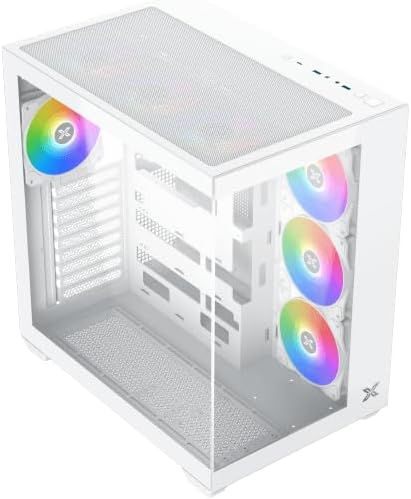
Figura 4.3: Ángulo de arriba abaixo view, highlighting the top mesh panel for additional cooling and the internal layout.
5. Configuración e instalación
Follow these steps to install your PC components into the Xigmatek Aqua V AIR Arctic case.
5.1. Preparación do caso
- Coloque a caixa sobre unha superficie plana e estable.
- Remove the tempered glass side panel by unscrewing the thumb screws at the rear and carefully sliding it off. Place it on a soft, non-abrasive surface to prevent scratches.
- Remove the opposite steel side panel by unscrewing the thumb screws and sliding it off.
5.2. Instalación da placa base
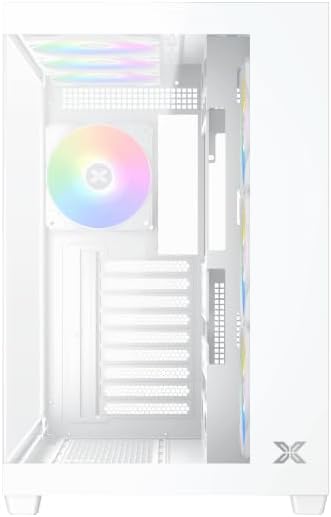
Figura 5.1: Interior view of the case, illustrating the motherboard mounting area and cable routing cutouts.
- Instale a protección de E/S no recorte da parte traseira da caixa.
- Align your motherboard with the pre-installed standoffs. Ensure the standoffs match your motherboard's form factor (ATX, Micro ATX).
- Secure the motherboard using the provided screws from the accessory kit. Do not overtighten.
5.3. Instalación da fonte de alimentación (PSU)
- Locate the PSU mounting bracket at the bottom rear of the case.
- Slide your PSU into the designated compartment from the rear of the case.
- Secure the PSU to the case using the screws provided with your power supply.
5.4. Instalación da unidade de almacenamento
The case supports multiple storage drives:
- SSD de 2.5 polgadas: Mount directly to the SSD trays located behind the motherboard tray. Secure with screws.
- Discos duros de 3.5 polgadas: Install into the drive cage located beneath the PSU shroud. Slide the drive into the tray and secure with screws.
5.5. Graphics Card (GPU) and Expansion Card Installation
- Remove the necessary expansion slot covers at the rear of the case.
- Insira a súa tarxeta gráfica ou outras tarxetas de expansión nas ranuras PCIe correspondentes da placa base.
- Secure the cards with the provided screws.
5.6. Xestión de cables
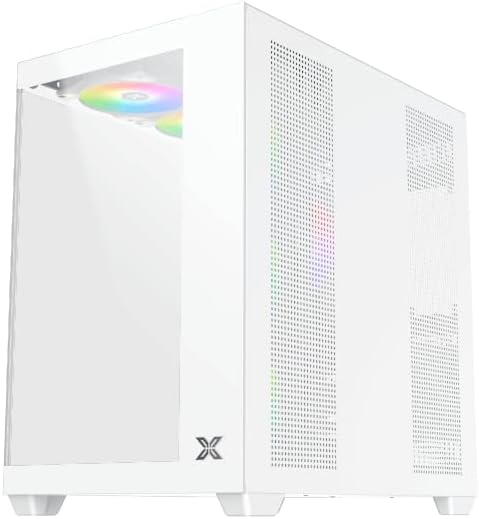
Figura 5.2: View behind the motherboard tray, illustrating the ample space and tie-down points for effective cable management.
Utiliza os recortes para o paso de cables e os puntos de suxeición que hai detrás da bandexa da placa base para organizar os cables. Isto mellora a circulación do aire e a estética.
- Connect all necessary power cables from the PSU to the motherboard, GPU, and storage drives.
- Connect front panel cables (USB, audio, power/reset switches, LED indicators) to the corresponding headers on your motherboard. Refer to your motherboard manual for specific header locations.
- Connect the ARGB fan cables to the integrated fan controller or directly to your motherboard's ARGB headers if available.
5.7. Soporte para ventilador e radiador
The Xigmatek Aqua V AIR Arctic comes with 7 pre-installed 120mm ARGB fans. Additional cooling options are available:
- Fronte: Supports up to 3 x 120mm or 2 x 140mm fans / 240mm, 280mm, 360mm radiators.
- Arriba: Supports up to 3 x 120mm or 2 x 140mm fans / 240mm, 280mm, 360mm radiators.
- Traseira: Admite 1 ventilador de 120 mm.
- Abaixo: Supports up to 3 x 120mm fans.
Ensure proper fan orientation for optimal airflow (intake at front/bottom, exhaust at rear/top).
6. En funcionamento
Once all components are installed and cables are connected, replace the side panels. Connect your monitor, keyboard, mouse, and power cable. Press the power button on the front panel to start your system.
The pre-installed ARGB fans can be controlled via the integrated controller (if present) or through compatible motherboard software, allowing customization of lighting effects and fan speeds.
7. Mantemento
Un mantemento regular axuda a garantir un rendemento óptimo e unha maior duración dos compoñentes do teu PC.
- Limpeza do po: Periodically clean dust filters (top, front, bottom) to maintain good airflow. Use compressed air to remove dust from inside the case and components.
- Limpeza exterior: Limpe as superficies exteriores cun suave, damp pano. Evite produtos de limpeza abrasivos ou solventes.
- Comprobación da xestión de cables: Comprobe ocasionalmente o cableado para asegurarse de que ningún cable obstrua os ventiladores ou o fluxo de aire.
8 Solución de problemas
Se tes problemas, consulta os seguintes pasos comúns para a resolución de problemas:
- O sistema non se acende:
- Asegúrate de que a fonte de alimentación estea acendida e conectada correctamente á toma de corrente.
- Verify all power cables (24-pin ATX, 8-pin CPU, PCIe, SATA) are securely connected.
- Check front panel power switch connections to the motherboard.
- Sen saída de visualización:
- Ensure the monitor cable is connected to the graphics card (not the motherboard I/O if using a dedicated GPU).
- Reinstala a tarxeta gráfica e os módulos de RAM.
- Fans not spinning or ARGB not working:
- Comprobe as conexións de alimentación do ventilador á placa base ou ao controlador do ventilador.
- Verify ARGB connections to the controller or motherboard headers.
- Ensure any fan control software or BIOS settings are correctly configured.
For more complex issues, consult your component manuals or contact Xigmatek technical support.
9. Especificacións
| Característica | Detalle |
|---|---|
| Nome do modelo | Aqua V AIR Arctic |
| Número de modelo | EN 45837 |
| Tipo de caso | Media Torre |
| Compatibilidade da placa base | ATX, Micro ATX |
| Material | Aleación de aceiro, vidro temperado |
| Cor | Branco |
| Ventiladores preinstalados | 7 ventiladores ARGB de 120 mm |
| Lonxitude máxima da GPU | 410 mm |
| Portos USB | 3 |
| Peso | 8.8 quilogramos |
10. Garantía e soporte
Xigmatek products are manufactured to high quality standards. For warranty information, please refer to the warranty card included with your product or visit the official Xigmatek website. For technical support or inquiries, please contact Xigmatek customer service through their official channels.
Oficial Websitio: www.xigmatek.com


