1. Introdución
This manual provides essential information for the proper installation, operation, and maintenance of your GAMEON Pro Series 27-inch Fast IPS Gaming Monitor (Model: GOAE27QHD165IPS). Please read this manual thoroughly before using the product to ensure optimal performance and safety. Keep this manual for future reference.

Imaxe 1.1: Fronte view of the GAMEON Pro Series 27-inch Fast IPS Gaming Monitor, showcasinos seus delgados biseles e o soporte.
The GAMEON Pro Series 27-inch Fast IPS Gaming Monitor features a QHD 2K (2560x1440p) resolution, a 165Hz refresh rate, and a 0.5ms MPRT response time. It supports Adaptive-Sync and Variable Refresh Rate (VRR) technologies for smooth, tear-free gameplay. Connectivity options include dual HDMI 2.1 ports and dual DisplayPort 1.4 ports, along with an audio-out jack and integrated speakers. This monitor is compatible with various gaming consoles and PCs, including PS5.
2. Contido do paquete
Comprobe o contido do paquete ao desembalar. Se falta algún artigo ou está danado, póñase en contacto co seu vendedor.
- GAMEON Pro Series 27-inch Fast IPS Gaming Monitor
- Soporte para monitor (base e pescozo)
- Adaptador de corrente e cable de alimentación
- Cable HDMI
- Cable DisplayPort
- Manual de usuario
3. Configuración
3.1 Montaxe do monitor
- Retire con coidado o monitor da súa embalaxe, mantendo a pantalla protexida.
- Fixe o colo do soporte ao panel do monitor. Asegúrese de que encaixa firmemente no seu lugar ou de que estea fixado con parafusos se os hai.
- Fixe a base do soporte ao pescozo do soporte e aperte o parafuso na parte inferior da base.
- Coloque o monitor montado sobre unha superficie estable e plana.
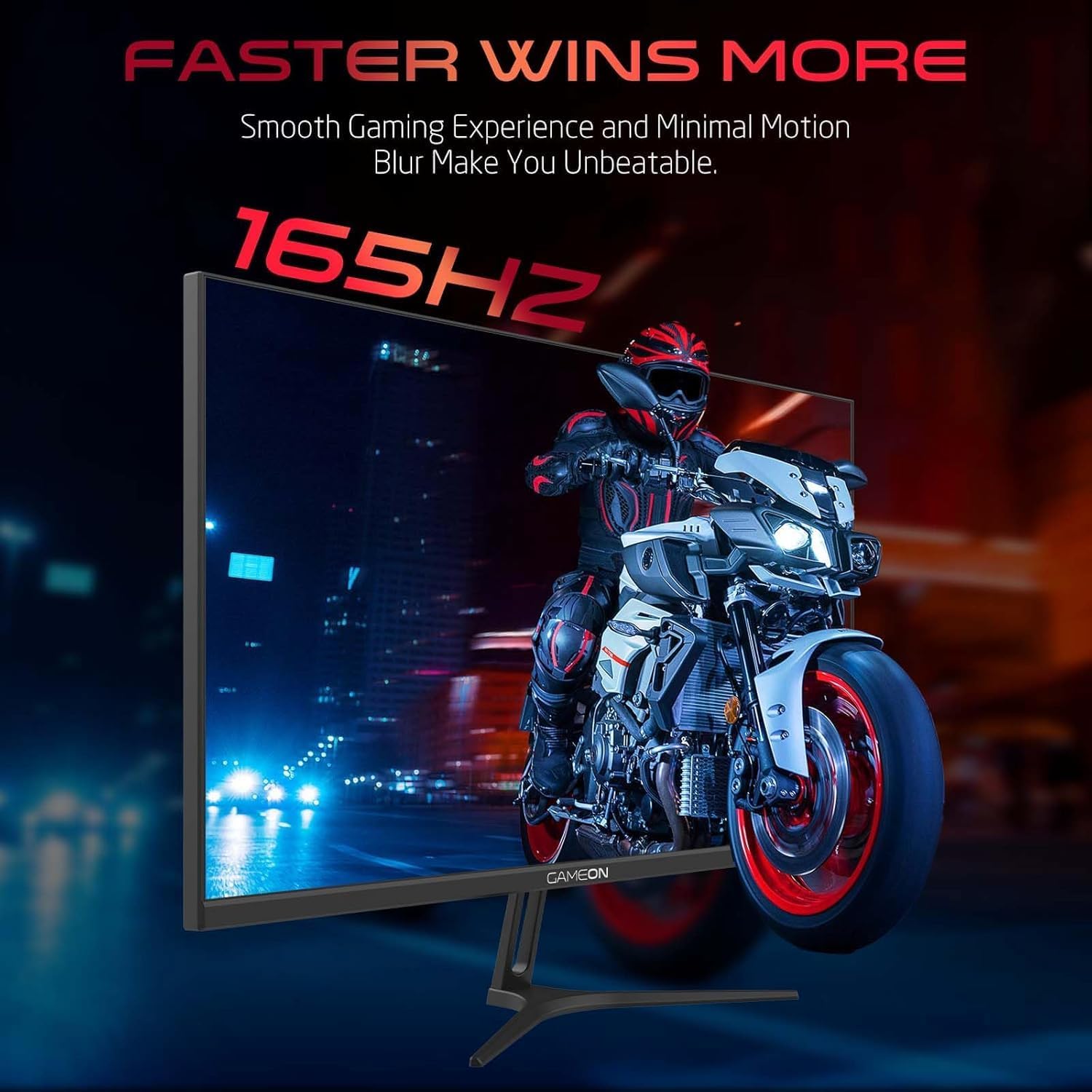
Image 3.1: Illustration of the monitor with its stand, ready for assembly.
3.2 Conexión a dispositivos
The monitor offers multiple input options. Choose the appropriate cable for your device (PC, gaming console, etc.).

Imaxe 3.2: Traseira view of the monitor, highlighting the input ports and VESA mounting points.

Image 3.3: Detailed diagram illustrating the various input/output ports and their corresponding devices.
- Conexión HDMI: Connect one end of the HDMI cable to the HDMI output port of your device (PC, PS5, Xbox, TV box) and the other end to one of the HDMI 2.1 ports on the monitor.
- Conexión DisplayPort: Connect one end of the DisplayPort cable to the DisplayPort output of your PC and the other end to one of the DisplayPort 1.4 ports on the monitor.
- Saída de audio: For external audio, connect headphones or external speakers to the 3.5mm audio-out jack on the monitor.
3.3 Conexión de alimentación
- Connect the power adapter to the DC IN port on the monitor.
- Plug the power cable into the power adapter, then plug the other end of the power cable into a power outlet.
4. Instrucións de funcionamento
4.1 Encendido/apagado
Prema o botón de acendido/apagado situado no monitor para acender ou apagar o monitor. O indicador luminoso de acendido/apagado acenderase cando o monitor estea acendido.
4.2 Menú de visualización en pantalla (OSD).
The monitor features a menu button (often a joystick or a series of buttons) usually located on the back or bottom right of the monitor. Use this to navigate the OSD menu and adjust settings.
- Press the menu button to open the OSD menu.
- Use the navigation controls to move through menu options.
- Press the menu button again (or a designated 'Enter' button) to select an option.
- Use the navigation controls to adjust values or select sub-menus.
- Select 'Exit' or press the menu button repeatedly to close the OSD menu.
4.3 Configuración común do OSD
- Configuración da imaxe: Axusta o brillo, o contraste, a nitidez, a gama e a temperatura da cor.
- Configuración de cor: Fine-tune RGB values, hue, and saturation.
- Fonte de entrada: Manually select between HDMI 1, HDMI 2, DisplayPort 1, or DisplayPort 2.
- Audio: Adjust volume for built-in speakers or connected headphones.
- Características do xogo: Enable/disable Adaptive-Sync/FreeSync, adjust overdrive settings, and activate crosshair overlays if available.
4.4 PS5 120Hz Setup Guide
To enable 120Hz output on your PlayStation 5 with this monitor, follow these steps:

Image 4.1: Visual guide for configuring 120Hz refresh rate on a PlayStation 5 console.
- Enable 120Hz from PS5 Settings:
- Ir a Configuración > Screen and Video > Saída de vídeo.
- Establecer Enable 120Hz Output a Automático.
- Establecer Resolución a 1080 p or Automático. (Note: While the monitor supports 1440p, some PS5 games may require 1080p for 120Hz output.)
- Enable Performance Mode for Gamers:
- Ir a Configuración > Save Data and Game App Settings > Presets do xogo.
- Establecer Modo de rendemento como predeterminado.
- Check In-Game Settings:
- Go to the specific game's Configuración do xogo > Configuración de vídeo e selecciona 120 fps or Modo de rendemento.
5. Mantemento
5.1 Limpeza da pantalla
- Turn off the monitor and unplug the power cable.
- Use un pano suave e sen pelusa damplavado con auga ou cun limpador de pantallas especializado.
- Wipe the screen gently. Do not press hard or use abrasive materials.
- Avoid using alcohol, ammonia, or benzene-based cleaners, as they may damage the screen surface.
5.2 Limpeza do Casing
- Use un pano suave e seco para limpar o monitor casing.
- Para manchas persistentes, lixeiramente dampEnxágüe o pano con auga e un deterxente suave e logo séqueo.
6 Solución de problemas
Se tes problemas co monitor, consulta a seguinte guía de resolución de problemas:
| Problema | Causa posible | Solución |
|---|---|---|
| Non hai imaxe na pantalla | Sen alimentación; Fonte de entrada incorrecta; Cable de vídeo solto | Ensure power cable is securely connected and power outlet is active. Press power button. Check OSD menu to select correct input source (HDMI/DP). Reconnect video cable firmly. |
| A imaxe está borrosa ou distorsionada | Incorrect resolution; Video cable issue | Set display resolution to 2560x1440p in your device's display settings. Try a different video cable. |
| Sen son | Volume too low; Incorrect audio output selected; Loose audio cable | Adjust monitor volume via OSD. Ensure monitor is selected as the audio output device on your PC/console. Check external audio cable connection if using headphones/speakers. |
| Pantalla parpadeando | Refresh rate mismatch; Adaptive-Sync/VRR issue | Ensure your device's refresh rate is set to 165Hz. If flickering persists with Adaptive-Sync/VRR enabled, try disabling it in the OSD or your graphics card settings. |
| Monitor not detected by PC/console | Video cable issue; Driver issue | Try a different video cable or port. Update your graphics card drivers. Restart your PC/console. |
7. Especificacións
Below are the technical specifications for the GAMEON Pro Series 27-inch Fast IPS Gaming Monitor (GOAE27QHD165IPS):
| Característica | Especificación |
|---|---|
| Tamaño de visualización | 27 polgadas |
| Tipo de panel | IPS rápido |
| Resolución | QHD 2K (2560x1440p) |
| Taxa de actualización | 165 Hz |
| Tempo de resposta | MPRT de 0.5 ms |
| Relación de contraste | 1000:1 |
| Brillo | 280 (±30) nits typical |
| Viewángulos ing | Amplo viewing angles (IPS technology) |
| Tecnoloxía de sincronización adaptativa | Adaptive-Sync, FreeSync, VRR Compatible |
| Conectividade | 2x HDMI 2.1, 2x DisplayPort 1.4, 1x Audio Out (3.5mm) |
| Audio | Built-in 4Ω2W speakers |
| Compatibilidade de montaxe VESA | 100 x 100 mm |
| Entrada de enerxía | Adaptador externo DC 12V 4A |
| Consumo máximo de enerxía | 48 W |
| Dimensións do produto (con soporte) | 16.2 x 61.4 x 45.3 cm |
| Peso do produto | 5.84 kg |
| Número de modelo | GOAE27QHD165IPS |
8. Garantía e soporte
The GAMEON Pro Series 27-inch Fast IPS Gaming Monitor comes with a 2 ano de garantía desde a data de compra. Esta garantía cobre defectos de fabricación en condicións de uso normal. Conserve o comprobante de compra para reclamacións de garantía.
For technical support, warranty inquiries, or service requests, please contact GAMEON customer service through their official website or the retailer where the product was purchased. Provide your monitor's model number (GOAE27QHD165IPS) and a detailed description of the issue to expedite assistance.


