1. Introdución
The MSXTTLY Wireless CarPlay Adapter converts your vehicle's existing wired CarPlay system into a wireless one, offering enhanced convenience and a clutter-free driving experience. This adapter supports fast and stable connections, allowing seamless access to your iPhone's CarPlay features without the need for cables.
2. Contido do paquete
- CarPlay Adapter (U2AC-AIR Pro) x1
- USB A to C Cable x1
- USB A to A Cable x1
- Manual de usuario x1
- 3M Adhesive Tape x1

Image: Contents of the MSXTTLY Wireless CarPlay Adapter box, including the adapter, two USB cables, user manual, and adhesive tape.
3. Compatibilidade
This adapter is designed for vehicles that come with factory-installed wired CarPlay. Your iPhone must be running iOS 11 or above.
- Compatibilidade do vehículo: Compatible with vehicles featuring wired CarPlay (OEM or aftermarket head unit) from model year 2017 onwards.
- Compatibilidade do teléfono: iPhone running iOS 11 or later.
- Nota: Not compatible with BMW or electric vehicles. Video apps are not supported through CarPlay.

Image: A graphic illustrating the compatibility requirements, showing a car with wired CarPlay and an iPhone with iOS 11+.

Image: A comprehensive list of car brands and models compatible with the adapter, indicating support for over 1000 vehicles.
4. Configuración
4.1 Conexión inicial
- Plug In the Adapter: Connect the MSXTTLY Wireless CarPlay Adapter to your car's USB port (USB-A or USB-C, using the provided cables if necessary). The adapter will power on, indicated by a blinking light.
- Activar Bluetooth e Wi-Fi: On your iPhone, ensure both Bluetooth and Wi-Fi are turned on. Do not connect to any Wi-Fi network manually at this stage.
- Vincular con Bluetooth: Go to your iPhone's Bluetooth settings. Find the device named "smartBox-XXXX" (where XXXX is a unique identifier) and tap to pair. Confirm any pairing requests on your iPhone and car display.
- Confirm CarPlay Connection: Once paired, your iPhone will prompt you to "Use CarPlay with 'AutoLink-XXXX'?" or similar. Tap "Turn on Wi-Fi & Use CarPlay" or "Allow" to establish the wireless CarPlay connection.

Image: Visual guide showing the three steps for connecting the adapter: Plug, Pair, and Use CarPlay.
4.2 Métodos de conexión
The adapter supports various USB port types found in cars. Use the appropriate cable provided:
- Direct Plug: If your car has a standard USB-A port, you can plug the adapter directly.
- Cable USB A a C: For cars with a USB-C port, use the provided USB A to C cable to connect the adapter.
- USB A Extension Cable: If the USB port is in an awkward location, use the USB A to A extension cable for easier access.

Image: Illustration of three ways to connect the adapter: directly into a built-in USB port, using a USB-A to USB-C data cable, or using a USB-A extension cable.
4.3 Conexión automática
After the initial setup, the adapter will automatically connect to your iPhone when you start your car, provided Bluetooth and Wi-Fi are enabled on your phone. This ensures a fast and stable connection with low latency.

Image: A person getting into a car, with their iPhone automatically connecting to the CarPlay display via the wireless adapter.
Consello: For optimal performance, ensure your iPhone's Wi-Fi and Bluetooth remain active when entering the vehicle.
5. Instrucións de funcionamento
Once connected, your car's display will mirror your iPhone's CarPlay interface, allowing you to access various functions safely while driving.
5.1 Core CarPlay Features
- Control de voz: Use Siri for navigation, calls, messages, and music playback.
- Navegación GPS: Access your preferred navigation apps like Apple Maps, Google Maps, or Waze directly on your car's screen.
- Música e audio: Stream music from Spotify, Apple Music, podcasts, and other audio apps.
- Mensaxería: Send and receive messages using voice commands or the car's display.
- Chamadas telefónicas: Fai e recibe chamadas mans libres.
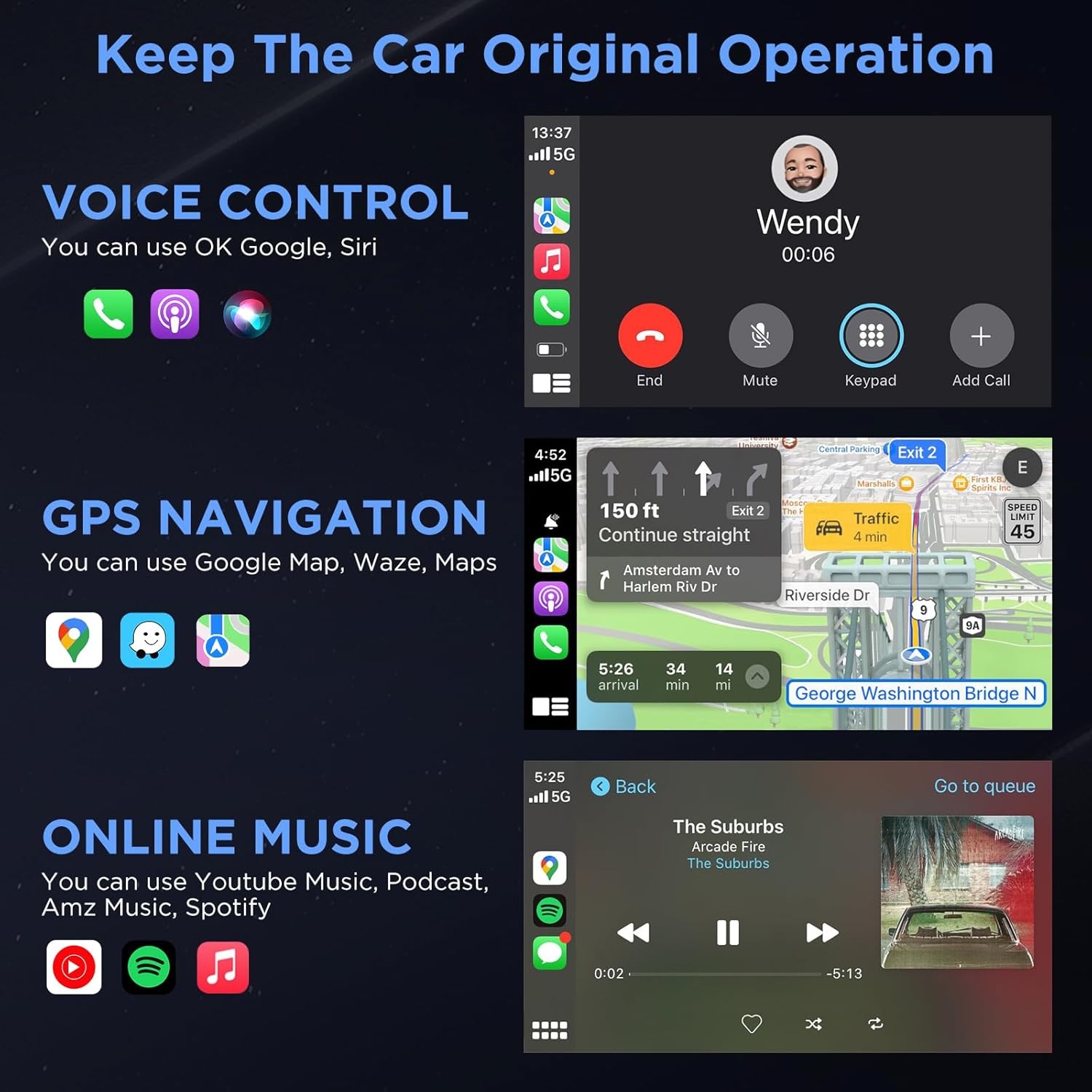
Image: The CarPlay display showing icons for voice control (Siri), GPS navigation (Google Maps, Waze), and various music streaming services (Spotify, Apple Music).
5.2 Vehicle Control Integration
The adapter supports 100% integration with your automobile's control system, including:
- Pantalla táctil
- Mando de control
- Control do volante

Image: A driver interacting with the CarPlay system using the car's touch screen, control knob, and steering wheel buttons.
6. Mantemento
- Actualizacións de software (OTA): The adapter supports online reporting and Over-The-Air (OTA) updates to ensure optimal performance and compatibility with the latest iOS versions and car systems. Regularly check for and install available updates.
- Limpeza: Manteña o adaptador limpo e libre de po. Use un pano suave e seco para limpalo.
- Almacenamento: If not in use for an extended period, you may unplug the adapter from the car's USB port.
7 Solución de problemas
- Problemas de conexión: If the adapter fails to connect, ensure your iPhone's Bluetooth and Wi-Fi are on and not connected to other devices. Try restarting both your iPhone and the car's infotainment system.
- Audio Delay/Quality: For any audio issues, ensure a strong Bluetooth connection. Check for any obstructions or interference.
- CarPlay Not Launching: Verify that your car supports wired CarPlay. Ensure the adapter is properly plugged into the USB port.
- Fallos de software: Perform an OTA update if available. If issues persist, contact customer support.
Importante: If you encounter persistent issues, please refer to the support contact information in Section 9.
8. Especificacións
| Característica | Detalle |
|---|---|
| Dimensións do produto | 2.61 x 1.06 x 0.49 polgadas |
| Peso do elemento | 2.08 onzas |
| Tecnoloxía sen fíos | 5G Chip, 5.8 GHz Wi-Fi, Bluetooth 5.3 |
| Tipo de conector | USB tipo C, USB tipo A |
| Material | Gold-plated USB for enhanced conductivity and oxidation resistance |
9. Garantía e soporte
MSXTTLY offers comprehensive support for your Wireless CarPlay Adapter.
- Garantía: 12-month warranty.
- Soporte técnico: 24/7 professional technical support is available.
- Contacto: For any questions or problems, please refer to the contact information provided in your user manual or visit the official MSXTTLY websitio.
Nota: When contacting support, please provide your order number, vehicle model and year, and mobile model. Screenshots or videos can help accelerate troubleshooting.
10. Vídeo oficial do produto
Video: An official product video from MSXTTLY global demonstrating the U2AC-AIR Pro Wireless CarPlay Adapter in use.


