
1. Compatibilidade
This keyboard case is specifically designed for the iPad Pro 11-inch (M4) 2024. To ensure proper fit, verify your iPad's model numbers. Compatible model numbers include A2836, A2837 e A3006. This case is non compatible with the iPad Air 11-inch (M2) 2024 or any other iPad models.

Image: A visual guide illustrating the compatible iPad Pro 11 (M4) 2024 model and its corresponding model numbers (A2836, A2837, A3006), alongside an incompatible iPad Air 11 (M2) 2024 model.
2. Que hai na caixa
Ao abrir o paquete, asegúrese de que estean presentes todos os seguintes elementos:
- 1 x CHESONA Rugged Case for iPad Pro 11 (M4) (Tablet NOT included)
- 1 x teclado sen fíos
- 1 x USB Charging Cable (No Charger)
- 1 x Manual de usuario

Imaxe: Unha vista superior view displaying the CHESONA keyboard, magnetic case, USB charging cable, user manual, and product packaging box.
3. Guía de configuración
Follow these steps to set up your CHESONA Rugged Keyboard Case:
3.1. Step 1: Adjust the Kickstand
Bend the integrated kickstand to achieve your desired viewing angle. The stand is designed to be adjustable from 15° to 180° for optimal comfort.
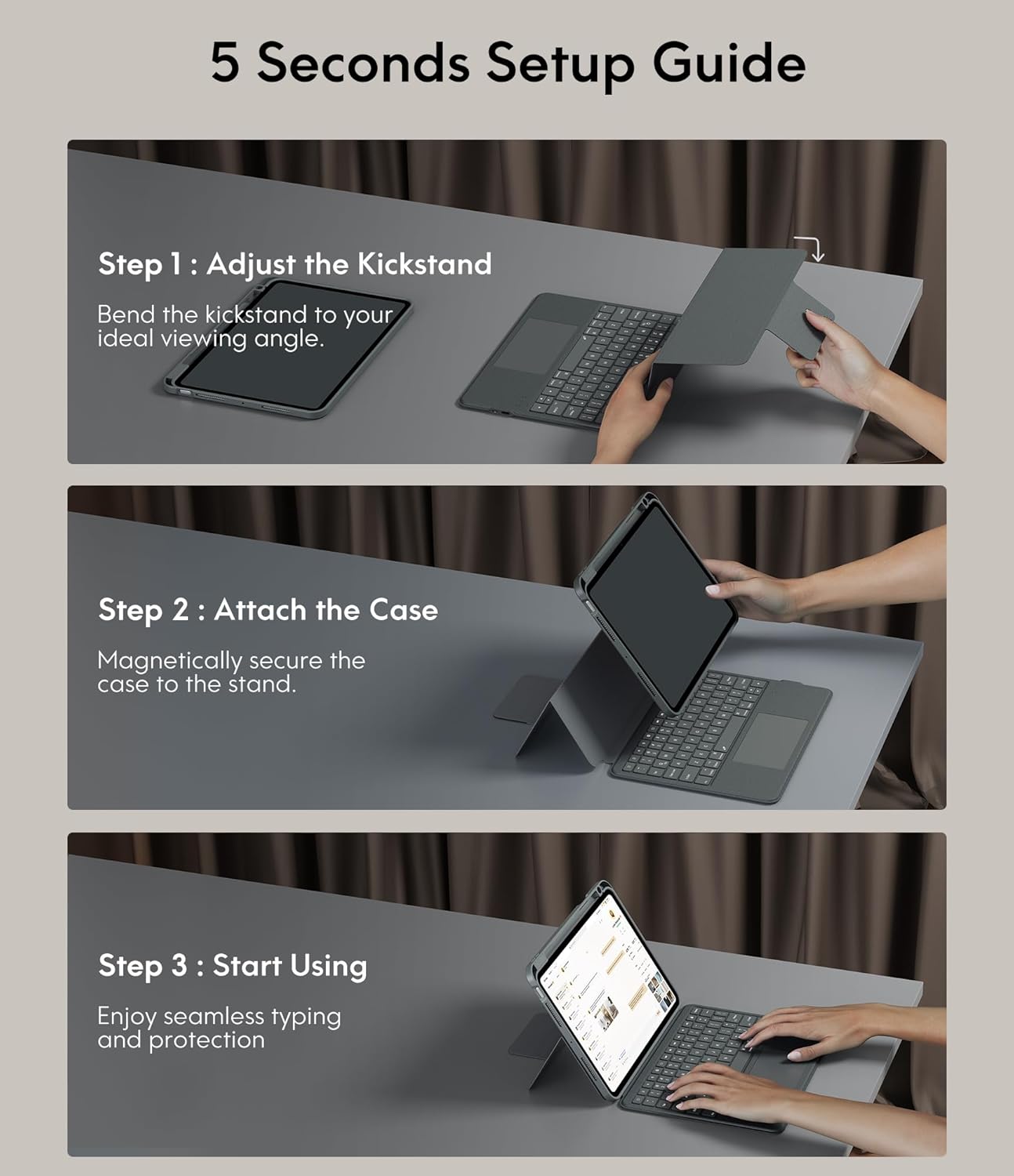
Image: A three-step visual guide showing how to adjust the kickstand, attach the iPad to the magnetic case, and begin using the keyboard.
3.2. Step 2: Attach the Case
Securely place your iPad into the protective case. The case features strong magnets that will hold the iPad firmly in place on the stand.
3.3. Step 3: Start Using
Once the iPad is securely attached and the kickstand is adjusted, you can begin using your keyboard case for typing and protection.
3.4. Emparellamento Bluetooth
- Asegúrate de que o teclado estea cargado.
- Acende o teclado usando o interruptor de acendido.
- No teu iPad, vai a Configuración > Bluetooth and turn Bluetooth on.
- Select the keyboard from the list of available devices (it may appear as 'CHESONA Keyboard' or similar).
- Confirm the pairing code if prompted. The keyboard will now be connected.
4. Instrucións de funcionamento
4.1. Magnetic Detachable Keyboard
The keyboard is magnetically attached to the case, allowing for easy detachment. This feature enables you to switch between a laptop-like setup and a standalone tablet experience. Simply pull the keyboard away from the case when not needed, or reattach it when typing is required.

Image: A hand detaching the magnetic keyboard from the iPad case, illustrating the strong magnetic connection.
4.2. Adjustable Stand and ViewModos de ing
The case offers a wide range of adjustable angles (15°-180°) and supports multiple placement modes for various activities:
- Modo de escritura: Use with the keyboard for productivity.
- Drawing Mode: Lay the iPad flat or at a low angle for creative tasks.
- Modo de lectura: Detach the keyboard and hold the iPad comfortably.
- ViewModo ing: Adjust the stand for watching videos or video calls.

Image: A visual representation of five different usage modes: Video Call, Draw, To Read, Writing Documents, and Watch Movies, demonstrating the case's versatility.
4.3. Keyboard Backlight Control
The keyboard features 7-color backlighting and 3 levels of brightness, enhancing visibility in various lighting conditions.
- Para cambiar a cor da retroiluminación: Prema Shift + Return.
- Para axustar o brillo: Prema Maiús + Maiús (or dedicated brightness keys if available).

Image: The keyboard illuminated with various backlight colors, demonstrating the 7-color options and the keys used to adjust brightness and color.
4.4. Trackpad Functionality
The integrated multi-touch trackpad provides precise navigation and supports various gestures for enhanced productivity:
- Arrastre: Tap and hold an item, then drag to move it.
- Pasar o dedo: Use two fingers to scroll up/down or left/right.
- Achegar/Abaixar: Pinch with two fingers to zoom.
- App Publication (App Switcher): Swipe up with three fingers to reveal open applications.
- Swipe between full screen apps: Swipe left or right with three fingers to switch between full-screen applications.

Image: A close-up of the trackpad with illustrations of common multi-touch gestures like drag, swipe, zoom in/out, app publication, and switching between full-screen apps.
4.5. Teclas de función e atallos
The keyboard includes a dedicated row of function keys for quick access to common iPad features:
- Casa: Volve á pantalla de inicio.
- Busca: Activate iPad search.
- Control de brillo: Axusta o brillo da pantalla.
- Controis multimedia: Reproducir/pausar, pista anterior, pista seguinte.
- Control de volume: Silenciar, baixar volume, subir volume.
- Pantalla de bloqueo: Lock your iPad.

Imaxe: Unha detallada view of the keyboard's top row, highlighting the function keys for media control, volume, brightness, and other shortcuts.
5. Características de protección
The CHESONA Rugged Keyboard Case provides comprehensive protection for your iPad Pro 11 (M4) 2024:
- Hard-Shell Design: The premium hard-shell design protects all sides of your tablet.
- Protección 360°: The included compatible camera case ensures 360° protection against accidental drops, scratches, and dust.
- Pen Slot: A dedicated pen slot securely holds your Apple Pencil, preventing loss and allowing for convenient charging.
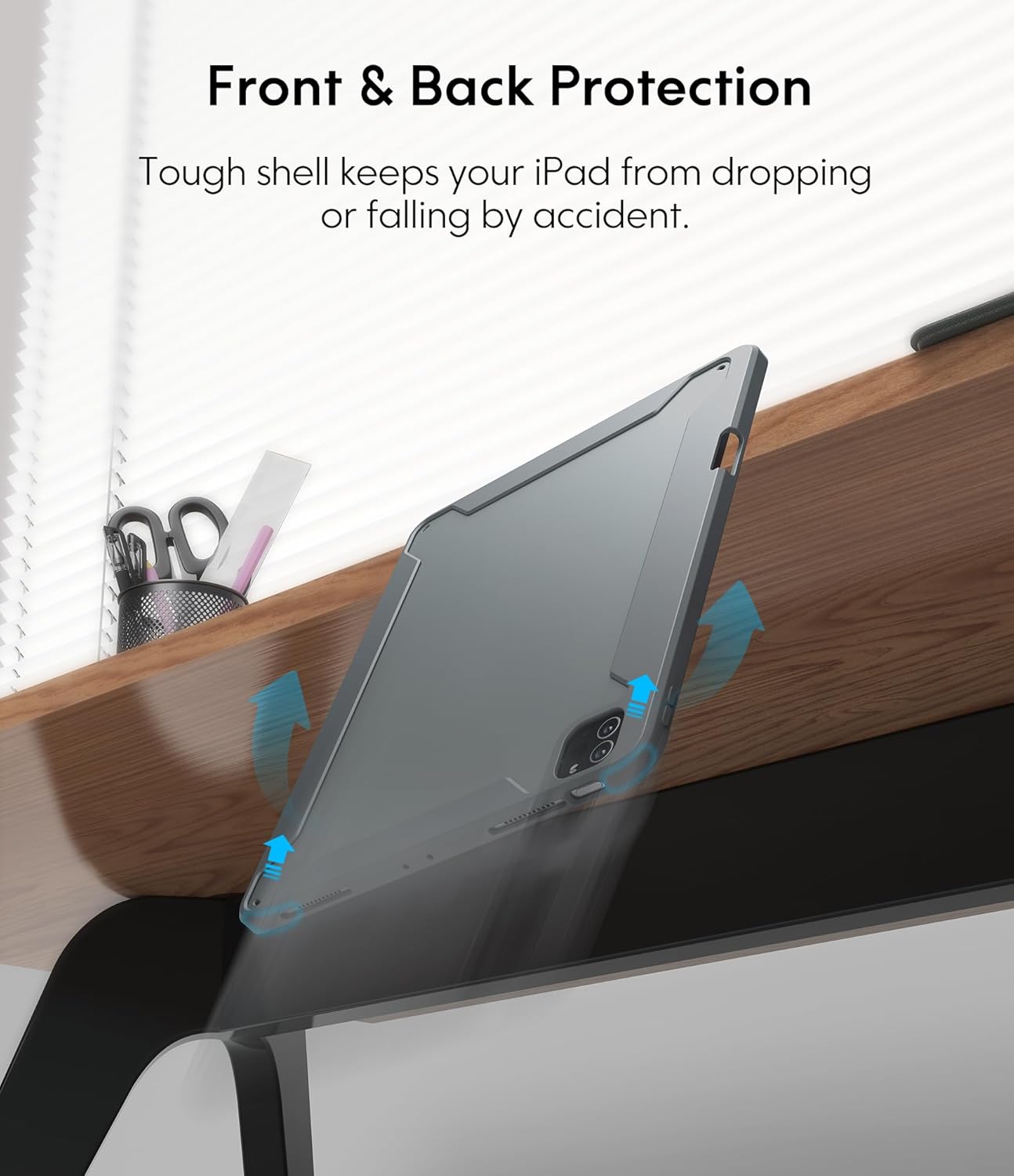
Image: An illustration showing the iPad case protecting the device from a fall, emphasizing its tough shell and front and back protection.
6. Xestión da batería e da enerxía
The keyboard features a built-in rechargeable battery designed for extended use:
- Duración da batería: A full charge provides over 50 hours of working time.
- Tempo de carga: Approximately 2-3 hours for a full charge using the provided USB charging cable.
- Modo de suspensión: If the keyboard is inactive for 10 minutes, it will enter sleep mode and disconnect from your iPad to conserve power. Press any key to wake it up and automatically reconnect.
7. Mantemento
To ensure the longevity and optimal performance of your keyboard case, follow these maintenance guidelines:
- Limpeza: Use un suave, damp cloth to wipe the exterior of the case and keyboard. Avoid harsh chemicals or abrasive materials.
- Almacenamento: Cando non a use durante períodos prolongados, garde a funda do teclado nun lugar fresco e seco.
- Evitar líquidos: Manteña o teclado lonxe de líquidos para evitar danar os compoñentes electrónicos.
8 Solución de problemas
Se tes algún problema, consulta os seguintes consellos para a resolución de problemas:
- O teclado non se conecta:
- Asegúrate de que o teclado estea cargado e acendido.
- Verifica que o Bluetooth estea activado no teu iPad.
- Esquece o dispositivo na configuración de Bluetooth do teu iPad e tenta emparellalo de novo.
- Reinicia tanto o teu iPad como o teclado.
- Trackpad Not Responding:
- Asegúrate de que o teclado estea conectado por Bluetooth.
- Check if the trackpad is enabled in your iPad's settings (Settings > Accessibility > Touch > AssistiveTouch).
- Clean the trackpad surface for any debris.
- A luz de fondo non funciona:
- Asegúrate de que o teclado teña a batería suficiente.
- Press the backlight adjustment keys (Shift + Shift or dedicated keys) to cycle through brightness levels.
- As teclas non responden:
- Comproba a conexión Bluetooth.
- Ensure the keyboard is not in sleep mode.
- Recarga o teclado.
9. Especificacións do produto
| Dimensións do produto | 10.04 x 7.68 x 0.83 polgadas |
| Peso do elemento | 1.72 libras |
| Marca | CHESONA |
| Dispositivos compatibles | iPad Pro 11 (M4) 2024 |
| Tecnoloxía de conectividade | Sen fíos (Bluetooth) |
| Descrición do teclado | Multifuncional |
| Característica especial | Retroiluminado, panel táctil |
| Cor | Gris |
| Fonte de enerxía | Alimentado por batería |
| Baterías | 1 batería P76 (incluída) |
10. Garantía e soporte
CHESONA products are designed for durability and performance. For information regarding warranty coverage, product support, or to report any issues, please refer to the contact information provided with your purchase or visit the official CHESONA websitio. Garde o comprobante de compra para reclamacións de garantía.


