1. Introdución
This manual provides essential information for the proper use and operation of your Seeed Studio XIAO nRF52840 Sense (Pre-Soldered) microcontroller board. Please read this manual thoroughly before use to ensure optimal performance and longevity of the device.
The Seeed Studio XIAO nRF52840 Sense is a compact, versatile microcontroller board featuring the Nordic nRF52840 chip. It is designed for various applications, including embedded Machine Learning, wearable devices, and IoT projects, offering Bluetooth 5.0, BLE, and NFC capabilities, along with an onboard digital microphone and 6-axis IMU.
2. Características clave
- Microcontrolador: Nordic nRF52840 with FPU, operating up to 64 MHz.
- Conectividade sen fíos: Bluetooth 5.0, BLE, and NFC with an onboard antenna.
- Sensores: Integrated digital microphone and 6-axis IMU (Inertial Measurement Unit).
- Xestión de enerxía: Ultra-low power consumption (5 µA in deep sleep) and lithium battery charge management.
- Development Support: Compatible with Arduino and CircuitPython.
- Deseño compacto: Thumb-sized form factor (21 x 17.5mm).
3. Guía de configuración
3.1 Contido do paquete
Verify that your package contains the Seeed Studio XIAO nRF52840 Sense (Pre-Soldered) board.
3.2 Conexión de hardware
- Conectar ao ordenador: Use a USB-C cable to connect the XIAO nRF52840 Sense to your computer. Ensure you use a reliable USB 2.0 port if encountering connection issues, as some USB 3.0 ports may cause DFU mode errors.
- Fonte de alimentación: The board can be powered via the USB-C port or an external lithium battery (JST connector). The board includes charge management for lithium batteries.


3.3 Configuración do software (IDE de Arduino)
- Instalar o IDE de Arduino: Descarga e instala o IDE de Arduino desde o Arduino oficial websitio.
- Add Board Support:
- Abre o IDE de Arduino e vai a File > Preferencias.
- In "Additional Board Manager URLs", add the URL for Seeed Studio XIAO nRF52840 Sense board support. (Nota: Específico URL can be found on Seeed Studio's official documentation.)
- Ir a Tools > Board > Board Manager, search for "Seeed Studio nRF52 Boards" and install it.
- Select Board: Ir a Ferramentas > Taboleiro and select "Seeed Studio XIAO nRF52840 Sense".
- Seleccione o porto: Ir a Ferramentas > Porto and select the COM port associated with your XIAO board.
4. Instrucións de funcionamento
4.1 Uploading Code
- Write or Load Sketch: Abre un example sketch or write your own code in the Arduino IDE.
- Verify Code: Click the "Verify" button (checkmark icon) to compile your code and check for errors.
- Upload Code: Click the "Upload" button (right arrow icon) to upload the compiled code to your XIAO nRF52840 Sense board.
4.2 Entering DFU Mode (Bootloader)
To upload new firmware or recover the board, you may need to enter DFU (Device Firmware Upgrade) mode:
- Locate the small reset button on the board.
- Double-click the reset button quickly. The onboard LED may change color or blink to indicate DFU mode.
- In DFU mode, a new drive (often labeled "D" or similar) and a COM port should appear on your computer.
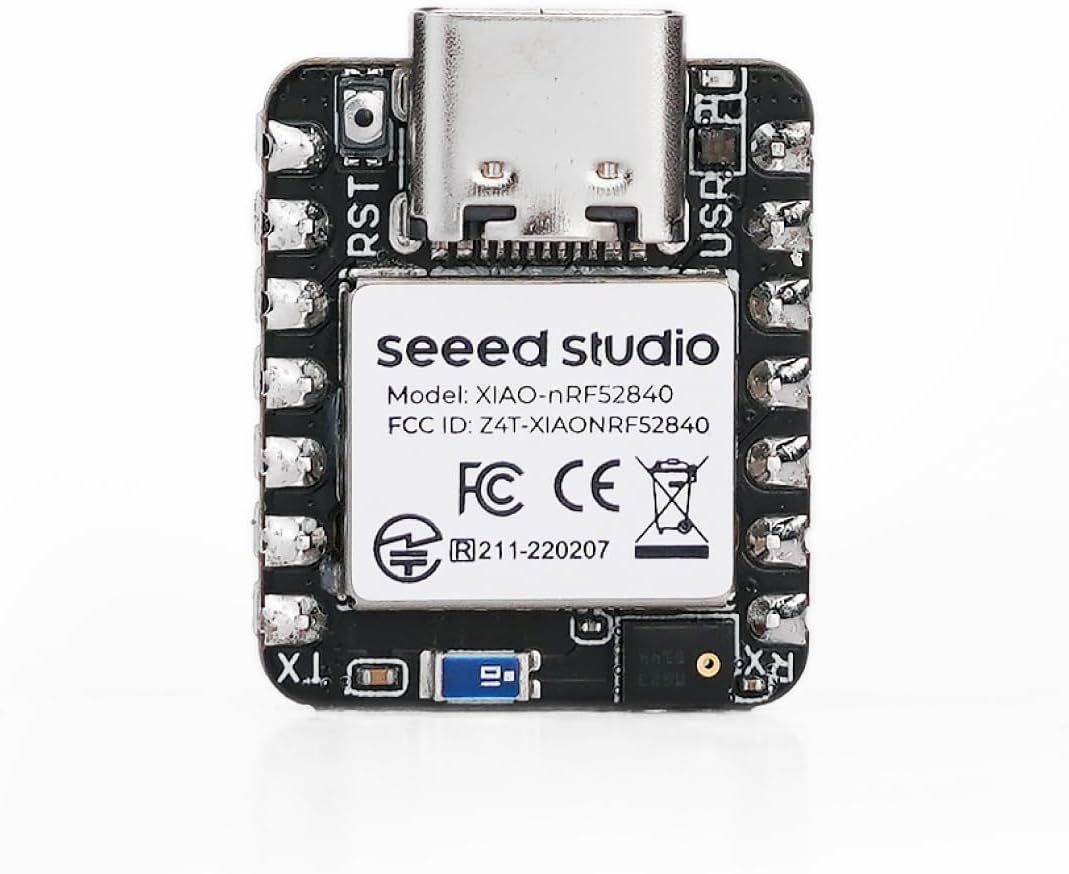
4.3 Diagrama de pinout
Refer to the pinout diagram for detailed information on the board's GPIOs, power pins, and peripheral interfaces.

5. Mantemento
- Limpeza: Use a dry, soft cloth to clean the board. Avoid using liquids or solvents.
- Almacenamento: Store the board in an anti-static bag in a dry environment when not in use.
- Actualizacións de firmware: Regularly check the official Seeed Studio website for the latest firmware and board support package updates to ensure optimal performance and access to new features.
6 Solución de problemas
- Board not recognized / "not in DFU mode" error:
Try connecting the board to a USB 2.0 port instead of a USB 3.0 port. Some users have reported issues with USB 3.0 ports preventing proper DFU mode entry or recognition. Ensure you double-click the reset button to enter DFU mode.
- Upload failures:
Verify that the correct board and COM port are selected in the Arduino IDE. Ensure the board is in DFU mode if required for the upload process. Check your USB cable for proper connection and functionality.
- Board becomes unresponsive or burns out:
Ensure proper power supply. Avoid reverse polarity when connecting external batteries. If using a lithium battery, ensure correct JST cable connection. Over-current or incorrect wiring can damage the board. If issues persist, contact support.
- Difficulty finding resources or documentation:
Refer to the official Seeed Studio documentation and community forums for comprehensive guides and support. Busca "Seeed Studio XIAO nRF52840 Sense documentation" online.
7. Especificacións técnicas
| Característica | Detalle |
|---|---|
| Procesador | Nordic nRF52840 (64 MHz) |
| RAM | LPDDR (256 KB) |
| Memoria flash | 1 MB |
| Tipo sen fíos | Bluetooth 5.0, BLE, NFC |
| Soporte do sistema operativo | Arduino / CircuitPython |
| Sensores a bordo | Digital Microphone, 6-axis IMU |
| Modo de baixa potencia | 5 µA (deep sleep) |
| Dimensións | 21 x 17.5 mm |
| Peso do elemento | 0.634 onzas |
| Tecnoloxía de conectividade | Bluetooth, NFC |
8. Información da garantía
For warranty details and terms, please refer to the official Seeed Studio websitio web ou póñase en contacto directamente co servizo de atención ao cliente. Garde o comprobante de compra para calquera reclamación de garantía.
9. Soporte e Recursos
For further assistance, technical documentation, tutorials, and community forums, please visit the official Seeed Studio websitio:
You can also find additional resources and project examples on platforms like Hackaday, Hackster.io, and GitHub by searching for "Seeed Studio XIAO nRF52840 Sense".


