Introdución
This manual provides essential information for the installation, operation, maintenance, and troubleshooting of your Sapphire Nitro+ AMD Radeon RX 9070 XT Gaming OC Graphics Card. Please read this manual thoroughly before installing and using your new graphics card to ensure optimal performance and longevity.

Image: The Sapphire Nitro+ AMD Radeon RX 9070 XT Graphics Card shown alongside its retail packaging.
Contido do paquete
Verifica que todos os elementos estean presentes no paquete do teu produto:
- Sapphire Nitro+ AMD Radeon RX 9070 XT Graphics Card
- Manual de usuario (este documento)
- Soporte de soporte da tarxeta gráfica
- Power Cable Adapter (if applicable)
- Cable de sincronización ARGB
Video: An unboxing video demonstrating the contents of the Sapphire Nitro+ AMD Radeon RX 9070 XT Graphics Card package, including the card and accessories.
Configuración e instalación
Siga estes pasos para instalar correctamente a súa tarxeta gráfica:
- Preparación: Power off your computer and disconnect all cables. Open your computer case.
- Retirar a tarxeta gráfica antiga (se corresponde): If you are replacing an existing graphics card, carefully remove it by unscrewing its retention bracket and releasing the PCIe slot latch.
- Insert New Graphics Card: Align the Sapphire Nitro+ RX 9070 XT with an available PCI Express x16 slot on your motherboard. Press down firmly until the card is securely seated and the PCIe slot latch engages. This card typically occupies three expansion slots.
- Asegura a tarxeta: Use screws to secure the graphics card's retention bracket to your computer case.
- Conectar os cables de alimentación: Connect the necessary PCIe power cables from your power supply to the graphics card. Ensure all connections are firm. This model features a hidden power cable design for a cleaner aesthetic.
- Install Support Bracket: Due to the size and weight of the card, it is recommended to install the included anti-sag support bracket to prevent GPU sag over time.
- Pechar o caso e volver conectar: Pecha a caixa do ordenador, volve conectar todos os cables e acende o sistema.
- Instalación de controladores: Once your operating system loads, install the latest AMD Radeon drivers from the official AMD or Sapphire websitio.

Image: The rear I/O panel of the graphics card, featuring multiple DisplayPort and HDMI outputs for connecting to monitors.

Imaxe: Un diagrama que mostraasing the STEALTH Hidden Power Cable design, which routes power connectors for a cleaner build appearance.
Funcionamento da tarxeta gráfica
After successful installation and driver setup, your Sapphire Nitro+ RX 9070 XT is ready for use. Connect your display(s) to the available ports (2 x HDMI, 2 x DisplayPort). For optimal performance, ensure your display cables are securely connected and your monitor is set to the correct input source.
Regularly check for driver updates through the AMD Radeon Software application to benefit from performance improvements and bug fixes. You can also utilize Sapphire's Trixx software for advanced monitoring, fan control, and RGB lighting customization.

Image: The graphics card displaying its integrated ARGB lighting, which can be customized for various visual effects.
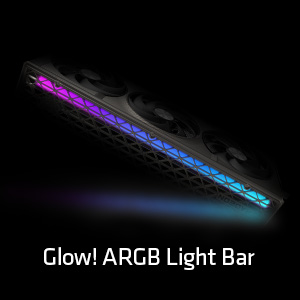
Imaxe: Unha detallada view of the Glow! ARGB Light Bar, highlighting its customizable illumination capabilities.
Mantemento
To maintain optimal performance and extend the lifespan of your graphics card, periodic cleaning is recommended.
- Eliminación de po: Use compressed air to gently clear dust from the fans and heatsink fins. Ensure the fans do not spin rapidly during cleaning to prevent damage.
- Inspección do ventilador: Periodically check the fans for any obstructions or unusual noises. The Quick Connect Fan feature allows for easy removal and cleaning of individual fans.
- Limpeza xeral: Limpe o exterior da tarxeta cun pano suave, seco e antiestático. Evite usar produtos de limpeza líquidos directamente sobre a tarxeta.

Image: A diagram demonstrating the Quick Connect Fan system, which allows for easy removal and replacement of the cooling fans.
Resolución de problemas
Se tes problemas coa túa tarxeta gráfica, considera as seguintes solucións habituais:
- Sen saída de visualización:
- Asegúrate de que o cable do monitor estea conectado correctamente tanto á tarxeta gráfica como ao monitor.
- Verify that the graphics card is fully seated in the PCIe slot and the power cables are properly connected.
- Comprobe se o monitor está configurado na fonte de entrada correcta.
- Inestabilidade ou fallos do sistema:
- Actualiza os controladores gráficos á última versión.
- Asegúrate de que a túa fonte de alimentación (PSU) cumpra co consumo mínimo de enerxíatage requirements for the graphics card and your system.
- Monitor GPU temperatures using software like AMD Radeon Software or Sapphire Trixx. Overheating can cause instability.
- Rendemento deficiente:
- Confirm that your display is connected to the graphics card, not the motherboard's integrated graphics.
- Check in-game settings to ensure they are appropriate for your system's capabilities.
- Ensure background applications are not consuming excessive system resources.
- Ruído do ventilador:
- Clean the fans and heatsink to remove dust buildup.
- Adjust fan curves using AMD Radeon Software or Sapphire Trixx to find a balance between cooling and noise.
If issues persist, consult the Sapphire support websitio ou póñase en contacto co seu servizo de atención ao cliente.
Especificacións
| Característica | Detalle |
|---|---|
| Número de modelo | 11348-01-20G |
| Coprocesador gráfico | AMD Radeon RX 9070 XT |
| Tamaño da memoria | 16 GB GDDR6 |
| Interface de memoria | 256 bits |
| Velocidade da memoria | 20 GHz |
| Velocidade de reloxo da GPU | 3060 MHz |
| Resolución máxima de pantalla | 3840x2160 |
| Portos de saída | 2 x HDMI, 2 x DisplayPort |
| Peso do elemento | 5.72 libras |
| Dimensións do produto (LxWxH) | 13.02 x 5.06 x 0.04 polgadas |
Garantía e Soporte
Your Sapphire Nitro+ AMD Radeon RX 9070 XT Graphics Card is covered by a manufacturer's warranty. Please refer to the warranty card included in your product packaging or visit the official Sapphire websitio web para obter información detallada sobre os termos e condicións da garantía.
Para obter asistencia técnica, descargas de controladores, preguntas frecuentes e máis soporte, visite o sitio web Sapphire Technology websitio. You may also find helpful resources and community support through the official AMD Radeon channels.


