1. Introdución
Welcome to the CyberpowerPC Gamer Xtreme GXi3200BSTV10 Gaming Desktop PC. This manual provides essential information for setting up, operating, maintaining, and troubleshooting your new gaming system. Designed for high-performance gaming and demanding applications, this PC features an Intel Core i5-14400F processor, NVIDIA GeForce RTX 5060 graphics, 16GB DDR5 RAM, and a 1TB PCIe SSD, all running on Windows 11 Home.
For optimal performance and longevity, please read this manual thoroughly before using your computer.
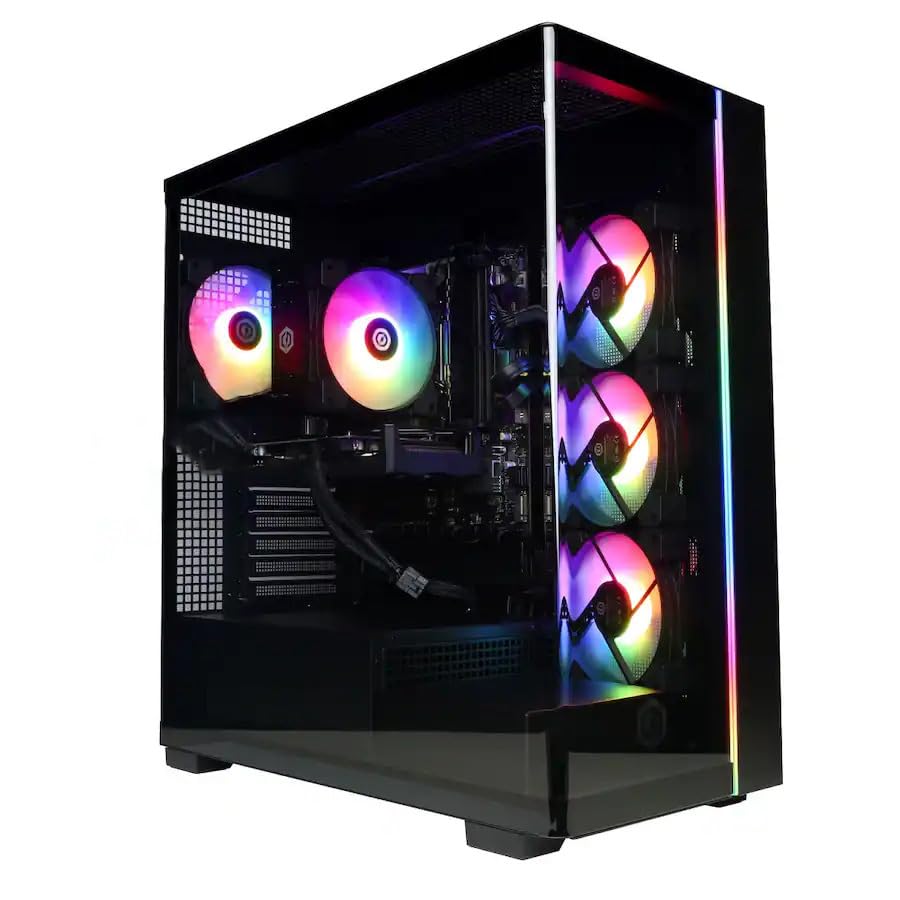
Imaxe: Fronte view of the CyberpowerPC Gamer Xtreme GXi3200BSTV10 Gaming Desktop PC, showcasing its sleek design and RGB lighting elements.
2. Que hai na caixa
Upon unpacking your CyberpowerPC Gamer Xtreme GXi3200BSTV10, please ensure all the following items are present:
- CyberpowerPC Gamer Xtreme GXi3200BSTV10 Desktop PC
- Cable de alimentación
- Teclado para xogos RGB
- Rato para xogos RGB
- Documentación (incluído este manual)

Image: The included CyberpowerPC NOHI 2 Black Wired RGB 104-Key Keyboard and CyberPowerPC Elite M2 Black Wired RGB 4-Button Mouse.
3. Guía de configuración
Follow these steps to set up your new CyberpowerPC Gamer Xtreme desktop:
3.1 Desembalaxe e colocación
- Carefully remove the PC and all accessories from the packaging. Retain the packaging for future transport or warranty claims.
- Place the PC on a stable, flat surface with adequate ventilation. Ensure there is clear space around the air intake and exhaust vents.
- Remove any protective films or internal packing materials from the PC case.
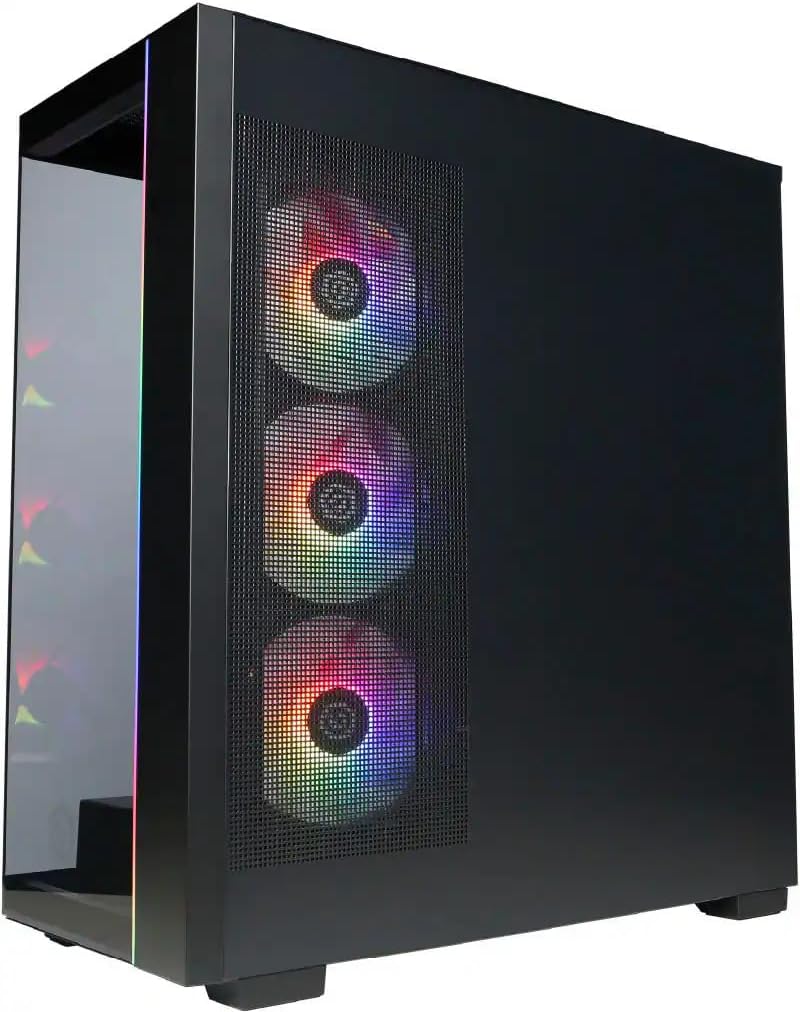
Imaxe: Lateral view of the PC case, highlighting the mesh panel for airflow and the RGB fans visible through it.
3.2 Conexión de periféricos
Connect your monitor, keyboard, mouse, and other devices to the appropriate ports on the back of the PC.
- Monitor: Connect your monitor to one of the graphics card's display outputs (DisplayPort or HDMI). Ensure it's connected to the dedicated graphics card (NVIDIA GeForce RTX 5060), not the motherboard's integrated graphics ports.
- Teclado e rato: Connect the included RGB keyboard and mouse to any available USB ports.
- Rede: For wired internet, connect an Ethernet cable to the RJ-45 port. For wireless internet, ensure the Wi-Fi antennas (if provided) are attached.
- Audio: Conecte altofalantes ou auriculares ás tomas de saída de audio.
3.3 Conexión á alimentación e inicio inicial
- Connect the power cable to the PC's power supply unit (PSU) and then to a grounded electrical outlet.
- Prema o botón de acendido e apagado situado na parte frontal ou superior do PC.
- Follow the on-screen instructions to complete the Windows 11 Home setup process. This may include setting up your user account, network connection, and privacy settings.
4. Manexo do teu PC
This section covers basic operation of your CyberpowerPC Gamer Xtreme.
4.1 Encender/apagar e reiniciar
- Encendido: Preme o botón de acendido unha vez.
- Apagar: Fai clic no botón Inicio en Windows e, a seguir, selecciona Enerxía > Apagar.
- Reiniciar: Fai clic no botón Inicio en Windows e, a seguir, selecciona Enerxía > Reiniciar.
- Force Shut Down: If the system is unresponsive, press and hold the power button for 5-10 seconds until the PC turns off. Use this only as a last resort.
4.2 Conectividade de rede
- Cableado (Ethernet): Once the Ethernet cable is connected, Windows 11 should automatically detect and connect to the network.
- Sen fíos (Wi-Fi): Fai clic na icona Wi-Fi da barra de tarefas, selecciona a rede desexada, introduce o contrasinal e fai clic en Conectar.
4.3 Control de iluminación RGB
Your system features customizable RGB lighting for fans, case, and CPU cooler. Control software for RGB lighting may be pre-installed or available for download from the CyberpowerPC website. Refer to the specific software's instructions for detailed customization options.

Imaxe: Detallada view of the RGB fans, illustrating the vibrant lighting effects within the PC case.

Image: Close-up of the CPU cooler, showing its design and integrated RGB lighting.
5. Mantemento
Un mantemento regular axuda a garantir a lonxevidade e o rendemento óptimo do teu PC.
5.1 Limpeza
- Exterior: Use un suave, damp cloth to clean the exterior of the case. Avoid harsh chemicals.
- Po: Periodically clean dust from the internal components, especially fans and heatsinks, using compressed air. Ensure the PC is powered off and unplugged before opening the case.
- Filtros de ar: If your case has removable air filters, clean them regularly to maintain optimal airflow.
5.2 Actualizacións de software
- Actualizacións de Windows: Regularly check for and install Windows updates to ensure security and performance improvements. Go to Settings > Windows Update.
- Actualizacións de controladores: Keep your graphics card drivers (NVIDIA GeForce) and other component drivers updated for best performance and compatibility. Visit the respective manufacturer's websitios web para os controladores máis recentes.
5.3 Copia de seguranza de datos
Regularly back up your important data to an external drive or cloud storage to prevent data loss in case of hardware failure or other issues.
6 Solución de problemas
Esta sección ofrece solucións para problemas comúns cos que podes atoparte.
6.1 Sen enerxía
- Asegúrate de que o cable de alimentación estea conectado correctamente tanto ao PC como á toma de corrente.
- Check if the power switch on the PSU (located at the back of the PC) is in the 'ON' position.
- Proba a toma de corrente con outro dispositivo para confirmar que teña corrente.
6.2 Sen visualización no monitor
- Verify that the monitor is powered on and its video cable is securely connected to the graphics card (NVIDIA GeForce RTX 5060) on the PC.
- Ensure the monitor's input source is set correctly (e.g., HDMI 1, DisplayPort).
- Try connecting the monitor to a different display output port on the graphics card.
6.3 System Running Slowly
- Check Task Manager (Ctrl+Shift+Esc) for applications consuming excessive CPU, RAM, or disk resources.
- Asegúrate de que Windows e os controladores estean actualizados.
- Executar unha análise completa do sistema en busca de software malicioso ou virus.
- Verify that the PC has adequate ventilation and is not overheating.
7. Especificacións
Detailed technical specifications for your CyberpowerPC Gamer Xtreme GXi3200BSTV10:

Image: Infographic summarizing key specifications including Intel Core i5-14400F, NVIDIA GeForce RTX 5060, 16GB DDR5 RAM, and 1TB PCIe NVMe M.2 SSD.
| Compoñente | Especificación |
|---|---|
| Procesador | Intel Core i5-14400F (10-Core, 2.5 GHz base, up to 4.7 GHz Turbo Boost) |
| Tarxeta Gráfica | NVIDIA GeForce RTX 5060 8GB GDDR7 |
| RAM | 16 GB de DDR5 a 6000 MHz |
| Almacenamento | Unidade de estado sólido (SSD) M.2 NVMe PCIe de 1 TB |
| Sistema Operativo | Windows 11 Home |
| Conectividade sen fíos | Wi-Fi (802.11ax), Bluetooth |
| Audio | Audio de alta definición de 7.1 canles |
| Mostrar saídas | 3x DisplayPort, 1x HDMI |
| Portos USB | 1x USB-C 3.2, 3x USB-A 3.2, 4x USB-A 2.0 |
| Dimensións (LxWxH) | 18.1 x 9.2 x 20 polgadas |
| Peso do elemento | 40 libras |
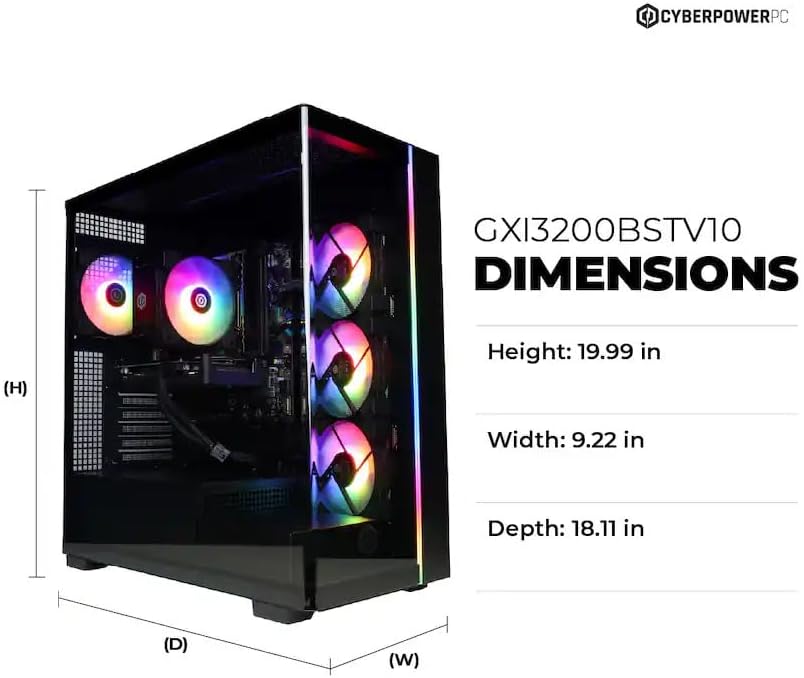
Image: Diagram illustrating the dimensions of the CyberpowerPC Gamer Xtreme GXi3200BSTV10: Height 19.99 in, Width 9.22 in, Depth 18.11 in.
8. Garantía e soporte
8.1 Garantía do fabricante
Your CyberpowerPC Gamer Xtreme GXi3200BSTV10 comes with a 1 ano de garantía do fabricanteEsta garantía cobre defectos de materiais e fabricación en condicións normais de uso. Conserve o comprobante de compra para reclamacións de garantía.
For specific terms and conditions of the warranty, please refer to the documentation included with your PC or visit the official CyberpowerPC websitio.
8.2 Soporte técnico
If you encounter issues that cannot be resolved using the troubleshooting steps in this manual, please contact CyberpowerPC technical support. Have your model number (GXi3200BSTV10) and serial number ready when contacting support.
You can typically find support contact information on the CyberpowerPC website or in the documentation provided with your system.


