1. Introdución
This manual provides essential information for the safe and efficient operation of your Next YE-65GFSG8-QLED 65-inch UHD 4K Google QLED TV. Please read this manual thoroughly before using the television and retain it for future reference. Your new television combines QLED display technology with the Google TV operating system, offering a high-quality viewing experience and smart features.
2. Información importante de seguridade
Always follow these basic safety precautions when operating your television:
- Fonte de enerxía: Ensure the TV is connected to a power supply within the specified voltagrango.
- Ventilación: Non bloquee as aberturas de ventilación. Deixe espazo suficiente arredor do televisor para unha correcta circulación do aire.
- Auga e humidade: Non expoñas o televisor á choiva nin á humidade. Non coloques obxectos cheos de líquidos, como vasos, enriba do televisor.
- Limpeza: Desconecte o televisor da toma de corrente antes de limpalo. Use un pano suave e seco. Non empregue produtos de limpeza líquidos nin produtos de limpeza en aerosol.
- Colocación: Coloque o televisor sobre unha superficie estable e nivelada. Evite colocalo baixo a luz solar directa ou preto de fontes de calor.
- Lóstrego: During lightning storms or when unused for long periods, unplug the TV from the power outlet and disconnect the antenna.
- Servizo: Non intente atender este produto vostede mesmo. Remita todo o servizo a persoal de servizo cualificado.
3. Contido do paquete
Verify that all items are present in your TV package:
- Next YE-65GFSG8-QLED 65-inch UHD 4K Google QLED TV
- Control remoto
- Cable de alimentación
- Soporte para TV (2 pezas) e parafusos
- Manual de usuario (este documento)
- Guía de inicio rápido
4. Configuración
4.1 Instalación física
You can install your TV on a stand or mount it on a wall. Ensure the TV is placed on a stable surface or securely mounted.

Imaxe: TV Dimensions. This image illustrates the physical dimensions of the 65-inch television, including its width, height, and diagonal screen size of 164 cm (65 inches).
Instalación de soporte:
- Coloque con coidado o televisor boca abaixo sobre unha superficie suave e plana para evitar danar a pantalla.
- Fixe as dúas pezas do soporte ás ranuras designadas na parte inferior do televisor.
- Fixe os soportes cos parafusos proporcionados.
- Levante con coidado o televisor ata a súa posición vertical sobre unha superficie estable.
Montaxe na parede:
For wall mounting, use a VESA-compatible wall mount kit (sold separately) that matches the TV's VESA pattern. Follow the instructions provided with your wall mount kit. It is recommended to have professional assistance for wall mounting.
4.2 Conexión de periféricos
Connect your external devices to the appropriate ports on the back of your TV.
Imaxe: Rear Panel Connections. This image displays the various input and output ports located on the back of the television, including HDMI, USB, DVB-S, DVB-T, CI Module, Mini AV-IN, Optical Out, and Ethernet.
- HDMI (ARC): Connect Blu-ray players, game consoles, or other HDMI devices. HDMI 1 supports Audio Return Channel (ARC).
- USB (2x): Conecta dispositivos de almacenamento USB para a reprodución multimedia.
- DVB-S / DVB-T: Connect satellite (DVB-S) or terrestrial (DVB-T) antenna cables.
- CI Module: Insert a Common Interface (CI) module for encrypted digital channels.
- Mini AV-IN: Connect older devices using an AV adapter cable.
- Saída óptica: Connect to an external audio system for digital audio output.
- Ethernet: Conecta un cable Ethernet para unha conexión a internet por cable.
- Potencia: Conecta o cable de alimentación ao televisor e despois a unha toma de corrente.
4.3 Acendido inicial e primeira configuración
- After connecting all cables, plug the power cord into an electrical outlet.
- Prema o botón de acendido/apagado do mando a distancia ou do televisor.
- The TV will guide you through the initial setup process, which includes:
- Selección da lingua
- Conectando a Wi-Fi ou Ethernet
- Signing in with your Google Account (required for Google TV features)
- Aceptando os termos e condicións
- Channel scanning (for DVB-S/T)
- Siga as instrucións en pantalla para completar a configuración.
5. Funcionamento da súa TV
5.1 Funcións de control remoto
The remote control allows you to navigate the TV's features. Familiarize yourself with its buttons:
- Potencia: Acende ou apaga o televisor.
- Asistente de Google: Activa os comandos de voz.
- Panel de navegación (Arriba/Abaixo/Esquerda/Dereita/Aceptar): Navega polos menús e selecciona opcións.
- Volver: Volve á pantalla anterior.
- Casa: Accede á pantalla de inicio de Google TV.
- Volume +/-: Axusta o nivel de volume.
- Canle +/-: Cambia as canles de televisión.
- Entrada: Selecciona fontes de entrada (HDMI, AV, etc.).
- Botóns da aplicación: Acceso directo a aplicacións de streaming populares.
5.2 Navigating Google TV Interface
Google TV organizes your entertainment with a personalized home screen. Content from your apps is brought together and organized for easy discovery.

Imaxe: Google TV Interface. This image shows the main Google TV home screen with various streaming app icons and content recommendations, demonstrating the user interface.
- Pantalla de inicio: Displays personalized recommendations, installed apps, and quick access to content.
- For You Tab: Provides tailored content suggestions based on your viewing hábitos.
- Pestana en directo: Accesses live TV channels from integrated services.
- Apps Tab: Shows all installed applications. You can download more from the Google Play Store.
- Library Tab: Accesses your purchased or rented content from Google Play.
5.3 Axustes de imaxe e son
Para axustar a configuración de imaxe e son:
- Preme o Configuración button (usually a gear icon) on your remote.
- Navega ata Pantalla e son.
- Configuración da imaxe: Adjust brightness, contrast, color, sharpness, and select picture modes (e.g., Standard, Vivid, Movie, Game). Your QLED TV offers enhanced color saturation.
- Configuración de son: Adjust bass, treble, balance, and select sound modes (e.g., Standard, Music, Movie, Speech).

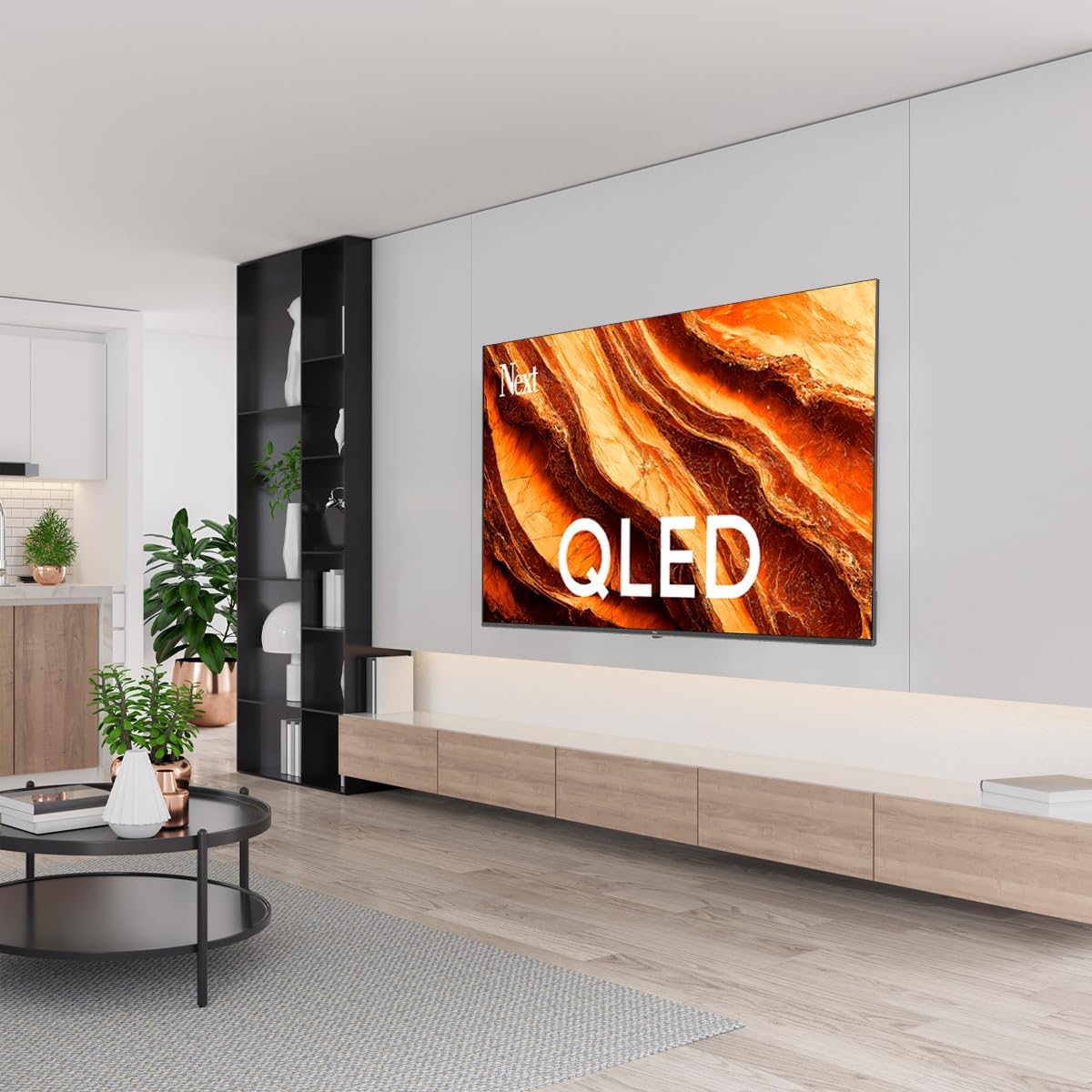
Imaxe: QLED Color Saturation. This image visually demonstrates the high color saturation achieved with QLED technology, showing a vibrant and rich color display.

Imaxe: HDR (High Dynamic Range). This image illustrates the visual impact of HDR, showcasing improved contrast and color detail in a scene when HDR is enabled versus when it is off.
5.4 Configuración de rede
To connect your TV to the internet:
- Preme o Configuración botón do seu control remoto.
- Navega ata Rede e Internet.
- Seleccione Wi-Fi to connect to a wireless network or ensure Ethernet is connected for a wired connection.
- Para a wifi, selecciona a túa rede da lista e introduce o contrasinal.
6. Mantemento
6.1 Limpeza do televisor
- Desconecte sempre o televisor antes de limpalo.
- Use un pano suave, seco e sen fiapos para limpar con coidado a pantalla e a carcasa do televisor.
- Para marcas difíciles, espolvoree lixeiramenteampen the cloth with water or a specialized screen cleaner (ensure it's safe for TV screens). Never spray cleaner directly onto the screen.
- Evite o uso de limpadores abrasivos, ceras ou disolventes.
6.2 Actualizacións de software
Your TV may receive software updates to improve performance and add new features. It is recommended to keep your TV's software updated.
- Asegúrate de que o teu televisor estea conectado a Internet.
- Preme o Configuración botón do seu control remoto.
- Navega ata Sistema > Sobre > Actualización do sistema.
- Seleccione Comproba a actualización.
- Siga as instrucións na pantalla para descargar e instalar as actualizacións dispoñibles.
7 Solución de problemas
Se tes problemas co teu televisor, consulta os seguintes problemas e solucións comúns:
| Problema | Posible causa/solución |
|---|---|
| Sen poder | Check if the power cord is securely plugged into the TV and the wall outlet. Ensure the outlet is working. |
| Sen imaxe, pero hai son | Check the input source. Ensure the connected device is turned on and functioning correctly. |
| Sen son, pero si imaxe | Check the volume level and mute status. Verify audio cable connections for external devices. Check TV sound settings. |
| O control remoto non funciona | Substitúa as pilas. Asegúrese de que non haxa obstrucións entre o mando a distancia e o sensor de infravermellos do televisor. |
| Non se pode conectar á wifi | Ensure your Wi-Fi router is on and within range. Re-enter the Wi-Fi password carefully. Try restarting the TV and router. |
| As aplicacións van lentas ou conxélanse | Close unused apps. Clear app cache (Settings > Apps > See all apps > [App Name] > Clear cache). Ensure a stable internet connection. |
Se o problema persiste despois de probar estas solucións, póñase en contacto co servizo de atención ao cliente.
8. Especificacións
Technical specifications for the Next YE-65GFSG8-QLED 65-inch UHD 4K Google QLED TV:
- Marca: A continuación
- Ano modelo: 2025
- Resolución: 4K (3840x2160)
- Tecnoloxía de visualización: QLED
- Tamaño da pantalla: 65 polgadas (165 cm)
- Relación de aspecto: 16:9
- Frecuencia de actualización: 60 Hz
- Características principais: Deseño sen marco
- Conectividade: Bluetooth, Ethernet, HDMI (ARC), USB (2x), Wi-Fi
- Dimensións do produto: 27.8P x 144.6L x 88.9A cm
- Peso: 16.3 quilogramos
- Sistema operativo: Google TV
- Compoñentes incluídos: Control remoto
- País de orixe: Turquía
9. Garantía e soporte
Your Next YE-65GFSG8-QLED TV comes with a manufacturer's warranty. Please refer to the warranty card included in your package for specific terms and conditions, including the warranty period and coverage details.
For technical support, service requests, or further assistance, please contact Next customer service. Contact information can typically be found on the manufacturer's websitio web ou na documentación da garantía.
- Soporte en liña: Visit the official Next website for FAQs, troubleshooting guides, and support contact details.
- Centros de servizo: For hardware issues, locate an authorized service center near you.