1. Introdución
Welcome to the user manual for your GPD Pocket 4 Mini Laptop. This document provides essential information for setting up, operating, maintaining, and troubleshooting your device. The GPD Pocket 4 is a high-performance, ultra-portable 2-in-1 device designed for both productivity and entertainment, featuring an AMD Ryzen AI 9 HX 370 CPU and an 8.8-inch 2.5K 144Hz touchscreen display.
Please read this manual thoroughly before using your GPD Pocket 4 to ensure proper operation and to maximize its capabilities.
2. Información de seguridade
- Fonte de alimentación: Use only the original power adapter provided with the device. Using unauthorized adapters may damage the device and void the warranty.
- Coidado da batería: Do not attempt to replace the battery yourself. Avoid exposing the device to extreme temperatures (below 0°C or above 35°C) or direct sunlight for prolonged periods.
- Auga e humidade: Manteña o dispositivo lonxe da auga, da choiva e da humidade excesiva. Non o manexe con mans molladas.
- Ventilación: Ensure proper ventilation. Do not block the ventilation openings, especially during heavy use, to prevent overheating.
- Limpeza: Disconnect the power before cleaning. Use a soft, dry cloth. Avoid liquid cleaners or aerosols.
- Desmontaxe: Do not attempt to disassemble or repair the device yourself. This may cause damage and void the warranty. Contact authorized service personnel for repairs.
3. Contido do paquete
Please check the package contents upon unboxing. If any items are missing or damaged, contact your retailer immediately.
- Mini portátil GPD Pocket 4
- USB-C Power Adapter (100W PD Fast Charging)
- Cable USB-C a USB-C
- Manual de usuario (este documento)
4. Produto rematadoview
The GPD Pocket 4 is a versatile 2-in-1 device, combining a mini laptop with a tablet. It features a high-resolution touchscreen and a physical keyboard.
4.1 Características principais
- Procesador: AMD Ryzen AI 9 HX 370 CPU (up to 5.1 GHz)
- Gráficos: AMD Radeon 890M iGPU (RDNA 3.5 architecture)
- Visualización: 8.8-inch 2.5K (2560x1600) IPS Touchscreen, 144Hz refresh rate
- Memoria: 32GB LPDDR5X RAM (7500 MT/s)
- Almacenamento: 2TB M.2 NVMe PCIe 4.0 SSD
- Sistema operativo: Windows 11 Home
- Conectividade: Wi-Fi 6E, Bluetooth 5.3
- Batería: 44.8Wh, up to 9 hours video playback
- Portos: HDMI 2.1, 2x USB-C (full-featured), USB-A, RJ45 Network Port, Earphone/Microphone Ports
- Modular IO: Support for 4G, MicroSD, KVM, and RS-232 modules.
4.2 Disposición do dispositivo

Figure 4.2.1: Side and rear view of the GPD Pocket 4 highlighting ports and features.
- Top/Rear: Charge Indicator, USB4, Memory Card Readers, Reset Button, HDMI 2.1, USB A 3.2 Gen 2, Speaker Port.
- Lado esquerdo: Full-Featured USB-C, Air Outlet, RJ45 Network Port, Lanyard Hole, Earphone/Microphone Ports, USB-A, Power Button/Fingerprint.
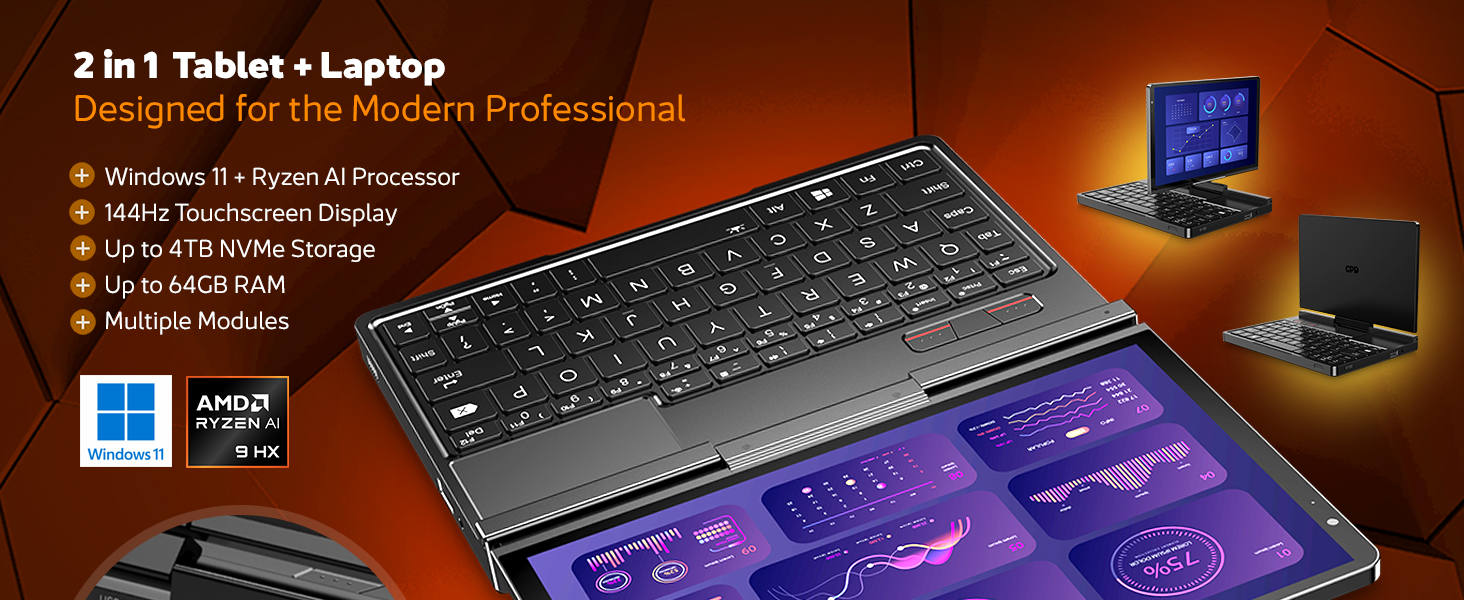
Figura 4.2.2: Máisview of the GPD Pocket 4's core specifications and 2-in-1 design.
This image illustrates the device's key technical specifications, including its modular IO, screen, CPU, GPU, RAM, storage, OS, battery, and connectivity, emphasizing its nature as a pocket-sized modular AI PC.

Figure 4.2.3: Modular expansion options for the GPD Pocket 4.
The GPD Pocket 4 supports various modular expansions, including KVM, Memory Card Reader, 4G LTE, and RS-232 modules, enhancing its versatility for different professional needs.
5. Configuración
5.1 Encendido inicial
- Cargar o dispositivo: Before first use, connect the GPD Pocket 4 to the power adapter using the provided USB-C cable. Plug the adapter into a wall outlet. The charge indicator light will illuminate.
- Encendido: Press and hold the Power Button (integrated with the fingerprint sensor) for a few seconds until the GPD logo appears on the screen.
- Configuración de Windows: Follow the on-screen instructions to complete the Windows 11 Home setup process. This includes selecting your region, language, connecting to Wi-Fi, and creating a user account.
5.2 Conexión de periféricos
- Pantalla externa: Connect an external monitor via the HDMI 2.1 port or one of the full-featured USB-C ports.
- Dispositivos USB: Use the USB-A or USB-C ports for connecting external keyboards, mice, USB drives, or other peripherals.
- Rede: For a wired internet connection, connect an Ethernet cable to the RJ45 network port.
- Audio: Connect headphones or external speakers to the 3.5mm earphone/microphone port.
6. Operating the GPD Pocket 4
6.1 Modos de funcionamento
- Modo portátil: Use the integrated keyboard and touchpad for traditional laptop functionality. The 8.8-inch display provides a compact yet clear workspace.
- Modo tableta: Fold the screen back to transform the device into a tablet. The 10-point multi-touch display allows for intuitive navigation and interaction.

Figure 6.1.1: GPD Pocket 4 in tablet mode, showcasing its touch interface.
The device seamlessly transitions between laptop and tablet modes, offering flexibility for various tasks.
6.2 Teclado e panel táctil
- The integrated keyboard is designed for comfortable typing in a compact form factor.
- O panel táctil admite xestos multitáctiles para a navegación. Consulta a configuración de Windows para personalizar.
- The power button doubles as a fingerprint sensor for secure login.

Figure 6.2.1: User interacting with the GPD Pocket 4's keyboard and touchpad.
This image highlights the comfortable keyboard and backlit trackpad, along with the integrated camera and microphone for meetings.
6.3 Xestión da batería
- The GPD Pocket 4 features a 44.8Wh battery.
- For optimal battery life, adjust power settings in Windows.
- The device supports 100W PD fast charging. Use the provided charger for quickest recharge times.

Figura 6.3.1: Interno view showing the 44.8Wh battery and device dimensions.
This image provides a visual representation of the device's internal battery and its compact dimensions, emphasizing its portability and power endurance.
7. Mantemento
7.1 Limpeza
- Always power off the device and disconnect the charger before cleaning.
- Use a soft, lint-free cloth to wipe the screen and chassis. For stubborn smudges on the screen, lightly dampen the cloth with water or a screen-specific cleaner (do not spray directly on the screen).
- Use a soft brush or compressed air to clean dust from the keyboard and ventilation openings.
- Evite o uso de produtos químicos agresivos, produtos de limpeza abrasivos ou solventes.
7.2 Actualizacións de software
- Regularly check for Windows updates to ensure your system has the latest security patches and performance improvements. Go to Configuración > Actualización de Windows.
- Periodically check the GPD official website for driver updates, especially for graphics (AMD Radeon 890M) and chipset drivers, to ensure optimal performance.
7.3 Xestión do almacenamento
- Eliminar regularmente o innecesario files e aplicacións para liberar espazo de almacenamento.
- Consider using cloud storage for large files para reducir o consumo de almacenamento local.
- The 2TB M.2 NVMe SSD is expandable; consult GPD support for compatible upgrade options if needed.
8 Solución de problemas
| Problema | Causa posible | Solución |
|---|---|---|
| O dispositivo non se acende. | Batería baixa; adaptador de corrente non conectado; problema de hardware. | Ensure the device is fully charged. Verify the power adapter and cable are securely connected. If issues persist, perform a hard reset (press and hold power button for 15 seconds). |
| A pantalla está en branco ou parpadea. | Display driver issue; Incorrect resolution; Hardware fault. | Restart the device. Update graphics drivers. Check display settings in Windows. |
| O wifi ou o Bluetooth non funcionan. | Wireless adapter disabled; Driver issue; Interference. | Check Wi-Fi/Bluetooth settings in Windows. Restart the device. Update wireless drivers. Ensure no physical obstructions or strong interference sources. |
| O dispositivo é lento ou non responde. | Too many applications running; Low storage space; Overheating. | Close unnecessary applications. Free up disk space. Ensure ventilation is not blocked. Check Task Manager for resource-intensive processes. |
| A pantalla táctil non responde. | Software glitch; Driver issue; Physical damage. | Restart the device. Check for touchscreen driver updates. If physically damaged, contact support. |
9. Especificacións
| Característica | Detalle |
|---|---|
| Marca | GPD |
| Nome do modelo | Pocket (RM-Pocket-4) |
| Procesador | AMD Ryzen AI 9 HX 370 (5.1 GHz) |
| Coprocesador gráfico | Radeon™ 890M |
| RAM | 32 GB LPDDR5X |
| Almacenamento | 2 TB NVMe PCIe Gen4 SSD |
| Tamaño da pantalla | 8.8 polgadas |
| Resolución de pantalla | 2560 x 1600 píxeles (2.5K) |
| Taxa de actualización | 144 Hz |
| Sistema Operativo | Windows 11 Home |
| Tipo sen fíos | 802.11ax (Wi-Fi 6E), Bluetooth 5.3 |
| Duración media da batería | 9 Hours (video playback) |
| Peso do elemento | 1.6 libras (725 gramos) |
| Dimensións do produto | 8.11 x 5.67 x 0.87 polgadas |
| Cor | Negro |
10. Garantía e soporte
GPD products typically come with a limited manufacturer's warranty. Please refer to the warranty card included in your package or visit the official GPD websitio web para obter termos e condicións de garantía detallados específicos da súa rexión.
For technical support, troubleshooting assistance beyond this manual, or warranty claims, please contact GPD customer support through their official website or the retailer from whom you purchased the device.
GPD Official Websitio: www.gpd.hk
Please have your product model number (RM-Pocket-4) and purchase information ready when contacting support.


