1. Introdución
This user manual provides comprehensive instructions for the TABWEE T20 Android Tablet. It covers setup, operation, maintenance, and troubleshooting to help you maximize your device's performance and ensure a smooth user experience. Please read this manual thoroughly before using your tablet.
2. Contido do paquete
Verifique que todos os elementos que se indican a continuación estean presentes no seu paquete:
- TABWEE T20 Android Tablet
- Teclado desmontable
- Stylus Pen
- Rato
- Funda protectora
- Soporte para tableta
- Screen Protector (pre-applied or separate)
- Cable de carga USB tipo C
- Adaptador de alimentación (5 V/2 A)
- Manual de usuario (este documento)
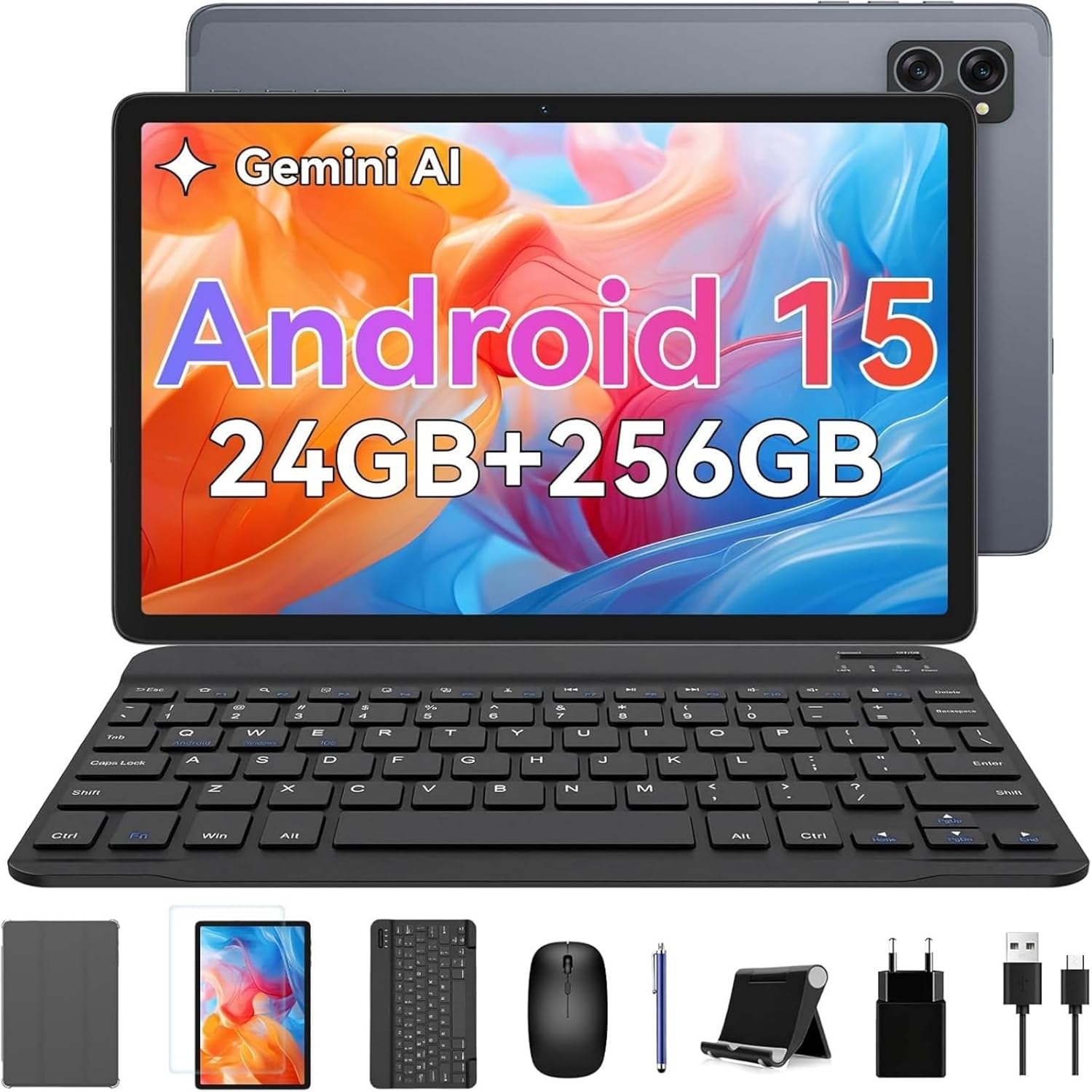
Image: The TABWEE T20 tablet displayed with its full set of accessories, including the detachable keyboard, mouse, stylus, protective case, tablet stand, charging cable, and power adapter.
3. Produto rematadoview
3.1 Características principais
- Sistema operativo: Android 15 with Gemini AI 2.0
- Procesador: Octa-Core Unisoc T606, 1.6 GHz
- Memoria (RAM): 24 GB (8GB built-in + up to 16GB expansion)
- Almacenamento (ROM): 256 GB internal, expandable up to 2 TB via TF card
- Visualización: 10.1-inch HD+ IPS (1280 x 800 pixels), Widevine L1 support, 350 nits brightness
- Cámaras: 5 MP Front Camera, 8 MP Rear Camera
- Batería: 5000 mAh, providing extended usage times
- Conectividade: Dual-band 2.4G/5G Wi-Fi (802.11ac/b/g/n), Bluetooth 5, GPS
- Audio: Dual smart speakers for stereo sound, 3.5mm headphone jack
- Seguridade: Face ID
- Dimensións: 24.64 x 15.49 x 0.76 cm (L x W x H)
- Peso: Aproximadamente 412 gramos
3.2 Deseño da tableta
Familiarize yourself with the physical components of your TABWEE T20 Tablet.


Image: Left: Rear view of the TABWEE T20 tablet, highlighting its camera array and slim profile. Right: Front view of the tablet in use, demonstrating the vibrant display.
- Cámara frontal: Situado na parte superior central cando se sostén verticalmente, úsase para videochamadas e selfies.
- Cámara traseira: Situado na parte traseira, úsase para facer fotos e vídeos.
- Botón de encendido: Typically on the side, used to turn the tablet on/off or wake/sleep the screen.
- Botóns de volume: Adjacent to the power button, used to adjust audio volume.
- Porto USB tipo C: Para carga e transferencia de datos.
- Conector para auriculares de 3.5 mm: Para conectar auriculares con cable.
- Reixas dos altofalantes: Dual speakers for enhanced audio output.
- Ranura para tarxetas MicroSD: For expanding storage with a TF card.
4. Configuración
4.1 Carga inicial
Before first use, fully charge your tablet. Connect the USB Type-C cable to the tablet's charging port and the other end to the power adapter. Plug the adapter into a wall outlet. The charging indicator will show the charging status. A full charge typically takes a few hours.
4.2 Encendido/apagado
- Para acender: Press and hold the Power button until the TABWEE logo appears on the screen.
- Para apagar: Press and hold the Power button until a power menu appears. Select "Power off" and confirm.
- Para durmir/espertar: Briefly press the Power button to turn the screen off/on without powering down the tablet.
4.3 Asistente de configuración inicial
Ao acendelo por primeira vez, a tableta guiarache a través dun proceso de configuración inicial:
- Selecciona o teu preferido Linguaxe.
- Conectar a a Rede wifi to enable internet access.
- Inicia sesión co teu Conta de Google or create a new one. This is essential for downloading apps from the Google Play Store and syncing data.
- Configurar Face ID for convenient and secure unlocking.
- Review e aceptar os termos e condicións.
- Complete the setup to access the Android home screen.
4.4 Inserting a TF (MicroSD) Card
To expand the tablet's storage up to 2TB:
- Locate the TF card slot on the side of the tablet.
- Insira con coidado a tarxeta TF na ranura cos contactos dourados cara abaixo ata que encaixe no seu lugar.
- The tablet will detect the new storage. You may be prompted to format it for internal or portable storage.
4.5 Connecting Accessories (Keyboard, Mouse, Stylus)
The included keyboard and mouse connect via Bluetooth. The stylus may connect via Bluetooth or be passive, depending on its type.
Teclado e rato Bluetooth:
- Ensure the keyboard/mouse are charged and powered on.
- Na túa tableta, vai a Configuración > Dispositivos conectados > Bluetooth.
- Turn on Bluetooth. The tablet will scan for available devices.
- Select the keyboard or mouse from the list of available devices (e.g., "Bluetooth Keyboard", "Bluetooth Mouse").
- Siga as indicacións en pantalla para completar a vinculación.
Stylus Pen:
If your stylus is Bluetooth-enabled, follow the same Bluetooth pairing steps as for the keyboard/mouse. If it's a passive stylus, no pairing is required; simply use it directly on the screen.
5. Uso da tableta
5.1 Navegación básica
- Toca: Selecciona un elemento ou abre unha aplicación.
- Mantén premido: Acceder a menús contextuais ou mover iconas.
- Pasar o dedo: Scroll through pages, home screens, or menus.
- Pinch-to-Zoom: Zoom in or out on photos, maps, or web páxinas.
5.2 Características de Android 15
Your TABWEE T20 runs on Android 15, offering enhanced performance and features:
- Gemini AI 2.0: Utilize the integrated AI for smart suggestions, personalized settings, and intelligent automation.
- Modo de pantalla dividida: Run two apps simultaneously side-by-side for improved multitasking. To activate, open an app, swipe up from the bottom to view recent apps, tap the app icon at the top of its card, and select "Split screen".
- Multi-User Modes: Crear usuario profesional separadofiles for different family members or work/personal use, ensuring data privacy and customized experiences. Access via Configuración > Sistema > Múltiples usuarios.
- Enhanced Privacy & Security: Benefit from advanced encryption, granular permission management, and private notification modes.
5.3 Conexión Wi-Fi
Para conectarse a unha rede wifi:
- Ir a Configuración > Rede e internet > Internet.
- Ensure Wi-Fi is turned on.
- Seleccione a rede desexada da lista.
- Introduza o contrasinal se lle solicita e toque Conectar.
5.4 Uso da cámara
The tablet features a 5MP front camera and an 8MP rear camera.
- Abre o Cámara aplicación.
- Toca a icona do interruptor da cámara para alternar entre as cámaras dianteira e traseira.
- Toca o botón do obturador para sacar unha foto ou iniciar/deter a gravación de vídeo.
- Accede á configuración dentro da aplicación da cámara para axustar os modos, a resolución e outros parámetros.
5.5 Media Playback and Widevine L1
The TABWEE T20 supports Widevine L1, allowing you to stream high-definition content from popular streaming services like Netflix, Amazon Prime Video, and Disney+ in full HD resolution.
- Download your preferred streaming apps from the Google Play Store.
- Asegúrate dunha conexión a internet estable para unha calidade de transmisión óptima.
- Utilize the dual smart speakers for an immersive audio experience, or connect headphones via the 3.5mm jack or Bluetooth.
6. Mantemento
6.1 Limpeza da tableta
- Use a soft, lint-free cloth (e.g., microfiber) to clean the screen and body.
- Para manchas difíciles, lixeiramente dampEnxágüe o pano con auga ou cun limpador de pantallas deseñado para dispositivos electrónicos.
- Evita o uso de produtos químicos agresivos, materiais abrasivos ou humidade excesiva.
6.2 Actualizacións de software
Comprobe e instale regularmente actualizacións de software para garantir un rendemento, unha seguridade e un acceso a novas funcións óptimos.
- Ir a Configuración > Sistema > Actualización do sistema.
- Toca Comproba se hai actualizacións.
- If an update is available, follow the on-screen instructions to download and install it. Ensure your tablet has sufficient battery life or is connected to power during updates.
6.3 Xestión do almacenamento
To maintain smooth operation, periodically manage your tablet's storage:
- Ir a Configuración > Almacenamento a view uso de almacenamento.
- Desinstalar as aplicacións non utilizadas.
- Borrar os datos da caché das aplicacións.
- Mover grande files (photos, videos) to the TF card or cloud storage.
6.4 Coidado coa batería
- Evita as temperaturas extremas, xa que poden reducir a duración da batería.
- Non deixes que a batería se descargue completamente con frecuencia.
- Use o cargador e o cable orixinais fornecidos.
7 Solución de problemas
| Problema | Posible Solución |
|---|---|
| A tableta non se acende. | Ensure the tablet is charged. Connect to the charger and wait a few minutes before attempting to power on again. If unresponsive, press and hold the Power button for 10-15 seconds to force a restart. |
| Problemas coa conexión wifi. | Reinicia a tableta e o teu enrutador Wi-Fi. Esquece a rede na configuración do Wi-Fi e volve conectar. Asegúrate de estar dentro do alcance do sinal Wi-Fi. |
| Rendemento lento ou aplicacións que se bloquean. | Close unused apps running in the background. Clear app cache (Settings > Apps > [App Name] > Storage & cache > Clear cache). Ensure sufficient free storage space. Restart the tablet. |
| A pantalla táctil non responde. | Reinicia a tableta. Se o problema persiste, asegúrate de que a pantalla estea limpa e libre de residuos. |
| A batería esgotarase rapidamente. | Reduce screen brightness. Close background apps. Disable Wi-Fi/Bluetooth/GPS when not in use. Check battery usage in Settings to identify power-hungry apps. |
| Cannot connect Bluetooth accessories. | Ensure the accessory is in pairing mode and charged. Turn Bluetooth off and on again on the tablet. Restart both devices. |
| Tablet freezes or crashes frequently. | Perform a factory reset as a last resort. Aviso: Isto borrará todos os datos da túa tableta. Fai unha copia de seguridade dos datos importantes antes de continuar. Ir a Configuración > Sistema > Restablecer opcións > Borrar todos os datos (restablecemento de fábrica). |
8. Especificacións
| Característica | Detalle |
|---|---|
| Marca | TABWEE |
| Nome do modelo | Tabwee Tablet T20 2025 |
| Número de modelo | TABWEE T20 Tablette |
| Sistema Operativo | Android 15 & Gemini AI 2.0 |
| Procesador | Unisoc Octa-Core, 1.6 GHz |
| RAM | 24 GB (8GB built-in + 16GB virtual) |
| Almacenamento interno | 256 GB |
| Almacenamento ampliable | Up to 2 TB via Micro SD (TF) card |
| Tamaño da pantalla | 10.1 polgadas |
| Resolución de visualización | 1280 x 800 Pixels (HD+ IPS) |
| Chipset gráfico | Unisoc T606 (Integrated) |
| Cámara frontal | 5 MP |
| Cámara traseira | 8 MP |
| Capacidade da batería | 5000 mAh (polímero de litio) |
| Conectividade | Wi-Fi (802.11a/b/g/n/ac, 2.4G/5G), Bluetooth 5, GPS |
| Portos | USB Type-C, 3.5mm Audio Jack, Micro SD Slot |
| Dimensións (L x W x H) | 24.64 x 15.49 x 0.76 cm |
| Peso | 412 gramos |
| Características especiais | Stereo Speakers, Expandable Storage, USB OTG Support, Detachable Keyboard Support, Stylus Support |
9. Garantía e soporte
9.1 Garantía do produto
The TABWEE T20 Tablet comes with a 24 meses de garantía desde a data de compra. Esta garantía cobre defectos de fabricación e avarías en condicións de uso normal. Conserve o comprobante de compra para reclamacións de garantía.
A garantía non cubre os danos causados por:
- Accidentes, mal uso ou abuso.
- Reparacións ou modificacións non autorizadas.
- Operating the device outside the specified environmental conditions.
- Desgaste normal.
9.2 Atención ao cliente
For technical assistance, troubleshooting, or warranty inquiries, please contact TABWEE customer support:
- Correo electrónico: Refer to the contact information provided on the official TABWEE website or your purchase platform (e.g., Amazon seller contact).
- Soporte en liña: Visit the official TABWEE websitio con preguntas frecuentes, artigos de soporte e formularios de contacto.
TABWEE is committed to providing professional technical support and excellent customer service to resolve any issues you may encounter.


