Introdución
The Logitech K250 Bluetooth® Keyboard offers effortless wireless connectivity, allowing for quick setup without a dongle and contributing to a clutter-free workspace. Designed for durability, it features a spill-resistant build and is constructed with a minimum of 64% recycled plastic. The keyboard provides a comfortable typing experience with its deep-profile keys and includes a numpad and essential function keys within a compact design, making it suitable for various environments and on-the-go use.
Produto rematadoview
The Logitech K250 is a compact wireless keyboard designed for efficiency and comfort. Key features include:
- Conectividade Bluetooth: Connects quickly and easily without a USB dongle.
- Deseño duradeiro: Built with long-lasting keys and a spill-resistant construction.
- Escritura cómoda: Features deep-profile keys and adjustable tilt legs for an ergonomic experience.
- Deseño que aforra espazo: Compact design includes a full numpad and essential F-key shortcuts.
- Materiais sostibles: Plastic parts are made with a minimum of 64% recycled plastic.
- Batería de longa duración: Up to 12 months of daily use on a single set of batteries.

Figura 1: De arriba abaixo view of the Logitech K250 Bluetooth Keyboard, showcasing its compact layout and full numpad.

Figure 2: Diagram illustrating key features of the K250 keyboard, including the Bluetooth pair button, power/connect LED, and adjustable tilt legs on the underside.

Imaxe 3: Primeiro plano view of the K250 keyboard alongside recycled plastic pellets, emphasizing its construction from sustainable materials.
Configuración
1. Instalación da batería
The Logitech K250 keyboard requires two AAA batteries, which are included in the package. To install the batteries:
- Localiza o compartimento da batería na parte inferior do teclado.
- Abra a tapa do compartimento da batería.
- Introduza dúas pilas AAA, asegurándose de manter a polaridade correcta (+/-).
- Pecha a tapa do compartimento da batería de forma segura.
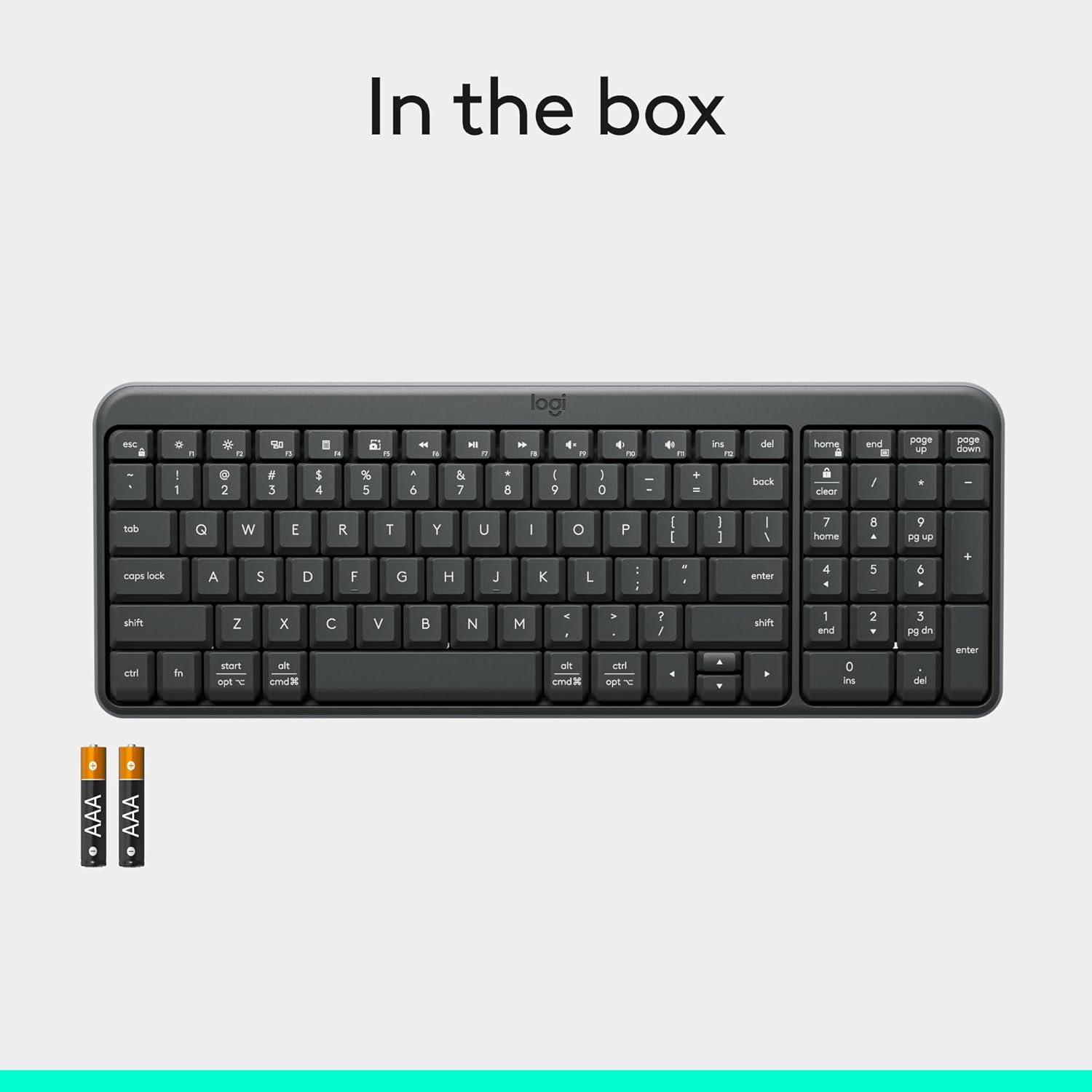
Figure 4: Contents of the K250 package, showing the keyboard and two AAA batteries.
2. Emparellamento Bluetooth
The K250 keyboard connects wirelessly via Bluetooth, eliminating the need for a USB dongle. Follow these steps to pair your keyboard with your device:
- Ensure the keyboard is powered on. The power/connect LED (refer to Figure 2) should be active.
- Press and hold the Bluetooth pair button on the underside of the keyboard (refer to Figure 2) until the LED starts blinking, indicating it's in pairing mode.
- On your computer, tablet, or smartphone (Windows, macOS, etc.), navigate to your Bluetooth settings.
- Busca available Bluetooth devices. The Logitech K250 should appear in the list.
- Select "Logitech K250" and follow any on-screen prompts to complete the pairing process. You may be asked to enter a code displayed on your screen using the keyboard.
- Once successfully paired, the power/connect LED on the keyboard will stop blinking and remain solid for a few seconds, then turn off to conserve power.

Figure 5: The Logitech K250 keyboard in a workspace, demonstrating easy Bluetooth pairing with a computer.
Instrucións de funcionamento
Uso básico
The Logitech K250 keyboard provides a familiar typing experience with its standard QWERTY layout and integrated numpad. The deep-profile keys are designed for comfortable and accurate keystrokes.
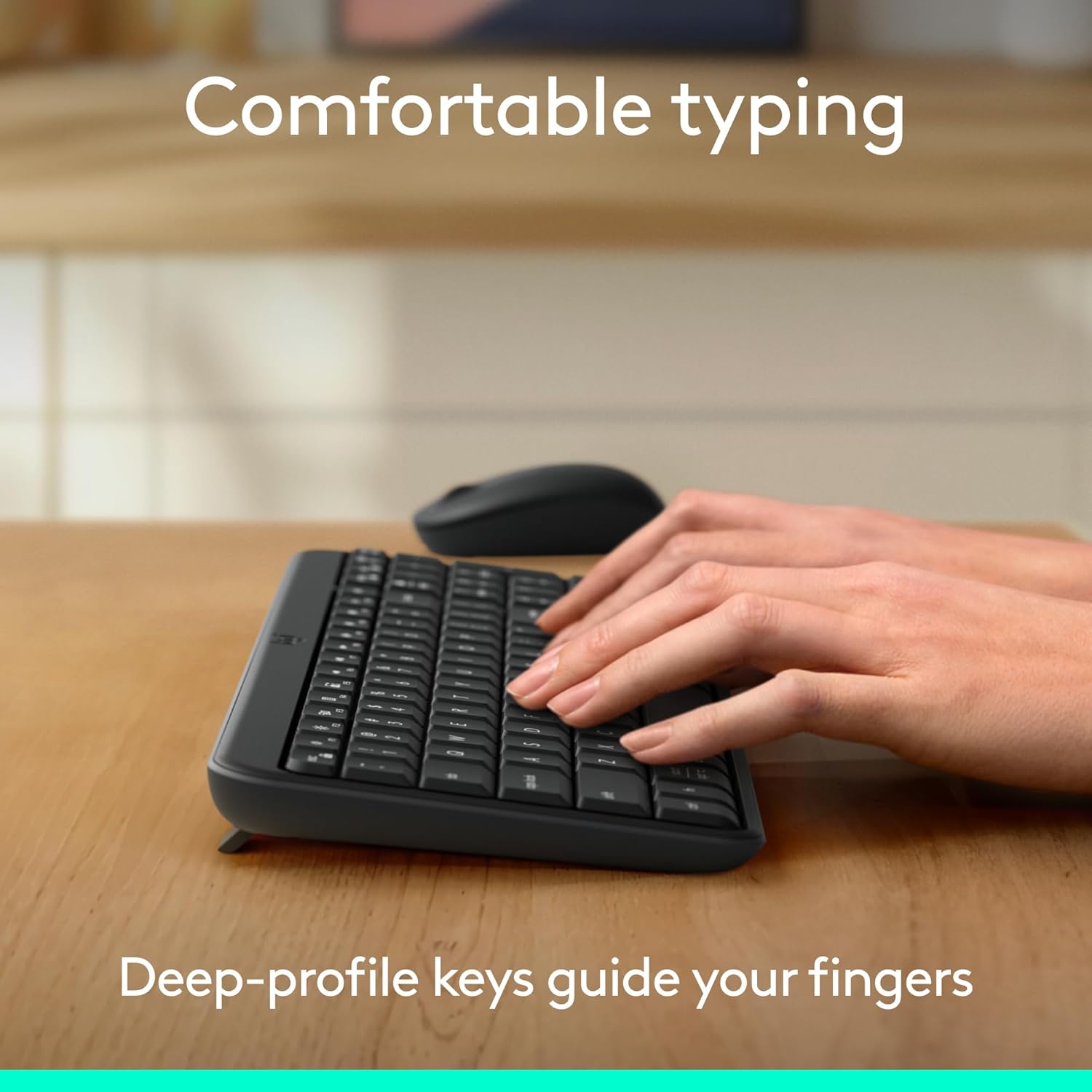
Figure 6: Hands demonstrating comfortable typing on the K250 keyboard, emphasizing the deep-profile chaves.
Function Keys (F-keys) and Shortcuts
The K250 includes a row of F-keys (F1-F12) that can perform various functions, often in combination with the 'Fn' key. These shortcuts provide quick access to media controls, volume adjustments, and other system functions. Refer to your operating system's documentation for specific F-key functionalities.
Despite its compact size, the keyboard retains full functionality, including a dedicated numpad and arrow keys, making it versatile for both data entry and navigation.

Figure 7: The K250 keyboard integrated into a space-saving desk setup, demonstrating its compact yet functional design.
Mantemento
Limpeza do teu teclado
To maintain the performance and appearance of your Logitech K250 keyboard, regular cleaning is recommended:
- Desconecte o teclado do dispositivo antes de limpalo.
- Use un pano suave e sen pelusa dampmantelo con auga ou unha solución de limpeza suave.
- Wipe down the keys and surface of the keyboard. Avoid excessive moisture.
- Para residuos entre as teclas, use aire comprimido.
- Non mergulles o teclado na auga nin empregues produtos químicos agresivos.
Resistencia a derrames
The K250 keyboard features a spill-resistant design, meaning it can withstand minor liquid spills. In case of a spill:
- Immediately disconnect the keyboard from your device.
- Turn the keyboard upside down to drain any liquid.
- Seque a superficie cun pano limpo.
- Deixa que o teclado seque completamente ao aire antes de volvelo conectar.
Note: Spill resistance is tested under limited conditions. Do not intentionally submerge the keyboard in liquid.

Figure 8: Illustration of the K250 keyboard's spill-resistant design, showing liquid on the keys.
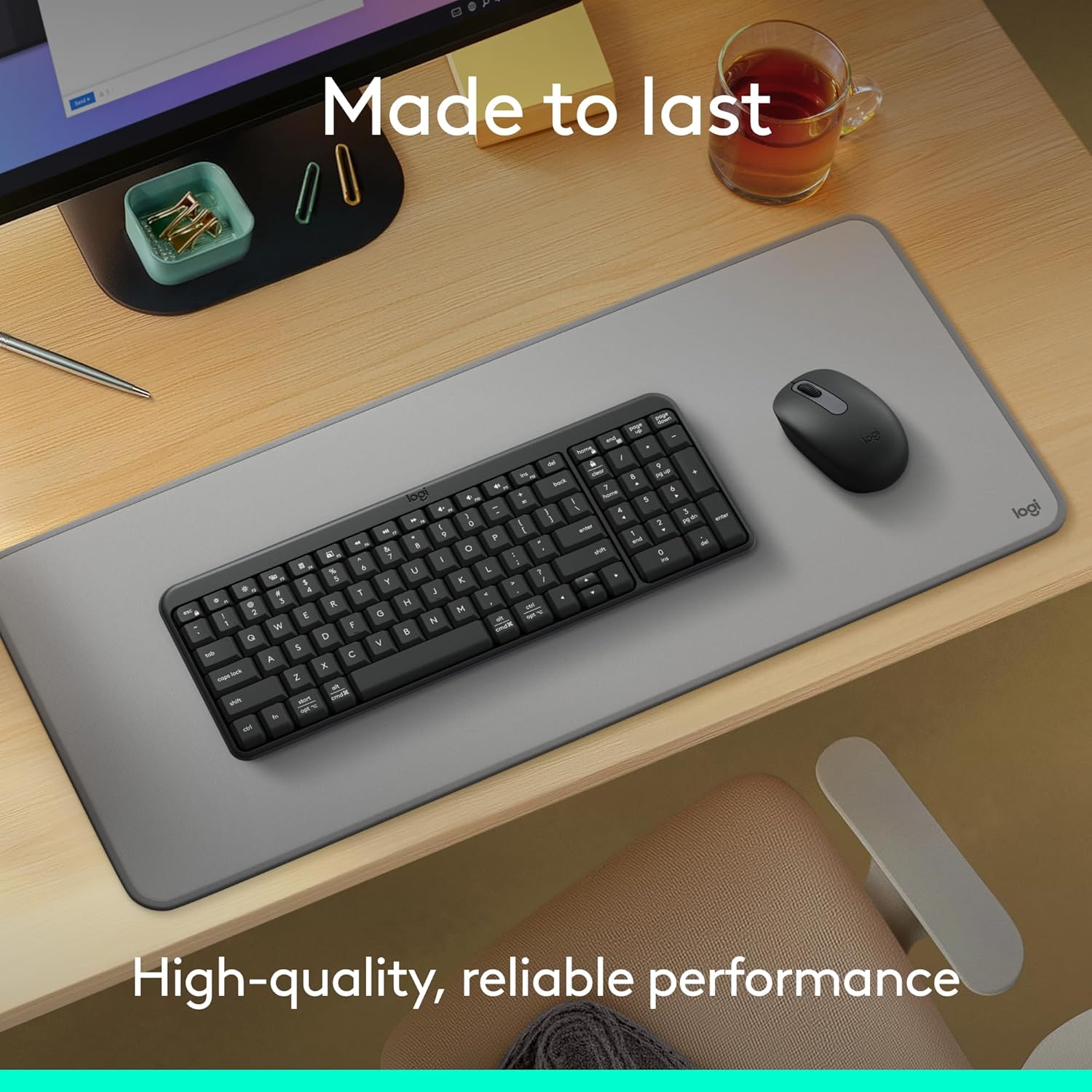
Figure 9: The K250 keyboard and a Logitech mouse on a desk, representing the product's durable construction.
Resolución de problemas
Problemas de conectividade
- O teclado non se conecta:
- Ensure the keyboard batteries are not depleted. Replace them if necessary.
- Verifica que o Bluetooth estea activado no teu dispositivo.
- Try re-pairing the keyboard by putting it into pairing mode and searching for it on your device's Bluetooth settings.
- Achega o teclado ao dispositivo para descartar problemas de alcance.
- Reinicia o dispositivo e tenta vincular de novo.
- Conexión intermitente:
- Check for other wireless devices that might be causing interference.
- Ensure the keyboard is within optimal Bluetooth range.
- Actualiza os controladores Bluetooth do teu dispositivo.
Problemas clave de funcionalidade
- Keys sticking or not responding:
- Clean around and under the affected keys using compressed air to remove debris.
- If a key feels physically stuck, gently press it multiple times to dislodge any obstruction.
- Ensure the keyboard is dry if it has recently been exposed to liquids.
- Incorrect character output:
- Check your device's language and keyboard layout settings.
- Reinicia o teclado e o dispositivo.
Especificacións
| Característica | Detalle |
|---|---|
| Marca | Logitech |
| Nome do modelo | K250 |
| Número de modelo do artigo | 920-013442 |
| Tecnoloxía de conectividade | Bluetooth |
| Cor | Grafito |
| Dimensións do produto (L x W x H) | 36.98 x 13.69 x 2.29 cm |
| Peso do elemento | 380 gramos |
| Fonte de enerxía | Alimentado por batería |
| Pilas necesarias | 2 pilas AAA (incluídas) |
| Descrición do teclado | Membrana |
| Dispositivos compatibles | Ordenador portátil, ordenador persoal, tableta |
| Características especiais | Lightweight, Portable, Spill-Resistant, Made with Recycled Plastic |
Garantía e Soporte
For warranty information, technical support, or further assistance with your Logitech K250 keyboard, please visit the official Logitech support website or contact their customer service. You can also find additional resources and product information on the Logitech store page on Amazon.


