1. Introdución
This manual provides detailed instructions for the Amazon Basics Pro Series Triple Mode Ergonomic Mouse. This device offers versatile connectivity options, high precision, and an ergonomic design for comfortable use. Please read this manual thoroughly before operating the mouse to ensure proper functionality and to maximize your user experience.
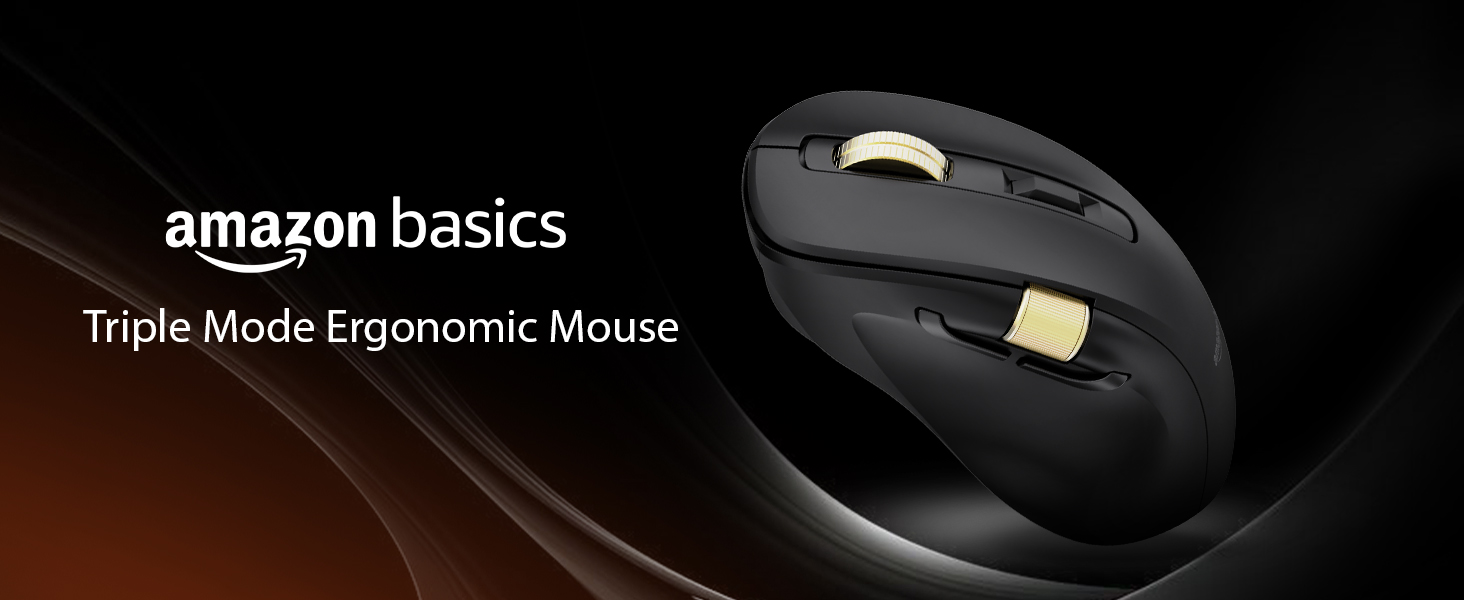
Image 1.1: The Amazon Basics Pro Series Triple Mode Ergonomic Mouse, showcasing o seu elegante deseño.
2. Contido do paquete
Verifica que todos os elementos estean presentes no paquete:
- Amazon Basics Pro Series Triple Mode Ergonomic Mouse
- USB-C Charging Cable (1.8M)
- Receptor USB 2.4G
- Manual de usuario (este documento)
3. Produto rematadoview
Familiarize yourself with the various components of your ergonomic mouse.

Imaxe 3.1: De arriba abaixo view of the mouse, highlighting its ergonomic shape and controls.
Compoñentes clave:
- Botón esquerdo para premer: Standard mouse function.
- Botón dereito do rato: Standard mouse function.
- Scroll Wheel (Vertical): Para desprazamento vertical e función de clic co botón central.
- Botón de axuste de DPI: Percorre ciclicamente a configuración de DPI.
- Botón de avance: Navega cara adiante web navegadores ou file exploradores.
- Botón de retroceso: Navega cara atrás en web navegadores ou file exploradores.
- Side Scroll Wheel: Dual-function for volume control and horizontal scrolling.
- Interruptor de modo: Selects between 2.4G, Bluetooth (BT1/BT2), and USB wired modes.
- RGB Backlighting Switch: Toggles dynamic lighting modes or turns off for battery saving.
- Porto de carga USB-C: Para recargar a batería interna.

Image 3.2: Illustration of the mouse's contoured shape and the dual-function side scroll wheel.
4. Configuración
4.1. Cargar o rato
Before first use, fully charge the mouse. A red light indicates low battery and charging in progress.
- Connect the provided USB-C charging cable to the mouse's USB-C port.
- Conecta o outro extremo do cable a unha fonte de alimentación USB (por exemplo, un porto USB do ordenador ou un adaptador de parede USB).
- O indicador de carga acenderase. Unha vez cargada completamente, o indicador pode cambiar de cor ou apagarse.
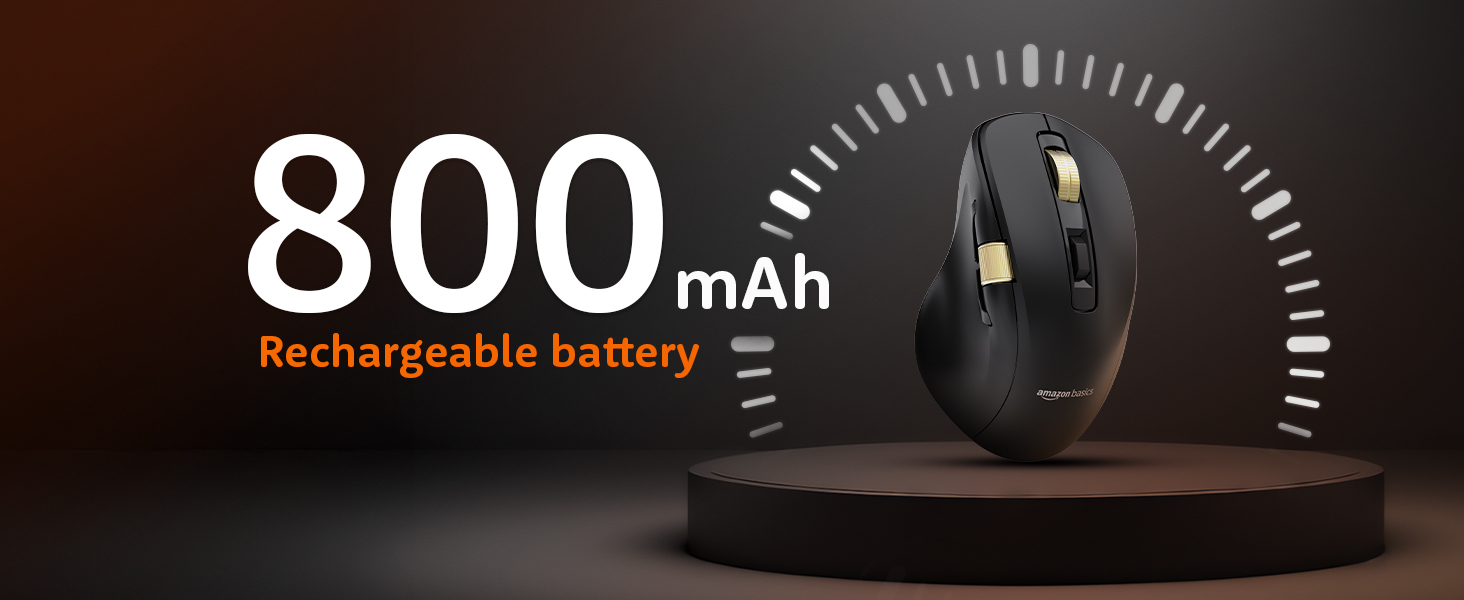
Image 4.1: The mouse features an 800mAh rechargeable battery, charged via USB-C.
4.2. Conexión a través do modo sen fíos 2.4G
This mode provides a stable and fast wireless connection using the included USB receiver.
- Localiza o receptor USB de 2.4 G, que normalmente se garda nun compartimento na parte inferior do rato.
- Conecta o receptor USB de 2.4 G a un porto USB dispoñible do teu ordenador.
- Set the mode switch on the underside of the mouse to the '2.4G' position.
- The mouse should automatically connect to your computer. An LED indicator will confirm the active mode.
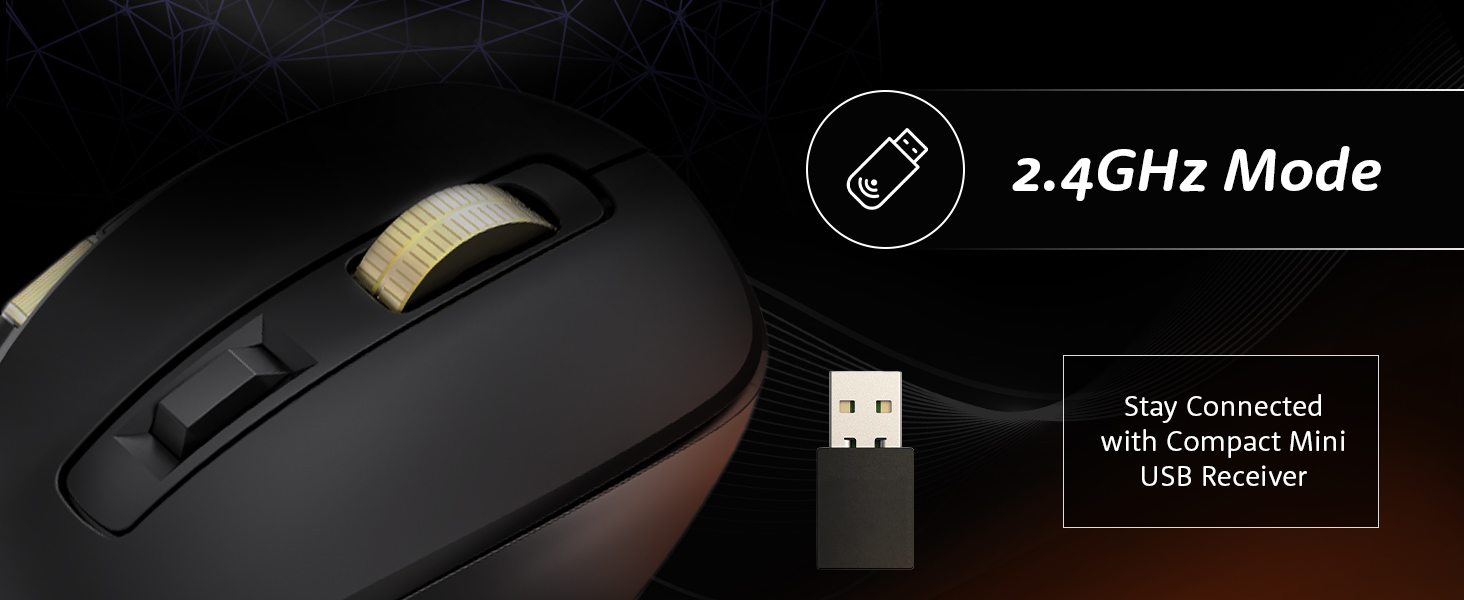
Image 4.2: Connecting the mouse using the 2.4GHz USB receiver.
4.3. Conexión a través do modo Bluetooth
The mouse supports dual Bluetooth connections (BT1 and BT2).
- Set the mode switch on the underside of the mouse to either 'BT1' or 'BT2' position.
- The LED indicator for the selected Bluetooth channel will flash, indicating pairing mode.
- No teu ordenador ou dispositivo, abre a configuración de Bluetooth e busca novos dispositivos.
- Select "Amazon Basics Mouse" (or similar name) from the list of available devices to pair.
- Unha vez emparellado, o indicador LED deixará de parpadear e permanecerá fixo.
- To switch between BT1 and BT2, simply move the mode switch to the desired channel.
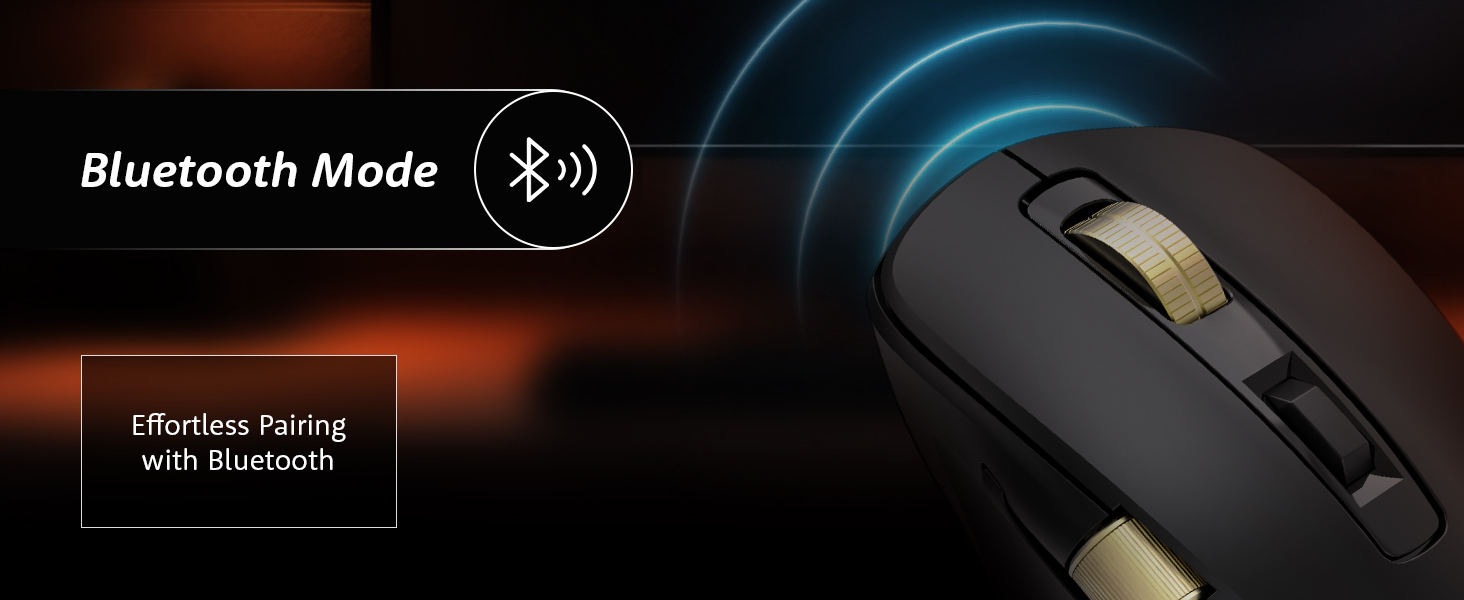
Image 4.3: Effortless pairing with Bluetooth-enabled devices.
4.4. Connecting via USB Wired Mode
For a direct and reliable connection, use the USB wired mode.
- Connect the provided USB-C charging cable to the mouse's USB-C port.
- Conecte o outro extremo do cable a un porto USB do seu ordenador.
- Set the mode switch on the underside of the mouse to the 'USB' or 'Wired' position.
- The mouse will function immediately as a wired device.
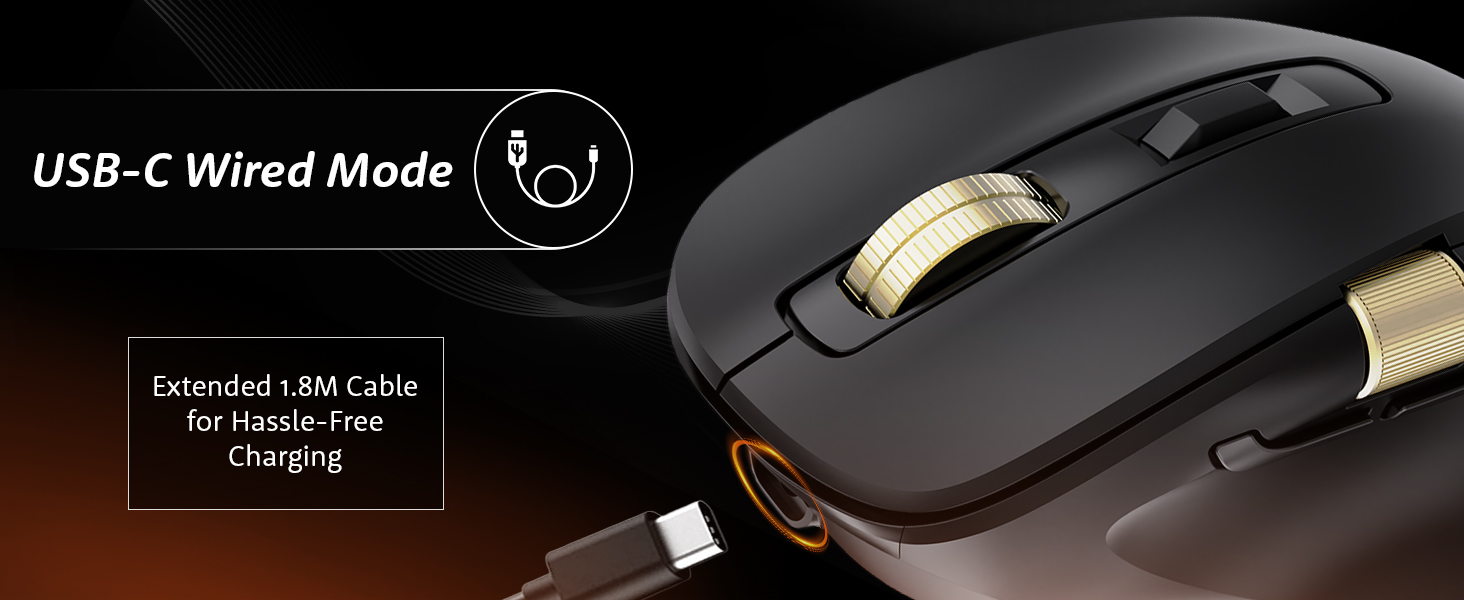
Image 4.4: The mouse connected via its USB-C cable for wired operation and charging.
5. Instrucións de funcionamento
5.1. Axuste de DPI
Adjust the mouse sensitivity (DPI) to suit your preference and task requirements.
- Preme o Botón de axuste de DPI (located behind the vertical scroll wheel) to cycle through available DPI settings.
- The mouse supports DPI settings from 800 to 5000. With the companion application, DPI can be adjusted up to 8000.
- Polling rates are 1000Hz in wired/2.4G modes and 125Hz in Bluetooth mode.
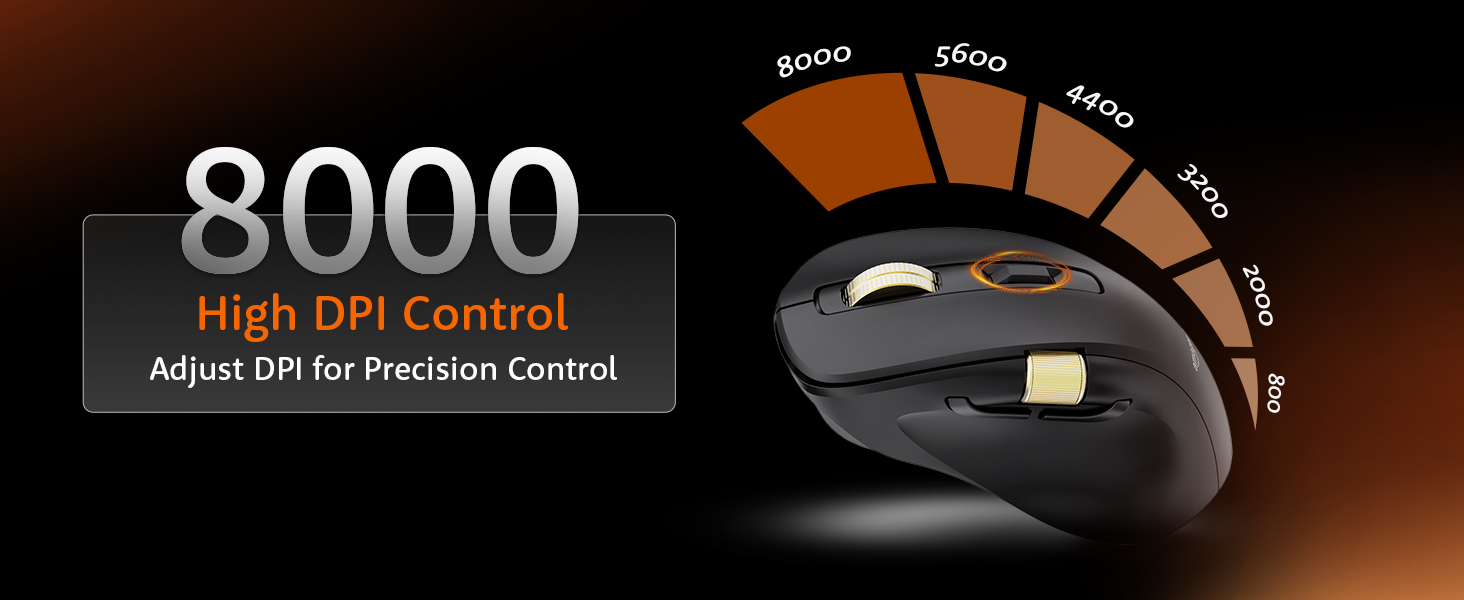
Image 5.1: Adjusting DPI for precision control, with settings up to 8000.
5.2. Control da retroiluminación RGB
Customize or disable the RGB backlighting.
- Usa o RGB Backlighting Switch on the underside of the mouse to toggle dynamic lighting.
- You can choose between various lighting modes or turn off the lighting to conserve battery life.
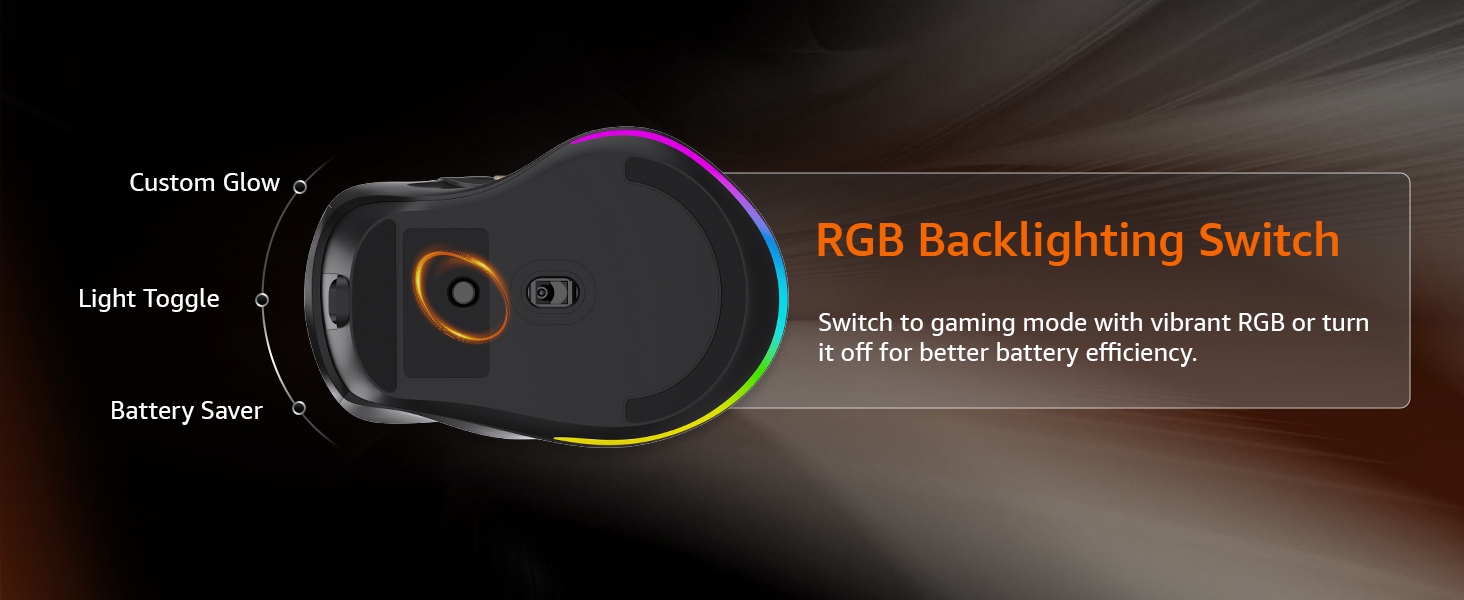
Image 5.2: The RGB backlighting switch allows optimization for performance or battery saving.
5.3. Side Scroll Wheel Functionality
The side scroll wheel offers dual functions for enhanced control.
- Control de volume: Scroll the wheel to adjust system volume.
- Horizontal Scrolling: In applications like Excel, web browsers, or email clients, the side scroll wheel enables horizontal scrolling.
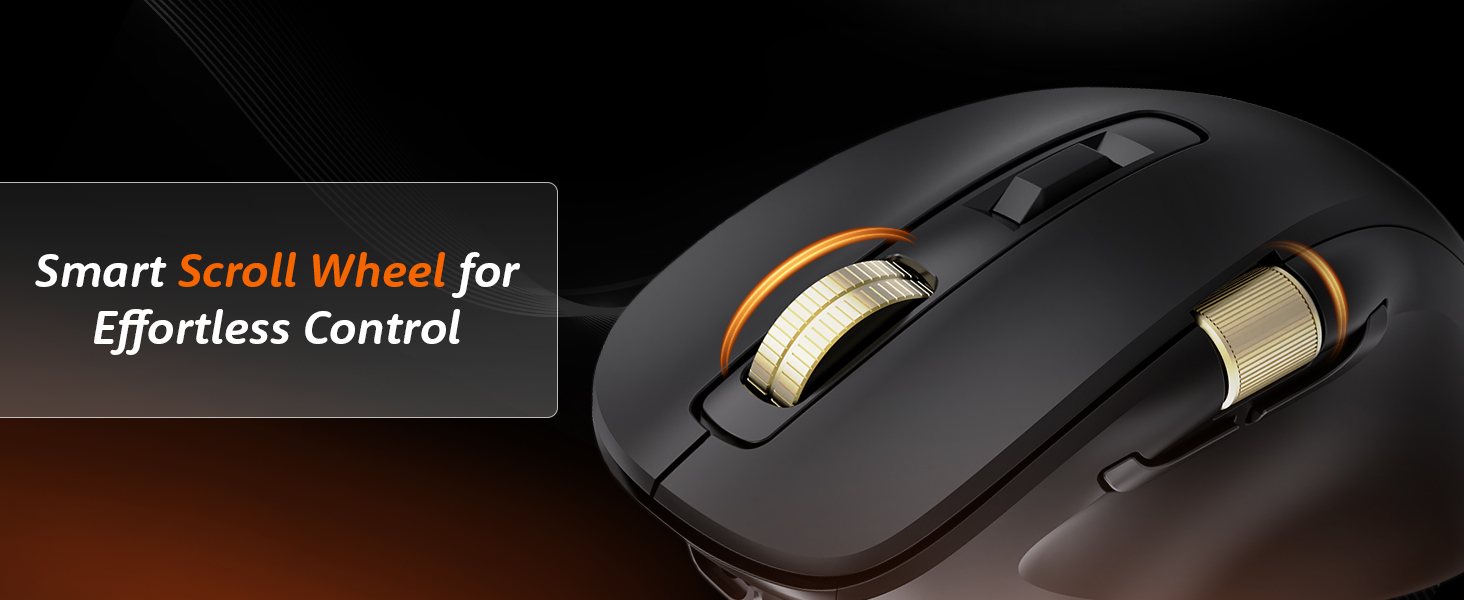
Image 5.3: The smart scroll wheel provides effortless control for various functions.
5.4. Teclas programables
The mouse features 7 programmable keys, including the forward and backward buttons, which can be customized using the dedicated software (if available).
- O Botón de avance e Botón de retroceso (located on the side) provide quick navigation.
- Consulte o fabricante website for software downloads and instructions on customizing key functions.
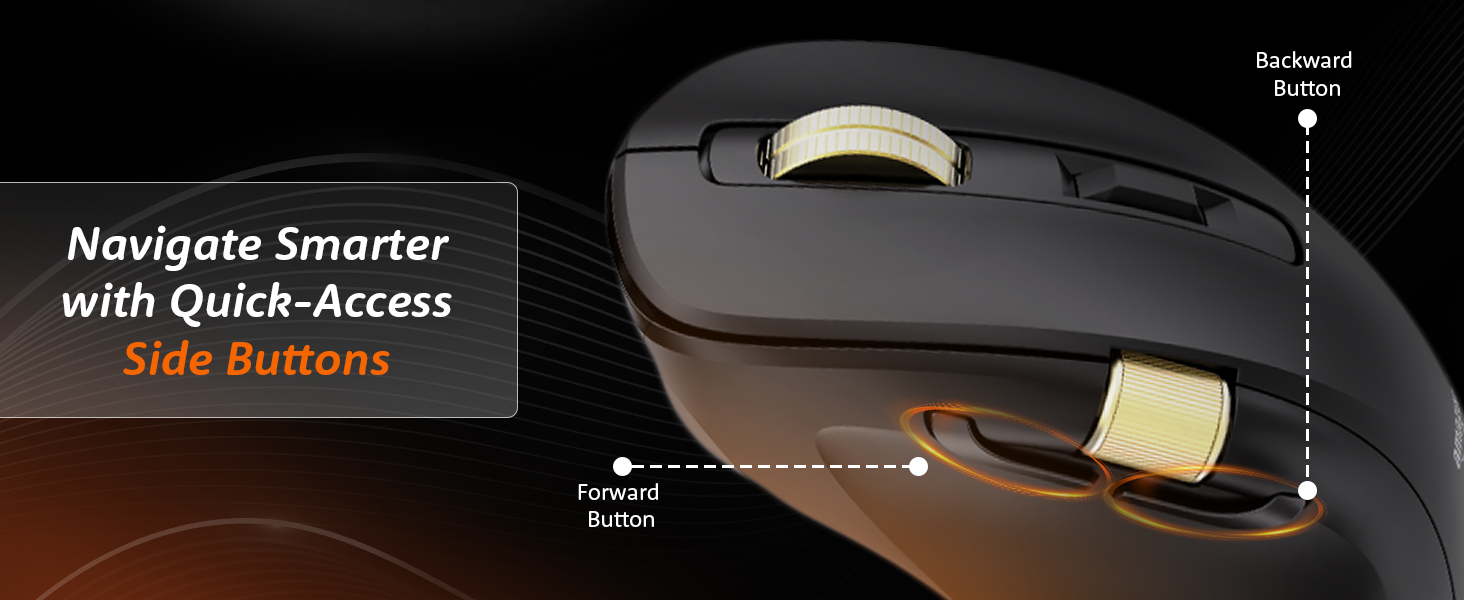
Image 5.4: Quick-access side buttons for smarter navigation.
6. Mantemento
6.1. Limpeza
Para manter un rendemento e unha aparencia óptimos:
- Disconnect the mouse from all power sources and devices before cleaning.
- Use un pano suave, seco e sen fiapos para limpar a superficie do rato.
- Para a sucidade teimosa, lixeiramente dampEnxágüe o pano con auga ou unha solución de limpeza suave. Evite produtos químicos agresivos ou materiais abrasivos.
- Non permita que entre humidade en ningunha abertura.
6.2. Coidado da batería
The mouse features a built-in rechargeable 800mAh lithium-ion battery.
- Evite descargar completamente a batería con frecuencia para prolongar a súa vida útil.
- Recharge the mouse when the low battery indicator appears.
- Garde o rato nun lugar fresco e seco cando non o use durante períodos prolongados.
7 Solución de problemas
If you encounter issues with your mouse, refer to the following common problems and solutions:
| Problema | Causa posible | Solución |
|---|---|---|
| O rato non responde | Low battery, incorrect mode, connection issue | Charge the mouse. Ensure the mode switch is set correctly (2.4G, BT1/BT2, or USB). Re-pair Bluetooth or re-insert 2.4G receiver. |
| Conexión intermitente ou con atraso | Interference, distance, low battery | Move closer to the receiver/device. Ensure no strong interference sources (e.g., Wi-Fi routers). Charge the mouse. Try a different USB port. |
| O axuste de DPI non funciona | Button malfunction, software conflict | Ensure the mouse is powered on. Restart your computer. If using custom software, check its settings. |
| A iluminación RGB non funciona | Lighting switch off, low battery | Toggle the RGB Backlighting Switch. Charge the mouse. |
| Side scroll wheel not functioning | Application specific, driver issue | Ensure the application supports horizontal scrolling or volume control via mouse. Restart the application or computer. Check for updated mouse drivers. |
8. Especificacións
Technical details for the Amazon Basics Pro Series Triple Mode Ergonomic Mouse:
| Característica | Detalle |
|---|---|
| Marca | Conceptos básicos de Amazon |
| Modelo | Pro Series Triple Mode Ergonomic Mouse (DPI 8000) |
| Conectividade | 2.4G Wireless, Bluetooth (BT1/BT2), USB Wired |
| Rango de DPI | 800 - 5000 (up to 8000 with app) |
| Taxa de votación | 1000Hz (Wired/2.4G), 125Hz (Bluetooth) |
| Teclas programables | 7 |
| Tipo de batería | Ión de litio de 800 mAh integrada |
| Porto de carga | USB-C |
| Duración media da batería | 35 horas |
| Cor | Negro |
| Dimensións (LxWxH) | 11.7 x 7.5 x 0.1 cm |
| Peso do elemento | 107 g |
| Características especiais | Ergonomic Design, Portable, Rechargeable, Wireless, RGB Backlit, Side Scroll Wheel |
9. Garantía e soporte
For warranty information and customer support, please refer to the documentation included with your purchase or visit the official Amazon Basics websitio. Garda o comprobante de compra para reclamacións de garantía.
Fabricante: YAS Co Ltd.
Importador/Empacador: Your Accessories Store, B-36, 3rd Floor, Mayapuri Industrial Area, Phase 1, New Delhi - 110064, India
For further assistance, please contact Amazon customer service.


