Introdución
This manual provides essential instructions for setting up, operating, and maintaining your SVITOO Kids Tablet 10 Inch. Designed for young users, this Android 15 tablet features parental controls, a durable shockproof case, and a vibrant 10-inch HD IPS display. Please read this guide thoroughly to ensure proper use and to maximize your tablet's functionality.
O que hai na caixa
- SVITOO Kids Tablet 10 Inch
- Protective Cover (Pre-installed)
- Cable de carga USB-C
- Manual de usuario
- Caixa de agasallo
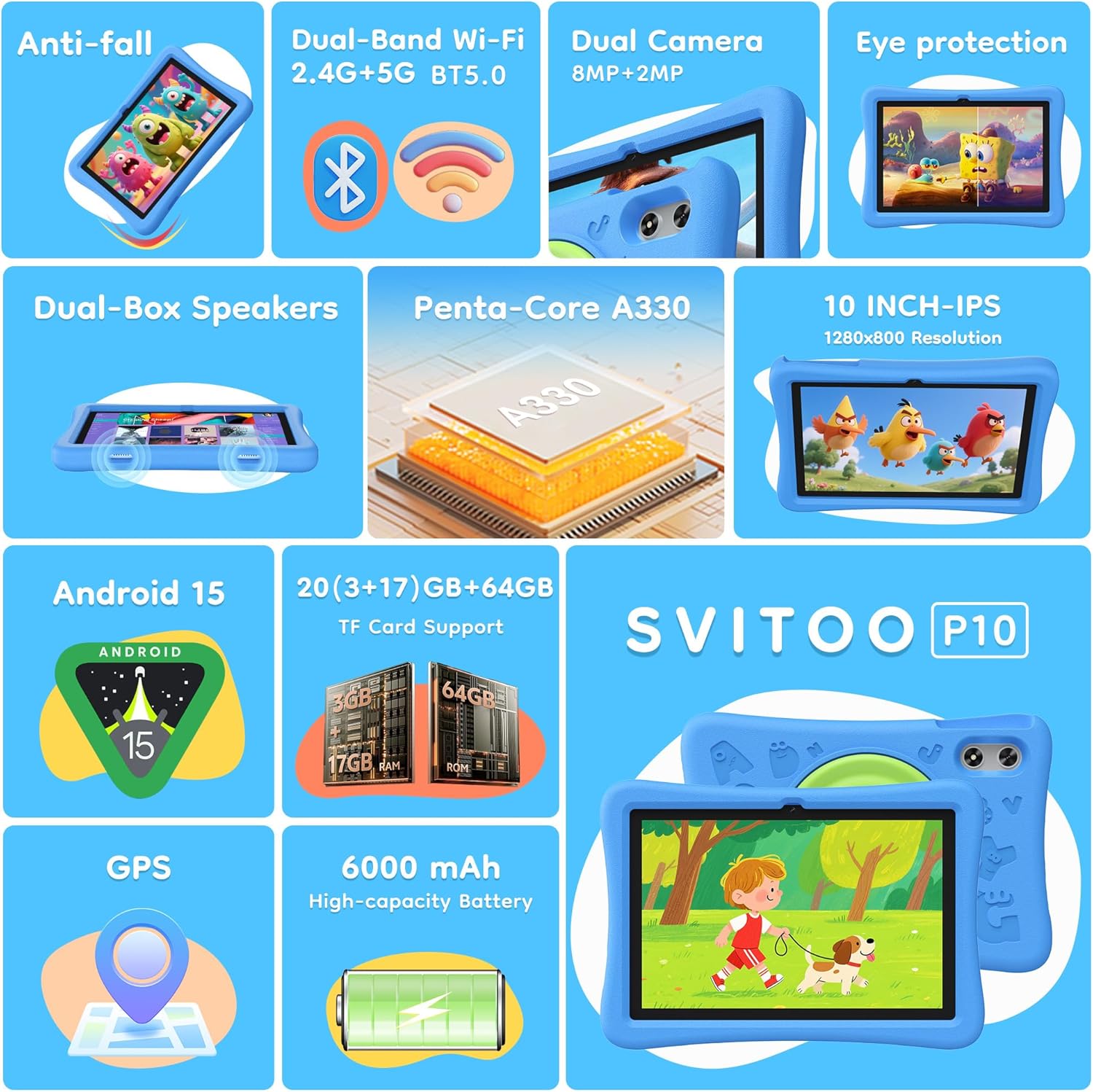
Image: The SVITOO Kids Tablet 10 Inch, shown in its blue protective case, highlighting its robust design suitable for children.
Produto rematadoview
Características clave
- Sistema operativo: Android 15 with GMS Certification for full Google Play access.
- Visualización: 10-inch HD IPS (1280 x 800 pixels) touchscreen with eye protection mode.
- Procesador: Unisoc T7200 8-core CPU for smooth performance.
- Memoria e almacenamento: 20GB RAM (3GB physical + 17GB virtual) and 64GB internal storage, expandable up to 1TB via microSD card (sold separately).
- Cámaras: 8MP Rear Camera and 2MP Front Camera.
- Conectividade: Dual-Band Wi-Fi (2.4/5 GHz) and Bluetooth 5.0.
- Batería: Batería de alta capacidade de 6000 mAh para un uso prolongado.
- Audio: Dual-box speakers and a 3.5mm headphone jack.
- Durabilidade: Kid-friendly EVA shockproof case with a 360° rotating handle and 180° rotating stand.
- Controis parentais: Advanced settings for screen time limits, content filtering, and app management.
Compoñentes da tableta
Familiarízate cos compoñentes físicos da túa tableta:

Imaxe: Unha detallada view of the tablet's side and rear, indicating the USB Type-C port, headphone jack, power ON/OFF button, volume controls, speakers, rear camera, and front camera.
- Porto USB tipo C: Para carga e transferencia de datos.
- Conector para auriculares (3.5 mm): Para conectar auriculares con cable.
- Botón de ON / OFF: To turn the tablet on/off or put it to sleep.
- Botóns de volume: To adjust the audio volume.
- Relatores: Dual-box speakers for audio output.
- Cámara frontal: Para videochamadas e selfies.
- Cámara traseira: Para facer fotos e vídeos.
- Ranura para tarxetas MicroSD: Located under a protective flap, for storage expansion.

Image: The tablet's protective case featuring a versatile 360-degree rotating handle that also functions as a 180-degree rotating stand, allowing for various viewángulos de inflexión.
Guía de configuración
- Carga a tableta: Before first use, fully charge the tablet using the provided USB-C cable and a compatible power adapter.
- Encendido: Press and hold the Power ON/OFF button until the screen lights up.
- Configuración inicial: Segue as instrucións na pantalla para seleccionar o idioma, conectarte a unha rede wifi e configurar a túa conta de Google.
- Google Kids Space / Parental Controls: During setup, you will have the option to configure Google Kids Space or other parental control settings. It is highly recommended to set these up immediately to ensure a safe environment for your child.
- Instalar aplicacións: Once setup is complete, you can download age-appropriate apps and games from the Google Play Store.
Instrucións de funcionamento
Navegación básica
- Pantalla de inicio: Swipe left or right to access different app pages.
- Caixón de aplicacións: Pasa o dedo cara arriba desde a parte inferior da pantalla ata view todas as aplicacións instaladas.
- Notificacións e configuración rápida: Swipe down from the top of the screen to access notifications and quick settings like Wi-Fi, Bluetooth, and screen brightness.
- Back, Home, Recent Apps: Use the navigation buttons at the bottom of the screen to go back, return to the home screen, or view aplicacións abertas recentemente.
Cargando a tableta
Connect the USB-C charging cable to the tablet's USB-C port and the other end to a power adapter. The battery icon on the screen will indicate charging status. A full charge provides approximately 12 hours of mixed use.

Image: The tablet connected to a charger, displaying a battery icon with 99% charge, illustrating the charging process and battery life features like Night Mode and Energy Saving.
Modo de protección ocular
To reduce eye strain, especially during prolonged use, activate the Eye Protection Mode (often called Night Mode or Reading Mode) from the quick settings panel or display settings. This mode adjusts screen colors to warmer tones.
Controis parentais
The SVITOO Kids Tablet features robust parental controls to help manage your child's digital experience. These controls are integrated with Android 15 and Google Family Link.

Image: A family using the tablet, with an overlay showing various parental control options such as setting screen time limits, blocking harmful apps/websites, approving app downloads, and tracking child's location.
Configuring Parental Controls:
- Configuración de acceso: Ir a Configuración > Benestar dixital e controis parentais or search for "Family Link" in your app drawer.
- Definir límites de tempo de pantalla: Define daily limits for tablet usage to encourage balanced screen time.
- Filtrado de contido: Bloquear o acceso a contidos inapropiados websitios e aplicacións.
- App Approvals: Require parental approval for new app downloads or in-app purchases.
- Seguimento da localización: Monitor your child's device location (if enabled and configured).
For detailed instructions on Google Family Link, please refer to Google's official support documentation.
Mantemento
- Limpeza: Usa un pano suave e sen fiapos para limpar a pantalla e o corpo da tableta. Evita produtos de limpeza abrasivos ou solventes.
- Coidado da batería: To prolong battery life, avoid fully discharging the tablet frequently. Charge it regularly and avoid exposing it to extreme temperatures.
- Actualizacións de software: Keep the tablet's operating system and apps updated to ensure optimal performance and security.
- Almacenamento: Store the tablet in a cool, dry place away from direct sunlight when not in use.
- Funda protectora: The included EVA shockproof case provides protection against drops and bumps. Ensure it is properly fitted at all times.
Resolución de problemas
| Problema | Solución |
|---|---|
| A tableta non se acende. | Ensure the tablet is fully charged. Connect it to a charger for at least 30 minutes, then try powering it on again. |
| A pantalla non responde. | Perform a force restart by holding the Power ON/OFF button for 10-15 seconds. If the issue persists, contact support. |
| Problemas coa conexión wifi. | Check if other devices can connect to the Wi-Fi network. Restart your router and the tablet. Forget the network and reconnect. |
| Apps are crashing or slow. | Close background apps. Clear app cache (Settings > Apps > [App Name] > Storage > Clear Cache). Ensure sufficient storage space is available. Restart the tablet. |
| A batería esgotarase rapidamente. | Reduce o brillo da pantalla. Pecha as aplicacións que non uses. Desactiva o Wi-Fi/Bluetooth cando non esteas en uso. Comproba o uso da batería na configuración para identificar as aplicacións que consomen moita enerxía. |
Especificacións
| Característica | Detalle |
|---|---|
| Nome do modelo | SVITOO Tab 10 GMS Certified 1027C |
| Sistema Operativo | Android 15 |
| Tamaño da pantalla | 10 polgadas |
| Resolución de pantalla | 1280 x 800 píxeles (HD IPS) |
| Procesador | 1.8 GHz (Unisoc T7200 8-core CPU) |
| RAM | 20 GB (3 GB físico + 17 GB virtual) |
| Almacenamento interno | 64 GB |
| Almacenamento ampliable | Up to 1TB via MicroSD (sold separately) |
| Coprocesador gráfico | Mali-G57 processor Imagination Tech |
| Tipo sen fíos | 802.11a/b/g/n/ac (Dual-Band 2.4/5 GHz) |
| Bluetooth | Bluetooth 5.0 |
| Capacidade da batería | 6000 mAh |
| Duración media da batería | 12 horas |
| Cámara frontal | 2 megapíxeles |
| Cámara traseira | 8 megapíxeles |
| Peso do elemento | 2.44 libras |
| Dimensións do produto | 9.7 x 6.4 x 0.4 polgadas |
Garantía e Soporte
Your SVITOO Kids Tablet comes with a 1-Year Manufacturer Protection. This warranty covers manufacturing defects under normal use. It does not cover damage caused by misuse, accidents, natural disasters, or unauthorized modifications.
For technical support, warranty claims, or any questions regarding your product, please contact SVITOO customer service through your Amazon order page. Look for the "Contact Us" option next to your order details.
Conserve o comprobante de compra para efectos da garantía.


