1. Produto rematadoview
The DOOGEE Tab A9 is a 10.1-inch Android 15 tablet designed for versatile use, from productivity to entertainment. It features a quad-core processor, ample memory, and a high-capacity battery, complemented by a suite of accessories for enhanced functionality.
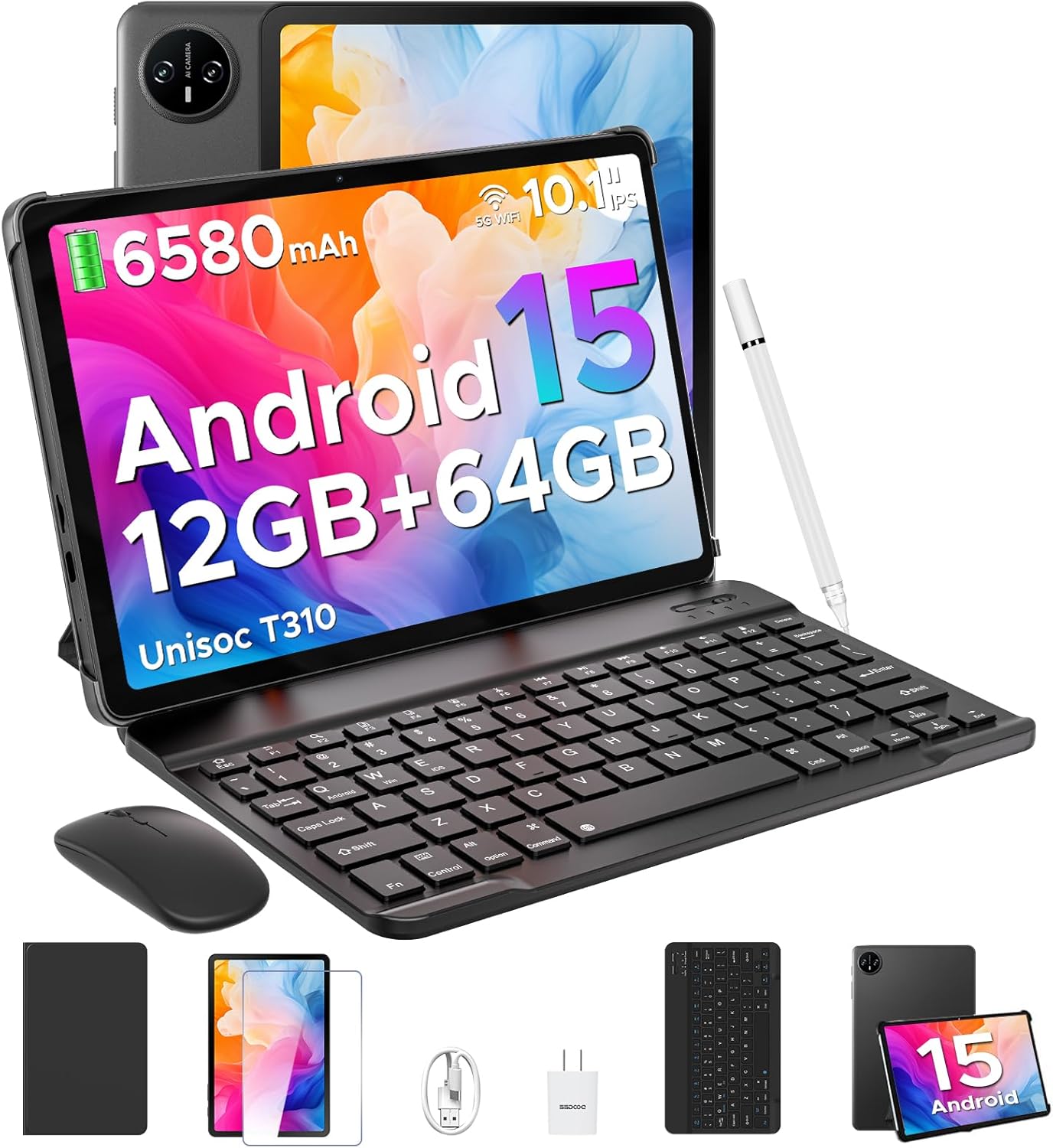
Image 1.1: DOOGEE Tab A9 tablet with its complete accessory kit.
Características principais:
- Sistema operativo: Android 15 for enhanced performance and privacy.
- Procesador: Unisoc T310 Quad-Core, 2.0GHz.
- Memoria e almacenamento: 12GB RAM (3GB physical + 9GB virtual) and 64GB internal storage, expandable up to 2TB via microSD.
- Visualización: 10.1-inch IPS HD (1280x800) touchscreen.
- Batería: 6580 mAh para uso prolongado.
- Cámaras: Cámara traseira de 8 MP e cámara frontal de 5 MP.
- Conectividade: 2.4G/5G Dual-band WiFi, Bluetooth 5.0.
- Seguridade: Desbloqueo facial.
- Audio: Dual speakers and 3.5mm headphone jack.
2. Que está incluído
Your DOOGEE Tab A9 package includes the following items:

Image 2.1: Contents of the DOOGEE Tab A9 package.
- Tableta DOOGEE Tab A9
- Teclado Bluetooth
- Rato Bluetooth
- Stylus Pen
- Protector de pantalla
- Funda protectora
- Cargador
- Cable USB Tipo-C
- Manual de usuario
3. Configuración
3.1 Carga inicial
Before first use, fully charge your tablet using the provided charger and USB Type-C cable. Connect the cable to the tablet's charging port and the charger to a power outlet. The battery indicator on the screen will show charging status.
3.2 Encendido/apagado
- Para acender: Press and hold the Power button (located on the side of the tablet) until the DOOGEE logo appears.
- Para apagar: Mantén premido o botón de acendido e, a seguir, selecciona "Apagar" entre as opcións que aparecen na pantalla.
- Para reiniciar: Mantén premido o botón de acendido e, a seguir, selecciona "Reiniciar" entre as opcións.
3.3 Connecting Accessories (Keyboard & Mouse)
The included keyboard and mouse connect via Bluetooth:
- Ensure the keyboard/mouse is charged and powered on.
- Na túa tableta, vai a Configuración > Dispositivos conectados > Bluetooth.
- Activa o Bluetooth e busca os dispositivos dispoñibles.
- Select the keyboard or mouse from the list and follow any on-screen pairing instructions.
3.4 Inserción dunha tarxeta MicroSD
To expand storage, insert a microSD card (up to 2TB, sold separately):
- Localiza a bandexa da tarxeta SIM/microSD no lateral da tableta.
- Usa a ferramenta de expulsión da tarxeta SIM fornecida para abrir a bandexa.
- Coloque a tarxeta microSD na ranura designada da bandexa.
- Volva inserir a bandexa na tableta con coidado.
4. Instrucións de funcionamento
4.1 Sistema Android 15
Your DOOGEE Tab A9 runs on Android 15, offering improved app launch speeds, system smoothness, and enhanced privacy controls. Explore the intuitive interface and customize settings to your preference.
Vídeo 4.1: Rematadoview of the DOOGEE Tab A9 tablet's features, including its display, speakers, and connectivity.

Image 4.1: The Android 15 system logo, highlighting its intelligent, seamless, and secure features.
4.2 Configuración da pantalla
The 10.1-inch IPS HD display offers clear visuals. You can adjust display settings for comfort:
- Modo de coidado dos ollos: Reduces blue light to minimize eye strain. Activate it in Settings > Display > Eye Care Mode.
- Modo escuro: Changes the system theme to a darker palette, ideal for low-light environments. Activate it in Settings > Display > Dark Mode.

Image 4.2: Visual representation of the tablet's 10.1-inch IPS HD display and its key specifications.
4.3 Uso da cámara
Capture photos and videos with the tablet's cameras:
- Cámara traseira (8MP): Suitable for general photography.
- Cámara frontal (5MP): Ideal para videochamadas e selfies.
Open the Camera app from the home screen or app drawer to start. Tap the shutter button to take a photo or switch to video mode to record.

Imaxe 4.3: Ex.amples of photos taken with the 8MP main camera.

Image 4.4: The 5MP front camera is suitable for clear video calls.
4.4 Funcións de audio
The tablet is equipped with dual speakers for clear audio output and a 3.5mm audio jack for private listening with headphones.

Image 4.5: Illustration of the tablet's dual speaker system for enhanced audio.
4.5 Conectividade
- Wi-Fi: Supports 2.4G and 5G dual-band Wi-Fi for stable and fast internet access. Connect via Configuración > Rede e internet > Wi-Fi.
- Bluetooth 5.0: For connecting wireless peripherals like headphones, speakers, and the included keyboard and mouse. Manage connections in Configuración > Dispositivos conectados > Bluetooth.

Image 4.6: Features of the tablet's WiFi 5 connectivity.
4.6 Desbloqueo facial
For convenient and secure access, set up Face Unlock:
- Ir a Configuración > Seguridade e privacidade > Desbloqueo facial.
- Sigue as instrucións en pantalla para rexistrar a túa cara.
- Ensure you are in a well-lit area during registration for optimal performance.

Image 4.7: The tablet's facial recognition unlock feature in action.
4.7 Multitarefa con pantalla dividida
Utilize the split-screen feature to run two apps simultaneously:
- Abre a primeira aplicación.
- Desliza o dedo cara arriba desde a parte inferior da pantalla e mantén premido para acceder ás aplicacións recentes.
- Tap the app icon at the top of the first app's card and select "Split screen".
- Escolle a segunda aplicación das túas aplicacións recentes ou do caixón de aplicacións para ocupar a outra metade da pantalla.

Image 4.8: Demonstrating efficient split-screen multitasking on the tablet.
4.8 Rendemento e almacenamento
The Unisoc T310 Quad-Core processor and 12GB RAM (3GB physical + 9GB virtual) ensure smooth operation for daily tasks and multitasking. The 64GB internal storage provides space for essential apps and files, with expandable storage up to 2TB via microSD card.
Video 4.2: Highlights of the DOOGEE Tab A9's processor, RAM, and storage capabilities.

Image 4.9: Visual representation of the Unisoc T310 Quad-Core processor.

Image 4.10: Illustrates the tablet's memory and storage capacity, including expandable memory.
4.9 Duración da batería
The 6580mAh battery, combined with smart battery management, provides all-day usage. Actual battery life may vary based on usage patterns and settings.

Image 4.11: Details on the 6580mAh battery capacity and estimated usage times.
5. Mantemento
- Actualizacións de software: Comprobe e instale regularmente actualizacións do sistema para garantir un rendemento e unha seguridade óptimos. Vaia a Configuración > Sistema > Actualización do sistema.
- Limpeza: Usa un pano suave e sen pelusa para limpar a pantalla e o corpo da tableta. Evita materiais abrasivos ou produtos químicos agresivos.
- Coidado da batería: Para prolongar a duración da batería, evite temperaturas extremas e non deixe que a batería se descargue completamente con frecuencia.
- Xestión de almacenamento: Limpar periodicamente o innecesario files and apps to maintain system speed.
6 Solución de problemas
Consulta a táboa seguinte para ver os problemas comúns e as súas solucións:
| Problema | Posible Solución |
|---|---|
| A tableta non se acende | Ensure the battery is charged. Connect the charger and try again. If unresponsive, press and hold the Power button for 10-15 seconds to force a restart. |
| Problemas de conexión wifi | Restart the tablet and your Wi-Fi router. Check Wi-Fi settings to ensure the correct network is selected and the password is entered correctly. |
| O dispositivo Bluetooth non se sincroniza | Ensure the Bluetooth device is in pairing mode and within range. Restart both the tablet and the Bluetooth device. Check tablet's Bluetooth settings. |
| Rendemento lento | Pecha as aplicacións non utilizadas. Borra a caché e as aplicacións temporais files. Consider uninstalling rarely used apps. Perform a system update if available. |
| A pantalla non responde | Reinicia a tableta. Se o problema persiste, asegúrate de que a pantalla estea limpa e libre de residuos. |
7. Especificacións
| Característica | Detalle |
|---|---|
| Nome do modelo | Ficha A9 |
| Sistema Operativo | Android 15 |
| Procesador | Unisoc T310 de catro núcleos, 2 GHz |
| RAM | 12 GB (3 GB físico + 9 GB virtual) |
| Almacenamento interno | 64 GB |
| Almacenamento ampliable | Ata 2 TB mediante tarxeta MicroSD |
| Tamaño da pantalla | 10.1 polgadas |
| Resolución de pantalla | 1280 x 800 píxeles (IPS HD) |
| Cámara traseira | 8 MP |
| Cámara frontal | 5 MP |
| Capacidade da batería | 6580 mAh |
| Tipo sen fíos | 802.11ac, 802.11b, 802.11g, 802.11n (2.4G/5G WiFi) |
| Bluetooth | Bluetooth 5.0 |
| Dimensións (LxWxH) | 9.54 x 6.33 x 0.38 polgadas |
| Peso do elemento | 1.12 libras |
8. Garantía e soporte
Your DOOGEE Tab A9 tablet comes with a 2 ano de garantía e soporte técnico de por vida. For any questions, issues, or support needs, please contact DOOGEE customer service. Refer to the warranty card included in your package for specific terms and conditions.


