1. Introdución
O Rapoo E900T Portable Wireless Keyboard with Touchpad is designed for seamless multi-device and multi-operating system control. This versatile keyboard offers tri-mode wireless connectivity (Bluetooth 5.0/4.0 and 2.4GHz) allowing you to effortlessly navigate and type across various devices such as PC-connected TVs, tablets, Steam Decks, gaming consoles, Raspberry Pi, Mini PCs, and smartphones. Its ultra-thin design and integrated touchpad with gesture support enhance convenience and productivity for both Windows and Mac users.
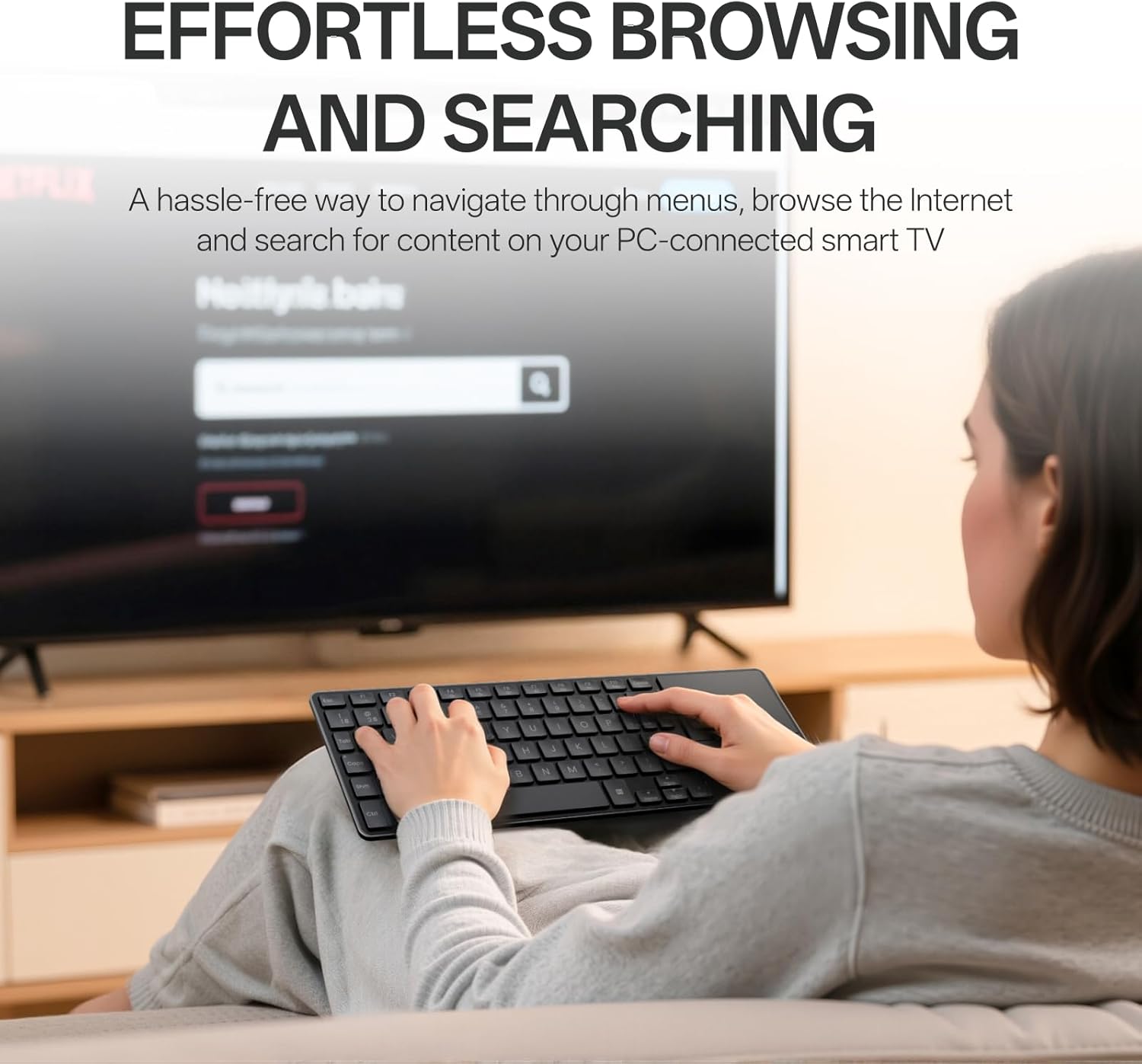
Image: The Rapoo E900T keyboard being used by a person relaxing on a couch, effortlessly browsing content on a large screen television. This highlights the keyboard's suitability for HTPC setups.
2. Que hai na caixa
- 1 x Rapoo E900T Portable Wireless Keyboard
- 1 x Guía de usuario
- 2 x pilas AAA
3. Características clave
- All-in-one Solution for Multi Media and OS: Features Bluetooth 5.0/4.0 + 2.4GHz tri-mode wireless connectivity, providing a versatile way to navigate, browse, search, or type on various devices including PC-connected TVs, tablets, Steam Decks, gaming consoles, SBCs, mini PCs, and phones.
- Ultra-Thin and Portable Design: With a length of 11.09 inches (281.6mm) and a thickness of 0.15 inches (3.9mm), the E900T is highly portable and fits easily with most tablets, ideal for on-the-go use.
- Built-in Touchpad and Gestures Support for Windows & Mac: Eliminates the need for a separate mouse by integrating a touchpad that supports multi-finger gestures for both Windows and Mac OS. (Note: Press FN+W to enter Windows mode / FN+Q to enter Mac mode).
- Multi-Device and Multi-OS Support: Connects up to 4 devices across various operating systems including Windows, Mac, Chrome, and Android.
- Disposición compacta de 73 teclas: Space-saving and portable, this layout is convenient for school, travel, and business. Integrated multimedia hotkeys provide quick access to control entertainment functions such as play/pause and volume adjustments.
- Baixo consumo de enerxía: Upgraded low-power technology allows the E900T to operate for up to 13 months with 1 or 2 AAA batteries.

Image: The Rapoo E900T keyboard positioned on a wooden desk alongside a laptop, smartphone, and an external mouse, demonstrating its 'All-in-one for Multi Media & OS' capability.

Image: A hand performing a multi-finger gesture on the integrated touchpad of the Rapoo E900T keyboard, highlighting its gesture support for navigation.
4. Instrucións de configuración
4.1 Acendido
- Localiza o compartimento da batería na parte inferior do teclado.
- Insert the two provided AAA batteries, ensuring correct polarity.
- Locate the ON/OFF switch, usually on the side or top edge of the keyboard, and slide it to the 'ON' position.
4.2 2.4GHz Wireless Connection (USB-A Receiver)
- Locate the USB-A receiver, typically stored in the battery compartment or a dedicated slot on the keyboard.
- Plug the USB-A receiver into an available USB port on your device (PC, TV, console, etc.).
- The keyboard should automatically connect to your device. No additional drivers are usually required.
4.3 Conexión Bluetooth
- Asegúrate de que o teclado estea acendido.
- Press and hold the dedicated Bluetooth pairing key (often labeled B1 or B2, or an Fn key combination like Fn + C) until the Bluetooth indicator light starts flashing. This indicates the keyboard is in pairing mode.
- On your device (tablet, smartphone, laptop), go to Bluetooth settings and search for available devices.
- Select "Rapoo E900T" or a similar name from the list of found devices to pair.
- If prompted, enter the pairing code displayed on your device.
- Unha vez emparellado, a luz indicadora de Bluetooth do teclado deixará de parpadear e permanecerá fixa ou apagarase, o que indica que a conexión se realizou correctamente.
4.4 Switching Between Devices/OS Modes
- To switch between paired Bluetooth devices (B1, B2), press the corresponding dedicated button.
- To switch between Windows and Mac OS modes for optimal key functionality, press FN + W para o modo Windows ou FN + Q para o modo Mac.
Video: A short demonstration of the Rapoo E900T Portable Wireless Keyboard with Touchpad, showcasing its compact size and ease of use for basic navigation. This video is a brief preview from a seller.
Video: A user demonstrating how the Rapoo E900T keyboard integrates into a 'couch setup' for controlling a smart TV or other media devices, highlighting its convenience and functionality in a home entertainment environment. This video is from a seller.
5. Instrucións de funcionamento
5.1 Touchpad Gestures
The integrated touchpad supports various multi-finger gestures for efficient navigation. Ensure multi-finger touch gestures are switched on in your device's settings for full functionality.
Windows Gesture Shortcuts (Press FN+W to enter Windows mode):
- One-finger glide: Cursor control.
- Toque cun só dedo: Fai clic co botón esquerdo.
- Toque con dous dedos: Right click.
- Two-finger slide (vertical/horizontal): Desprácese.
- Aperta con dous dedos: Achegar ou reducir.
- Toque con tres dedos: Open the search box.
- Three-finger slide (left/right): Switch between tabs.
- Three-finger slide (up): Show thumbnails of all open apps.
- Three-finger slide (down): Mostra o escritorio.
- Four-finger tap: Captura de pantalla.

Image: A visual guide detailing multi-finger touchpad gestures for Windows operating systems, including cursor control, clicking, scrolling, zooming, and app management.
Mac OS Gesture Shortcuts (Press FN+Q to enter Mac mode):
- One-finger glide: Cursor control.
- Toque cun só dedo: Fai clic co botón esquerdo.
- Toque con dous dedos: Right click.
- Two-finger slide (vertical/horizontal): Desprácese.
- Aperta con dous dedos: Achegar ou reducir.
- Toque con tres dedos: Middle-click.
- Three-finger slide (left/right): Switch between tabs.
- Four-finger tap: Captura de pantalla.

Image: A visual guide detailing multi-finger touchpad gestures for Mac operating systems, including cursor control, clicking, scrolling, zooming, and app management.
5.2 teclas de atallo multimedia
The keyboard features dedicated multimedia hotkeys (F1-F7) that provide quick access to control your entertainment. Use the Fn key in combination with the F-keys for these functions:
- Fn+F1: Silenciar/Desactivar
- Fn+F2: Baixar o volume
- Fn+F3: Subir volume
- Fn+F4: Pista anterior
- Fn+F5: Reproducir/Pausa
- Fn+F6: Próxima pista
- Fn+F7: Abre Media Player

Imaxe: Primeiro plano view of the Rapoo E900T keyboard, specifically showing the function keys F1 through F7 with their corresponding multimedia icons, and the 'Fn' key used for activating these functions.
5.3 Indicador de bloqueo de maiúsculas
A dedicated LED indicator for Caps Lock is located on the keyboard, providing visual confirmation of its status to prevent typing errors.

Imaxe: Unha detallada view of the Caps Lock key on the Rapoo E900T keyboard, showing the illuminated green LED indicator when Caps Lock is active.
6. Mantemento
6.1 Substitución da batería
When the keyboard's performance degrades or the battery indicator light (if present) signals low power, replace the two AAA batteries. Always use fresh, high-quality batteries for optimal performance.
6.2 Limpeza
To clean the keyboard, power it off and use a soft, dry, lint-free cloth. For stubborn dirt, a slightly damp cloth can be used, but ensure no moisture enters the keyboard. Avoid using harsh chemicals, abrasive cleaners, or solvents.
6.3 Almacenamento
Cando non o use durante períodos prolongados, apágueo para aforrar batería. Gardeo nun lugar fresco e seco, lonxe da luz solar directa e de temperaturas extremas.
7 Solución de problemas
7.1 No Connection / Unresponsive Keyboard
- Comprobe as baterías: Asegúrate de que as pilas estean inseridas correctamente e teñan a carga suficiente. Substitúeas se é necesario.
- Interruptor de alimentación: Verify the keyboard's ON/OFF switch is in the 'ON' position.
- Conexión 2.4 GHz: For 2.4GHz mode, ensure the USB-A receiver is securely plugged into your device. Try a different USB port.
- Conexión Bluetooth: For Bluetooth mode, ensure Bluetooth is enabled on your device and the keyboard is properly paired. Re-pair the keyboard if the connection is lost.
- Distance & Interference: Move the keyboard closer to your device and away from potential sources of interference (e.g., other wireless devices, large metal objects).
7.2 Incorrect Key Functions / Layout Issues
- OS Mode: Ensure the keyboard is in the correct operating system mode. Press FN + W para Windows ou FN + Q para Mac.
7.3 Touchpad Unresponsive or Inaccurate
- Limpar o panel táctil: Ensure the touchpad surface is clean and free from dirt or moisture.
- Gesture Settings: Check your device's operating system settings to ensure multi-finger gestures are enabled and configured as desired.
- Disable/Enable Touchpad: Some keyboards have a function to disable/enable the touchpad (check user guide for specific key combination if available).
8. Especificacións
| Característica | Detalle |
|---|---|
| Marca | Rapoo |
| Número de modelo | E900T |
| Dimensións do produto | 11.09 x 4.09 x 0.15 polgadas (281.6 x 103.9 x 3.9 mm) |
| Peso do elemento | 7.7 onzas (218 g) |
| Tecnoloxía de conectividade | Bluetooth 5.0/4.0, RF (2.4GHz) |
| Dispositivos compatibles | Laptop, PC, Smart TV, Tablet, Steam Deck, Gaming Console, Raspberry Pi, Mini PC, Phone |
| Descrición do teclado | Multimedia, 73-Key Compact Layout |
| Características especiais | Lightweight, Low-Profile Key, Portable, Trackpad, Wireless, Multi-Device, Multi-OS |
| Cor | Negro |
| Material | Plástico |
| Baterías | 2 pilas AAA necesarias (incluídas) |
| Duración da batería | Ata 13 meses (dependendo do uso) |

Image: A diagram illustrating the physical dimensions of the Rapoo E900T keyboard and its broad compatibility across Windows, Mac OS, and Android operating systems.
9. Garantía e soporte
The Rapoo E900T Portable Wireless Keyboard comes with a 2 ano de garantía. For technical support, warranty claims, or any inquiries, please contact Rapoo customer service. You can typically find support information on the official Rapoo websitio web ou a través do vendedor onde se comprou o produto.
Correo electrónico de asistencia: support@rapoo.com


