1. Introdución
The FIREBAT X3 Wired RGB Gaming Mouse is designed for precision and comfort, suitable for various computing tasks including gaming, office work, and general use. This manual provides detailed instructions for setting up, operating, and maintaining your mouse.

Acabadoview of the FIREBAT X3 Wired RGB Gaming Mouse highlighting its main features.
2. Configuración
2.1 Conexión do rato
The FIREBAT X3 Gaming Mouse features a simple plug-and-play design for easy setup.
- Locate an available USB-A port on your computer or laptop.
- Insert the USB connector of the mouse into the USB-A port.
- O teu sistema operativo detectará e instalará automaticamente os controladores necesarios. Non se require instalación de software adicional para a funcionalidade básica.

The FIREBAT X3 mouse connects via a standard USB-A port for immediate use.
3. Funcionamento
3.1 Funcións dos botóns
The FIREBAT X3 Gaming Mouse is equipped with 6 programmable buttons for enhanced control.
- Botón esquerdo: Función de clic estándar.
- Botón dereito: Función estándar do clic dereito.
- Roda de desprazamento: Scrolls up and down. Can also be pressed for a middle-click function.
- DPI Adjustment Key: Changes the mouse sensitivity (DPI).
- Botón de avance: Navega cara adiante web navegadores ou file exploradores.
- Botón Atrás: Navega cara atrás en web navegadores ou file exploradores.

Illustration of the 6-button layout on the FIREBAT X3 Gaming Mouse.
3.2 Axuste de DPI (sensibilidade)
The mouse features 4 adjustable DPI levels to suit different tasks and preferences.
- Preme o DPI Adjustment Key (located behind the scroll wheel) to cycle through the preset DPI settings.
- The default DPI levels are 1200, 1800, 2400, and 3600.
- Each press will switch to the next DPI level, allowing you to find the optimal sensitivity for your current activity.

The DPI adjustment key allows for quick changes in mouse sensitivity.
3.3 Modos de iluminación RGB
The FIREBAT X3 mouse features 7 dynamic RGB backlit modes to enhance your setup.
- The RGB lighting automatically cycles through its 7 distinct modes.
- There is no manual button to change the RGB mode; the mouse will continuously display various lighting effects.
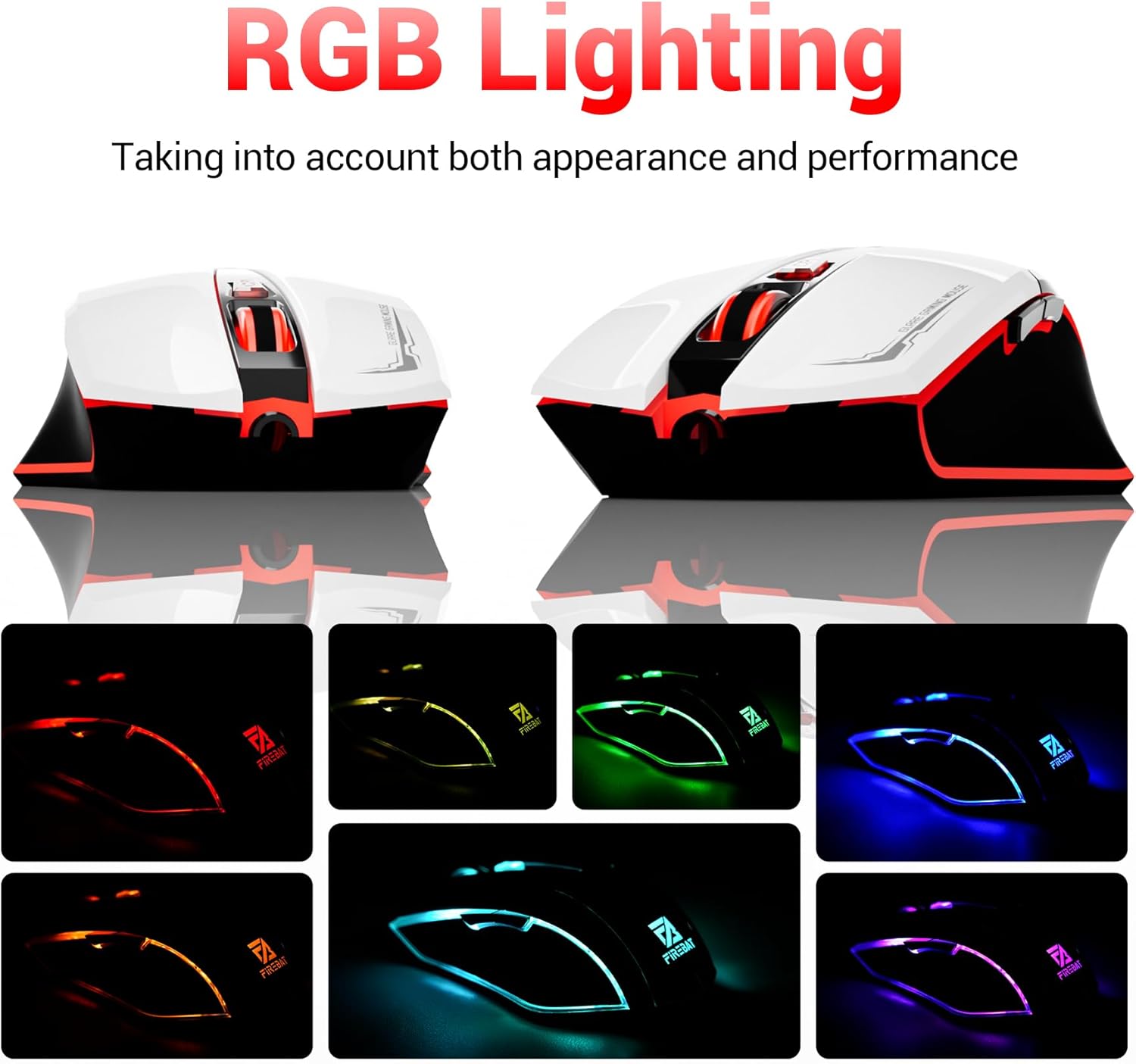
The mouse features vibrant RGB lighting with multiple dynamic modes.
3.4 Deseño ergonómico e confort
The mouse is designed with an ergonomic shape to provide a comfortable grip and reduce hand fatigue during extended use, suitable for both right and left-hand users.

The ergonomic design ensures comfort during prolonged use.
3.5 Quiet Click Feature
The mouse incorporates a 'Heavy Bass Design' for its key sounds, ensuring soft clicks without excessive noise, which is beneficial in quiet environments.

The mouse features quiet clicks, minimizing noise during use.
4. Mantemento
4.1 Limpeza
To ensure optimal performance and longevity, keep your mouse clean.
- Desconecte o rato do ordenador antes de limpalo.
- Use un pano suave e sen pelusa dampEnxágüe con auga ou unha solución de limpeza suave para limpar a superficie do rato.
- Evita o uso de produtos químicos agresivos, produtos de limpeza abrasivos ou humidade excesiva, xa que poden danar o rato.
- For the optical sensor, use a cotton swab to gently remove any dust or debris.
4.2 Almacenamento
Cando non o use, garde o rato nun ambiente limpo e seco, lonxe de temperaturas extremas e da luz solar directa.
5 Solución de problemas
5.1 O rato non responde
- Comprobar a conexión USB: Asegúrate de que o cable USB estea conectado correctamente a un porto USB que funcione no teu ordenador. Proba cun porto USB diferente.
- Reiniciar o ordenador: Ás veces, un simple reinicio pode resolver os problemas de conectividade.
- Proba noutro ordenador: If possible, test the mouse on another computer to determine if the issue is with the mouse or your computer's setup.
5.2 Cursor Movement is Erratic or Jumpy
- Limpar o sensor óptico: Dust or debris on the optical sensor can cause erratic movement. Refer to the cleaning instructions in the Maintenance section.
- Use a Mouse Pad: Ensure you are using the mouse on a suitable surface. Reflective, transparent, or uneven surfaces can interfere with the optical sensor.
5.3 A iluminación RGB non funciona
- Comprobar a alimentación por USB: Ensure the mouse is receiving sufficient power through the USB connection.
- Sen control manual: Remember that the RGB lighting cycles automatically and does not have a manual control button. If the mouse is functioning otherwise, the lighting should be active.
6. Especificacións
| Característica | Detalle |
|---|---|
| Número de modelo | X3 Gaming Mouse |
| Marca | FIREBAT |
| Tecnoloxía de conectividade | USB con cable |
| Detección de Movemento | Óptica |
| Niveis de DPI | 1200 / 1800 / 2400 / 3600 |
| Número de botóns | 6 (programable) |
| Retroiluminación | 7 modos RGB |
| Dimensións do produto | 5 x 3 x 0.1 polgadas (12.7 x 7.6 x 0.25 cm) |
| Peso do elemento | 5.1 onzas (144.6 gramos) |
| Ergonomía | Right or Left Hand Use |
| Fabricante | FIREBAT |
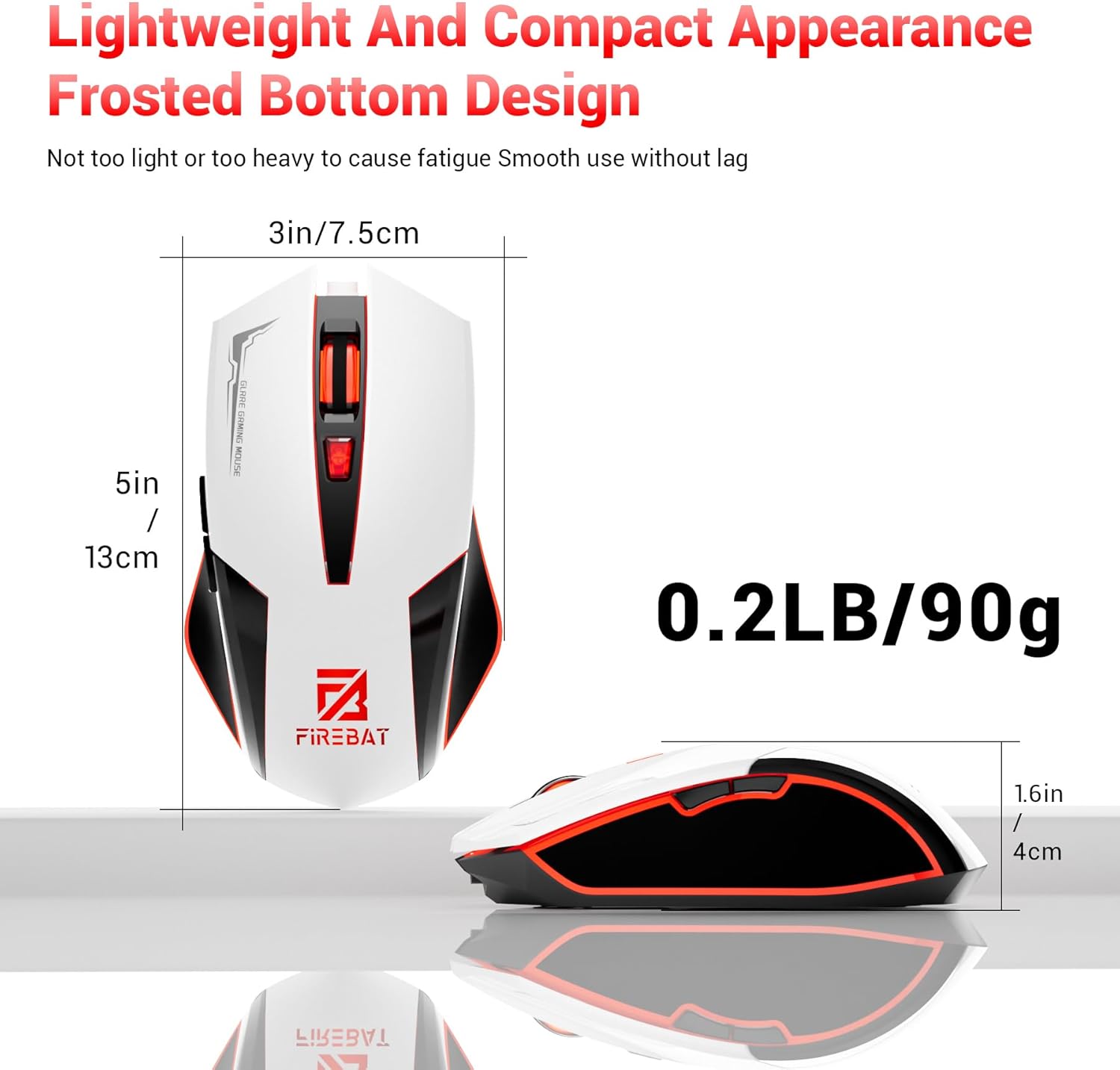
Physical dimensions and weight of the FIREBAT X3 Gaming Mouse.
7. Garantía e soporte
7.1 Información da garantía
FIREBAT products are manufactured to high-quality standards. For specific warranty details, please refer to the warranty card included with your product or visit the official FIREBAT website. Typically, products come with a limited warranty covering manufacturing defects.
7.2 Atención ao cliente
If you encounter any issues or have questions regarding your FIREBAT X3 Gaming Mouse, please contact our customer support team:
- Correo electrónico: soporte@firebatpc.com
- Websitio: www.firebatpc.com
Please provide your product model number (X3 Gaming Mouse) and a detailed description of your issue when contacting support for faster assistance.


