Introdución
Welcome to the DIERYA M1 Wireless Gaming Mouse user manual. This guide provides detailed instructions for setting up, operating, and maintaining your new mouse. Please read this manual thoroughly to ensure proper use and to maximize your gaming and productivity experience.
Contido do paquete
Verifica que todos os elementos estean presentes no teu paquete:
- Rato sen fíos M1
- Nylon USB-A to C Cable
- Manual de usuario
Produto rematadoview
The DIERYA M1 mouse features a lightweight, ergonomic design with multiple programmable buttons and versatile connectivity options.

Descrición da imaxe: Unha sobrecarga view of the black DIERYA M1 wireless gaming mouse, showcasing its honeycomb shell design and RGB lighting. A small USB receiver is positioned to the right of the mouse.
Compoñentes do rato

Descrición da imaxe: An overhead and underside view of the DIERYA M1 mouse with various components labeled. These include the Left Button, Right Button, Mouse Wheel (Middle Button), DPI Adjustment Button (6 Adjustable DPI Levels), Forward Button, Back Button, Type-C Interface, Power & Light Switch, and 2.4G Receiver Storage Compartment. The mouse features a honeycomb shell design.
- Botón esquerdo: Función estándar do clic esquerdo.
- Botón dereito: Función estándar do clic dereito.
- Mouse Wheel (Middle Button): Scroll and middle-click function.
- Botón de axuste de DPI: Percorre ciclicamente os niveis de DPI predefinidos.
- Botón de avance: Navega cara adiante web navegadores ou aplicacións.
- Botón Atrás: Navega cara atrás en web navegadores ou aplicacións.
- Interface tipo C: Para conexión por cable e carga.
- Power & Light Switch: Controls power and RGB lighting.
- 2.4G Receiver Storage Compartment: Located on the underside for storing the USB dongle.
Configuración
The DIERYA M1 mouse offers three connectivity modes: 2.4GHz Wireless, Bluetooth 5.2, and USB-C Wired.

Descrición da imaxe: An illustration demonstrating the three connectivity modes of the M1 mouse: Bluetooth 5.2 pairing with a smartphone, 2.4GHz Wireless with a USB dongle connected to a laptop, and USB-C Wired connection to a laptop. Polling rates for each mode are indicated.
Conexión sen fíos de 1 GHz
- Locate the 2.4G USB receiver in the storage compartment on the underside of the mouse.
- Conecta o receptor USB a un porto USB-A dispoñible do teu ordenador.
- Turn on the mouse using the Power & Light Switch.
- The mouse will automatically connect to the receiver. The polling rate in this mode is 1000Hz.
2. Conexión Bluetooth 5.2
- Turn on the mouse using the Power & Light Switch.
- Press and hold the dedicated connectivity mode button (refer to the product's specific button combination if not a dedicated button) to switch to Bluetooth mode. The LED indicator will show the active connection.
- On your device (PC, Mac, Laptop, iPad), go to Bluetooth settings and search for "DIERYA M1".
- Select the mouse to pair. The polling rate in Bluetooth mode is 125Hz.
- The mouse supports dual-device pairing in Bluetooth mode. Refer to the software for managing multiple Bluetooth connections.
3. Conexión con cable USB-C
- Connect the provided USB-A to C cable to the Type-C interface on the front of the mouse.
- Conecte o extremo USB-A do cable a un porto USB dispoñible no seu ordenador.
- The mouse will function immediately as a wired mouse. This mode also charges the mouse. The polling rate in wired mode is 1000Hz.
Instrucións de funcionamento
Axuste de DPI
The mouse features a dedicated DPI adjustment button to cycle through six preset DPI levels: 400, 800, 1600, 3200, 4800, and 6400. The scroll wheel LED and RGB lighting strip provide instant color-coded feedback for the current DPI setting.
Descrición da imaxe: An image illustrating the DPI range from 200 to 24,000 and the corresponding scroll wheel LED colors for preset DPI levels (400, 800, 1600, 3200, 4800, 6400). The image also shows a software interface for advanced DPI customization.
Iluminación RGB
The DIERYA M1 mouse features 16.8 million color RGB lighting with 13 vibrant effects, including Breath, Static, Flow, and Starlight. These can be customized via the dedicated driver software.
Botóns programables
All six buttons on the DIERYA M1 mouse are fully programmable. Use the dedicated driver software to assign macros, remap functions, and customize button actions.
Xestión da batería
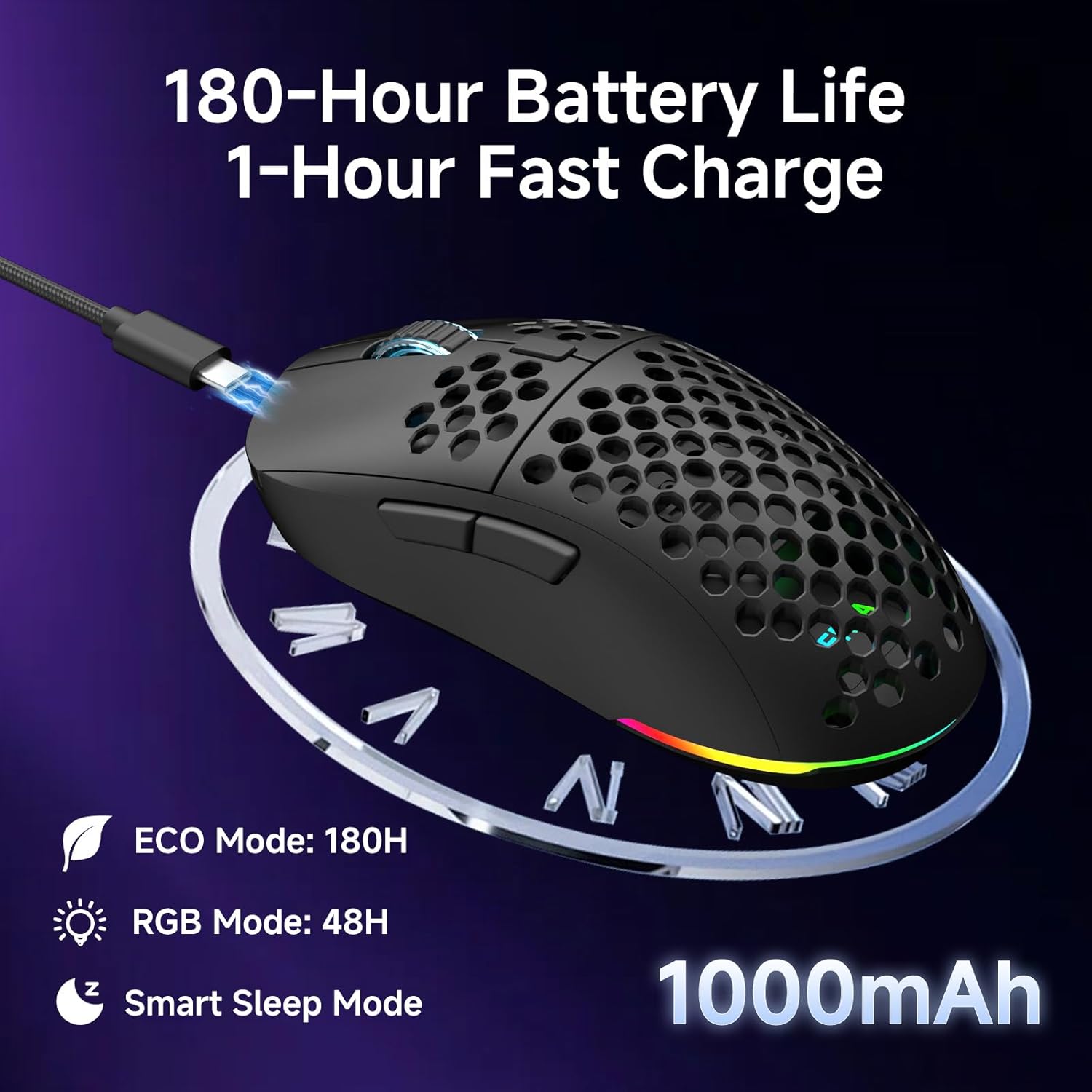
The mouse is equipped with a 1000mAh rechargeable battery.
- Duración da batería: Up to 180 hours in ECO mode, or 48 hours with full RGB lighting.
- Cargando: Fast USB-C charging allows a full charge in approximately 1 hour.
- Smart Sleep Modes: The mouse enters intelligent sleep modes after 1 and 5 minutes of inactivity to conserve power. These timers can be customized via software.

Descrición da imaxe: An image showing the DIERYA M1 mouse connected via USB-C for charging, highlighting its 1000mAh battery, 180-hour ECO mode battery life, 48-hour RGB mode battery life, and smart sleep mode feature.
Instalación de software e controladores
Software de personalización
To unlock the full potential of your DIERYA M1 mouse, including DPI customization (up to 24,000 DPI), report rate adjustment (125-1000Hz), button remapping, macro creation, RGB lighting effects, and sleep timer settings, download and install the dedicated driver software.
The software allows you to define every detail and save up to 4 device profiles.
Visit the official DIERYA website for the latest software download: www.dierya.com/support (Exampligazón, a ligazón real pode variar).

Descrición da imaxe: A screenshot of the DIERYA M1 mouse driver software interface, showing options for key assignment, DIY macros, customizable RGB lighting, DPI adjustment, report rate adjustment, and profile cargando.
Mantemento
Limpeza e coidado
- Regularly clean the mouse with a soft, dry cloth.
- Para a sucidade persistente, d lixeiramenteampEnxágüe o pano con auga ou unha solución de limpeza suave. Evite produtos químicos agresivos.
- Do not immerse the mouse in water or any liquids.
- Keep the PTFE feet clean to ensure smooth gliding.
Almacenamento
- When not in use, store the 2.4G USB receiver in its dedicated compartment on the underside of the mouse.
- Garda o rato nun lugar fresco e seco, lonxe da luz solar directa e de temperaturas extremas.
Resolución de problemas
Problemas comúns e solucións
- O rato non responde:
- Asegúrese de que o rato estea acendido.
- Comprobe o nivel da batería e cárguea se é necesario.
- For 2.4GHz wireless, ensure the USB receiver is securely plugged in.
- For Bluetooth, ensure the mouse is paired and selected in your device's Bluetooth settings.
- Try connecting via USB-C wired mode to confirm functionality.
- Reinicia o teu ordenador.
- Movemento errático ou atraso:
- Ensure the mouse is within range of the receiver (for 2.4GHz) or your device (for Bluetooth).
- Comprobe se hai interferencias doutros dispositivos sen fíos.
- Limpa o sensor óptico da parte inferior do rato.
- Asegúrate de usar o rato sobre unha superficie axeitada (non moi reflectante nin transparente).
- Update mouse drivers via the software.
- Os DPI non cambian:
- Press the DPI adjustment button firmly.
- Ensure the mouse software is installed and running correctly if custom DPI settings are configured.
- A iluminación RGB non funciona:
- Check the Power & Light Switch position.
- Asegúrese de que a batería teña carga suficiente.
- Adjust lighting settings through the driver software.
Especificacións
Detalles técnicos
| Característica | Detalle |
|---|---|
| Modelo | M1 |
| Conectividade | Sen fíos de 2.4 GHz, Bluetooth 5.2, USB-C con cable |
| Rango de DPI | 200 - 24,000 ppp |
| Taxa de votación | 125-1000 Hz |
| Velocidade de seguimento | 300 IPS |
| Aceleración | 35G |
| Capacidade da batería | 1000 mAh |
| Duración da batería | Up to 180 hours (ECO mode), 48 hours (RGB on) |
| Tempo de carga | Aprox. 1 hora |
| Peso | 90 gramos |
| Dimensións | 125 x 63 x 41 mm |
| Interruptores | Huano Micro Switches (20 million clicks) |
| Pés | PTFE |
| Iluminación RGB | 16.8 Million Colors, 13 Effects |
| Botóns programables | 6 |
| Compatibilidade | PC, Mac, Laptop, iPad, Chromebook |
Garantía e Soporte
Garantía do produto
DIERYA products typically come with a limited warranty. Please refer to the warranty card included in your package or visit the official DIERYA websitio web para obter termos e condicións detallados da garantía. Garda o comprobante de compra para reclamacións de garantía.
Atención ao cliente
If you encounter any issues or have questions regarding your DIERYA M1 Wireless Gaming Mouse, please contact DIERYA customer support.
- Websitio: www.dierya.com/support (Exampligazón, a ligazón real pode variar)
- Correo electrónico: Consulte a embalaxe do produto ou websitio para o enderezo de correo electrónico de soporte.
When contacting support, please provide your product model (M1) and a detailed description of the issue.


