1. Introdución
This manual provides essential information for the setup, operation, and maintenance of your Vibox IV-524 Gaming PC. This mid-range gaming PC offers a balance of performance and value, suitable for smooth gameplay at 1080p and 1440p resolutions. Equipped with a powerful multi-core processor and a dedicated graphics card, it efficiently runs popular games and provides room for future upgrades.
2. Información de seguridade
- Fonte de alimentación: Use only the provided power cable and connect it to a grounded outlet. Ensure the power supply voltage matches your local electrical standards.
- Ventilación: Non bloquees as aberturas de ventilación. Asegúrate de que haxa un fluxo de aire axeitado arredor do PC para evitar o sobrequecemento.
- Líquido e humidade: Keep the PC away from liquids and excessive moisture. Do not operate the PC with wet hands.
- Colocación: Place the PC on a stable, flat surface. Avoid placing it in direct sunlight or near heat sources.
- Servizo: Do not attempt to open or repair the PC yourself. Refer all servicing to qualified personnel.
3. Contido do paquete
Verifica que todos os elementos estean presentes no teu paquete:
- Vibox IV-524 Gaming PC Tower
- Cable de alimentación
- 300 Mbps Wi-Fi Adapter
- Documentación (Guía de inicio rápido, Información de garantía)
- RGB Lighting Controller (if applicable)
4. Configuración
4.1 Desembalaxe
Carefully remove the PC from its packaging. Inspect for any visible damage. Retain the original packaging for future transport or servicing.

Image: The Vibox IV-524 Gaming PC Tower, showcasing its white chassis and internal components.
4.2 Conexión de periféricos
- Monitor: Connect your monitor to the graphics card (NVIDIA GeForce RTX 5060) using an HDMI or DisplayPort cable. Ensure the cable is securely fastened.
- Teclado e rato: Connect your keyboard and mouse to the available USB ports on the rear or front of the PC.
- Potencia: Connect the power cable to the PC's power supply unit and then to a wall outlet.
- Rede: For wired internet, connect an Ethernet cable to the LAN port. For wireless internet, install the provided Wi-Fi adapter into an available USB port.

Image: Close-up of the Vibox IV-524 PC's front panel, highlighting USB 2.0, USB 3.0, headphone, and microphone ports, along with power and LED control buttons.
4.3 Arranque inicial e configuración de Windows
- Prema o botón de acendido/acendido na parte frontal do PC.
- The PC will boot into Windows 11 Home. Follow the on-screen instructions to complete the initial Windows setup, including language, region, network connection, and user account creation.
- Ensure all drivers are installed. Your system typically comes with pre-installed drivers. If any issues arise, visit the Vibox support websitio para os controladores máis recentes.

Image: Visual representation of Windows 11 Home features, including faster loading times with DirectStorage, AutoHDR for enhanced graphics, seamless Xbox Game Pass integration, and optimized CPU performance.
5. En funcionamento
5.1 Encender/apagar e reiniciar
- Encendido: Preme o botón de acendido no panel frontal.
- Apagar: Fai clic no botón Inicio en Windows e, a seguir, selecciona Enerxía > Apagar.
- Reiniciar: Fai clic no botón Inicio en Windows e, a seguir, selecciona Enerxía > Reiniciar.
5.2 Conectando a Wi-Fi
- Ensure the Wi-Fi adapter is connected to a USB port.
- In Windows, click the Network icon in the taskbar.
- Select your desired Wi-Fi network from the list and click 'Connect'.
- Introduza a clave de seguridade da rede (contrasinal) se se lle solicita.
5.3 Control de iluminación RGB
Your PC features customizable RGB lighting. If an RGB controller or remote was included, refer to its specific instructions for changing colors and effects. Otherwise, lighting may be controlled via pre-installed software or motherboard utilities.
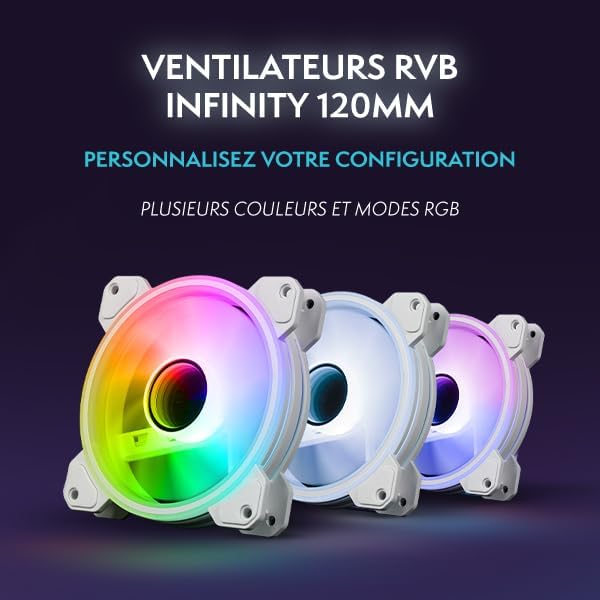
Imaxe: Unha interna view of the Vibox IV-524 PC, showcasing the illuminated RGB fans and components within the white chassis.
6. Mantemento
6.1 Limpeza
- Exterior: Use un suave, damp pano para limpar as superficies exteriores. Evite produtos químicos agresivos.
- Po: Periodically clean dust from the ventilation grilles and internal components using compressed air. Ensure the PC is powered off and unplugged before cleaning.
6.2 Actualizacións de software
Regularly update your Windows operating system, graphics drivers, and other software to ensure optimal performance and security. Windows Update can be accessed via Settings > Windows Update.
7 Solución de problemas
- Sen enerxía: Ensure the power cable is securely connected to both the PC and the wall outlet. Check if the wall outlet is functional.
- Sen visualización: Verify that the monitor cable is correctly connected to the graphics card and the monitor is powered on and set to the correct input source.
- Sen conexión a Internet: For Wi-Fi, ensure the adapter is installed and drivers are up to date. For wired, check the Ethernet cable connection. Restart your router/modem.
- Desaceleración do sistema: Comprobe se hai aplicacións en segundo plano que consuman recursos. Asegúrese de espazo libre suficiente no SSD. Execute unha análise de software malicioso.
- Sobrequecemento: Ensure ventilation openings are clear. Clean dust from inside the PC.
For further assistance, refer to the Vibox support websitio ou póñase en contacto co servizo de atención ao cliente.
8. Especificacións
| Compoñente | Detalle |
|---|---|
| Marca | Vibox |
| Número de modelo | IV-524 |
| Procesador | AMD Ryzen 7 5700X (8 Cores, Max 4.6 GHz) |
| Tarxeta Gráfica | NVIDIA GeForce RTX 5060 (8 GB GDDR7, HDMI 2.1, DisplayPort) |
| RAM | 16 GB DDR4 3200 MHz (Dual Channel) |
| Almacenamento | SSD de 1 TB (estado sólido) |
| Sistema Operativo | Windows 11 Home |
| Conectividade | Wi-Fi (300 Mbps adapter included) |
| Portos USB | 3x USB 2.0, 3x USB 3.0 |
| Portos HDMI | 1 |
| Dimensións (L x W x H) | 37 x 20 x 46 cm |
| Peso | 12 kg |

Image: Diagram illustrating the dimensions of the Vibox IV-524 PC tower: 38cm (depth), 20cm (width), and 46cm (height).
9. Garantía e soporte
Your Vibox IV-524 Gaming PC comes with a manufacturer's warranty. Please refer to the warranty documentation included in your package for specific terms and conditions. For technical support, driver downloads, or further assistance, please visit the official Vibox support websitio ou póñase en contacto co seu departamento de atención ao cliente.
Vibox Support: Visit the Vibox Store on Amazon


