1. Introdución
Thank you for choosing the ZEUSLAP Z18W Dual Screen Portable Monitor. This device is designed to enhance your productivity and multimedia experience by providing two additional 18.5-inch displays for your compatible devices. This manual provides essential information for setting up, operating, and maintaining your monitor.
2. Produto rematadoview
2.1 Características principais
- Dual 18.5-inch Full HD IPS Displays: Enjoy vibrant colors and wide viewing angles with 1920x1080 resolution on each screen.
- Frecuencia de actualización de 120 Hz: Experience smooth visuals, ideal for gaming and fast-paced multimedia.
- Type-C Connectivity: Single cable solution for power and video transmission with compatible devices.
- Gama de cores sRGB do 100 %: Ensures accurate and rich color reproduction.
- Brillo de 300 cd/m²: Provides clear visibility in various lighting conditions.
- Función da pantalla táctil: Interact directly with the display for intuitive control.
- Ampla compatibilidade: Connects to Laptops, Desktops, Gaming Consoles, and Smartphones.
2.2 Contido do paquete
Comprobe se o paquete contén os seguintes elementos:
- ZEUSLAP Z18W Dual Screen Portable Monitor
- USB-C to USB-C Cable (for video and power)
- USB-A to USB-C Power Cable (for additional power if needed)
- Manual de usuario

This image shows the ZEUSLAP Z18W dual portable monitor set up next to a laptop, demonstrating its extended display capabilities for enhanced productivity.
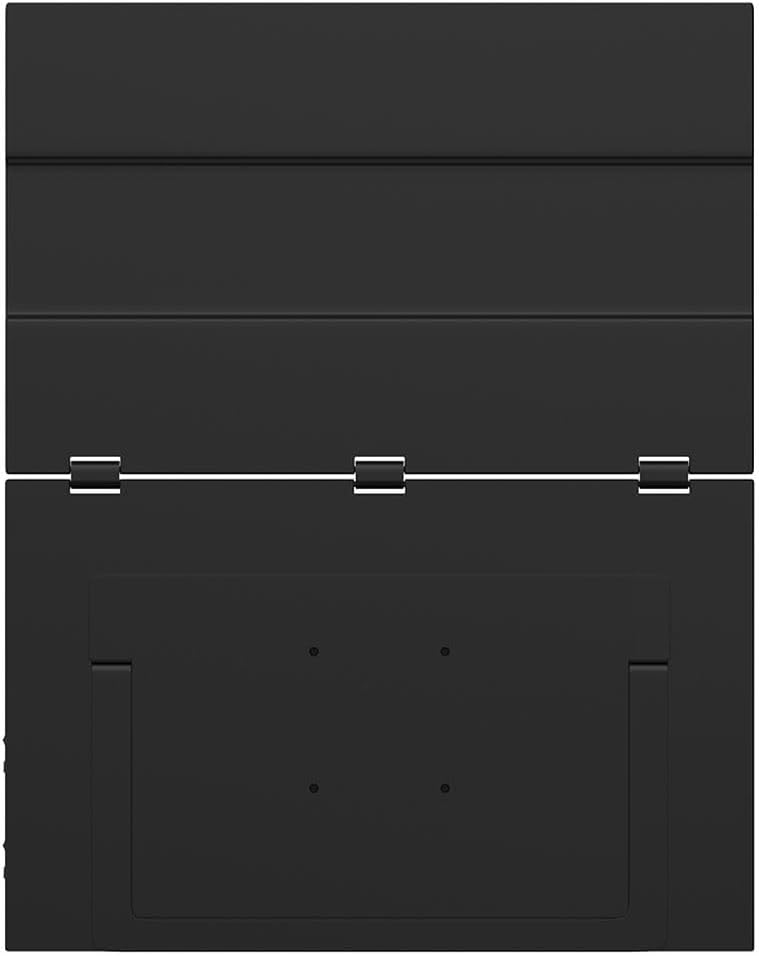
As costas view of the ZEUSLAP Z18W monitor highlights its robust hinge design and integrated stand, allowing for flexible positioning and stability.
3. Configuración
3.1 Conectarse a un dispositivo
The ZEUSLAP Z18W monitor supports various connection methods. Ensure your device has the necessary ports.
- USB-C (Full-Featured): If your laptop, smartphone, or gaming console has a full-featured USB-C port (supporting DisplayPort Alternate Mode and power delivery), connect the monitor using the provided USB-C to USB-C cable. This single cable can transmit video, audio, and power to the monitor.
- USB-C (Power Only) + HDMI (Video): If your device's USB-C port does not support video output, or if you are connecting to a device with an HDMI port, you will need two cables:
- Connect an HDMI cable (not included) from your device to the monitor's HDMI input.
- Connect the provided USB-A to USB-C power cable from a USB power source (e.g., laptop USB port, wall adapter) to the monitor's USB-C power input.
3.2 Acendido/Apagado
- Encendido: Once connected to a compatible device and receiving power, the monitor should automatically power on. If not, press the Power button located on the side of the monitor.
- Apagado: Press and hold the Power button for a few seconds until the display turns off. Disconnect the cables when not in use.
4. Instrucións de funcionamento
4.1 Menú de visualización en pantalla (OSD).
The OSD menu allows you to adjust various display settings. The monitor typically features a joystick or a set of buttons for navigation.
- Accedendo ao menú OSD: Press the OSD button (or push the joystick) to open the menu.
- Navegación: Use the joystick or directional buttons to move through menu options.
- Selección: Press the OSD button (or push the joystick in) to select an option.
- Saída: Navigate to the 'Exit' option or press the 'Back' button to close the OSD menu.
Common OSD settings include Brightness, Contrast, Color Temperature, Input Source, Aspect Ratio, and Volume.
4.2 Modos de visualización
When connected to a computer, you can configure the display mode through your operating system's display settings:
- Modo de extensión: Each monitor displays a separate desktop, allowing for more screen space and multitasking.
- Modo duplicado: All monitors display the same content, useful for presentations or sharing your screen.
4.3 Funcionalidade da pantalla táctil
The ZEUSLAP Z18W features a touch screen. For touch functionality to work, ensure your device supports touch input over the connected interface (typically USB-C) and that the necessary drivers are installed (usually automatically by the operating system).
- Toque único: Tap to select or open items.
- Xestos multitáctiles: Use gestures like pinch-to-zoom, two-finger scroll, etc., as supported by your operating system.
5. Mantemento
5.1 Limpeza do monitor
- Apague sempre o monitor e desconecte todos os cables antes de limpalo.
- Use un pano suave e sen pelusa damplavado con auga ou cun limpador de pantallas non abrasivo.
- Non pulverices o limpador directamente sobre a pantalla.
- Evita o uso de alcol, amoníaco ou produtos de limpeza abrasivos, xa que poden danar a superficie da pantalla.
5.2 Almacenamento
- Garde o monitor nun lugar fresco e seco, lonxe da luz solar directa e de temperaturas extremas.
- Use the original packaging or a protective case to prevent damage during transport or storage.
6 Solución de problemas
| Problema | Causa posible | Solución |
|---|---|---|
| No display / "No Signal" message |
|
|
| Monitor powers on but no image |
|
|
| A pantalla táctil non responde |
|
|
| Imaxe parpadeante ou distorsionada |
|
|
7. Especificacións
| Característica | Detalle |
|---|---|
| Nome do modelo | Z18W |
| Tamaño da pantalla | 2 x 18.5 polgadas |
| Resolución | 1920 x 1080 (Full HD) |
| Taxa de actualización | 120 Hz |
| Tipo de panel | IPS |
| Gama de cores | 100 % sRGB |
| Brillo | 300 cd/m² |
| Conectividade | USB-C, USB |
| Características especiais | Dual Screen, High Refresh Rate, Type-C Connection, Touch Screen |
| Dispositivos compatibles | Laptop, Desktop, Gaming Console, Smartphone |
8. Garantía e soporte
The ZEUSLAP Z18W Dual Screen Portable Monitor comes with a standard manufacturer's warranty. Please refer to the warranty card included in your package for specific terms and conditions, including the warranty period and coverage details.
For technical support, troubleshooting assistance, or warranty claims, please contact the retailer where you purchased the product or visit the official ZEUSLAP websitio web para obter información de contacto do servizo de atención ao cliente.


