1. Introdución
This manual provides detailed instructions for the setup, operation, and maintenance of your Dierya M1 Wireless Gaming Mouse. Please read this manual thoroughly before using the product to ensure proper functionality and to maximize your user experience.

Figure 1: Dierya M1 Wireless Gaming Mouse and 2.4G USB Receiver.
2. Características do produto
- Sensor óptico de 24,000 ppp: Adjustable DPI range from 200 to 24,000, with 6 preset levels (400-6400 DPI). Features a 125-1000 Hz polling rate, 300 IPS tracking speed, and 35G acceleration.
- Conectividade trimodo: Supports ultra-fast 2.4 GHz wireless (1000 Hz polling rate), energy-efficient Bluetooth 5.2 (125 Hz polling rate), and stable USB-C wired connection (1000 Hz polling rate).
- Duración prolongada da batería: Equipped with a 1000 mAh battery, providing up to 180 hours of use in ECO mode or 48 hours with RGB lighting enabled. Fully recharges in approximately 1 hour via USB-C. Includes an automatic power-saving mode after 1-5 minutes of inactivity.
- Deseño lixeiro e ergonómico: Weighs 90g with a breathable honeycomb shell. Symmetrical design (125x63x41 mm) suitable for various grip styles.
- Compoñentes duradeiros: Features Huano switches rated for 20 million clicks and 100% PTFE feet for smooth gliding.
- Botóns programables: Six customizable buttons for macros and reassignments.
- Iluminación RGB dinámica: 13 integrated dynamic RGB lighting effects with 16.8 million customizable colors.
- Compatibilidade do sistema: Compatible with Windows, macOS, Linux, and Chrome OS.
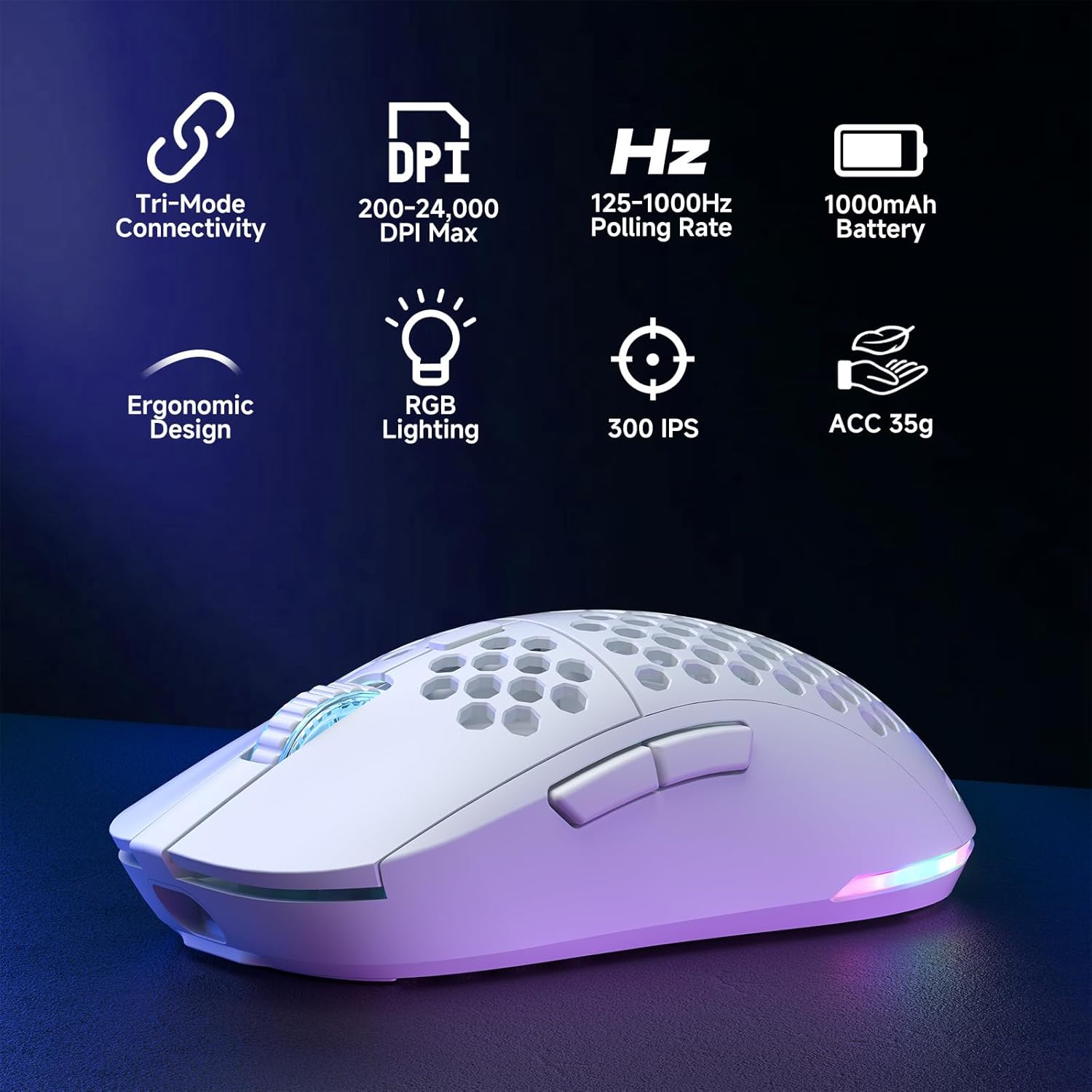
Figure 2: Key features of the Dierya M1 Wireless Gaming Mouse.
3. Diagrama do produto e compoñentes
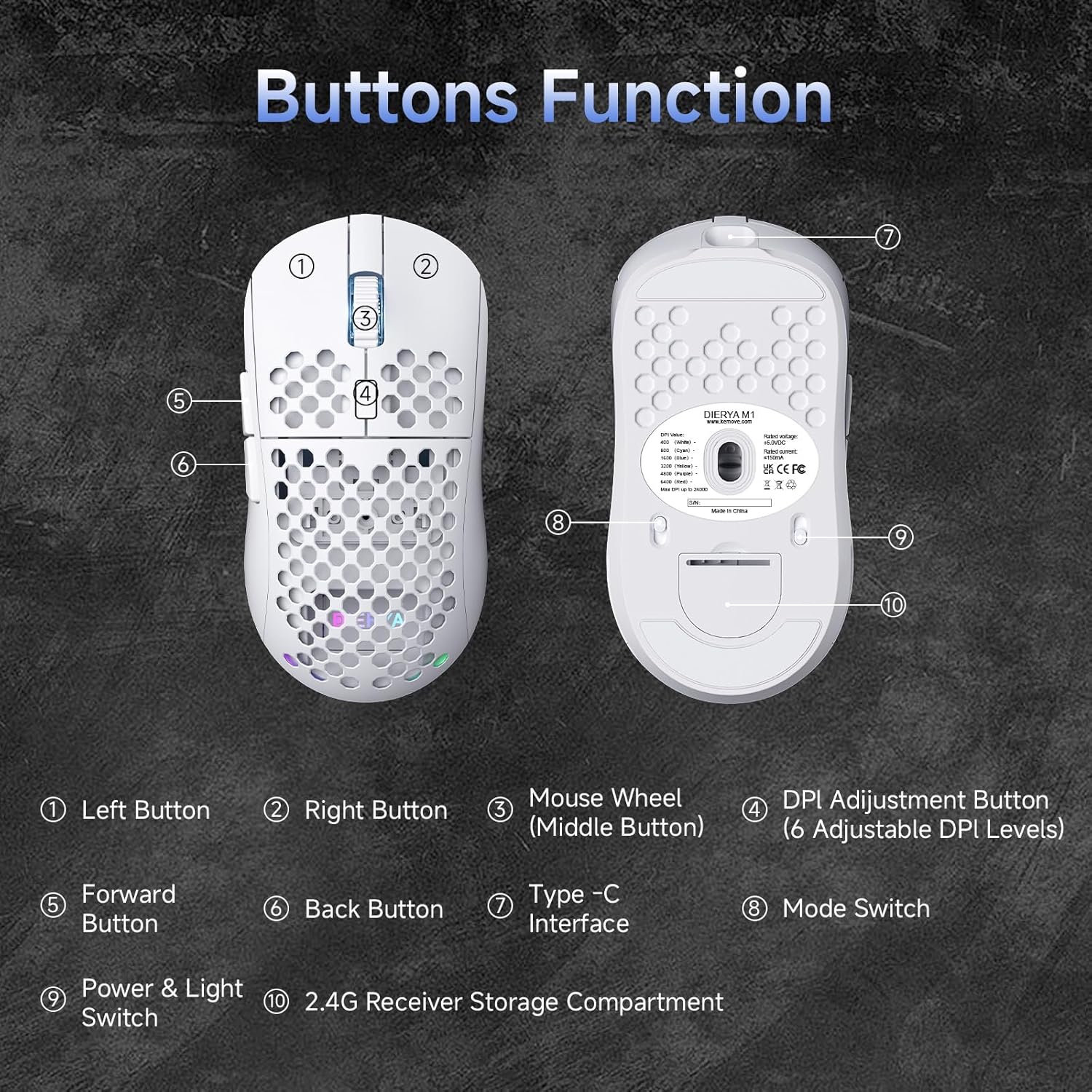
Figura 3: Arriba e abaixo view of the Dierya M1 mouse with labeled components.
- Botón Esquerdo
- Botón dereito
- Mouse Wheel (Middle Button)
- DPI Adjustment Button (6 Adjustable DPI Levels)
- Botón de avance
- Botón Atrás
- Interface tipo C
- Mode Switch (2.4G / Bluetooth / Wired)
- Power & Light Switch
- 2.4G Receiver Storage Compartment
4. Configuración e conexión
The Dierya M1 mouse offers three connection modes: 2.4 GHz Wireless, Bluetooth 5.2, and USB-C Wired.

Figura 4: Máisview of the three connection modes.
4.1. Conexión sen fíos de 2.4 GHz
- Locate the 2.4G USB receiver in the storage compartment on the bottom of the mouse.
- Conecte o receptor USB a un porto USB dispoñible no seu ordenador.
- Axuste o selector de modo na parte inferior do rato á posición "2.4G".
- O rato debería conectarse automaticamente.
4.2. Conexión Bluetooth 5.2
- Set the mode switch on the bottom of the mouse to the 'Bluetooth' position.
- No teu ordenador ou dispositivo, abre a configuración de Bluetooth.
- Busca new devices and select 'Dierya M1' from the list.
- Siga as indicacións en pantalla para completar o proceso de vinculación.
4.3. Conexión con cable USB-C
- Connect the provided USB-C cable to the Type-C interface on the front of the mouse.
- Conecta o outro extremo do cable USB-C a un porto USB dispoñible do teu ordenador.
- Axusta o selector de modo da parte inferior do rato á posición "Con cable".
- O rato funcionará como un rato con cable e cargará simultaneamente.
5. Instrucións de funcionamento
5.1. Axuste de DPI
The DPI Adjustment Button (4) on the top of the mouse allows you to cycle through preset DPI levels. Each DPI level is indicated by a specific color on the scroll wheel LED for a few seconds after adjustment.
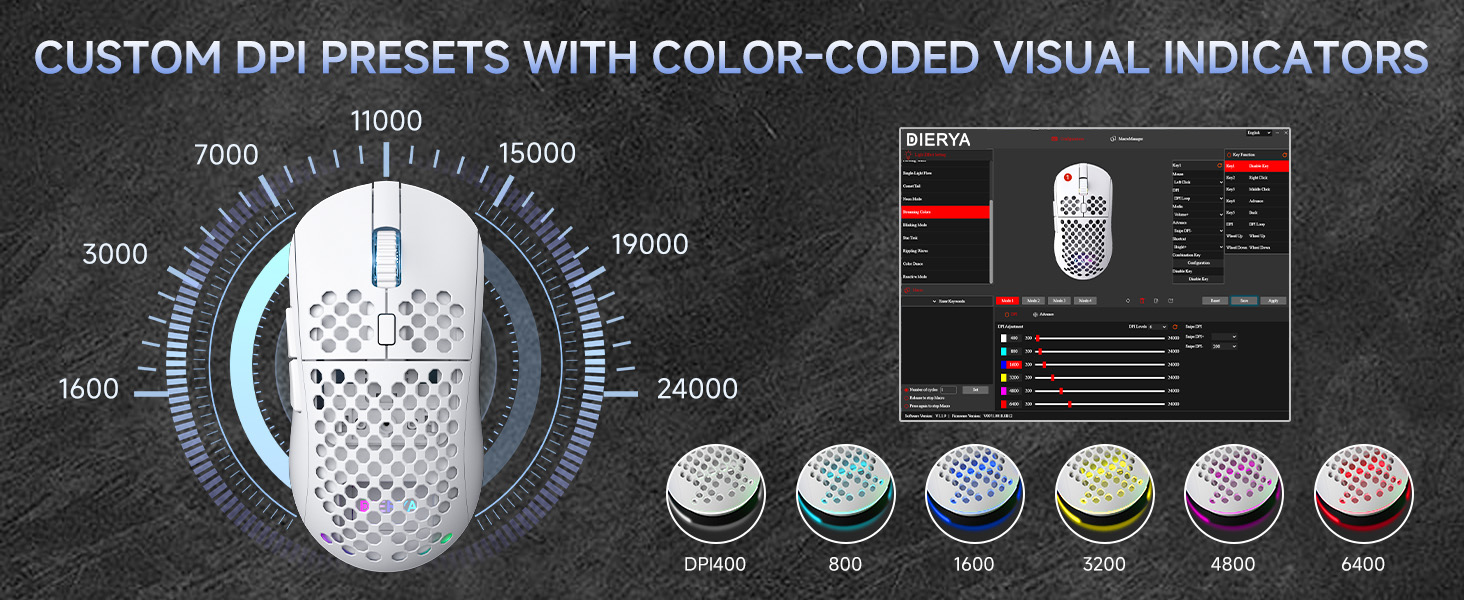
Figure 5: DPI levels and their corresponding scroll wheel LED colors.
- Press the DPI button to switch between 6 preset DPI levels.
- Default presets: 400 DPI (Red), 800 DPI (Green), 1600 DPI (Blue), 3200 DPI (Yellow), 4800 DPI (Purple), 6400 DPI (Cyan).
- For custom DPI settings and a wider range (200-24,000 DPI), use the M1 Driver Software (Windows only).
5.2. Control da iluminación RGB
The mouse features 13 dynamic RGB lighting effects. You can control the lighting directly on the mouse or customize it further with the software.
- To cycle through RGB effects: Press and hold the DPI Adjustment Button (4) for 3 seconds.
- To turn RGB lighting On/Off: Use the Power & Light Switch (9) on the bottom of the mouse.
- For advanced customization of colors and effects, use the M1 Driver Software (Windows only).
5.3. Botóns programables
The Dierya M1 has 6 programmable buttons (Left, Right, Middle, DPI, Forward, Back). These buttons can be customized for various functions, macros, or key reassignments using the M1 Driver Software.
6. Carga e xestión da batería
The Dierya M1 mouse is equipped with a 1000 mAh rechargeable battery.

Figure 6: Charging the Dierya M1 mouse and battery life indicators.
- Cargando: Connect the mouse to your computer using the provided USB-C cable. The mouse will charge while in wired mode or when connected to a power source. A full charge takes approximately 1 hour.
- Duración da batería: Expect up to 180 hours of use in ECO mode (RGB off) and up to 48 hours with RGB lighting enabled.
- Aforro de enerxía: The mouse automatically enters a power-saving sleep mode after 1-5 minutes of inactivity. This duration can be adjusted via the M1 Driver Software.
- Indicador de batería baixa: The RGB lighting or a specific LED will indicate when the battery is low. Charge the mouse promptly to avoid interruption.
7. M1 Driver Software (Windows Only)
The M1 Driver Software allows for advanced customization of your mouse settings. This software is currently available for Windows operating systems only.

Figure 7: M1 Driver Software interface.
7.1. Características do software
- Asignación clave: Customize the function of all 6 buttons.
- Editor de macros: Crear e asignar macros complexas.
- Axuste de DPI: Fine-tune DPI settings from 200 to 24,000 in increments.
- Taxa de votación: Adjust the polling rate (125-1000 Hz).
- Personalización RGB: Personalize lighting effects, colors, and brightness.
- Tempo de sono: Configure the automatic power-saving sleep mode duration.
- Profile Xestión: Gardar e cargar diferentes profesionaisfiles para varias aplicacións ou xogos.
7.2. Instalación
Download the latest M1 Driver Software from the official Dierya website. Follow the on-screen instructions to install the software on your Windows computer.
8. Mantemento
- Limpeza: Usa un pano suave e seco para limpar o rato. Para a sucidade persistente, usa un pano lixeiramente seco.amp pódese usar un pano, garantindo que non entre líquido no rato.
- Almacenamento: Garda o rato nun lugar fresco e seco, lonxe da luz solar directa e de temperaturas extremas.
- Coidado da batería: Avoid fully discharging the battery frequently. For long-term storage, charge the mouse to about 50% and store it in a cool, dry place.
9 Solución de problemas
- O rato non responde:
- Asegúrese de que o rato estea acendido.
- Comprobe que o selector do modo de conexión (2.4G, Bluetooth, Con fío) estea configurado correctamente.
- Para 2.4G, asegúrate de que o receptor USB estea conectado correctamente.
- For Bluetooth, re-pair the device.
- Try connecting via USB-C cable to check if it works in wired mode.
- Charge the mouse; the battery might be depleted.
- Conexión intermitente ou con atraso:
- Ensure the mouse is within range of the receiver/device (for wireless connections).
- Reducir a interferencia doutros dispositivos sen fíos.
- Asegúrese de que a batería estea suficientemente cargada.
- Update mouse drivers if available (Windows only).
- A iluminación RGB non funciona:
- Check the Power & Light Switch (9) on the bottom of the mouse.
- Ensure the mouse is not in ECO mode or a low-power state.
- If using the software, verify RGB settings.
- DPI adjustment not working:
- Ensure you are pressing the correct DPI Adjustment Button (4).
- If using custom settings, check the M1 Driver Software.
10. Especificacións
| Característica | Especificación |
|---|---|
| Marca | Dierya |
| Nome do modelo | M1 |
| Cor | Branco |
| Tecnoloxía de conectividade | Sen fíos de 2.4 GHz, Bluetooth 5.2, USB-C con cable |
| Tecnoloxía de sensores | Óptica |
| Rango de DPI | 200 - 24,000 ppp |
| Taxa de votación | 125-1000 Hz |
| Velocidade de seguimento | 300 IPS |
| Aceleración | 35G |
| Número de botóns | 6 (programable) |
| Interruptores | Huano (20 millóns de clics) |
| Feet Material | 100% PTFE |
| Capacidade da batería | 1000 mAh (ións de litio) |
| Duración da batería (modo ECO) | Ata 180 horas |
| Battery Life (RGB Mode) | Ata 48 horas |
| Tempo de carga | Aprox. 1 hora |
| Peso | 90 gramos |
| Dimensións | 125 x 63 x 41 mm |
| Compatibilidade do sistema operativo | Windows, macOS, Linux, Chrome OS |
11. Garantía e soporte
The Dierya M1 Wireless Gaming Mouse comes with a 1 anos de garantía do fabricante. Esta garantía cobre os defectos nos materiais e na fabricación no uso normal.
For warranty claims, technical support, or further inquiries, please contact Dierya customer service through the official website or your point of purchase. Please have your product model number (M1) and proof of purchase ready when contacting support.


