1. Introdución
This manual provides detailed instructions for the setup, operation, maintenance, and troubleshooting of your Tabwee T90 Android 16 Tablet. Please read this manual thoroughly before using your device to ensure proper functionality and to maximize your user experience.

Image: The Tabwee T90 tablet shown with its full suite of accessories, including a detachable keyboard, wireless mouse, stylus, protective case, charging adapter, and USB cable. This illustrates the complete package contents.
2. Contido do paquete
Verifica que todos os elementos estean presentes no paquete:
- Tabwee T90 Tablet
- Teclado Bluetooth
- Rato sen fíos
- Stylus Pen
- Funda protectora
- Pantalla Film Protector
- Power Adapter (Type-C)
- Cable de datos USB (tipo C)
- Manual de usuario

Image: A visual representation of the Tabwee T90 tablet's dimensions and all components included in the retail package, such as the tablet, keyboard, mouse, stylus, and various cables and covers.
3. Configuración inicial
3.1 Cargar a tableta
Before first use, fully charge the tablet using the provided Type-C power adapter and USB cable. The charging port is located on the side of the tablet.

Image: The Tabwee T90 tablet being charged via its Type-C port, highlighting its 8000mAh battery and estimated usage times for various activities like web browsing, video playback, gaming, and music.
3.2 Acendido/Apagado
- Para acender: Manteña premido o botón de acendido ata que a pantalla se ilumine.
- Para apagar: Manteña premido o botón de acendido e, a seguir, seleccione "Apagar" entre as opcións.
3.3 Configuración inicial
Follow the on-screen prompts to complete the initial setup, including:
- Selección da lingua
- Conexión de rede wifi
- Inicio de sesión na conta de Google
- Configuración de data e hora
- Security settings (PIN, pattern, password, or face recognition)

Image: A collage of screenshots demonstrating key Android 16 features such as real-time notifications, robust security measures, access to the Google Play Store for app downloads, and options for regional language optimization.
3.4 Conexión de accesorios
The Tabwee T90 comes with a Bluetooth keyboard and mouse. To connect them:
- Activa o Bluetooth na túa tableta a través de Configuración > Dispositivos conectados > Bluetooth.
- Put the keyboard/mouse into pairing mode (refer to their individual manuals if needed).
- Selecciona o accesorio da lista de dispositivos dispoñibles na túa tableta para emparellalo.
The stylus pen does not require pairing.
4. Uso da tableta
Interface de Android 4.1 16
The Tabwee T90 runs on Android 16, offering an intuitive and enhanced user experience with improved security and performance. Features include real-time notifications, efficient multitasking, and smart operational capabilities.
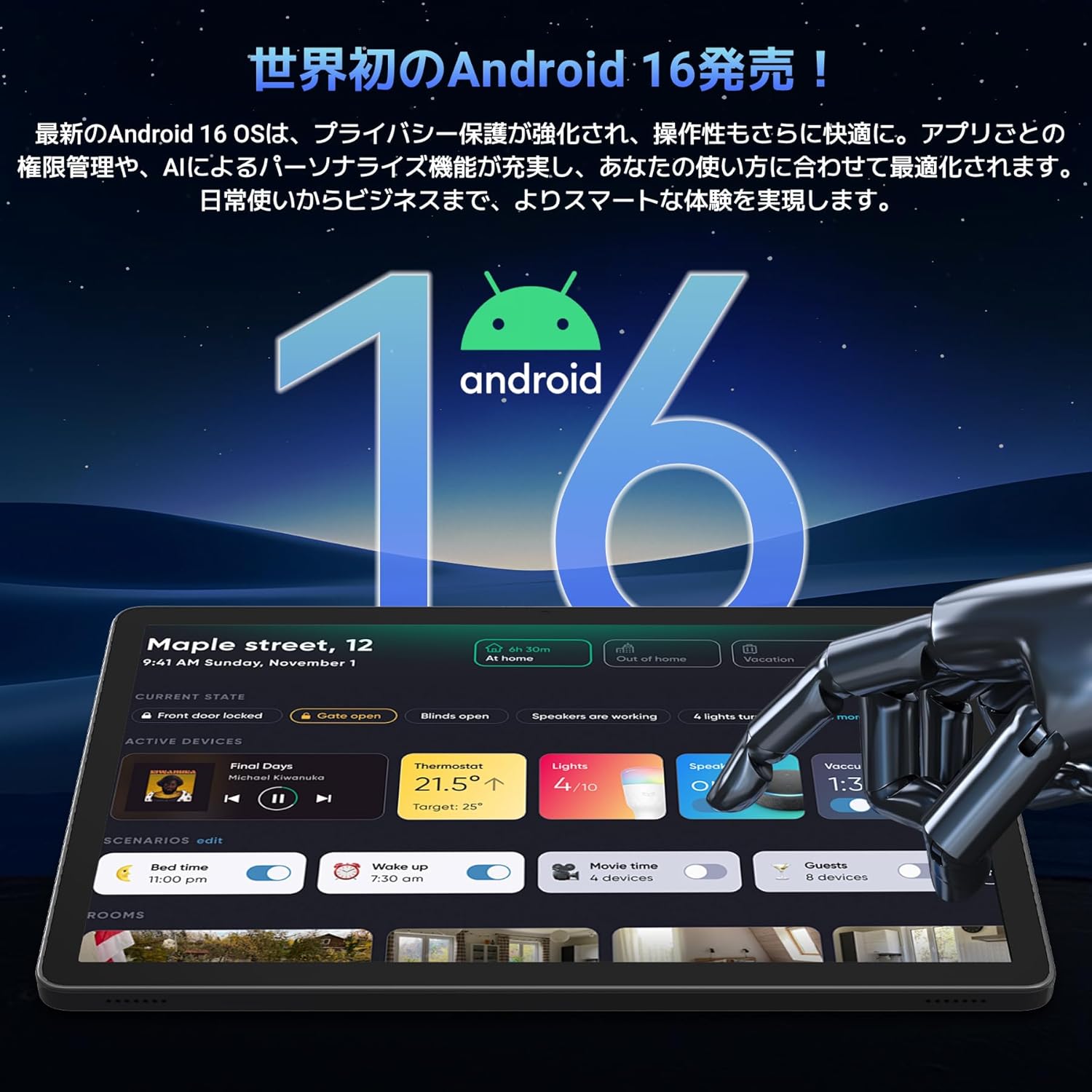
Image: A visual representation of the Android 16 operating system logo and its modern interface displayed on the Tabwee T90 tablet, emphasizing its new features and design.
4.2 Display and Media Playback
The 11-inch FHD IPS display (1920x1200 resolution) provides clear and vibrant visuals. With Widevine L1 support, you can stream high-definition content (1080p and above) from services like Netflix and Amazon Prime Video.

Image: The Tabwee T90 tablet showcasing a high-definition video of a baseball game, demonstrating its 11-inch FHD display and compatibility with streaming platforms like Netflix, YouTube, HBO, and Prime Video via Widevine L1.
4.3 Cámara e imaxes
The tablet features a 5MP front camera for video calls and selfies, and a 13MP rear camera for capturing photos. Android 16's AI image processing enhances photo quality, and HEVC video encoding ensures stable editing and improved video quality. Google Lens integration allows for smart recognition, scanning, translation, and search functions.
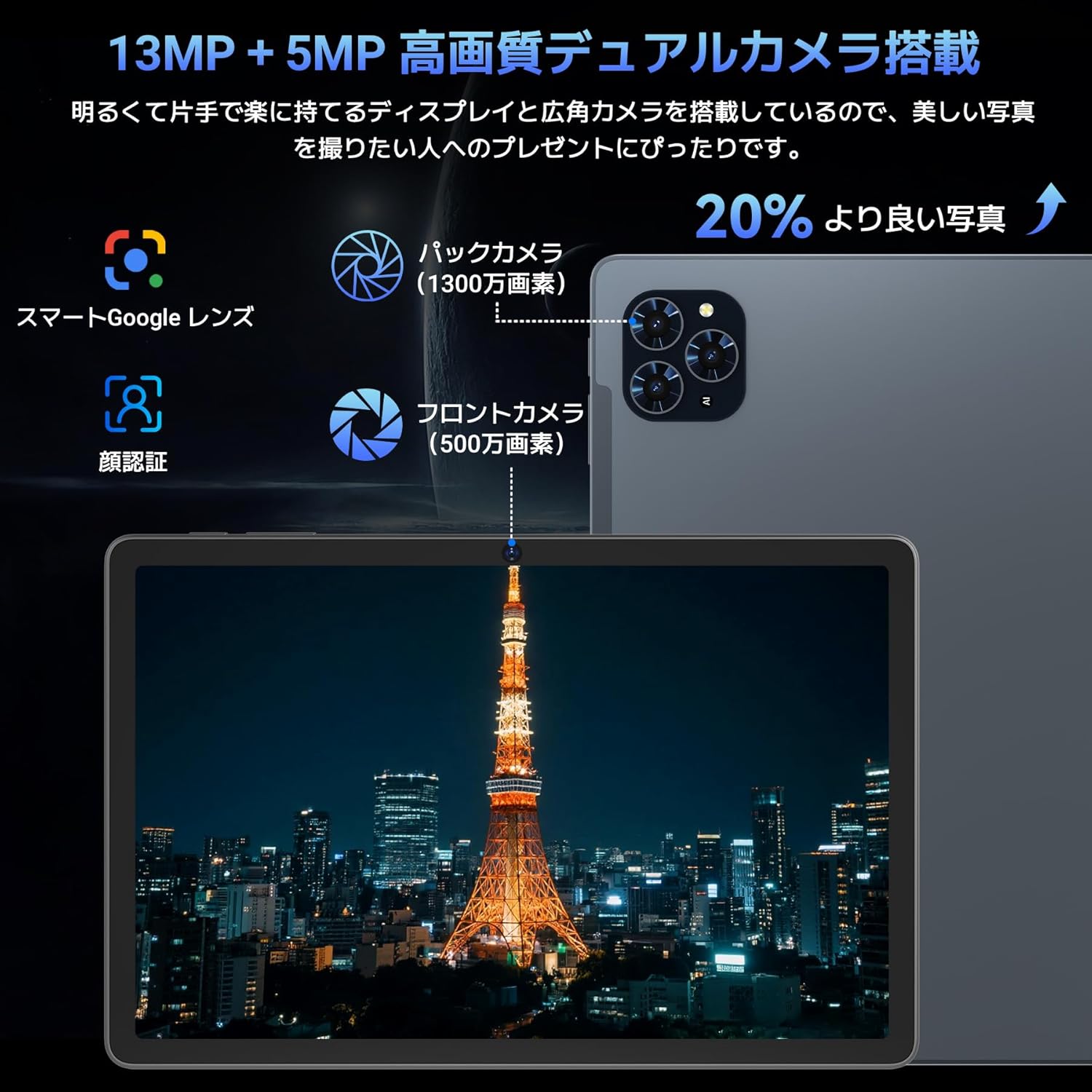
Imaxe: Unha detallada view of the Tabwee T90 tablet's camera system, indicating a 13MP rear camera and a 5MP front camera. An example photo of Tokyo Tower is displayed on the screen, illustrating image capture capabilities.
4.4 Recoñecemento facial
Utilize the face recognition feature for quick and secure unlocking of your tablet. Set it up in Settings > Security & privacy > Face unlock.
4.5 Gemini AI Integration
The tablet integrates with Gemini AI, optimizing performance across various scenarios. This AI assists with content recommendations, image processing, and semantic understanding, enhancing daily operations.

Image: A conceptual image depicting Gemini AI as a robotic figure interacting with multiple tablet screens, symbolizing its ability to support various tasks like email composition, schedule management, and information retrieval, enhancing user productivity.
4.6 Custom Keyboard Shortcuts
After connecting a Bluetooth keyboard, you can set custom shortcut keys to launch frequently used applications with a single press. Navigate to Settings > System > Keyboard > Keyboard shortcuts to configure.
5. Mantemento
5.1 Limpeza
- Usa un pano suave e sen fiapos para limpar a pantalla e o corpo da tableta.
- Evite o uso de produtos químicos agresivos ou materiais abrasivos.
- Para manchas difíciles, lixeiramente dampEnxágüe o pano con auga ou cun limpador de pantallas deseñado para dispositivos electrónicos.
5.2 Coidado coa batería
- Evite expoñer a tableta a temperaturas extremas.
- Non permitas que a batería se descargue completamente con frecuencia.
- Empregue só o cargador fornecido ou un cargador compatible certificado.
5.3 Actualizacións de software
Comproba e instala regularmente actualizacións do sistema para garantir un rendemento e unha seguridade óptimos. Vai a Configuración > Sistema > Actualización do sistema.
6 Solución de problemas
A tableta 6.1 non se acende
- Asegúrate de que a tableta estea suficientemente cargada. Conéctaa ao cargador durante polo menos 30 minutos.
- Manteña premido o botón de acendido durante 10-15 segundos para realizar un reinicio forzado.
6.2 Problemas de conexión Wi-Fi
- Reinicia o teu enrutador Wi-Fi e a tableta.
- Esquécete da rede na configuración da tableta e volve conectar.
- Asegúrate de estar dentro do alcance do sinal Wi-Fi.
6.3 Accessories Not Connecting
- Ensure Bluetooth is enabled on the tablet.
- Check that the accessory is in pairing mode and has sufficient battery.
- Try restarting both the tablet and the accessory.
6.4 Rendemento lento
- Pecha as aplicacións en segundo plano innecesarias.
- Borrar a caché das aplicacións de uso frecuente (Configuración > Aplicacións > [Nome da aplicación] > Almacenamento e caché > Borrar a caché).
- Asegúrate de que haxa espazo de almacenamento suficiente dispoñible.
- Reinicie a tableta periodicamente.
7. Especificacións
| Característica | Detalle |
|---|---|
| Marca | TABWEE |
| Nome do modelo | T90 |
| Sistema Operativo | Android 16 |
| CPU | Unisoc T615 Octa-core (2x Cortex-A75 @ 2.0GHz, 6x Cortex-A55 @ 1.8GHz) |
| GPU | Mali-G57 |
| RAM | 8 GB (ampliable a 24 GB con RAM virtual) |
| Almacenamento interno | 128 GB |
| Almacenamento ampliable | Up to 2TB via microSD card (not included) |
| Tamaño da pantalla | 11 polgadas |
| Tipo de visualización | Pantalla IPS FHD |
| Resolución | 1920 x 1200 píxeles |
| Cámara frontal | 5 MP |
| Cámara traseira | 13 MP |
| Capacidade da batería | 8000 mAh |
| Porto de carga | Tipo-C |
| Conectividade | Wi-Fi (2.4G/5G, 802.11ac), Bluetooth 5.0 |
| Peso | 1.37 kg (aprox. 3.02 lbs) |
| Dimensións | 29.1 x 20 x 5.7 cm (embalaxe) |
| Certificacións | PSE, GITEKI, GMS |

Image: A detailed diagram illustrating the Unisoc T615 Octa-core CPU, highlighting its architecture with Cortex-A75 and Cortex-A55 cores, Mali-G52 MP1 GPU, and 12nm low power consumption, indicating its high performance.

Image: The Tabwee T90 tablet's screen showing multiple applications, emphasizing its 128GB internal storage and support for up to 2TB external storage, with examples of how many photos, songs, and videos can be stored.
8. Garantía e soporte
The Tabwee T90 Tablet comes with a 2 ano de garantía. This warranty covers manufacturing defects and ensures product quality.
8.1 Contactar con Soporte
If you encounter any issues or have questions, please contact customer support through your Amazon account:
- Go to your Amazon account > Order History > Select the relevant order.
- Click on the seller's name (TABWEE Official Store).
- Use the "Ask a question" option to send an email.
Support is available from 9:00 AM to 6:00 PM (excluding holidays). Inquiries will be responded to as quickly as possible.

Image: An illustration representing customer support, featuring a person wearing a headset and working on a laptop, symbolizing assistance for product inquiries and warranty claims.


