1. Introdución
This user manual provides detailed instructions for the Bemi Cognita Tab 6+ E-Reader. Please read this manual carefully before using your device to ensure proper operation and to maximize your reading experience. Keep this manual for future reference.
1.1 Contido do paquete
- Bemi Cognita Tab 6+ E-Reader
- Cable de carga USB
Ensure all items are present and in good condition upon unboxing.
2. Dispositivo rematadoview
Familiarize yourself with the physical components of your Bemi Cognita Tab 6+ E-Reader.

Figura 2.1: Fronte view of the Bemi Cognita Tab 6+ E-Reader. The device features a 6-inch E-Ink display with the Bemi logo and model name visible. The screen is designed to mimic paper for a comfortable reading experience.

Figura 2.2: Fronte e traseiro view of the Bemi Cognita Tab 6+ E-Reader. This image highlights the device's thin design and the textured back cover, which provides a secure grip.

Figura 2.3: Lado view of the Bemi Cognita Tab 6+ E-Reader, illustrating the location of the power button and a small LED indicator. This button is used for turning the device on/off and waking it from sleep.
2.1 Compoñentes clave:
- 6-inch E-Ink Touchscreen: Glare-free display for comfortable reading.
- Botón de encendido: Located on the side for turning the device on/off and sleep/wake.
- Porto USB-C: Para carga e transferencia de datos.
- Ranura para tarxetas MicroSD: Expandable storage up to 256GB.
- Side Control Buttons: For page turning and navigation.
- SMARTlight: Adjustable front light for reading in various conditions.
3. Configuración
3.1 Carga inicial
Before first use, fully charge your Bemi Cognita Tab 6+ E-Reader. Connect the provided USB cable to the device's USB-C port and the other end to a compatible USB power adapter (not included) or a computer's USB port.
- Unha carga completa adoita tardar aproximadamente de 2 a 3 horas.
- O indicador luminoso de carga mostrará o estado da carga.
3.2 Acendido/Apagado
- Para acender: Press and hold the Power button (refer to Figure 2.3) for a few seconds until the screen activates.
- Para apagar: Press and hold the Power button until a power-off menu appears, then select "Power Off".
- Para durmir/espertar: Briefly press the Power button to put the device into sleep mode or wake it up.
3.3 Conexión Wi-Fi
Connecting to Wi-Fi allows you to download books, transfer files, and access online services.
- From the home screen, tap the Configuración icona.
- Seleccione Wi-Fi.
- Activa o interruptor Wi-Fi para On.
- The device will scan for available networks. Select your desired network from the list.
- Introduza o contrasinal se lle solicita e logo toque Conectar.
3.4 Configuración inicial
Upon first power-on, you may be guided through initial setup steps, including language selection and time zone settings. Follow the on-screen prompts.
4. Instrucións de funcionamento
4.1 Navegando pola interface
The Bemi Cognita Tab 6+ features a touch-sensitive E-Ink screen and physical side buttons for navigation.
- Xestos táctiles: Tap to select, swipe to scroll, pinch to zoom (where supported).
- Botóns laterais: Use the physical buttons on the side to turn pages forward or backward during reading.
- Sensor G: The device automatically rotates the screen orientation based on how you hold it, accommodating both right and left-handed users.
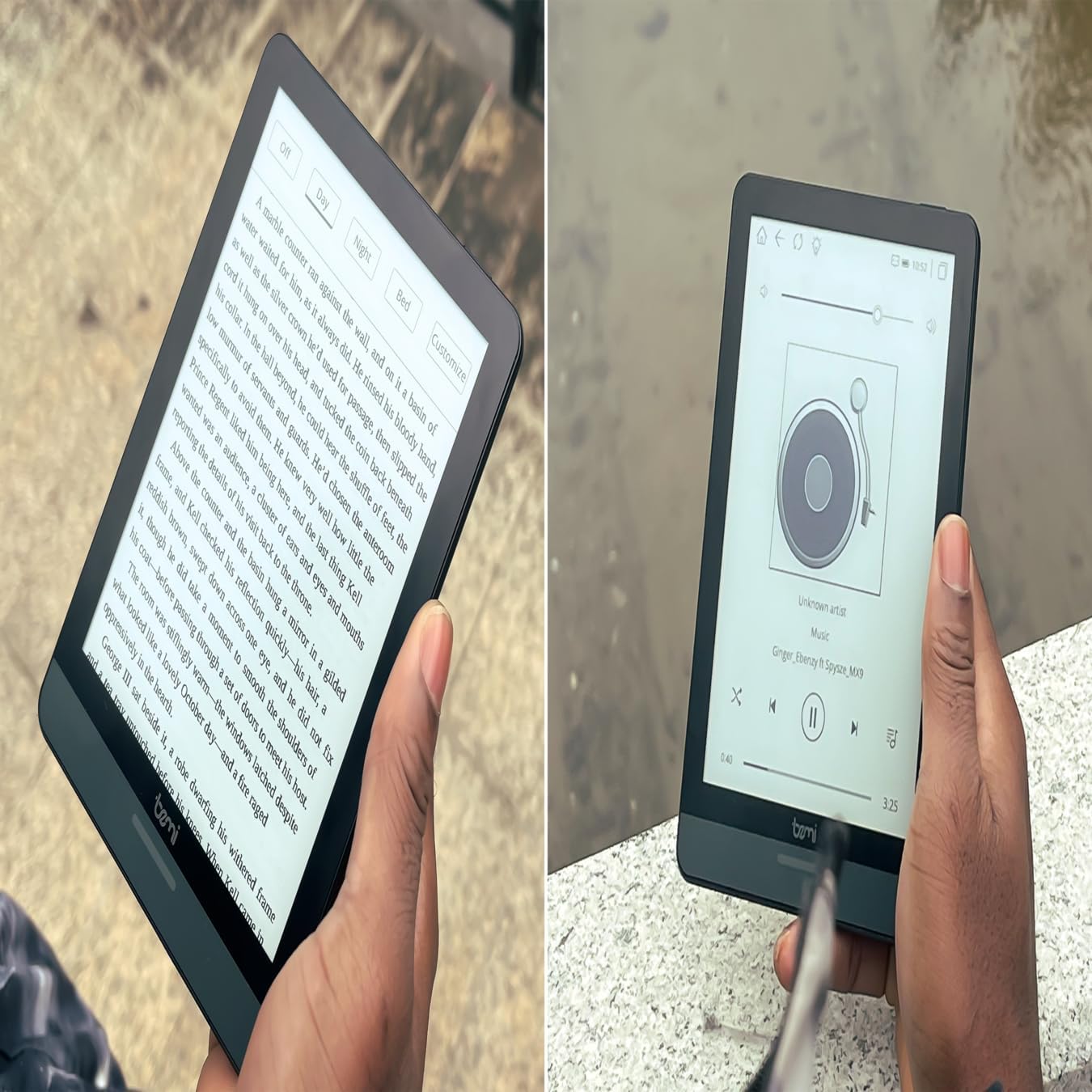
Figura 4.1: User holding the Bemi Cognita Tab 6+ E-Reader while reading. The image shows the clear text display on the E-Ink screen, highlighting the device's readability.
4.2 Reading Books
To open and read a book:
- From the home screen, tap on the Biblioteca or Libros icona.
- Browse your collection or use the search function to find a book.
- Tap on the book cover to open it.
- Use the touch screen or side buttons to turn pages.
4.3 Adjusting SMARTlight
The SMARTlight feature allows you to adjust both the brightness and color temperature of the screen's front light.
- During reading, tap the center of the screen to bring up the reading menu.
- Busca o Luz or SMARTlight icona.
- Adjust the sliders for brightness (intensity) and color temperature (warm to cool) to your preference.
4.4 Transferencia Files
You can transfer e-books and other supported files to your device via Wi-Fi or USB cable.
- Vía wifi: If your device supports cloud services or direct Wi-Fi transfer, follow the specific application instructions.
- Por cable USB:
- Connect your E-Reader to a computer using the provided USB cable.
- The device will appear as a removable storage drive on your computer.
- Arrastra e solta o que queiras files (e.g., EPUB, PDF, MOBI) into the appropriate folders on the E-Reader (e.g., "Books" folder).
- Expulsa o dispositivo do ordenador de forma segura antes de desconectar o cable.
4.5 Using MicroSD Card
To expand storage, insert a microSD card (up to 256GB) into the designated slot.
- Gently insert the microSD card with the gold contacts facing down until it clicks into place.
- Para retirala, empurre a tarxeta con coidado cara a dentro ata que salte.
- Files on the microSD card will be accessible through the device's file manager or library.
5. Mantemento
5.1 Limpeza do dispositivo
- Use a soft, lint-free cloth to gently wipe the screen and body of the device.
- Para manchas difíciles, lixeiramente dampEnxágüe o pano con auga ou cun limpador de pantallas deseñado especificamente para dispositivos electrónicos.
- Evita o uso de produtos químicos agresivos, materiais abrasivos ou humidade excesiva.
5.2 Coidado coa batería
- Para prolongar a duración da batería, evite descargala completamente con frecuencia.
- Garde o dispositivo nun lugar fresco e seco cando non o use durante períodos prolongados.
- Charge the device regularly, even if not used, to prevent deep discharge.
5.3 Almacenamento
When not in use, store your E-Reader in a protective case to prevent scratches and damage to the screen.
6 Solución de problemas
If you encounter issues with your Bemi Cognita Tab 6+, refer to the following common solutions:
| Problema | Solución |
|---|---|
| O dispositivo non se acende. | Ensure the battery is charged. Connect the device to a power source for at least 30 minutes. If it still doesn't turn on, try a hard reset by holding the power button for 10-15 seconds. |
| Screen is frozen or unresponsive. | Perform a soft reset by holding the power button for 5-7 seconds until the device restarts. If the issue persists, try a hard reset. |
| Non se pode conectar á wifi. | Check if Wi-Fi is enabled in settings. Verify the Wi-Fi password. Restart your E-Reader and your Wi-Fi router. Ensure you are within range of the Wi-Fi signal. |
| Books are not appearing in the library. | Asegurar o files are in a supported format (e.g., EPUB, PDF). If transferred via USB, ensure they are in the correct folder. Try refreshing the library or restarting the device. |
| A batería esgotarase rapidamente. | Reduce screen brightness. Turn off Wi-Fi and Bluetooth when not in use. Close background applications. Ensure the device is not constantly searching for networks. |
7. Especificacións
| Característica | Detalle |
|---|---|
| Nome do modelo | Bemi Cognita Tab 6+ |
| Tamaño da pantalla | 6 Inches (E-Ink Carta, 1024x758, 212 ppi) |
| Memoria interna | 32 GB |
| Almacenamento ampliable | MicroSD card slot, up to 256 GB |
| Conectividade | Wi-Fi, Bluetooth |
| Sistema Operativo | Android 8.1 |
| Entrada da interface humana | Touchscreen, Side Control Buttons |
| Características especiais | Adjustable SMARTlight, G-Sensor for auto-rotation, Glare-Free & Eye-Friendly E-Ink Display |
| Dimensións (aprox.) | 7 mm de espesor |
| Compoñentes incluídos | Cable USB |
8. Garantía e soporte
8.1 Información da garantía
Your Bemi Cognita Tab 6+ E-Reader comes with a standard manufacturer's warranty. Please refer to the warranty card included in your product packaging or visit the official Bemi websitio web para obter termos e condicións detallados relativos á cobertura e duración da garantía.
Pode haber plans de protección opcionais dispoñibles para unha cobertura ampliada. Consulta co teu vendedor para obter máis detalles.
8.2 Atención ao cliente
For technical assistance, troubleshooting beyond this manual, or warranty claims, please contact Bemi customer support:
- Websitio: www.bemi-electronics.com
- Correo electrónico: Refer to the Bemi websitio para correo electrónico de contacto.
- Teléfono: Refer to the Bemi websitio web con números de teléfono de contacto.
When contacting support, please have your device model (Cognita Tab 6+) and purchase information ready.


