1. Introdución
This manual provides essential information for setting up, operating, maintaining, and troubleshooting your HP Omen 45L GT22 Gaming Desktop. Please read this manual thoroughly before using your new system to ensure proper functionality and longevity.
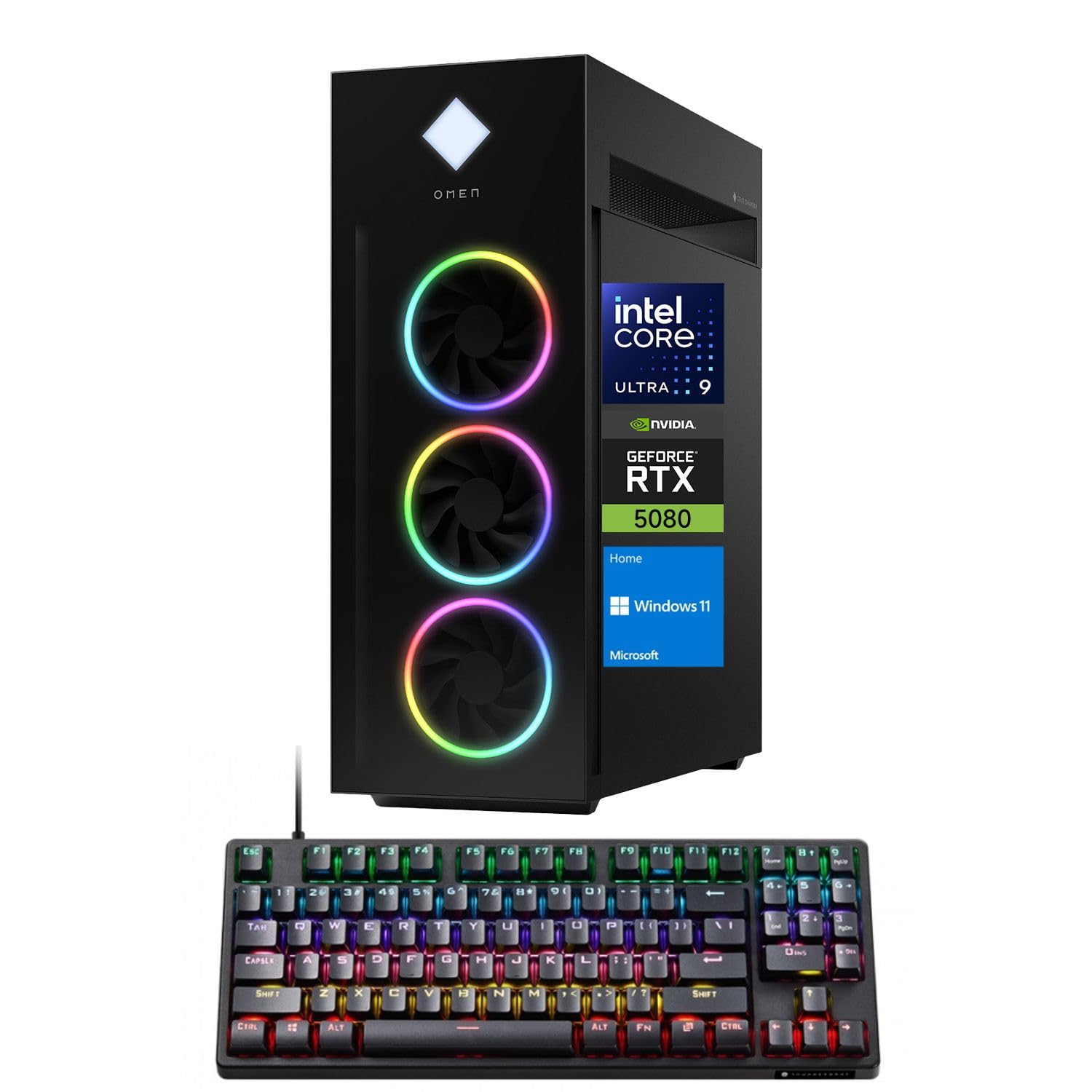
Figure 1: HP Omen 45L GT22 Gaming Desktop. This image displays the front and side of the desktop tower, highlighting its design and RGB lighting elements.
2. Que hai na caixa
Comprobe que todos os compoñentes estean presentes na embalaxe:
- HP Gaming Tower Desktop
- Teclado para xogos Thunderobot KG3089R
- Cable de alimentación
- Documentación (este manual, información sobre a garantía)
3. Guía de configuración
3.1 Desembalaxe e colocación
- Retire con coidado o escritorio e todos os accesorios da embalaxe.
- Place the desktop on a stable, flat surface with adequate ventilation around all sides. Avoid placing it in enclosed spaces or near heat sources.
3.2 Conexión de periféricos
Connect your monitor, keyboard, mouse, and other devices to the appropriate ports on the desktop.

Figure 2: Rear Ports of the HP Omen 45L GT22. This image illustrates the various input/output ports available on the back of the desktop, including USB, HDMI, DisplayPort, and Ethernet.
- Monitor: Connect your monitor using an HDMI or DisplayPort cable to the dedicated graphics card ports.
- Teclado e rato: Connect the Thunderobot KG3089R Gaming Keyboard and your mouse to any available USB Type-A ports.
- Rede: For a wired connection, connect an Ethernet cable to the RJ-45 port. For wireless, ensure Wi-Fi antennas are connected (if external) or that the internal Wi-Fi is enabled during software setup.
- Potencia: Connect the power cable to the desktop's power supply port and then to a power outlet.
3.3 Initial Power-On and Operating System Setup
- Prema o botón de acendido na parte frontal do escritorio.
- Follow the on-screen instructions to complete the Windows 11 Home operating system setup. This includes setting up your user account, network connection, and privacy settings.
- Once Windows is set up, ensure all drivers are installed and updated. You can typically find driver updates through Windows Update or the HP support websitio.
4. Instrucións de funcionamento
4.1 Xestión de enerxía
- Encendido: Prema o botón de acendido na parte frontal do escritorio.
- Apagar: Fai clic no botón Inicio en Windows e, a seguir, en Acendido/Apagar > Apagar.
- Reiniciar: Click the Start button in Windows, then Power > Restart.
- Durmir: Click the Start button in Windows, then Power > Sleep.
4.2 Understanding Your System Components
Your HP Omen 45L GT22 is equipped with high-performance components for demanding tasks and gaming.

Figure 3: Intel Core Ultra 9 285K Processor. This image highlights the specifications of the Intel Core Ultra 9 285K CPU, including its cache, cores, and threads.
- Procesador: Intel Core Ultra 9 285K (24 Cores, 24 Threads, 36MB L3 Cache, up to 5.70GHz). This powerful CPU handles complex computations and multitasking.
- Tarxeta gráfica: NVIDIA GeForce RTX 5080 (16GB GDDR7). This dedicated GPU is responsible for rendering high-fidelity graphics for gaming and creative applications.
- Memoria: 32GB DDR5 RAM. High-speed memory ensures smooth operation when running multiple applications simultaneously.
- Almacenamento: 2TB PCIe NVMe M.2 SSD. Provides fast boot times and rapid data access for your operating system and applications.
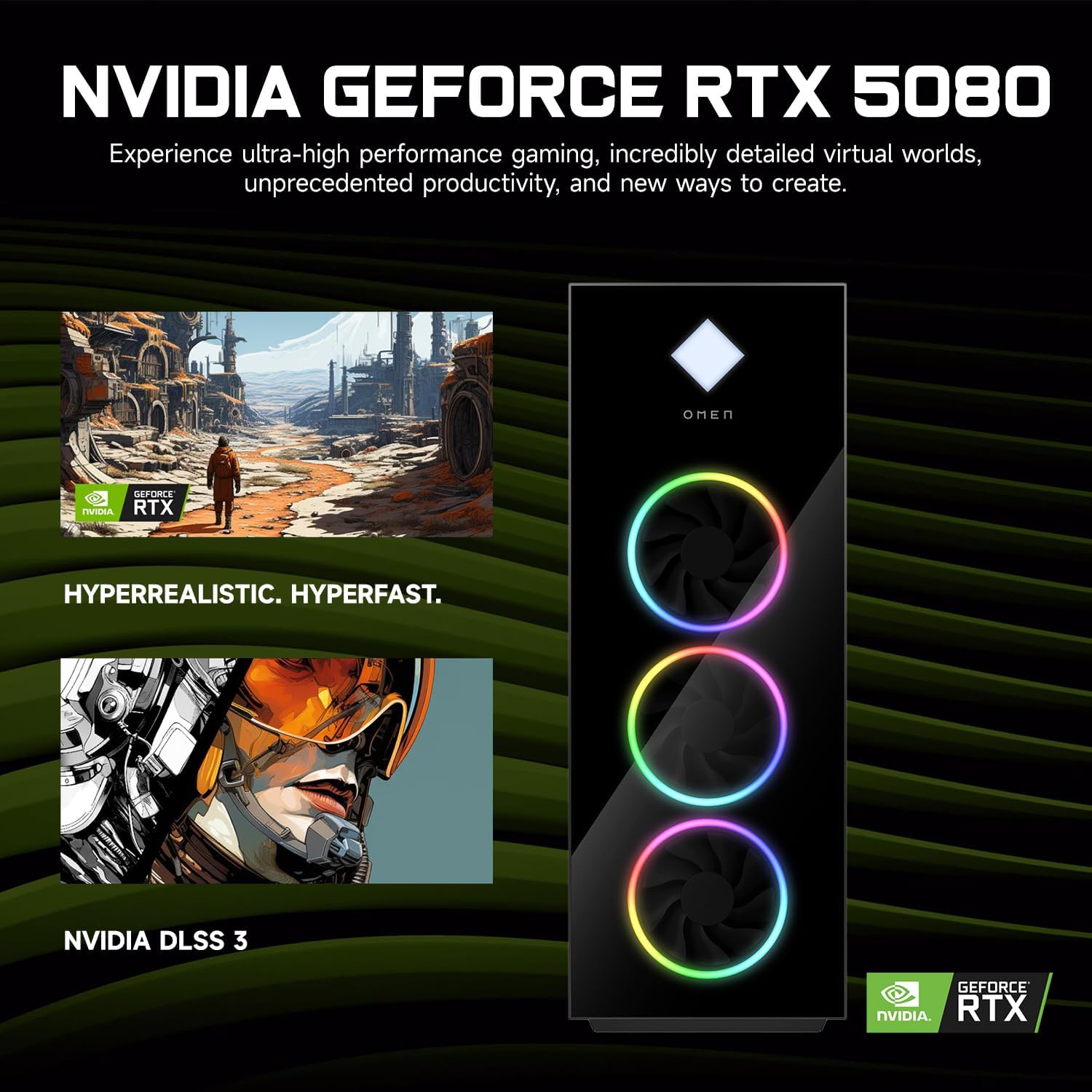
Figure 4: NVIDIA GeForce RTX 5080 Graphics. This image details the capabilities of the NVIDIA GeForce RTX 5080, emphasizing its performance for gaming and content creation.
4.3 RGB Light Studio
The HP Omen 45L GT22 features customizable RGB lighting. Use the pre-installed Omen Gaming Hub software to personalize the lighting effects on your desktop's fans and chassis. Refer to the Omen Gaming Hub's in-app help for detailed instructions on customization options.

Figure 5: Gaming Setup with HP Omen 45L GT22. This image shows the desktop integrated into a complete gaming station, including a monitor, keyboard, and mouse, demonstrating its aesthetic appeal.
5. Mantemento
5.1 Limpeza do escritorio
- Exterior: Use a soft, lint-free cloth to wipe down the exterior surfaces. For stubborn marks, slightly dampEnxágüe o pano con auga. Evite produtos químicos agresivos.
- Ventilación: Regularly check and clean the ventilation grilles and fan openings to prevent dust buildup, which can impede airflow and cause overheating. Use compressed air to gently clear dust from vents. Ensure the system is powered off and unplugged before cleaning.
5.2 Actualizacións de software
Manteña o sistema operativo e os controladores actualizados para garantir un rendemento e unha seguridade óptimos.
- Actualizacións de Windows: Regularly check for and install updates via Windows Settings > Update & Security > Windows Update.
- Actualizacións de controladores: Update graphics drivers (NVIDIA GeForce Experience) and other system drivers (HP Support Assistant or HP website) periodically.
5.3 Copia de seguranza de datos
Fai copias de seguridade dos teus datos importantes con regularidade nun disco duro externo ou nun almacenamento na nube para evitar a perda de datos.
6 Solución de problemas
This section addresses common issues you might encounter. For more complex problems, contact HP Support.
- Sen enerxía:
- Ensure the power cable is securely connected to both the desktop and the power outlet.
- Verifica que a toma de corrente funcione conectando outro dispositivo.
- Check the power supply unit (PSU) switch on the back of the desktop (if present) is in the 'ON' position.
- Sen visualización no monitor:
- Confirm the monitor is powered on and connected to the graphics card's HDMI or DisplayPort output, not the motherboard's integrated graphics ports (if applicable).
- Try a different cable or monitor if available.
- Asegúrate de que estea seleccionada a fonte de entrada correcta no monitor.
- System is Slow or Unresponsive:
- Pecha as aplicacións innecesarias que se executan en segundo plano.
- Check Task Manager (Ctrl+Shift+Esc) for high CPU, RAM, or disk usage.
- Asegúrate de que Windows e os controladores estean actualizados.
- Executar unha análise de virus/malware.
- Problemas de conectividade de rede:
- For wired connections, ensure the Ethernet cable is properly connected and the router/modem is working.
- For Wi-Fi, check if Wi-Fi is enabled in Windows settings and ensure you are connected to the correct network with the right password.
- Restart your router/modem and the desktop.
7. Especificacións
| Característica | Detalle |
|---|---|
| Número de modelo | GT22 |
| Procesador | Intel Core Ultra 9 285K (24 Cores, 24 Threads, 36MB L3 Cache, 3.20GHz base, up to 5.70GHz max turbo) |
| Gráficos | NVIDIA GeForce RTX 5080 (16 GB GDDR7) |
| RAM | 32 GB de DDR5 (4800 MHz) |
| Almacenamento | Unidade de estado sólido (SSD) M.2 NVMe PCIe de 2 TB |
| Sistema Operativo | Windows 11 Home |
| Conectividade sen fíos | Wi-Fi 6 (802.11ax), Bluetooth |
| Portos (frontais) | 2 x USB Type-A 5Gbps (HP Sleep and Charge), 2 x USB 2.0 Type-A, 1 x headphone/microphone combo, 1 x microphone |
| Portos (traseiros) | 1 x USB Type-C 10Gbps, 2 x USB Type-A 5Gbps, 4 x USB 2.0 Type-A, 1 x 3.5 mm audio jack, 1 x RJ-45, 1 x Thunderbolt 4 with USB Type-C 40Gbps, 1 x HDMI, 3 x DisplayPort, 5 x Audio Port |
| Dimensións (LxWxH) | 21.85 x 18.5 x 8.03 polgadas |
| Peso | 49.8 libras |
| Cor | Negro |
8. Garantía e soporte
For warranty information, please refer to the documentation included with your product or visit the official HP support website. HP provides various support resources, including drivers, manuals, and troubleshooting guides.
Soporte HP Websitio: support.hp.com
When contacting support, please have your product model number (GT22) and serial number ready.