1. Introdución
This manual provides instructions for the Inateck BCST-72 2D Barcode Scanner. The BCST-72 is a high-performance scanning device designed for efficient and accurate recognition of various 1D and 2D barcodes. It features advanced scanning technology, comprehensive barcode support, and multiple connection options, making it suitable for diverse environments such as retail, warehousing, and libraries.
The scanner is built with durability in mind, featuring a reinforced TPU protective case and a long-lasting battery for extended operation.
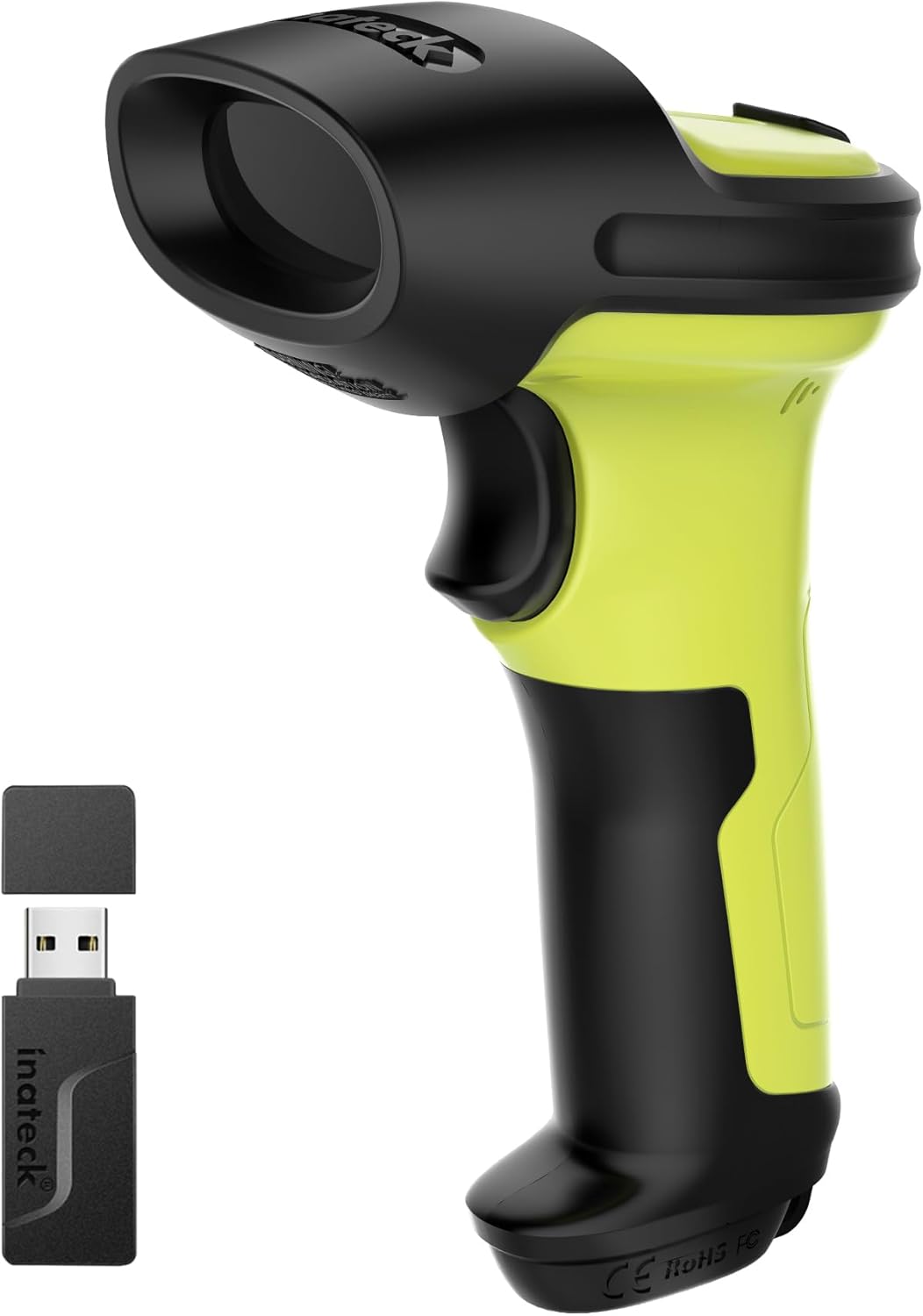
Image 1.1: The Inateck BCST-72 2D Barcode Scanner, shown with its accompanying USB wireless dongle. The scanner features a green and black ergonomic design.
2. Configuración
2.1 Contido do paquete
Verifique que os seguintes elementos estean incluídos no seu paquete:
- Inateck BCST-72 2D Barcode Scanner
- Dongle sen fíos USB
- Cable de datos/carga USB
- Adjustable Stand (optional, if purchased with stand)
- Guía de inicio rápido
2.2 Carga do escáner
Before first use, fully charge the scanner. Connect the USB charging cable to the scanner's charging port and the other end to a USB power adapter (not included) or a computer's USB port. The charging indicator light will show the charging status.
2.3 Métodos de conexión
The BCST-72 scanner supports three connection modes:
- Modo sen fíos 2.4G: Insert the USB wireless dongle into an available USB port on your computer. The scanner will automatically pair with the dongle.
- Modo Bluetooth: Turn on the scanner and activate Bluetooth on your host device (computer, tablet, smartphone). Busca available Bluetooth devices and select 'Inateck BCST-72' to pair.
- Modo con cable USB: Conecta o escáner directamente ao teu ordenador usando o cable USB fornecido. O escáner funcionará como un dispositivo plug-and-play.

Image 2.1: Visual representation of the three connection methods for the Inateck BCST-72 scanner: 2.4G Wireless via USB dongle, Bluetooth pairing with a mobile device, and USB wired connection to a laptop.
2.4 Montaxe do soporte (se corresponde)
If your package includes an adjustable stand, follow these steps for tool-free installation:
- Place the base of the stand on a flat surface.
- Insert the flexible gooseneck arm into the designated slot on the base.
- Secure the arm by tightening the butterfly nut from underneath the base.
- Attach the scanner holder to the top of the gooseneck arm.

Imaxe 2.2: Primeiro plano view demonstrating the tool-free installation of the scanner stand, showing a hand tightening a butterfly nut to secure the stand components.
3. En funcionamento
3.1 Escaneado básico
Para escanear un código de barras:
- Ensure the scanner is powered on and connected to your host device.
- Apunte a xanela do escáner cara ao código de barras que desexa escanear.
- Press the trigger button. A successful scan will typically be indicated by an audible beep and/or a visual indicator (e.g., LED flash).
3.2 Barcode Symbology Support
The Inateck BCST-72 is equipped with a 300,000-pixel 2D scanning module capable of recognizing a wide range of 1D and 2D barcodes, even if they are damaged, wrinkled, or distorted, and in various lighting conditions.
Supported barcode types include, but are not limited to:
- Códigos de barras 1D: Code 128, EAN-13, UPC-A, Code 39, Code 93, Interleaved 2 of 5, Industrial 2 of 5, Matrix 2 of 5, Code 11, MSI, etc.
- Códigos de barras 2D: QR Code, PDF-417, Data Matrix, Aztec Code, Maxicode, etc.

Image 3.1: An illustration highlighting the 'Super Decoding Ability' of the Inateck BCST-72, showing various 1D and 2D barcodes successfully scanned, including damaged or partially obscured examples.
3.3 Duración e xestión da batería
The scanner is powered by a 2600mAh battery, providing extended operational time. With advanced low-power algorithms, it offers up to 180 days of standby time and approximately 180,000 scans on a single charge. The battery status can typically be monitored via the host device or an indicator on the scanner itself.

Imaxe 3.2: Un corte view of the Inateck BCST-72 scanner, illustrating its internal battery and highlighting its impressive battery life: 144 hours of non-stop scanning, a 2600mAh large-capacity battery, and 180 days of standby time.
4. Mantemento
4.1 Limpeza
To ensure optimal performance, keep the scanner's scanning window clean. Use a soft, lint-free cloth, slightly dampened with water or a mild, non-abrasive cleaning solution. Avoid using harsh chemicals or abrasive materials that could scratch the window.
4.2 Almacenamento
Store the scanner in a cool, dry place away from direct sunlight and extreme temperatures. When not in use for extended periods, ensure the battery is partially charged (around 50%) to prolong its lifespan.
4.3 Características de durabilidade
The Inateck BCST-72 is designed for durability. It features a reinforced TPU protective case and internal triple consolidation treatment, allowing it to withstand repeated drops from 6ft (1.8m). The trigger button is constructed from a metal and plastic combined design, supporting millions of clicks for long-term reliability.

Imaxe 4.1: Primeiro plano view of the Inateck BCST-72's trigger button, emphasizing its 'Durable Button' feature with a metal and plastic combined design engineered for millions of clicks.
5 Solución de problemas
If you encounter issues with your Inateck BCST-72 scanner, refer to the following common problems and solutions:
- O escáner non se conecta:
- Ensure the scanner is powered on and fully charged.
- For 2.4G wireless, verify the USB dongle is securely plugged in.
- For Bluetooth, ensure Bluetooth is enabled on your host device and the scanner is in pairing mode. Try re-pairing.
- For USB wired, try a different USB port or cable.
- O escáner non le os códigos de barras:
- Comprobe se o código de barras está danado ou mal impreso.
- Asegúrate de que a xanela de dixitalización estea limpa e libre de obstrucións.
- Axusta a distancia e o ángulo entre o escáner e o código de barras.
- Verify that the barcode symbology is enabled in the scanner's settings (refer to the full user manual for programming barcodes).
- A batería non mantén a carga:
- Ensure the charging cable and power source are functional.
- Allow sufficient time for charging.
- Se o problema persiste, póñase en contacto co servizo de atención ao cliente.
6. Especificacións
| Característica | Descrición |
|---|---|
| Módulo de escaneo | 300,000-pixel 2D imaging |
| Códigos de barras compatibles | 1D: Code 128, EAN-13, UPC-A, Code 39, etc. 2D: QR Code, PDF-417, Data Matrix, Aztec Code, etc. |
| Conectividade | 2.4G Wireless, Bluetooth, USB Wired |
| Capacidade da batería | 2600 mAh |
| Tempo de espera | Ata 180 días |
| Scans per Charge | Up to 180,000 scans |
| Resistencia a caídas | 6 pés (1.8 m) |
| Material da vivenda | Reinforced TPU protective case, industrial-grade plastics |
6.1 Ergonomics and Stand Dimensions
The scanner is engineered for comfort and stability during prolonged use, featuring an ergonomic grip and balanced weight distribution.

Image 6.1: A hand holding the Inateck BCST-72 scanner, illustrating its ergonomic design for ultimate comfort, effortless grip, and unmatched stability with a slip-resistant backstrap.
The adjustable stand provides a stable fixture for the scanner. Key dimensions of the stand are:
- Holder Width: 7.41 cm (2.91 in)
- Holder Depth: 3.28 cm (1.29 in)
- Gooseneck Height (approx): 5.06 cm (1.99 in)

Image 6.2: A diagram showing the dimensions of the adjustable scanner stand, including the width and depth of the scanner holder and the approximate height of the flexible gooseneck arm.
7. Garantía e soporte
7.1 Información da garantía
Inateck products are covered by a limited warranty from the date of purchase. Please refer to the warranty card included with your product or visit the official Inateck websitio web para obter información detallada sobre os termos e condicións da garantía.
7.2 Atención ao cliente
For technical assistance, troubleshooting, or warranty claims, please contact Inateck customer support through their official website or the contact information provided in your product documentation. When contacting support, please have your product model (BCST-72) and purchase details ready.


