Introdución
This manual provides comprehensive instructions for the INPHIC Tri-Mode Wireless Mouse, Model B0FQCFSHPQ. It covers setup, operation, maintenance, and troubleshooting to ensure optimal performance and user experience. Please read this manual thoroughly before using the product.
Produto rematadoview
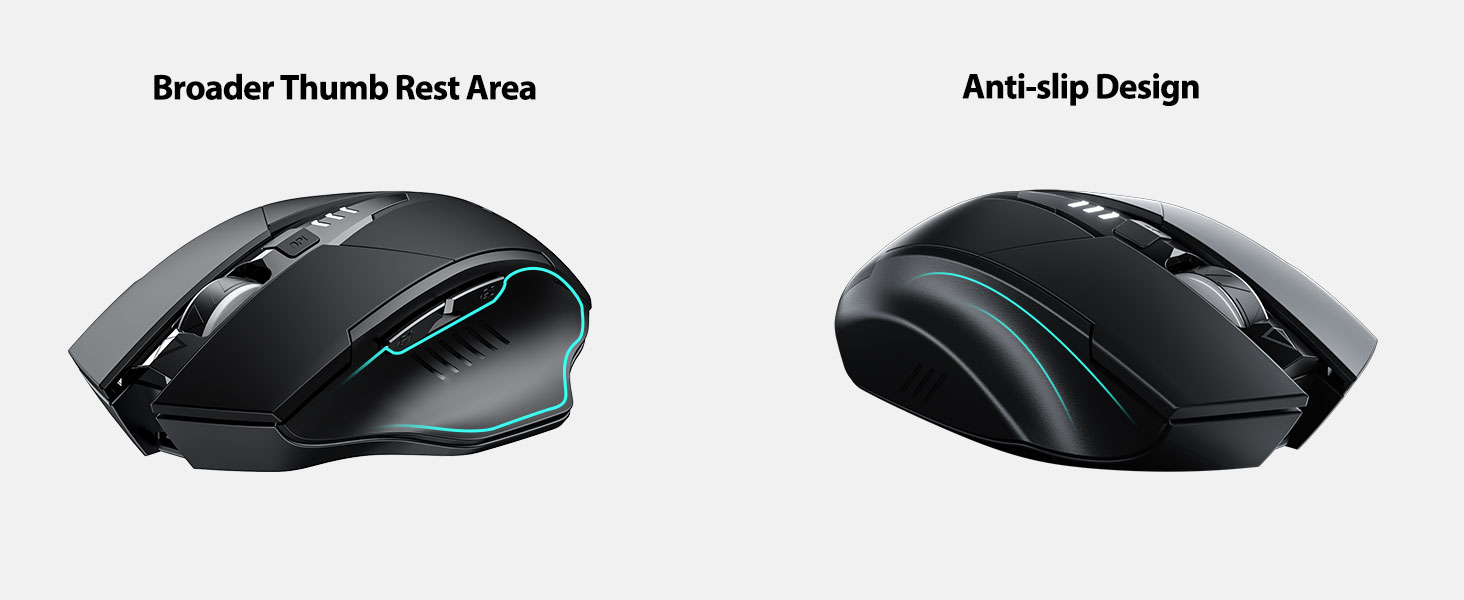
The INPHIC Tri-Mode Wireless Mouse offers versatile connectivity options (Bluetooth 5.0, Bluetooth 4.0, and 2.4G USB) and an ergonomic design for comfortable use. Key features include a visible battery indicator, silent click buttons, and adjustable DPI settings.
Contido do paquete
- INPHIC Tri-Mode Wireless Mouse
- Receptor USB (almacenado no rato)
- Cable de carga USB-C
- Manual de usuario (este documento)
Compoñentes do rato

- Botóns de clic esquerdo/dereito: Funcionamento silencioso.
- Roda de desprazamento: Para desprazamento vertical.
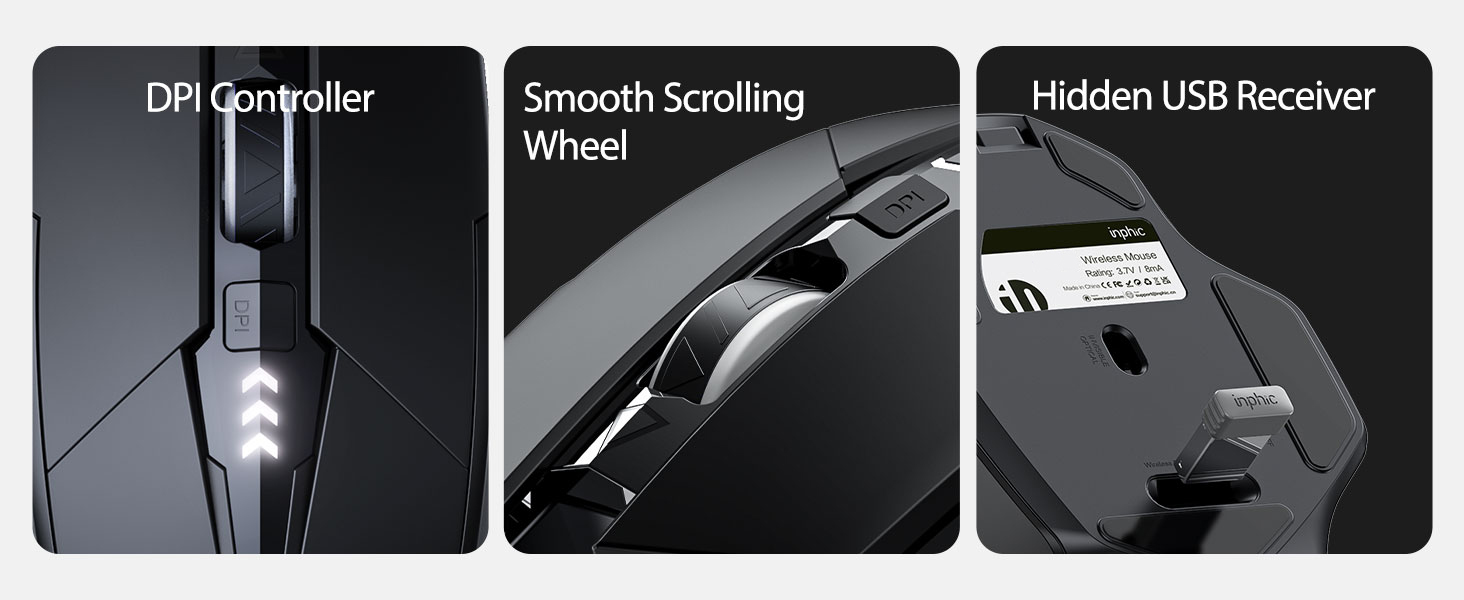
- Botón DPI: Adjusts cursor speed (800/1200/1600/2000/2400 DPI).
- Forward/Backward Buttons (Side): Para a navegación en web navegadores ou file exploradores.
- Indicador de batería: LED lights on top display remaining battery level.
- Connection Type Switch (Bottom): Toggles between 2.4G USB, Bluetooth 4.0, and Bluetooth 5.0 modes.
- Power Switch (Bottom): Interruptor ON / OFF.
- USB Receiver Slot (Bottom): Garda o receptor USB de 2.4 G.
- Charging Port (Front): Porto USB-C para recargar a batería interna.
Configuración
Carga inicial
Before first use, fully charge the mouse for approximately 1 hour. Connect the USB-C charging cable to the mouse's charging port and to a USB power source (e.g., computer USB port, USB wall adapter).

Conectando o rato
The mouse supports three connection modes: 2.4G USB, Bluetooth 4.0, and Bluetooth 5.0. Use the switch on the bottom of the mouse to select your desired mode.
Conexión USB 2.4G
- Locate the USB receiver stored in the slot on the bottom of the mouse.
- Conecte o receptor USB a un porto USB dispoñible no seu ordenador.
- Switch the connection mode on the bottom of the mouse to "2.4G".
- Turn on the mouse using the power switch. The mouse should connect automatically.
Bluetooth Connection (BT 4.0 / BT 5.0)
- Switch the connection mode on the bottom of the mouse to "BT 4.0" or "BT 5.0".
- Acende o rato usando o interruptor de acendido.
- On your device (laptop, tablet, etc.), open Bluetooth settings.
- Busca new Bluetooth devices. The mouse should appear as "INPHIC Mouse" or similar.
- Selecciona o rato para emparellalo.
- Unha vez emparellado, o rato está listo para usar.
Nota: Bluetooth 5.0 is compatible with Windows 8/10 (not Windows 7 or XP), Android, and Mac OS systems. iOS systems (iPad and iPhone) require iOS 14 or later for Bluetooth 5.0 compatibility.
Instrucións de funcionamento
Encendido/apagado
Use the ON/OFF switch located on the bottom of the mouse to power the device. To conserve battery, turn off the mouse when not in use for extended periods.
Cambio de modos de conexión
The mode switch button on the bottom of the mouse allows you to cycle between 2.4G USB, Bluetooth 4.0, and Bluetooth 5.0 connections. This enables seamless switching between multiple paired devices.

Axuste de DPI (velocidade do cursor)
Press the DPI button located on the top of the mouse, below the scroll wheel, to cycle through 5 adjustable DPI levels: 800, 1200, 1600, 2000, and 2400. This allows you to customize cursor sensitivity to your preference.

Indicador de batería
The mouse features a visible battery indicator on its top surface. LED lights illuminate to show the remaining battery power, providing a clear visual cue for when recharging is needed.

Modo de suspensión automática
To conserve power, the mouse will automatically enter sleep mode after 5 minutes of inactivity. To wake the mouse, simply click any button.
Mantemento
Limpeza
Wipe the mouse with a soft, dry cloth. For stubborn dirt, a slightly damp pódese usar un pano, garantindo que non entre humidade nos compoñentes internos. Evite produtos químicos agresivos ou produtos de limpeza abrasivos.
Coidado da batería
- Recharge the mouse when the battery indicator shows low power.
- Evite descargar completamente a batería con frecuencia para prolongar a súa vida útil.
- Garde o rato nun lugar fresco e seco cando non o use durante períodos prolongados.
Resolución de problemas
| Problema | Causa posible | Solución |
|---|---|---|
| O rato non responde |
|
|
| O movemento do cursor é errático ou lento |
|
|
| Problemas de conexión Bluetooth |
|
|
Especificacións
| Característica | Detalle |
|---|---|
| Modelo | B0FQCFSHPQ |
| Tecnoloxía de conectividade | Bluetooth 5.0 / Bluetooth 4.0 / 2.4G USB Wireless |
| Niveis de DPI | 800 / 1200 / 1600 / 2000 / 2400 (Adjustable) |
| Botóns | 6 (Esquerda, Dereita, Roda de desprazamento, DPI, Adiante, Atrás) |
| Tipo de batería | Rechargeable (400mAh built-in) |
| Porto de carga | USB-C |
| Distancia de operación | Ata 10 metros (33 pés) |
| Dimensións do produto | 4.7 x 3.1 x 0.04 polgadas |
| Peso do elemento | 3.36 onzas |
| Compatibilidade | Windows 7/8/10/XP, Vista, Mac OS. Bluetooth 5.0: Windows 8/10, Android, Mac OS, iOS 14+ (iPad/iPhone). 2.4G USB: Any USB-enabled device. |

Garantía e Soporte
INPHIC products are designed for reliability and performance. For warranty information and technical support, please refer to the official INPHIC websitio web ou póñase en contacto directamente co servizo de atención ao cliente.
- Fabricante: INPHIC
- Vendedor: YingFeiTe (on Amazon)
- Política de devolución: Refer to Amazon's current return policy.
- Contacto de soporte: Para obter axuda, visite o INPHIC Store on Amazon ou o oficial do fabricante websitio.
Información importante de seguridade
- Non expoñas o rato a temperaturas ou humidade extremas.
- Evite soltar ou someter o rato a fortes impactos.
- Do not attempt to disassemble or repair the mouse yourself. This may void the warranty.
- Manter fóra do alcance dos nenos.
Vídeo do produto
Descrición do vídeo: An official product video from INPHIC demonstrating the features and usage of the INPHIC Bluetooth Mouse. It shows the mouse being unboxed, its various components, connection methods, and ergonomic design in action.


