1. Rematadoview
The Waveshare Luckfox PicoKVM is a compact IP KVM remote management tool designed for efficient control of various devices such as personal computers, laptops, desktops, and servers. It offers seamless integration with 1920×1080@60fps HDMI input and HID output, featuring a 1.54-inch touch display for real-time status monitoring. Its hardware-independent architecture enhances security and reliability for remote operations.

Imaxe: Fronte view of the Luckfox PicoKVM device, showcasing its 1.54-inch touch display and compact design.
2. Contido do paquete
O paquete inclúe os seguintes elementos:
- Luckfox PicoKVM device x1

Image: The package content showing the Luckfox PicoKVM device.
3. Características clave
The Luckfox PicoKVM offers a robust set of features for comprehensive remote management:
- HDMI Input Interface: Recognized by PC as a display for video capture, offering seamless integration.
- Porto USB: Simulates mouse, keyboard, and USB storage devices for versatile control.
- Porto Ethernet de 100 Mbps: Enables efficient video and control signal transmission over the network.
- 1.54-inch Touch Display: Displays IP address, connection status, and system operating status for easy monitoring.
- TF Card Slot & I/O Expansion: Supports storage expansion and host power ON/OFF control via I/O interface.

Image: Visual representation of the key features of the Luckfox PicoKVM, including keyboard/mouse simulation, HDMI input, remote OS installation, I/O power control, web access, and TF card storage expansion.
4. Configuración
Follow these steps to set up your Luckfox PicoKVM device:
- Conectar a entrada HDMI: Use an HDMI cable to connect the HDMI output of your target device (PC, server, etc.) to the HDMI IN port on the PicoKVM.
- Connect USB for HID: Connect a USB cable from your target device to the USB port on the PicoKVM. This simulates mouse, keyboard, and USB storage devices for control.
- Conectar a Ethernet: Plug an Ethernet cable from your local area network (router/switch) into the ETH port on the PicoKVM for network communication.
- Encendido: Connect a USB Type-C cable to the USB Type-C port on the PicoKVM for power supply. The device will power on automatically.
- Configuración inicial: The 1.54-inch touch display will show the device's IP address and connection status. Note this IP address for web acceso.

Imaxe: Detallada view of the Luckfox PicoKVM's ports and buttons, including HDMI IN, PIN OUT, USB, ETH, Reset, Boot, and TF card slot.
Vídeo de demostración da configuración
Video: An official Waveshare video demonstrating the setup and features of the Luckfox PicoKVM series, including port connections and basic operation.
5. Instrucións de funcionamento
Once the PicoKVM is set up, you can begin remote operations:
- Acceso Web Interface: Abrir a web browser on any device connected to the same network as the PicoKVM. Enter the IP address displayed on the PicoKVM's touch screen into the browser's address bar.
- Control remoto: O web interface will display the screen of your connected target device. You can control the mouse and keyboard remotely through this interface.
- Medios virtuais: Utilize the TF card slot for storage expansion. The web interface allows you to mount images for remote OS installation or booting.
- I/O Power Control: If using the optional PicoKVM Ext Expansion Board, you can achieve physical-level remote power ON/OFF and restart control for the host device via the I/O interface.
- Wake-on-LAN (WOL): The device supports Wake-on-LAN functionality, allowing you to power on compatible target devices remotely via the network.

Image: The Luckfox PicoKVM connected to an external expansion board for remote power control, demonstrating its advanced capabilities.
6. Mantemento
To ensure optimal performance and security of your Luckfox PicoKVM, regular maintenance is recommended:
- Actualizacións de firmware: Periodically check for and install firmware updates via the web interface. Updates often include enhancements to security, reliability, and performance.
- Xestión de tarxetas TF: Ensure the TF card used for storage expansion is in good condition and has sufficient space for virtual media operations.
7 Solución de problemas
If you encounter issues with your Luckfox PicoKVM, consider the following troubleshooting steps:
- No HDMI Signal: Verify all HDMI connections are secure. Ensure the target device is powered on and outputting a signal. Check for firmware updates, as initial firmware versions may have HDMI detection issues.
- Keyboard Input Issues: Ensure the USB connection to the target device is secure. Check for firmware updates, as some users reported random character typing or no input with older firmware.
- Video Output Color/Quality: If the video output appears discolored (e.g., yellowish) or of poor quality, check for available firmware updates. Adjust display settings within the PicoKVM web interface if options are available.
- Fallo de actualización do firmware: If the update function via the web interface fails, consult the Waveshare wiki page for manual firmware flashing instructions.
- Slow ISO Uploads: For faster virtual media uploads, consider using SCP (Secure Copy Protocol) instead of the web interface, or write directly to the SD card.
- Incorrect Time Zone: Adjust the time zone setting within the PicoKVM's web interface.
- General Connection Issues: Ensure all cables (HDMI, USB, Ethernet) are properly connected and undamaged. Verify your network connection is stable and active. Try restarting both the PicoKVM device and your target computer.
8. Especificacións
| Característica | Detalle |
|---|---|
| Marca | Waveshare |
| Nome do modelo | Luckfox PicoKVM |
| Número de modelo | Luck-fox PicoKVM |
| Dispositivos compatibles | Personal Computer, Laptop, Desktop, Server |
| Entrada HDMI | 1920 x 1080 a 60 fps |
| HID Output | USB (simulates mouse, keyboard, storage) |
| Porto Ethernet | 100 Mbps |
| Toca Pantalla | 1.54 polgadas |
| Ampliación de almacenamento | Ranura para tarxetas TF |
| Interface de E/S | Supports host power ON/OFF control |
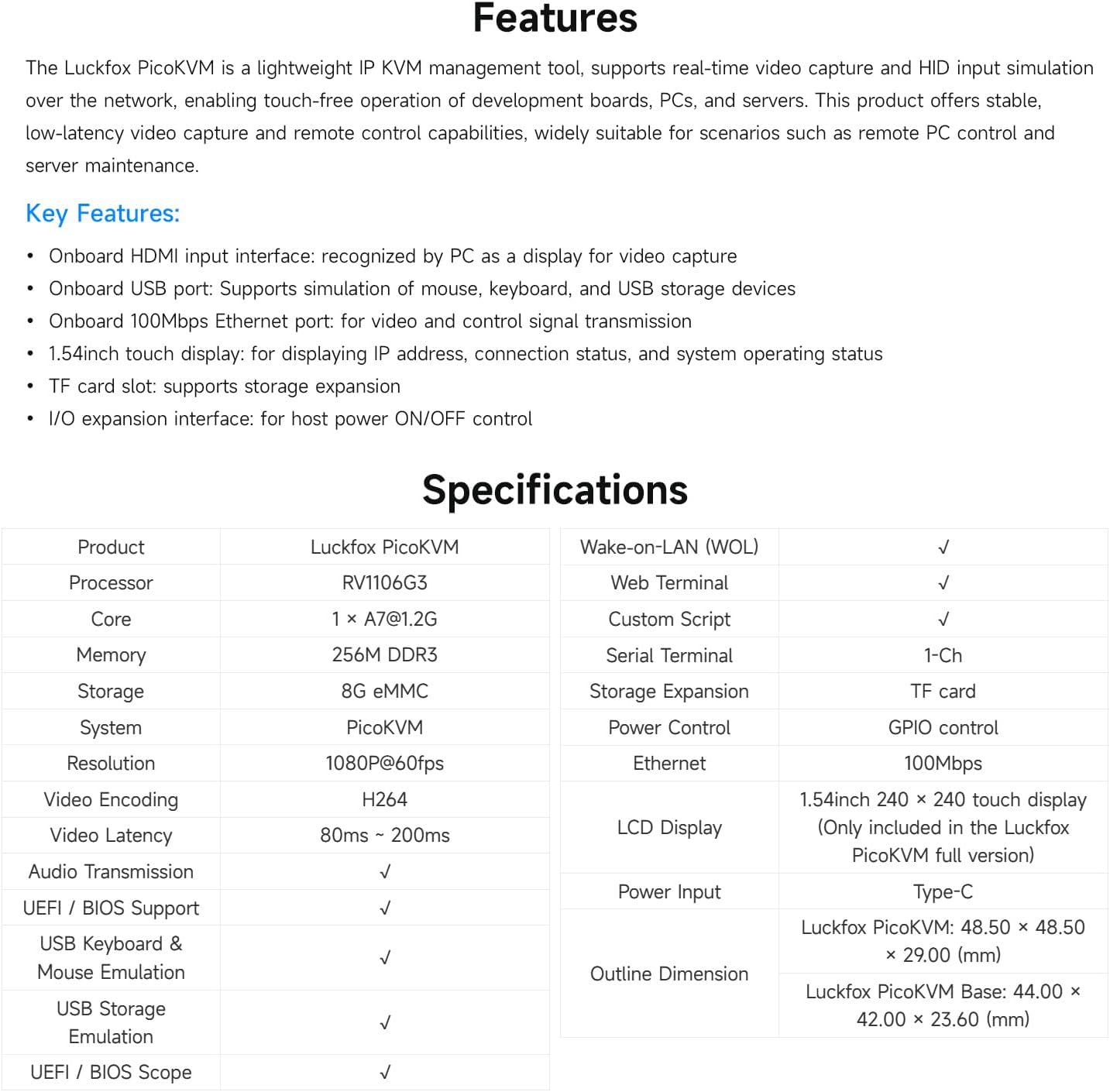
Image: A detailed table outlining the technical specifications and features of the Luckfox PicoKVM.

Image: Diagram showing the outline dimensions of the Luckfox PicoKVM and its base version in millimeters.
9. Garantía e soporte
The Waveshare Luckfox PicoKVM comes with a 1 ano de garantía desde a data de compra.
For further technical support, detailed documentation, and community resources, please visit the official Waveshare websitio web ou póñase en contacto cos seus canais de atención ao cliente.


